1
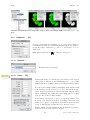
Image .
Zoom .
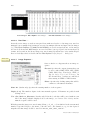
See also: Align_Slice and Align_RGB_planes plugins
25.13
Zoom .
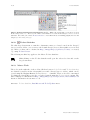
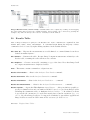
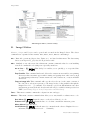
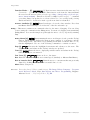
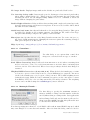
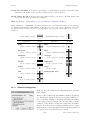
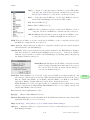
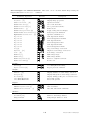
This submenu contains commands that control how the current image is displayed. The +
and − or ↑ and ↓ keys are the preferred way to use the In and Out commands. When a
selection exists, zooming with the arrow keys requires holding down either Shift or Ctrl .
25.13.1
In [+]
Zooms in to next higher magnification level and, if possible, enlarges the window. There are
21 possible levels (shown in the title bar): 3.1, 4.2, 6.3, 8.3, 12.5, 16.7, 25, 33.3, 50, 75, 100, 150,
200, 300, 400, 600, 800, 1200, 1600, 2400 and 3200 %.
XVIII
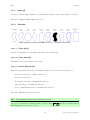
Scrolling Zoomed Images
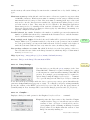
Hold down the space bar and drag to scroll a zoomed image.
25.13.2
Out [-]
Zooms out to next lower magnification level and, if needed, shrinks the window.
25.13.3
Original Scale [4]
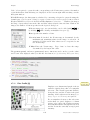
Displays the image at the magnification used when the image was first opened. As a shortcut,
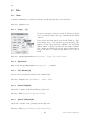
double click on the magnifying glass tool.
25.13.4
View 100% [5]
Displays the image using 100% magnification (1 image pixel = 1 screen pixel). Enable Open
Images at 100% in the Edit . Options . Appearance. . . dialog to have images automatically
opened at 100% magnification.
25.13.5
To Selection
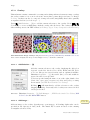
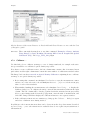
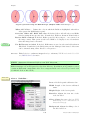
Zooms in based on the current selection. Note that in the absence of a selection, this command
zooms the image to a ‘Fit to Screen’ level.
Improved
in IJ 1.45m
25.13.6
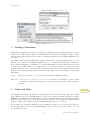
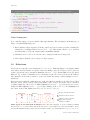
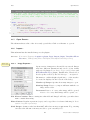
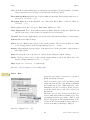
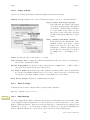
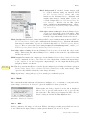
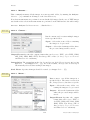
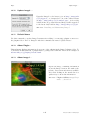
Set. . .
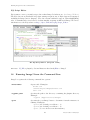
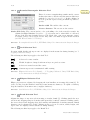
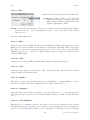
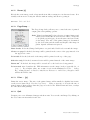
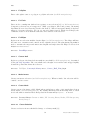
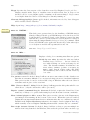
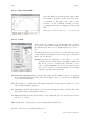
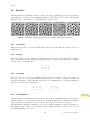
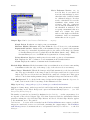
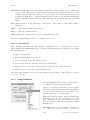
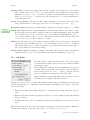
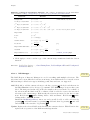
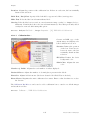
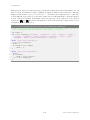
Zooms the active image to an exact value (e.g. 37.4%) overcoming the
predefined zoom steps described in Image . Zoom . 25.13.1. The zoomed
canvas will be centered at X,Y center (pixel coordinates) [23].
88
Latest revision: 2011/08/06