1
Chapter 7 Timing simulation
Note You can alter the font and color
selections for the output display by
choosing Preferences from the Options
menu, and changing the settings for
Compare Tool in the Fonts and Colors tabs.
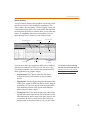
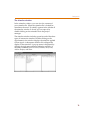
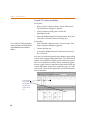
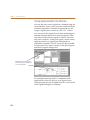
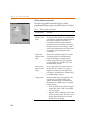
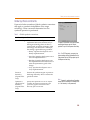
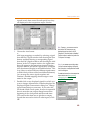
Times displayed in the lower pane are generated by the
signals in File 1. Double-clicking on one of these lines
displays a window with supplementary information
about the line, such as the offset or the strobe time for the
other file (if different strobe times were used for each file).
Also, errors caused by signals changing after the strobe
time and those caught by the Pre-Strobe Glitch Check will
display the message, “Unexpected output event.”
Note Normally, lines are shown in order
by increasing time. But, in the case of
unexpected output changes, Simulate lists
all of the changes from File 1 before all of
the changes in File 2. In this case, lines
could be out of time sequence. However,
Simulate identifies each line by time, color,
and the “<” or “>” marker.
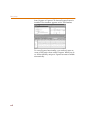
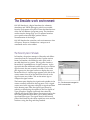
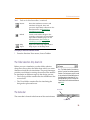
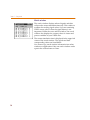
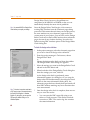
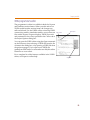
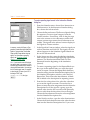
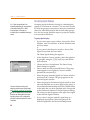
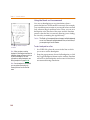
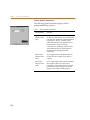
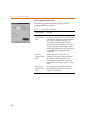
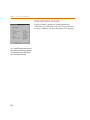
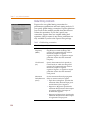
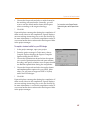
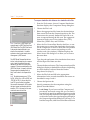
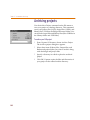
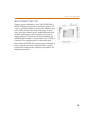
Double-clicking on an output line in the lower pane
displays supplemental information.
172
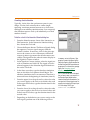
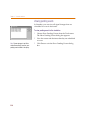
If the two data sets being compared have no differences,
Simulate displays a message asking if you want to
proceed or terminate the comparison.