1
Chapter 3 Design entry
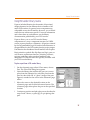
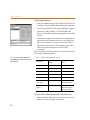
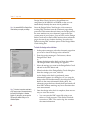
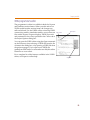
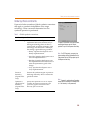
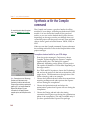
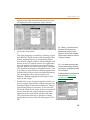
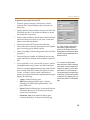
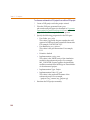
To load keystroke macros
1
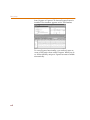
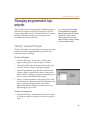
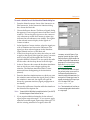
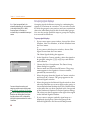
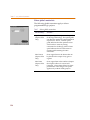
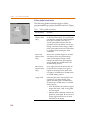
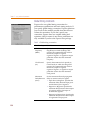
From the schematic page editor’s Macro menu, choose
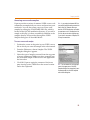
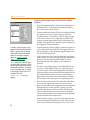
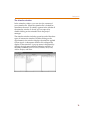
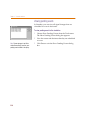
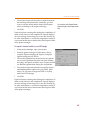
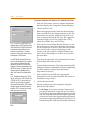
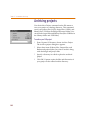
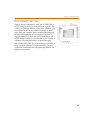
Configure. The Configure Macro dialog box appears.
2
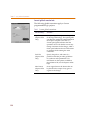
Choose the Add button. The Open dialog box appears.
3
Locate the \ORCADWIN\CAPTURE\MACRO
directory, then select the files appropriate to your PLD
vendor.
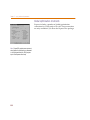
4
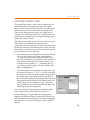
Note the key sequence for each macro as specified in
the Keyboard Assignment text box of the dialog box.
This is the sequence you type to activate the macro.
5
Choose the Open button. The schematic page editor
loads the keystroke macros for PLD vendor
constraints.
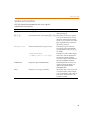
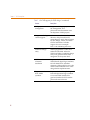
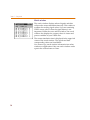
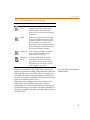
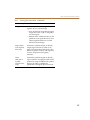
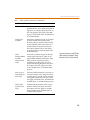
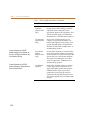
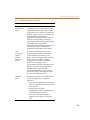
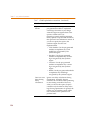
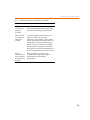
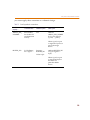
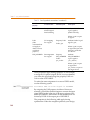
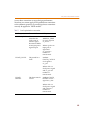
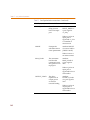
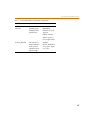
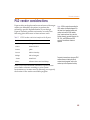
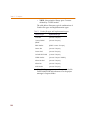
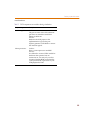
The keystroke macros that apply to each PLD vendor are
shown in the following table.
Table 7
Note Philips and Vantis programmable
logic designs do not require constraints for
place and route.
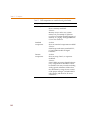
PLD vendor keystroke macros
PLD vendor
Net constraints
macro
Part constraints
macro
Actel
ALSNET.BAS
ALSPART.BAS
Altera
ALTPART.BAS
Lattice
LATNET.BAS
LATPART.BAS
Lucent
ORCANET.BAS
ORCAPART.BAS
Simple PLD
PLDNET.BAS
PLDPART.BAS
Xilinx
XACTstep
XILNET.BAS
XILPART1.BAS
XILPART2.BAS
Xilinx Alliance
Series
M1NET.BAS
M1PART1.BAS
M1PART2.BAS
M1PART3.BAS
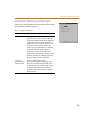
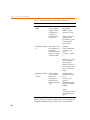
To assign a PLD vendor constraint with a keystroke macro
1
44
In the schematic page editor, select the part or net to
which you want to assign a constraint.