1
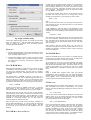
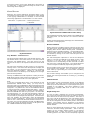
User Guide to Using the Linux Desktop
Nah Soo Hoe and Colin Charles
Published by
the United Nations Development Programme’s
Asia-Pacific Development Information Programme (UNDP-APDIP)
Kuala Lumpur, Malaysia
Web: http://www.apdip.net/
Email: [email protected]
© UNDP-APDIP 2004
The material in this guide may be reproduced, republished and incorporated into further works
provided acknowledgment is given to UNDP-APDIP.
This work is licensed under the Creative Commons Attribution License. To view a copy of this
license, visit http://creativecommons.org/licenses/by/2.0/ or send a letter to Creative
Commons, 559 Nathan Abbott Way, Stanford, California 94305, USA.
Preface
This user guide is meant as an introductory guide for a user
to use a modern personal computer (PC) running the Linux
operating system. The main aim is to provide a self-learning
guide on how to use a modern Linux desktop system. It
assumes that the user has no prior knowledge of Linux or PC
usage.
After going through the guide the reader should be in a
position to start using a Linux desktop for both personal and
office use. In particular she should be able to:
•
access the Internet and use the WWW and Internet email
•
manipulate and manage files, folders and the file system
•
produce and print simple documents and presentation
materials
•
advance to become a power user by further self-learning
and exploring
Linux has many distributions and sometimes the programs
or tools used to perform a certain function can vary from
distribution to distribution. This guide tries to be as generic
as possible in the description of the features and
functionalities. However, in
some cases, especially some of the GUI desktop
configuration tools, there is no really independent generic
tool that can be used and each distribution has its own tool.
In such cases, we have tried to illustrate their usage using
Fedora Linux.
This guide was written on a Fedora Linux system and as such
many of the screen shots reflect this. However, this should
not be construed as an endorsement of this distribution of
Linux over the others on the part of the authors.
Nah Soo Hoe and Colin Charles
July 2004
Chapter 1: Getting
Started In order to start using your system you will usually have to
perform what is known as a user login. This procedure is
necessary to identify yourself to the system. The system
allows multiple users to use it concurrently and so it has to
be able to identify a user in order to grant them the
necessary privileges and rights to use the system and
applications.
Each user upon successful login will be
assigned to his home directory (folder).
Some systems may have been set up so that upon poweron, a default user is logged in automatically. If this is so,
then you will not be presented with a login screen or
prompt as described in the section below. You may skip on
to the section entitled “Basic Navigation using the Mouse
on the Desktop”.
applications. If you have used the text-based screen login,
you will have to start the graphical desktop manually by
entering the command startx followed by the ENTER key.
[anita@localhost anita]$ startx
Fig. Starting the Graphical Desktop
Note:
The graphical desktop that we will be using throughout
most of this guide is called the GNOME Desktop. There is
another desktop environment in popular use on Linux
systems – the KDE Desktop. There is some coverage of
KDE later, comparing the similarities and differences
between GNOME and KDE although we will not be covering
the KDE desktop in detail.
For the rest of this user guide, when we refer to the
graphical desktop or Desktop we shall be talking about the
GNOME Desktop unless stated otherwise.
Note:
There is a special user called the root or superuser (this
user is usually created during the system installation)
which has unlimited access and rights to all the system
files and resources. You only need to login as root if certain
system level administrative tasks are to be carried out.
Otherwise there is usually no need for a normal user to
login as root. This is to prevent accidentally damaging the
system by deleting or modifying important system files.
USING THE MOUSE ON THE DESKTOP
LOGGING IN
To click on a mouse the left button is depressed. (A mouse
configured for a left-handed user will will need to have its
right button depressed.) The right (or left button for a lefthanded mouse) and middle buttons are usually used to
invoke special or specific features of the GUI and
instructions to do so will be explicitly given.
Depending on how you have set up your system, you will
either have a graphical login screen or a text-based login
prompt for you to perform the login process.
Proper usage of the mouse is essential in order to have a
rewarding and productive experience on the graphical
desktop. Most Linux graphical desktops are designed for
use with a 3-button mouse. If you are using a 2-button
mouse, during installation, it should have been configured
to emulate the middle-button of a 3-button mouse by
pressing both buttons simultaneously.
The term “clicking on the mouse” means that you click on
the mouse once.
The term “double clicking” means that you click twice in
succession on the mouse.
To “select” an item means clicking it once with the mouse.
The term “drag and drop” means that you will have to click
on an item and while continuing to hold the mouse button
down, drag the item to another place and on reaching its
destination drop it by releasing the mouse button.
EXERCISES
1. Open the home folder from the Desktop.
2. Close the home folder window by clicking on the close
window button at the top right-hand corner.
Fig. Graphical Login Screen
Fedora Core release 1
Kernel 2.4.22-1 on an i686
localhost login:
Fig. Text-based Login Prompt
To login, enter the username followed by the ENTER key
and when the password prompt appears, enter the
password followed by the ENTER key.
STARTING THE GRAPHICAL DESKTOP
If you have logged in from the graphical login screen, the
graphical desktop will be started automatically for you.
The graphical desktop presents a Graphical User Interface
(GUI) for the user to interact with the system and run
3. Right-click on the trash icon, view its properties and
close it back.
4. Move the trash icon to another location on the desktop
by using the mouse to drag it to the new location and
releasing the mouse.
MAIN COMPONENTS OF THE DESKTOP
The figure below shows a typical view of the graphical
Linux desktop.
From the Menu System you can start many of the
applications installed on your Linux system. Note that the
Menu System consists of a Main Menu panel and sub-menu
panels. Each entry in the Menu System which has an arrow
on its right means that it is an entry point to a sub-menu,
and there can be sub-menus within each sub-menu.
In
this way applications in the Menu System can be organised
and categorised for easy reference and access.
To access a the sub-menu associated with a menu entry,
move the mouse and rest it on the menu entry in question
and a sub-menu panel will appear.
Fig. A Typical Linux Desktop
There are 3 main components on the desktop:
•
•
•
the Menu System
the Panel
the Desktop itself
THE MENU SYSTEM
The main menu can be accessed by clicking on the Main
Menu button located at the extreme lower left hand corner
of the desktop. This may be portrayed by one of several
icons depending on the desktop environment used.
Generic GNOME Main Menu button
Fedora/Red Hat Main Menu button
Clicking on this will bring up the Menu System as shown in
the figure below.
Fig. Main Menu and Sub-menu
Clicking once on a menu entry will cause an application
associated with it to be launched, i.e. executed.
THE PANEL
The long bar across the bottom of the desktop screen is
called the Panel. The Panel contains the Main Menu icon,
the application launcher icons, a notification area and
applets.
Fig. The Panel
Installed by default are several application launcher icons
on the Panel.
Clicking on one of these will run an
application.
Commonly accessed applications can be
added to the Panel and those that are less frequently used
can be taken off.
The notification area holds alert icons so that the user can
be alerted to critical messages.
Fig. The Menu System
Applets are small applications that run on the Panel. These
usually perform useful and informative tasks like setting
the sound level of the soundcard, monitoring whether the
system software needs an update, etc. By default the
following applets are run.
The Workspace Switcher
The graphical desktop can be regarded as a workspace
drawing an analogy with the working area on a real
physical tabletop. Programs are run, documents displayed
and files opened on the workspace. To cut down on
workspace clutter and to enable the user to organise his
workspace more efficiently, the graphical desktop
environment allows the usage of multiple workspaces.
Each workspace can be considered as a virtual desktop.
Fig. The Workspace Switcher
By default the user has 4 desktop workspace areas to work
on. The workspace switcher represents each workspace as
a small square and shows the applications running in each
of them. To access a workspace click on the square with
the mouse.
The Taskbar
The Taskbar applet is located next to the workspace
switcher and shows the titles of all the running applications
in a virtual desktop (a workspace).
Fig. An Application Window Frame
THE TITLEBAR
When an application is started an application window opens
and a frame (see figure above) is placed around the
window of the application. The top edge of the frame has a
titlebar that contains the title of the application.
Fig. The Window Titlebar
THE DESKTOP SPACE
The Desktop space refers to the rest of the screen. It
contains icons which are graphical representations of shortcuts to application launchers, file folders, files and
peripheral devices like floppy disks, CD-ROM drives and
printers.
Double-clicking on an icon representing an
application will launch or execute the application.
Commonly used applications and/or files/folders are usually
placed on the desktop space.
At the left hand corner of the titlebar is the Window Menu
button. Clicking on this button will open up the Window
Menu.
Fig. The Window Menu
You can perform operations such as minimise, (un)
maximise, roll up, move and resize the window from this
menu. At the right edge of the titlebar there are three
buttons which allow you to minimise, (un)maximise and
close the window.
To perform an operation in the Window Menu, open the
menu by clicking on the Window Menu button and then
select the desired operation.
Fig. The Desktop Space
MANIPULATING THE WINDOW
USING THE WINDOW MANAGER
An interactive application that is run on the graphical
desktop, is usually displayed inside a window. This window
can be accessed and manipulated using the window
manager.
Some basic instructions to manipulate the windowing
system are given here. More details can be obtained by
running the “Help” application on the Main Menu. After
running the Help application choose:
Desktop --> Windows --> Manipulating Windows
Focus
In order for a window to receive input from the mouse and
the keyboard it has to be the window “in focus”. Only one
window can have focus at a time. Windows that are not in
focus have their titlebars greyed-out.
To focus on a
window place the mouse on the titlebar and click on it.
(You can actually click anywhere within the window, but it
is safer to click on the titlebar since there is no possibility of
accidentally clicking on some item selection or functionality
of the application running within the window.)
If the
window is not visible you can click on the taskbar on the
Panel at the bottom of the Desktop to bring into focus the
window you want.
Maximise and Minimise
Maximising a window means that the window is expanded
to cover the whole desktop while minimising it means that
the window is taken off the desktop and it appears as an
icon in the taskbar on the Panel.
You can maximise a window which has focused from the
Window Menu or by clicking on the maximise button on the
titlebar. You can similarly minimise the window. If the
window does not have focus bring it into focus first by
clicking on the taskbar on the Panel.
LOGOUT
When you have finished working on the system, you will
need to logout. Logging out will inform the system that
you are no longer using the system's resources. All the
files opened and programs run by you will be closed and/or
stopped unless you have specifically informed the system
to keep them open or running for you.
To logout, at the Main Menu select:
Main Menu --> Logout
and at the dialog window select logout and click OK
Resize
You can resize a window, i.e. change its size, by placing the
mouse at an edge of the window and then drag the window
to the desired size.
Move
To move a window to another place on the desktop, place
the mouse on the titlebar and drag the window to the
desired location.
Roll Up and Unroll
To roll up a window allows you to “roll up” the window
frame until what can be seen of the window is just the the
titlebar. You can perform this operation from the Window
Menu.
Fig. Logout Dialog Window
To restore the window back to its original shape, select the
unroll option from the Window Menu.
SHUTTING DOWN THE SYSTEM
Close
When you have finished using the computer and want to
power it off, you will have to perform a system shutdown.
You can close a window which has focused from the
Window Menu or by clicking on the close window button on
the titlebar. If the window does not have focus bring it into
focus first by clicking on the taskbar on the Panel.
Note: Closing the window will terminate your application.
Move to Workspaces
The Window Menu can be used to move the application
currently opened to another workspace or to all the
workspaces.
EXERCISES
1. Open your home folder from the Main Menu. Perform
the following operations on the opened window:
•
•
•
•
•
•
•
•
maximise it
minimise it
resize it
roll it up
unroll it
move it to another position on the Desktop
place it on workspace 3
close the window
ENDING THE SESSION
To end this chapter, you can exit your session on the
desktop by performing what is known as a logout.
If you do not want to use the system anymore, you can
turn it off by performing a system shutdown.
Note:
It is very important that a proper system shutdown is
performed. You should not just turn off the power switch
of the computer to shut it down. Failure to observe this
may lead to system software and data corruption and
failure.
To shutdown, at the Main Menu, perform a logout. Then at
the graphical login screen select the “Shut down” option at
the bottom of the screen. Sometimes (depending on the
login screen chosen) the Shutdown option is available as a
sub-option under the Actions option at the bottom of the
screen.
Alternatively on some systems, you may be able to
perform a shut down by performing a log out operation as
described in the previous section but instead of selecting
“Log out”, select the “Shut down” option from the Logout
dialog.
Chapter 2: Using the
Desktop
BASIC DESKTOP CUSTOMISATION
The desktop can be customised to your preferences and
tastes in a variety of ways. Here we will explore some basic
customisations. More details can be obtained by running the
“Help” application on the Main Menu. After running the Help
application choose:
Desktop --> Basic Preferences
Desktop Background
The background image displayed on the desktop can be
changed by running the Background application from the
Main Menu (this is in the Preferences sub-menu).
Main Menu --> Preferences --> Background
To change the background image, click on the square
marked “Select picture”.
An image selector dialog is
displayed. Choose an image from the dialog. If you want to
choose an image from another directory, click the Browse
button. When you have chosen an image, click OK.
Fig. Selecting a New Theme
Default Fonts
The default fonts used to display applications and the
desktop background can be changed by running the Fonts
application from the Main Menu (this is in the Preferences
sub-menu).
Main Menu --> Preferences --> Font
A selector dialog for the application, window title, dialog and
terminal fonts are displayed. To change the font for each
category of usage, click on the space listing the font.
Fig. Selecting a New Background image
Desktop Themes
The desktop theme specifies the visual appearance of the
panels, applets, and windows. The desktop theme may also
specify the appearance of interface items in applications. For
example, the theme affects the appearance of buttons,
scrollbars, check boxes, and so on in the applications.
Menus and Toolbars
The theme used by the Desktop can be changed by running
the Theme application from the Main Menu (this is in the
Preferences sub-menu).
The Menus & Toolbars tool is used to customise the
appearance of menus, menubars, and toolbars. Again this
can be run from the Preferences sub-menu in the Main Menu.
Main Menu --> Preferences --> Theme
An theme selector dialog is displayed. To change the theme,
click on a new theme. The screenshot below shows a sample
of some of the themes which may be available. Note that
the actual themes available can vary from system to system.
Fig. Selecting New Fonts
Main Menu --> Preferences --> Menus & Toolbars
Experiment on each of the settings to get the ones preferred.
THE PANEL
The Panel houses many useful utilities called applets.
Applets are small applications that run on the Panel. As
discussed in Chapter One, by default, the taskbar and the
workspace switcher applets are placed and run on the Panel.
Other useful applets that may be placed on the Panel
include:
•
•
•
clock
sticky notes
volume control
Placing an Applet on the Panel
To place an applet on the Panel, move the mouse over to an
empty space on the Panel and right-click it. Select the item
"Add to Panel" and from the sub-menus select the applet to
place on the Panel. For example to place the "sticky notes"
applet, select:
Add to Panel --> Accessories --> Sticky Notes
Fig. Customising Menus and Toolbars
Removing an Applet from the Panel
EXERCISES
Experiment with each of the following desktop preferences:
•
•
•
•
To prevent accidental removal of an applet, you can lock it
on the Panel by right-clicking on its icon and selecting
"Lock".
background
themes
fonts
menus and toolbars
To remove an applet, right-click on the applet icon and select
"Remove from Panel". If the applet is locked, you will have to
unlock it first by right-clicking on the icon and selecting
"Unlock".
Configuring the Panel
To change the properties of the Panel, right-click on the
Panel and select "Properties".
USING THE DESKTOP
The Desktop provides a useful metaphor for a
work environment. So on the Desktop we
applications that we want to run can easily
launched and the information and data that
easily be located.
modern office
find that the
be started or
we need can
RUNNING APPLICATIONS
Applications that we can run from the Desktop are to be
found either from the Main Menu (and sub-menus therein), or
as icons on the Panel and the Desktop itself.
To run an application from the Main Menu, open up the menu
(or sub-menu) and click on the application listed in the menu
bar.
To run an application from the Panel, click once on the icon
representing the application.
To run an application from the Desktop itself, double-click
on the icon representing the application.
Sometimes it is more handy to have the application as an
icon on the Panel or Desktop where you can launch it more
easily by just clicking on it, rather than in the Main Menu,
especially if it is buried deep within several sub-menus. To
achieve this open the Main Menu and select the application
item listed in it by clicking with the right mouse button. Click
on the selection “Add this launcher to panel” and a copy of
the application icon will be placed on the Panel.
To make a copy of this on the Desktop, you can drag the icon
from the Panel over to the Desktop.
To delete an application icon from the Panel right-click on it
and select the “Remove from Panel” option.
To delete an application icon from the Desktop, right-click
on it and select the “Move to Trash” option.
Fig. General Properties of the Panel
From the general properties menu you can change the
orientation, size and (un)hide the Panel.
From the background properties menu, you can change the
colour of the Panel as well as its visual appearance.
LAUNCHERS
Launchers allow the user a quick way to access specific
resources on the system. For example if a user needs to
access a specific file in one of the folders often, he can
create a launcher to run an application to open the file and
this launcher can be placed it on the Desktop. In this way
the resource (the file) can be accessed very quickly by just
double-clicking on it.
selecting the appropriate timezone region.
Usually the
system uses the local time, so do not select the “System
clock uses UTC” checkbox.
To create a launcher on the Desktop, right-click on an empty
area on the Desktop and select the item "Create Launcher".
Enter the Name and the Command to run and if you want
you can select an icon for it by clicking on the icon button.
Fig. Creating a Launcher
Fig. Setting the Date and Time
EXERCISES
1. The Mozilla web browser is a popular web browser
application for Linux systems.
It has an easily
recognisable icon – a red dinosaur head.
•
Locate the Mozilla application in the Main Menu and place
it on the Panel as well as the Desktop.
•
Launch the Mozilla application from:
•
•
•
•
•
EXERCISES
1. Practice setting the date and time.
2. Practice changing the appearance of the desktop clock
the Desktop
the Main Menu
the Panel
2. Configure the Panel so that it has
properties:
Click on the OK button after all is done to enable the new
date and time. You can check for the new date and time by
resting your mouse over the clock (time) applet display on
the Panel at the bottom of the screen.
the following
a background colour of solid blue
contains the Geyes and Screenshot (locked) applets
3. Create a launcher to run the text editor command "gedit"
on the Desktop. Use an appropriate icon for the text
editor.
SETTING THE DATE AND TIME
It is important that the date and time are set correctly in
your system. This will make it easier to manage the system
resources and files and also aid in troubleshooting any
problems. To set the date and time, run the Date & Time
application tool from the System Settings sub-menu under
the Main Menu.
Main Menu --> System Settings --> Date & Time
Alternatively you can right-click on the clock (time) applet
display on the Panel and choose “Adjust Date & Time”.
A dialog box asking for the root password will appear if you
are not logged in as root. This is because the system date
and time are important system parameters and so only the
system administrator or root is allowed to do it. After
entering the correct root password, you can change the date
using the displayed calender and the time in the boxes
provided. Select the Time Zone tab and check to see that
the timezone selected is correct. If not, correct it by
Chapter 3: Files and
Folders
THE FILE SYSTEM
One of the most powerful features of a modern computer
system is the ability to store data in a form which can be
easily retrieved and transported or copied across to other
computer systems or media. Data created and accessed by
a user in the computer is stored in what is called a file. This
concept of an electronic file to store electronic data mimics
the physical world usage of a file to store data written on
paper. This mimicry is carried further by the organisation of
these electronic files into electronic folders or directories.
Like a physical folder, an electronic folder can contain very
many files. A folder may also have sub-folders or subdirectories.
Note:
We shall be using the terms folder
interchangeably, unless stated otherwise.
and
directory
folder
sub-folder
file
file
file
Fig. The Hierarchical File System
Files and folders can be created, copied, moved (i.e.
transferred) and deleted.
The folders themselves are
organised in a hierarchical manner starting at the root of the
file system. Each user is given a home directory and upon
logging in, the user is placed in his home directory.
OWNERSHIPS AND PERMISSIONS
the owner of the file. Userids on the system are assigned to
one or more groups. When a userid is created on the
system, a group which has the same name as the userid is
also created and the new userid belongs to this group. By
default this group (which has the same name as the file
owner) is associated with the file. All of the other userids on
the system which are not the owner of the file or belong to
the group associated with the file, are placed in the category
others .
By default the owner has read and write permission for a
non-executable file and read,write and execute permission
for an executable file. The group associated with the file has
read permission for a non-executable file and read, execute
rights for an executable file. The others group has read only
permission for non-executable file and read, execute rights
for an executable file.
The rights and ownership concepts described above apply to
directories too.
However since a directory cannot be
executed, access rights is substituted for execution rights.
Access to a directory means that the userid with the
appropriate permission can descend into the directory (i.e.
change directory to it).
The File Manager application described below may be used
to view and modify the ownership and permissions of a file or
folder. Only the owner of a file/folder can change its
permissions and only the superuser or root can change the
ownership of a file/folder.
USING THE FILE MANAGER
As it is possible for a user to create and store hundreds and
thousands of files and folders, a File Manager is needed to
assist the user to manage and manipulate these files and
the file system on which it resides.
In this section a brief description of the File Manager and
how to use it is given. For more details you should consult
the “Help” application on the Main Menu. From the Help
application choose:
Desktop --> Nautilus File Manager
To start using the File Manager double-click on the home
directory icon on the desktop.
(This may be named
“username's Home” where username is the username of the
user currently logged in.)
As the system is set up to handle multiple users
concurrently, it needs to have in place mechanisms with
which it can control the security and privacy of the file
system. It needs to be able to control access to the file
system resources for each individual user. In addition it also
has to be able to control access at a group level i.e. users
who belong to the same group can be given certain
privileges with respect to the file system operations. To be
able to perform these features, associated with each file or
folder are the categories:
•
•
•
owner
group
others
and the file permissions:
•
•
•
read (r)
write (w)
execute (x)
and the directory permissions:
•
•
•
read (r)
write (w)
access (x)
Associated with a file are the categories owner, group and
others and the permissions which these have on the file.
The userid of the user who creates a file by default becomes
Fig. The File Manager
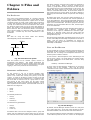
By default, the File Manager window consists of a side pane
and a main view pane. At the top of the window just under
the window titlebar, are the menu bar and the location bar.
The view pane displays the files and folders contained in the
current directory that the user is in. These can be displayed
as icons (default) or changed to display them as a listing of
filenames.
The side pane contains an icon that represents the current
file or current folder. The side pane also contains information
about the current file or current folder. A hierarchical (tree)
view of the file system on the computer can be obtained
from the side pane. By navigating through this, you can
access files and folders outside your home directory
(provided of course that you have the permission to do so).
Edit --> Paste Files
Another way of moving a file is to drag and drop the file into
the destination folder.
The procedures above can be done with folders too.
To move more than one file or folder at a time, select
multiple files/folders by holding down the CTRL key while
clicking on the files or folders.
Renaming Files and Folders
To rename a file, click on the file in the view pane to select it.
Then select from the menu bar at the top,
Edit --> Rename
and then type in the new name.
Alternately you can also right-click on the file and then select
“Rename” .
The procedures above can be done with folders too.
Deleting Files and Folders
Fig. The Side Pane with a Tree View of Folders
To delete a file, click on the file in the view pane to select it.
Then select from the menu bar at the top,
Edit --> Move to Trash
ACCESSING FILES AND PROGRAMS
From the view pane of the File Manager, you can open files
as well as run (launch) executable programs by doubleclicking on the icon representing them.
Creating New Folders
To create a new folder under the folder you are currently in,
move the mouse to the menu bar at the top (just beneath
the titlebar of the window) and click on File and then click on
Create Folder. A new folder will appear on the view pane and
you will have to type in the name of the new folder.
Copy Files and Folders
To copy a file, click on the file in the view pane to select it.
Then select from the menu bar at the top,
Edit --> Copy File
Next open up the folder in which you want to copy the file to
and then select from the menu bar at the top,
Edit --> Paste Files
Another way to copy a file is to right click on the file icon and
then select “Copy File”. Then navigate to the icon of the
folder where you want the copy to be placed in and then
right click on the folder icon and select “Paste Files into
Folder”.
The procedures above can be done with folders too.
To copy more than one file or folder at a time, select multiple
files/folders by holding down the CTRL key while clicking on
the files or folders.
Moving Files and Folders
Moving a file or folder is different from copying in that a copy
of the file/folder is not made, i.e. only one copy of the
file/folder exists, and the file/folder is transferred from one
folder to another.
To move a file, click on the file in the view pane to select it.
Then select from the menu bar at the top,
Edit --> Cut File
Next open up the folder in which you want to move the file to
and then select from the menu bar at the top,
Alternately you can select the file and then use the DELETE
key on the keyboard to delete the file. This has the same
effect as above of moving the file to the Trash folder.
It is still possible to salvage a deleted file from the Trash. To
do this double-click on the Trash icon on the desktop to open
up the Trash folder. Then you can move the file you want to
salvage to the desired folder. Note that if you delete the file
from the Trash then it cannot be recovered anymore.
The procedures above can be done with folders too.
To delete more than one file or folder at a time, select
multiple files/folders by holding down the CTRL key while
clicking on the files or folders.
Viewing and Modifying the Permissions of a
File or Folder
To view the owner and group of a file/folder and/or to modify
its permission settings, select the file/folder and select from
the menu bar at the top,
File --> Properties
Click on the Permissions tab. The owner and group of the
file/folder are displayed as well as the associated
permissions.
USING A TEXT EDITOR
Very often it is necessary to use the computer to input some
text or to modify the data in a text file. While a full-fledged
word processor like OpenOffice.org's Writer may be used, it
can be an overkill since the sophisticated features and
formatting available with a word processor are not needed in
many cases. A text editor can be used instead. The Linux
system comes installed with many text editors. In this
section we shall be looking at how to use a text editor which
comes with the GNOME Desktop - gedit.
Note:
A text file here refers to a a file which contains pure text
printing characters only. Some types of files e.g. those created
by a word processor, while appearing to be text-only actually
contain other non-printing characters and hence are not puretext files.
Starting Gedit
Gedit may be started from the Main Menu,
Main Menu --> Accessories --> Text Editor
Fig. Ownership and Permission Properties of a File
To change the permissions, modify the check boxes
accordingly to the new permissions desired. Click on Close
to apply the changes.
Note:
It is recommended that you do not modify the default
file/folder permission settings unless you know what you are
doing. This is to minimise the risk of compromising the
security of the files and folders.
THE TRASH CAN
The trash can icon on the desktop contains files and folders
which you have deleted using the File Manager or an
application run from the desktop. As noted above it is a
special folder in which in is still possible to move back the
deleted items to another folder so as to “undelete” them.
However over time, the trash folder will be filled up as many
files and folders get deleted through usage. So it is a good
idea to periodically empty or delete the items found in the
trash.
To empty the trash, right-click on the trash icon and select
“Empty Trash”. Otherwise you can open the trash by
double-clicking on it and then select to delete all the items in
the trash folder using the File Manager functions described
above.
Fig The Gedit Text Editor
EXERCISES
After gedit has started, you can immediately type in text into
the main edit window. The mouse is also used extensively in
gedit, to move around the document as well as to perform
editing functions.
1. Use the File Manager to perform the following:
Inputing Text
•
Text can be entered by simply typing into the main gedit
window. By default the text will wrap to the next line when it
reaches the border of the editing window.
•
•
•
•
•
•
•
•
•
•
Create a new folder called testdir under the home
directory
Copy the following files into the folder testdir:
/etc/services, /etc/hosts
Access the testdir folder:
Open the two files there to view their contents, then
close them
Rename the file hosts to hosts.backup and services to
services.copy
Move the file hosts.backup to the /usr/tmp directory
Delete the file services.copy
Move up to the home directory
Delete the folder testdir
Launch the application xeyes found in the folder /usr/X11
R6/bin
2. Check the trash can and restore the deleted file(s) there
Marking Text
The mouse may be used to mark a block of text by clicking
on the beginning of the block and dragging the mouse to the
end of the block before releasing it.
Deleting Text
Text can be deleted one character at a time by moving the
mouse to the character in question and using the DELETE
and BACKSPACE keys in the normal fashion.
If there is a lot of text to be deleted, a more efficient way to
delete text is to mark it first and then press the DELETE key
on the keyboard.
Copy, Cut and Paste
Text can be edited by marking it first and then selecting Cut,
or Copy from the buttons at the top. "Cutting" will result in
the marked text being copied into a storage buffer and then
deleted from the editing window, while "Copying" will result
in just a copy of the text being copied into the storage buffer
without the deletion of the original text. The text cut/copied
in this way can then be pasted into another part of the
document by moving the mouse to the desired location and
selecting the Paste button at the top.
Another way of invoking these functions is to click on the
Edit option on the top menu bar and selecting the desired
function, e.g.
Edit --> Cut
Edit --> Copy
Edit --> Paste
Undo
After performing an editing function, e.g. deleting a block of
text, you can undo the action by clicking on the Undo button
at the top. The Undo function can also be invoked using the
Edit menu selection at the top.
Saving Text
The text typed in can be saved by clicking on the File option
on the main menu bar at the top and selecting,
File --> Save As ...
Move to the folder you want to save the file in and enter the
name of the file to save.
Find and Replace
The Find button can be used to locate a text string. By
default this search is not case sensitive and will also locate
the text if it is part of a word. These default options can be
changed from the Find dialog.
The Replace button can be used to locate a text string and
replacing it with another. Again the default options of noncase sensitive and matching part of a word can be changed.
The Find and Replace functions can also be performed using
the Search menu selection at the top.
Opening A File
You can edit a text document already saved on the system
by opening it. From the main menu at the top choose,
File --> Open
and select the file to open.
Preferences
Preferences can be set from the Preferences menu selection,
Edit --> Preferences
The Preferences you can set include the font, colour and
point size to be used, tab spacing, autowrapping, and
autoindenting.
Help
More information on how to use gedit can be obtained by
selecting Help from the menu at the top.
EXERCISES
1. Use the gedit text editor to type in the first page of this
guide. Save the document in a file on your home folder.
2. Open the saved file and edit it by:
•
•
•
deleting the second paragraph on page one
adding the statement “End of Chapter” to the last
page
save the edited document as a new file
Chapter 4: Using
Common Mass Storage
Peripherals
To mount a diskette, move the mouse to an empty area on
the Desktop and right-click it. From the pop-up menu select,
Disks --> Floppy
Besides the main components which make up the modern
PC, there are many optional peripherals which can be
attached to it and when these are properly utilised they can
contribute to make the computing environment and
experience more convenient, productive and pleasant. The
more common peripherals include:
•
•
•
printer
scanner
mass storage devices
In this chapter we shall be looking at how to access and use
the common peripheral mass storage devices,
•
•
•
•
floppy disk drive
CD-ROM drive
USB mass storage device
CD-RW drive
Setting up and using a printer and scanner will be covered in
the next chapter.
Note:
The method for accessing the mass storage peripherals
described below are based on GNOME version 2.4. A new
version of GNOME, version 2.6, came out while this guide is
being written. In GNOME 2.6 the right-clicking on the Desktop
and selecting Disks method has been deprecated. The new
method is to use the Computer icon located on the Desktop.
Double-click on the Computer icon, and it will display all the
system devices as well as the filesystem.
Fig. Mounting a Floppy
(Under the new version of GNOME, disk access is done by
right-clicking on the Computer icon on the desktop and
selecting Floppy. See the Note at the top of this chapter.)
This will mount the floppy and add a floppy icon on the
desktop. Double-clicking on this will list out the files and
folders in the floppy under the File Manager.
Once you have successfully mounted the diskette and listed
out its directory contents under the File Manager, you can
treat it like another folder to read and write files and folders.
However, you have to bear in mind some differences
between the floppy diskette folder and the normal folder you
have been working with.
The diskette has a very low storage capacity compared with
the hard disk; a floppy diskette typically will have about 1.44
MB of storage capacity only. In contrast a hard disk will have
at least a few hundred MB of storage capacity at the
minimum!
If the write-protect tab on the diskette is enabled, then the
diskette can be used for reading only, i.e. you can read the
contents of the files on it only. You cannot write to the files,
and so you cannot modify and/or create new files or folders.
After using the diskette, you will need to unmount it before
you take off the diskette from the floppy drive. To unmount
the diskette, right-click on the floppy icon on the desktop and
select “Eject”. This will unmount the diskette and the floppy
icon will disappear from the Desktop.
Once this has
happened, you can safely remove the diskette from the
floppy drive.
Fig. Accessing System Devices and Filesystem in
GNOME 2.6
Note:
It is important that you unmount the diskette before removing
it from the floppy drive, especially if it has been mounted for
writing. Failure to do so may result in incomplete data being
written to the diskette and corruption of the file system on the
diskette.
THE FLOPPY DISK DRIVE
Formatting the Diskette
While most of the work is done using the hard disk or drive
and system and user data are stored on the hard drive,
sometimes you may want to transfer or copy files to another
PC. One convenient way to perform this provided that the
file sizes are not too large is to use a floppy disk or diskette.
Diskettes are very useful as a portable storage medium for
small files.
Before a diskette can be used it has to be “formatted” first.
This will create the directory structures and other
information needed for the system to keep track of where the
data is stored on the diskette. You need to format a diskette
once only. You can subsequently format it again after using
it for some time but re-formating will result in the loss of the
original contents of the diskette.
Mounting and Using the Diskette
To format a diskette, you can use the floppy formatter
selection from the Main Menu.
Before a diskette can be used, you have to perform an
operation called “mounting” the diskette. This is to let the
system know that you are going to use and access the
diskette in the floppy drive.
Main Menu --> System Tools --> Floppy Formatter
Another popular portable storage medium is the USB mass
storage device (sometimes also known as a thumb drive).
Like the floppy diskette you can read and write to a thumb
drive but it has the advantage of storing much more data
than a diskette. Thumb drive devices of capacities 32 MB,
64, 128 MB etc. are common.
To access the thumb drive, place it in the USB slot (port)
provided and move the mouse to an empty area on the
desktop and right-click it. From the pop-up menu select,
Disks --> usb
Note:
This assumes that the system you are using has been set up
with the name of “usb” for the thumb drive; it can be another
name (customisable).
Under GNOME 2.6 (see the Note at the beginning of this
chapter) the thumb drive is accessed by double-clicking on the
Computer icon on the Desktop, and is refered to by the name
“Flash”,
Computer --> Flash
Fig. Floppy Formatter Dialog
Choose the default floppy density of 1.44 MB and the DOS
(FAT) file system type. This will enable the diskette to be
read on almost all commonly used operating systems
including Microsoft Windows.
EXERCISES
1. Format a floppy diskette, mount it for read-write and copy
the following files/folders found in the /etc directory to it:
hosts, termcap, motd and rc.d.
2. Unmount the diskette, mount it again and copy its entire
contents to the folder tmp in your home directory (create
this folder if it is not there). Unmount the diskette after
the copying.
THE CD-ROM DRIVE
Nowadays the CD-ROM is widely used as a means to store
and distribute data and information. A typical 5.25” CD-ROM
can store up to 700 MB of data. It is thus ideal as a medium
for distributing large files, multimedia games and software
packages.
By default when a CD-ROM is placed in the drive it is
automatically mounted and the File Manager will open it to
display its directory contents. If it is not automounted, then
it can be mounted by moving the mouse to an empty area on
the Desktop and right-click it. From the pop-up menu select,
Disks --> CD-ROM
(Under the new version of GNOME, disk access is done by
right-clicking on the Computer icon on the desktop and
selecting CD-ROM. See the Note at the top of this chapter.)
This will mount the CD and add a CD icon on the desktop.
Double-clicking on this will list out the files and folders in the
CD-ROM under the File Manager. The File Manager can then
be used to access the files and folders on the CD. Since the
CD-ROM is a read-only medium, you can only read the
contents of the CD and not write to it.
After using the CD, you will need to unmount it before you
take it off the CD-ROM drive. To unmount the CD, right-click
on the CD icon on the desktop and select “Eject”. This will
unmount the CD and the CD icon will disappear from the
desktop.
THE USB MASS STORAGE DEVICE
This will mount the USB thumb drive and add a thumb drive
icon on the desktop. Double-clicking on this will list out the
files and folders in the thumb drive under the File Manager.
You can then treat it like another folder to read and write
files and folders.
After finishing with the thumb drive, you will need to
unmount it by right-clicking on the thumb drive icon on the
desktop and selecting “Unmount Volume”, before removing
it from the USB port.
THE CD-RW DRIVE
While the CD-ROM drive is very useful as a portable storage
medium due to its high capacity and low cost, it suffers from
the disadvantage that it is a read-only medium.
To overcome this, many PCs are sold nowadays with drives
which enable you to record data onto CD-R (CD recordable)
and CD-RW (CD rewritable) disks. The former refers to a CD
medium which allows you to record to it only once, while
with a CD-RW disk it is possible to rewrite data to it multiple
times.
Note:
While a CD-RW drive supports both CR-R and CD-RW
functionalities, the CD medium that you utilise determines
whether you can write data to it only once (CR-R) or multiple
times (CD-RW). So it is important that you buy the correct
medium type for the function that you want.
CD-CREATOR
The File Manager has a facility which enables a user to copy
files and folders very easily to a CD-RW drive. To use this
feature, start the File Manager and from the menu bar at the
top select,
Go --> CD Creator
and the CD Creator window will be displayed. The files and
folders which are to be copied (burned) onto the CD-R(W)
disk are to be placed here in this window. To do this, open
up another window on the File Manager,
File --> Open New Window
In the new File Manager window, select the files and folders
you want and drag and drop them into the CD Creator
window. After you have finished selecting and dropping all
the files and folders you want, go to the Cd Creator window
and click on the "Write to CD" button at the top. A dialog
box will open up and from here you can choose the writing
speed, the CD name and other options. The default settings
may be used if you do not know what to fill in here.
To start the burning, click on the "Write files to CD" button in
the dialog box. A status window showing the status of the
CD burning will be displayed.
GNOMETOASTER
While the CD Creator application described above is very
convenient and easy to use, its functionality is mainly limited
to the copying of files/folders to a CD-R(W). A more versatile
CD burning application is GnomeToaster. To start it select,
Main Menu --> System Tools --> More System Tools
--> CD Writer
Fig GnomeToaster CDROM and Recorder Setup
The CD-ROM drive should now be visible in the CDROM drives
tree listing panel. You can now use it as a source of data for
burning.
Clicking on Internal Structures will display the “GnomeToasterFilesystem” on the right panel.
Bottom Window
Fig GnomeToaster
Top Window - Data Sources
The GnomeToaster window has 2 main window sections. The
top window shows a list of data sources - Unix Tree, Internal
Structure and CDROM drives. The data sources are the
sources for the data to be copied and burned into the CD-R
(W).
The Unix Tree represents the file system on the computer.
Clicking on the + icon of the tree will expand it to display the
file system, i.e. the hierarchical tree structure comprising
files and directories (folders). Clicking on a directory will
cause the files in the directory to be displayed on the right
panel of the top window.
Clicking on CDROM drives will expand into a listing of the CDROM drives present in the system and clicking on one of the
drives will display the tracks in it on the right panel.
Note:
If you have a CD-ROM drive and it is not displayed on the
GnomeToaster CDROM drives listing, you may have to
physically enter your CD-ROM drive device information into the
GnomeToaster configuration setup so that the application can
recognise it. To perform this, click on the Preferences button
at the top and select “CDROM and Recorder Setup”. Click on
the Add button at the bottom to display the setup window.
Enter the CD-ROM drive data for your system. For the model
and manufacturer, you can enter the information marked on
your CD-ROM drive or if you do not know what they are, you
can just enter any meaningful text description. The Device File
entry will probably be “/dev/cdrom” while the Mountpoint
entry is usually “/mnt/cdrom”. For the Scsi ID use the default
value of “0,0”. Ensure that the boxes entitled “This Drive is a
CD writer” and “Use SCSI Interface for DAE” are not marked.
Click on OK to apply the settings and click on OK again to exit
the “CDROM and Recorder Setup” window.
Writing data to the CD-R(W) involves selecting the data from
the data sources window described above and dragging and
dropping them into the bottom window panel. The bottom
window has three possible selections – the virtual filesystem,
the track editor and the recorder settings. Each of these can
be selected by clicking on the icons in the left panel of the
bottom window.
The virtual filesystem represents a view of the filesystem
setup in a track of the CD-R(W) to be written to later. Note
that this is not part of the actual filesystem on your
computer and so manipulating the files here will not affect
the ones in the computer filesystem. The virtual filesystem
can be managed and edited by right-clicking the mouse .
The track editor shows you the tracks that you have selected
to be burned to the CD-R(W). You can edit them using the
track editor by right-clicking the mouse before committing
them to be burned.
The recorder settings view enables you to change from the
default, the various parameters for recording, e.g. recording
speed etc.
FillstateStatus
At the bottom of the GnomeToaster window is the Fillstate
status panel. This shows you the current space that will be
taken up by the selected tracks as a percentage of the space
available on the CD-R(W). This space utilisation is also
displayed in megabyte (MB) units as well as the audio
playing time.
Duplicating CDs
It is easy to make a duplicate of a CD using GnomeToaster.
The source CD should be placed into the CD drive and the
drive selected in the data source top window. The tracks in
the source CD will be displayed in the right window panel.
Select the tracks you want (or all of it if you are duplicating
the CD) and drag them into the tracklist panel in the bottom
window. The tracklist panel is displayed in the bottom
window right panel when the trackeditor is selected for the
bottom window.
After you have selected all the tracks you want, you should
select the recorder settings parameters. This is done by
clicking on the recorder settings button in the bottom
window left panel. Usually you need to change only the
recording speed to one which can be adequately supported
by your drive. The Multisession box should usually be off
while the Fixate box turned on.
To start the actual recording (burning) of the CD click on the
Record button at the top of the GnomeToaster window.
Creating a Data CD
This section will discuss how you can copy files and folders
from the mounted filesystem and record them into a CD-R
(W). Select the files and folders you want to copy from the
Unix Tree in the Data Source window at the top and drag
them into the virtual filesystem right panel in the bottom
window (the virtual filesystem will have to be selected first in
the bottom window). The files and folders in the virtual
filesystem can be edited by right-clicking on the mouse. You
can create, delete and rename files and directories (folders).
You can also provide your own volume name to the data
track's volume id (default name is CDROM) by selecting the
root entry in the filesystem 's editor left panel and rightclicking it. Select the “Rename VOLUME/Directory” option
and choose a new name for the volume.
After you have selected all the files you want, you should
select the recorder settings parameters as above and then
start the recording.
Writing ISO Images
It is possible to copy and store all of the data on a CD in the
form of what is known as an ISO image file format. If this ISO
image file is then written to a CD, the new CD will be a
duplicate of the original one from which the ISO image was
created. This provides a convenient way of duplicating a
data CD if you can copy or download the ISO image file from
another source to the filesystem on your computer.
To write ISO images to a CD-R(W), select the ISO image file
from the Unix Tree filesystem data source window and drag
it into the tracklist panel window in the bottom window. After
that ensure that the recording settings are correct and click
on the record button at the top to start the burning.
Help
There are many more options and features which
GnomeToaster have, e.g. multisession burning, mixing audio
and digital data, working with CD-RW media etc. The
GnomeToaster documentation should be consulted for these
more advanced features. The GnomeToaster User's Guide
may be obtained from:
http://gnometoaster.rulez.org
Chapter 5: Using the
Printer and Scanner
letter and cannot contain spaces. You may also want to
enter a brief description of the printer. Enter Forward to go
to the next screen.
While the holy grail of office computing may well be the
paperless office, for many users, it is often desirable and
indeed sometimes necessary to be able to put on hard copy
the information available on the computer. The printer
allows you to do that. The printer is essentially an output
device with which you are able to output text and graphics
onto paper from digital data stored on the computer. To
complement this, the scanner is an input device with which
you can transfer text and graphics from paper to the
computer and stored in the form of digital data which can
then be further manipulated by other software applications.
THE PRINTER
PRINTER SETUP AND CONFIGURATION
If you have a printer attached to your system you will need
to configure and set it up before you can use it properly. To
do this, click on the Print Manager icon on the Panel
Note:
To enable the system to detect your printer properly, you
should turn on the printer before trying to configure it.
When you are prompted to run the printer configuration tool
select OK. You will then need to enter the root password
since you are now attempting to set and change some
system parameters and configuration.
At the printer
configuration screen click on the New button to add and
configure a new printer.
Fig. Queue Type
Select locally-connected for the queue type. Select the
printer device by clicking on the device displayed on the
screen. If no device is shown click on Rescan device button
for the system to check for the availability of the printer
device.
Note:
For a parallel printer the device name is usually /dev/lp0 and
for a USB printer the name is usually /dev/usb/lp0.
Select Forward to go to the Printer model screen.
Fig. Printer Model Selection
Fig. Printer Configuration
The Add new print queue screen will be displayed. Select
Forward.
Fig. Print Queue
Fill in the details for the print queue. Enter a unique name for
the printer in the Name field. This name must begin with a
The model of the printer should have been auto detected by
the system. If it is not, click on the pull-down menu to select
the manufacturer and the model of the printer. Click on
Forward to go to the next screen.
Fig. Finish and Create New Print Queue
Confirm that the printer information displayed on the screen
is correct. If so click on the Finish button, otherwise click on
the Back button to go back and make further changes.
After clicking Finish you will be asked whether you want to
print a test page. Ensure that the printer is connected and
online and answer yes to it. Check to see if the test page is
printed properly. If it is, click on the Apply button in the
Printer configuration screen to add this printer to the system.
After setting up the printer you can delete it or edit its
properties anytime by clicking on the Print Manager icon on
the Panel. The Print Manager screen will be displayed.
Normal usage of the printer from an application is
straightforward.
Select the printing function from your
application and a print job is then automatically submitted
to the printer queue.
EXERCISES
1. Edit the printer properties to change it to another printer
THE SCANNER
The scanner is a device which allows you to convert analog
graphics e.g. a photograph or a printed page into digital
format where it can be stored on the computer and further
manipulated by appropriate software. Flat-bed scanners for
personal use are quite common nowadays.
Most scanners connect to the computer using the USB, SCSI
or parallel ports. To use the scanner, suitable software to
control and drive it is required. The SANE backend drivers
may be used to drive the scanner hardware while the XSane
GUI front-end acts as the end-user interface. To check
whether the scanner you have can be used, the SANE
website at http://www.sane-project.org should be consulted.
USING THE SCANNER
Fig. Print Manager
Right click on the printer in question and select Properties.
Select the print queue in question and click on the Edit
button to make changes or the Delete button to remove it
from the system.
Note:
If you delete all the print queues associated with a printer , the
printer itself will be deleted from the system too and you will
have to set up a new printer again in order to print.
You can start the scanning software on the Desktop, from
the Main Menu,
Main Menu --> Graphics --> Scanning
This will invoke the XSane program and by default two
windows will be displayed, the Main Xsane window and the
Preview window.
MANAGING PRINT JOBS
When you send something for printing from your application,
the data to be printed is stored in the print spooler area and
a print job is added to the print spooler queue. In this way
many printing jobs can be carried out without waiting for the
printer to finish printing a job first before accepting another
printing job. The Print Manager is used for managing the
print jobs associated with a given printer.
The Print Manager can be utilised to check on the status of
the printing jobs that you have submitted to the printer and
to cancel jobs still in the queue if you need to. To do this,
launch the Print Manager and then double-click on the icon
of the printer that you want to monitor. A list of current print
jobs in the queue is displayed. To cancel a print job,
highlight the job in question and then click on the Edit button
on the menu bar on top and select Cancel Documents from
the pull down menu.
Fig XSane Main Window
There are 5 modes of viewing for this Main window – viewer,
save, copy, fax, mail:
•
•
•
Fig: Status of Print Jobs in the Queue
USING THE PRINTER
•
•
viewer mode - an image is scanned and displayed in the
viewer
save mode - an image is scanned and saved to a file
copy mode - an image is scanned and sent directly to a
printer
fax mode - the scanned image can be sent to a back-end
fax software
mail mode - an image is scanned and sent via email to
intended recipients.
The above modes can be selected in the Main window. In
addition, the following selections are also available :
enhance and sharpen the scanned image for brightness and
contrast.
Scanmode:
Selects the mode of scanning choices including colour,
grayscale, lineart.
After a satisfactory image is seen in the preview window,
perform the actual scan by clicking on the scan button in the
main Scan window. The scan will be performed and the
scanned image displayed in the Viewer window.
Scansource:
Selects the source of scanning, e.g.: Flatbed, Transparency,
Automatic Document Feeder. This is only displayed if there
is more than one possible source of input for scanning.
Scanmedium:
Selects the scan medium, e.g.: slide, standard negative or
full colour range.
Scan resolution:
Selects the resolution that is to be used for scanning.
Preview
Before the actual scanning of an image takes place, the
preview operation is usually carried out to preview the
scanned image. To perform the preview, place the image to
be scanned into the scanner and click on the “Acquire
preview” button in the Preview window.
Save
The scanned image that is displayed in the Viewer window
can be saved to a file by selecting the operation, File -->
Save image. The file name and image format to be saved in
can be chosen from the drop down menu selection.
Another way of saving is to select the Save mode, select the
filename and format to save the image in and then perform
the scan.
Help
More detailed information on how to use the scanner
software as well as changing the default configuration can be
obtained from the Help menu selection. It also contains
useful general information about scanner and scanned
image technologies.
EXERCISES
1. Perform a scan of an entire photograph containing
several people or objects.
2. Using the same photograph as for the previous exercise,
this time perform the scan for only the image of one
person or object.
Fig Preview Window
As the scanner will scan its entire scanner bed by default, if
you are scanning an image which occupies only a part of the
bed you will want to select only the area which holds the
image to be scanned. This can be done from the Preview
window in several ways. One way is to manually select the
scan area frame by pressing and holding the left mouse
button to define one edge, moving the mouse so that the
area to scan is completely inside the frame (which is marked
by a dashed white line) and then releasing the mouse
button. Another way is to select the Autoraise button and
then clicking on the image to be scanned. A frame is created
to mark the scan area. The mouse may be used to adjust
the scan area if it is not fully correct.
Scan
After the appropriate scan area has been chosen in the
Preview window, the image can be adjusted and/or enhanced
for colour correction, contrast, and brightness. The gamma
value, brightness and contrast can be adjusted manually in
the scan window before performing the scan. In addition, the
Autoenhancement button may be used to automatically
Chapter 6: Multimedia
and Graphics Access
play the CD. Ensure that your speakers are turned on so
that you can hear the CD! You can also manually start the
CD Player application from the Main Menu:
Main Menu --> Sound & Video --> CD Player
MULTIMEDIA ACCESS AND PLAYERS
Apart from being able to view and create graphics and other
images, the PC is capable of supporting a wide range of
audio and video features and facilities. These include the
playing of audio CDs, audio digital files, VCD and DVD as well
as multimedia games.
Note:
While support may be available in the software, the necessary
hardware has to be available before these multimedia facilities
can be used, e.g. a DVD drive is required to be present on the
system before you can play a DVD.
By default most modern PCs come with a CD-ROM drive
capable of playing audio CDs and VCDs as well as a
soundcard and speakers. As such in this chapter we shall
discuss how you can listen to an audio CD, play audio digital
files and view VCDs.
In the following sections we shall be discussing several
media players. Some of these e.g. mplayer and xine are
multimedia players in that they can be used as generic
players for audio CD, digital audio files, VCD and DVD.
THE VOLUME CONTROL APPLET
Fig. CD Player
You can control the CD Player just like a normal CD player
with the buttons shown on the CD Player screen. These
include volume control, track forward/backward, play/pause,
stop, eject as well as jumping to any track on the CD directly.
PLAYING DIGITAL AUDIO FILES
The XMMS (X Multimedia System) application can be utilised
to play a wide variety of digital audio file formats. These
include the popular MP3 as well as the open Ogg Vorbis
formats. To launch XMMS, select :
Main Menu --> Sound & Video --> Audio Player
Since almost all the multimedia applications require some
form of audio production and mixing, it is useful if we know
how to control the various channels of audio available from
the sound card using the Volume Control Applet on the
Panel. This may be launched by right-clicking the Volume
Control icon on the Panel and selecting Open Volume
Control. If it is not there you can also launch it form the Main
Menu,
Main Menu --> Sound & Video --> Volume Control
Fig. XMMS Player
Note:
XMMS may need additional plug-ins to be able to play some of
the audio file formats. If these are not already installed on
your system they can be downloaded from the Internet.
Fig Volume Control Applet
The Volume Control application is essentially an audio mixer
which enables you to mix the audio for a 2-channel sound
card. As can be seen from the figure above the main
component for each audio channel is the “fader”,
represented by a control knob slider icon. The fader controls
the volume of the channel. In addition each channel also
has a mute, record and lock button. The mute button mutes
the channel. The lock button locks the left and right
channels together so that when the fader is adjusted both
channels are syncronised. The rec button is a toggle to turn
on or off the recording function of the soundcard on a
channel.
Usually the main channel that is controlled is the Volume
fader. To turn up (or down) the volume of an application, the
Volume fader may be manipulated. This can also be done by
clicking on the Volume Control applet on the Panel.
PLAYING AUDIO CDS
You can play an audio CD by placing the CD into the CD-ROM
drive. The CD player application will be run automatically to
Again, you can control the XMMS player using the graphical
knobs and buttons displayed. In addition, you can select the
source of the audio files to play. To do this, right-click on the
XMMS player and from the pop-up menu select Play File to
select the audio file to play. If you want to be able to play an
audio file from the Internet select Play Location and enter
the Internet location of the file.
XMMS Skins
Skins allow you to change the appearance of an application.
Note that this change is cosmetic only and the functionalities
of the application are unaffected. To change the appearance
of the default XMMS Player, you can install the xmms-skins
package which may be included in your Linux distribution CD
If it is not there then you will have to download it from the
XMMS website. To change the skin of the XMMS player, start
the XMMS application and then right-click on it and select,
Options --> Skin Browser
to choose the skin you want. Experiment until you find a
skin to your liking.
Fig. Mplayer Control Screen
Fig XMMS Player using a Different Skin
PLAYING VCD AND DVD
There are several excellent applications readily available for
you to use to play VCD and DVD media. Here we shall look
at two of them: Xine and Mplayer. These can also play CD
and digital audio music files.
Xine
The xine application may be used to play VCD and DVD. You
can start xine from the Main Menu:
Main Menu --> Sound & Video --> xine
The xine user interface is highly intuitive as it resembles a
normal VCD/DVD player with all the basic control knobs and
buttons.
Fig. Mplayer Video Screen
The control screen enables you to control the operations of
Mplayer while the video screen displays any video that is
being played. In addition right-clicking on the mouse when it
is inside either the control or video screens will also bring up
a menu for controlling the use of Mplayer.
Fig. Xine Control Panel
To play a VCD place the VCD into the CD-ROM drive and click
on the VCDO button on the xine control panel.
To play a DVD place the DVD into the DVD drive and click on
the DVD button on the xine control panel.
The volume control can be adjusted by clicking on the
volume control button.
In the event that the xine control panel interferes with the
playing screen image, you can hide it by right-clicking on the
panel itself and select GUI visibility. This will hide the xine
control panel. To bring back the xine control panel right-click
on the playing screen and select GUI visibility again.
Xine is a very powerful multimedia application with many
features. It can also play audio CDs as well as digital audio
files.
MPlayer
Mplayer is a popular movie player for Linux. In addition to
being able to play VCD and DVD it is also able to handle a
wide variety of audio and video file and streaming data
formats. Hence it is useful to use Mplayer as the universal
multimedia player. The Mplayer GUI can be started from the
Main Menu,
Main Menu --> Sound & Video
--> More Sound and Video Applications
--> Movie Player
On start up, the main Mplayer control screen and the
Mplayer video output screens are displayed.
The Mplayer control screen enables you to perform the
following:
•
•
•
•
•
•
•
•
•
•
start, stop and pause play
go to the next and previous stream
jump to the first and last tracks
adjust the sound balance
adjust the volume and mute
select files to play
set up a playlist
set the video and audio equalizer
configure preferences
exit the Mplayer application
All of the above functions are represented by intuitive knob,
dial and button icons on the control screen making it very
easy to use Mplayer.
To play a VCD, place the VCD in the CD-ROM drive, move the
mouse over the control screen or video screen and right-click
it. Select,
VCD --> Open disk
To play a DVD,
select,
perform the above for VCD but instead
DVD --> Open disk
The size of the video screen can be controlled by rightclicking on the mouse and selecting normal size, double size
or full screen. When you are in the full screen mode, to
return to normal size, right-click on the mouse and select
normal size.
EXERCISES
1. Play an audio CD using the CD Player
2. Play an audio digital music using xmms
3. Play a VCD using xine and mplayer
GRAPHIC IMAGES ACCESS
Very often it is useful if we are able to view graphic image
files on their own, or in thumbnail fashion if there are many
of them. It is also useful if there are simple tools available
which will enable us to manage these image files, e.g.
catalog and classify them and recall them for viewing. In this
section, we shall look at several tools available on your
system which provide some of these functionalities.
FILE MANAGER
The File Manager itself provides a simple and convenient
means to access and view image files. To view an image file
from the File Manager, navigate to the folder containing the
file and double- click on it. If a folder contains image files,
you may also set the “View as Image Collection” option from
the View menu selection.
Fig. gThumb Image Viewer
On start up gThumb by default will check your home
directory for any image files and if detected the gallery panel
will automatically generate thumbnails of the images.
View
Once the thumbnails of the images in a folder have been
generated by gThumb the simplest way to view an image is
to double-click on the thumbnail and it will be displayed in
full. You can also navigate to the next/previous image as well
as go to full-screen viewing. The Zoom function can be used
to zoom in or out of the image currently being displayed.
Click on the Folders button at the top of the screen to go
back to the thumbnail view. A preview of the image will be
displayed in the preview area if you just select the
thumbnail.
One useful feature of gThumb is the slide show. Clicking on
this button will start a full screen slide show of the images in
the folder.
Image Manipulation
You can also manipulate the images under gThumb.
Supported functions include rotation, flipping, resizing, colour
balancing, brightness control. To access these functions
select Image from the menu bar at the top.
Libraries and Catalogs
Fig. Image Collection View in File Manager
This will result in only the image files present in the folder
being displayed. You can then select an individual image to
view and also perform zoom in or zoom out views. If you
want to view all the images in sequence, the Slide Show
option may be invoked from the View menu.
GTHUMB IMAGE VIEWER
The gThumb image viewer is a powerful tool for viewing, and
organising graphic image files. To start this application
perform:
Main Menu --> Graphics --> gThumb Image Viewer
gThumb allows you to organise your images in libraries and
catalogs. Catalogs are logical views of a group of images
and are an alternative to physical organisation in folders. A
catalog enables you to group together images with a similar
theme or category even though physically the image files
may be in the same or different folders. For an even higher
level of organisation you can create libraries and then place
catalogs under a library.
Libraries and catalogs can be created and manipulated
under the catalog view mode. Double-click on the Catalog
icon to enter this mode. On entering this mode the folder
list panel (at the top left), becomes the library/catalog list
panel. From this panel you can access and navigate your
catalogs and libraries.
To create a new library, select
File --> New Library
and enter the name of the library. The created library will be
displayed in the catalog list panel.
To create a new catalog select
File --> New Catalog
and enter the name of the new catalog. The created catalog
will be displayed in the catalog list panel.
To organise a catalog under a library, you can either create
the new catalog directly under the library or create the
catalog first on its own and then move it under the library in
question. The library/catalog list panel is used for navigating
the library list.
To organise images into a catalog, go to the folders view
mode (by double-clicking on the Folder icon), select the
image(s) you want and then select
Edit --> Add to Catalog
The Choose a Catalog screen will pop up, choose a catalog
from the list. If the catalog you want is under a library select
the library first and then the catalog.
Convert Format
The Convert function of gThumb allows you to convert your
image files from one format to another. Supported formats
are:
•
•
•
•
Portable Network Graphics (PNG)
Joint Photographic Experts Group (JPEG, JPG)
Tag Image File Format (TIFF)
TARGA format (TGA)
To use the Convert function, select an image first and then
from the top menu bar, select,
Tools --> Convert Format
Help
gThumb has many other useful features. The online help
guide should be consulted for more details on how to use
gThumb.
EXERCISES
Use gThumb for the following:
1. View
the
images
in
the
following
folder:
usr/share/backgrounds/images
2. View a slide show of the images in the folder above.
3. Copy one of the images from the above folder into your
home directory and scale it down to 25% of its original
size and save it.
Chapter 7: Accessing
the Internet
The Internet has revolutionised information usage and
dissemination.
It has made the global village a reality
whereby almost anyone any where in the world is reachable
if the person has an Internet connection. The most common
way to get Internet connectivity is by using the PC, be it at
home, in the place of work, the community hall or even a
cybercafe.
In this chapter we shall examine some of the more common
methods in which a PC can gain access to the Internet.
Fig. Internet Configuration Wizard
THE INTERNET SERVICE PROVIDER (ISP)
For a personal or home user, before you can access the
Internet you will need to sign up with an Internet Service
Provider (ISP). The ISP usually has a network which is
connected
to
the
Internet
by
a
permanent
telecommunication link, i.e. one can view the ISP's network
as part of the Internet. The ISP provides the necessary
networking infrastructure to enable you to connect to its
network. Thus once your PC successfully connects to the
ISP's network, it can then access the resources and services
provided by other computers on the Internet.
1. Select modem connection. Click on the Forward button.
2. If your system cannot detect the modem you will be
prompted to enter the modem device name and related
communication information. You can choose as follows:
Modem device: /dev/modem
Baud rate:
115200
Flow control:
Hardware (CRTSCTS)
Modem volume: Medium
The Internet can be accessed from your system using a
variety of methods, depending on the type of access
methods supported by the ISP you sign up with and the type
of networking devices you have installed in your system.
Currently the most common methods of connectivity by a
home or personal user to an ISP are:
•
•
dial-up
xDSL
DIAL-UP CONNECTIVITY
The simplest way to access the Internet is to use a dial-up
telephone line connection. Almost all ISPs provide dial-up
access connectivity to the Internet using the existing
telephone line in the home or office. To do this you will need
the availability of a telecommunication device called a
“modem”. Most modern PCs come with a built-in dial-up
modem card or if it does not, you can purchase an external
dial-up modem and use the serial port available on your PC
for connection.
Before you can dial up to your ISP and access the Internet,
you have to configure your system to recognise the modem
and then dial the correct number to your ISP. You will need
to have at hand the following information needed for the
modem configuration:
•
•
telephone number to dial to the ISP for the Internet
access
Internet access login name and password provided by
the ISP
Fig. Select Modem Screen
Click on the Forward button.
3. Enter the phone number of the ISP (Internet Provider). If
you need to use an area code and/or a dialling prefix to
reach the ISP, you should enter them in the boxes
provided, otherwise just enter the telephone number.
Enter the name you want this connection to be known by,
usually the name of the ISP is used (this is is just a
nickname provided by you so that you can recognise this
connection). Enter the login name and the password in
the boxes provided.
MODEM CONFIGURATION
To configure your modem for Internet access, start the
“Internet Configuration Wizard” tool from the Main Menu:
Main Menu --> System Tools --> Internet Configuration
Wizard
You will be prompted for the root password as this is an
attempt to change the system settings and so only the
system administrator is allowed to perform this. Enter the
root password and the Internet configuration wizard main
screen will be displayed.
Fig. Filling in the ISP Provider Information
Click on the Forward button.
4. For the IP Settings screen the default settings may be
used if your ISP assigns IP addresses automatically (the
default for most ISPs). Otherwise you will have to enable
the “Statistically set IP addresses” button and enter your
IP address and related information.
XDSL
CONNECTIVITY
The dial-up Internet connection discussed above provides
ready and easy access for places which have telephone
infrastructure in place. However, it has the disadvantage
that the maximum data transmission speed which normal
dial-up technology can provide is about 56 Kbits per second.
While this speed may be adequate for email text
transmission and web browsing of non-multimedia intensive
web content, it is not practical for multimedia access. For
heavy multimedia content access using the Internet, a high
speed link in required. For the personal or home user,
broadband xDSL technologies make this possible.
xDSL is an acronym used for the family of DSL (Digital
Subscriber Line) technologies which enable high speed data
transmission through telephone lines. There are different
types of DSL and they include, ADSL, SDSL, IDSL.
Collectively these are known as xDSL. ADSL (Asynchronous
Digital Subscriber Line) is commonly used for the home.
Fig. Filling in the IP Settings
Click on the Forward button.
XDSL
CONFIGURATION
There are two main types of xDSL configuration in use and
most ISPs use either one of these:
5. Click on Apply to accept and end the set up.
6. The Network Configuration window will pop up; exit from
it.
•
•
ACTIVATING THE MODEM
Usually if you given a login id and password for your
broadband xDSL connection then you should be using the
PPoE configuration.
To test your modem and Internet connectivity, select the
Network Device Control tool from the Main Menu:
DHCP over Ethernet
Main Menu --> System Tools --> Network Device Control
DHCP over Ethernet
PPoE over Ethernet
For this configuration, what is needed is just to obtain the IP
configuration parameters using DHCP (Dynamic Host
Configuration Protocol). To set up your xDSL customer
premises equipment to perform this, the “Internet
Configuration Wizard” tool from the Main Menu may be used:
Main Menu --> System Tools --> Internet Configuration
Wizard
You will be prompted for the root password as this is an
attempt to change the system settings and so only the
system administrator is allowed to perform this. Enter the
root password and the Internet configuration wizard main
screen will be displayed as described in the section on dialup modem configuration.
Fig. Activating the Modem
1. Select Ethernet connection in the select device type
screen and click on the Forward button. A screen
showing the detected Ethernet card(s) on your system is
displayed.
Select the profile you have set up (remember the ISP
nickname you used in the set up above?) by clicking on it
and then click on the “Activate” button. The modem will
start to dial and connect to the ISP and after awhile upon
successful login the status of the profile in the Network
Devices Control screen will change to “Active” from
“Inactive”. You are now connected to the Internet. You can
now perform the web browsing and other services discussed
in the next few chapters.
To disconnect from the Internet bring up the Network
Devices Control window and select the profile which was
activated above and click on the “Deactivate” button. You
will be disconnected from the Internet and the status of the
profile will be changed to “Inactive”.
EXERCISE
1. Perform an Internet dial-up connection using the modem
on the system
2. Determine that you have Internet connectivity by
accessing some well known websites
3. Disconnect from the Internet
Fig. Select Ethernet Device Screen
2. Select the correct Ethernet device. (This is usually
named eth0 if you have only one Ethernet card installed
on the system.) Click on the Forward button.
3. In the Configure Network Settings screen., click the
button marked “Automatically obtain IP address settings
with:” and ensure that “dhcp” is selected from the pulldown selection.
Also check the box “Automatically
obtain DNS information from provider”. Click on the
Forward button.
2. The Ethernet device type will have been selected
automatically (this is usually eth0 unless you have more
than one Ethernet card) and entered in the box for you. If
this is incorrect select the correct Ethernet device in the
pull-down selection. Enter the ISP provider name and the
login name and password provided to you by the ISP.
Click on the Forward button.
3. A summary of the configuration just entered is displayed.
If something is incorrect, click on the Back button to go
back and make the changes otherwise click on Apply to
accept and end the set up.
4. The Network Configuration window will pop up; exit from
it.
ACTIVATING THE XDSL LINK
To test your xDSL link and Internet connectivity, select the
Network Device Control tool from the Main Menu:
Main Menu --> System Tools --> Network Device Control
If you are using DHCP over Ethernet, select the Ethernet
device name (usually this is eth0) you have used in the
configuration set up by clicking on it and then click on the
“Activate” button.
If you are using PPoE over Ethernet, select the ISP name you
used in the configuration set up by clicking on it and then
click on the “Activate” button.
Fig. Configure Network Settings Screen
4. A summary of the configuration just entered is displayed.
If something is incorrect, click on the Back button to go
back and make the changes otherwise click on Apply to
accept and end the set up.
5. The Network Configuration window will pop up; exit from
it.
The link will be established after a few seconds and the
status of the profile in the Network Devices Control screen
will change to “Active” from “Inactive”.
You are now
connected to the Internet.
To disconnect from the Internet bring up the Network
Devices Control window. For a DHCP over Ethernet setup
select the Ethernet device which was activated above and
click on the “Deactivate” button. For a PPoE over Ethernet
setup select the ISP name which was activated above and
click on the “Deactivate” button. You will be disconnected
from the Internet and the status of the profile will be
changed to “Inactive”.
PPOE OVER ETHERNET
For PPoE over Ethernet, start up the Internet Connection
Wizard as described in the previous section and select xDSL
1. Select xDSL connection in the select device type screen
and click on the Forward button. A screen showing the
DSL configuration will be displayed.
Fig. Configure DSL Connection
EXERCISES
Perform the same Internet connectivity tests as done
previously with the dial-up modem connection
Chapter 8: The World
Wide Web (WWW)
Clicking on the arrow at the right edge of the address box
will open a pull-down menu showing a history of websites
visited previously. You can click on an entry in the list to
select that website to access.
The Internet has much to offer in terms of information on
almost any subject matter imaginable and interaction with
people and organisations from all over the world. Much of
this access and interaction make use of the environment
which is popularly known as the World Wide Web (WWW) or
web. The WWW is an interlinked network of systems, called
web servers, offering multimedia services and information. A
user can access these using what is known as a web browser
software.
The Back button enables you to go back to the previous web
page displayed.
Also present on the navigation toolbar are the Back, Forward,
Reload and Stop buttons.
The Forward button enables you to go forward to the next
web page that you have already accessed.
The Reload button forces Mozilla to re-access the website
and load the current web page.
The Stop button halts the loading of a web page that is
currently proceeding.
THE MOZILLA WEB BROWSER (NAVIGATOR)
Mozilla is a full-featured integrated web browser, email client,
news reader and web page composer program. Using Mozilla
a user can be exposed to the richness and diversity of
multimedia content and services available on the WWW.
To start Mozilla, click on the Mozilla icon on the panel or
launch the application from the menu system:
Main Menu --> Internet --> Mozilla Web Browser
Next to the address box in the navigation toolbar is the
Search button. This button enables you to perform searches
for relevant web pages on the Internet by making use of a
search engine. To search for some particular information,
you can enter the keywords for the search into the address
box and then double-click on the Search button. The results
of the search will be displayed in the display panel. You can
configure the search engine to use by this search button in
the Mozilla Navigator configuration setup (see Configuring
Mozilla below).
The Menu Bar
Fig The Menu Bar
The menu bar has several menu buttons. Clicking on one
will open up a drop-down menu selection where selected
operations can be performed.
The File button caters to the performance of file level
operations like the printing and saving of web pages. the
opening of web pages, files etc.
Fig. The Mozilla Web Browser
By default the web browser component of Mozilla (Navigator)
will be executed and displayed. The Navigator window has
the following main parts.
•
•
•
•
the navigation toolbar
the menu bar
the side bar
the display panel
(Mozilla Navigator has many features and only a a brief
description of its main functionalities and features can be
given here. The user should refer to the Help button on the
menu bar for more details.)
The Edit button allows you to find strings of text on the
displayed page as well as to edit the Mozilla configuration to
you personal preferences.
The View button allows you to control the viewing of the
various toolbars as well as the zooming of text and full page
display of the display panel. The HTML source code of the
currently displayed page can also be viewed using the
selection “Page Source” under this button.
The Go button performs similar navigational functions as the
navigation toolbar described earlier. A history of previously
visited sites can also be accessed by this button. The pulldown menu shows a list of previously visited websites and
you can click on one of these to open up the selected web
page. Under the Go button, if you select the History item,
The Navigation Toolbar
Fig. The Navigation Toolbar
The navigation toolbar allows you to access a website by
entering its Uniform Resource Locater (URL) or more
informally
known
as
its
web
address,
e.g.
http://www.mozilla.org in the address box provided. Actually
you need to enter only the name of the host i.e.
“www.mozilla.org” and Mozilla is smart enough to figure out
that you want to access the web server on that host.
Fig. The History Pop-up Window
a pop-up window will be displayed showing in detail the
browsing history (i.e. the list of sites visited) over the last
few days (by default this period is 9 days; this number is
configurable, see below).
The Bookmarks button enables you to manage your
bookmarks and personal folder. You can add frequently
visited sites to the bookmark and/or personal folder. To
manage and organise your bookmarks you can select the
“Mange Bookmarks” item in the drop-down menu.
or enter CONTROL-T.
If you open different web pages using this navigation tab
feature, they will all be displayed under the same window.
You can then use the tab bar to select between each tab
screen.
CONFIGURING MOZILLA NAVIGATOR
Mozilla is highly configurable.
from the main menu selection,
To configure Mozilla, select
Edit --> Preferences
The categories available for configuration are listed on the
left panel of the main configuration window. Clicking on the
+ button on the left of each category will open up further
available sub-categories for configuration.
The Appearance category allows you to configure the default
fonts and colours used. Here you will also be able to set the
theme and select the language to be used.
The Navigator category allows you to configure the Mozilla
Navigator web browser itself.
Fig. The Bookmark Manager Pop-up Window
The bookmarks can be organised into folders by dragging
and dropping them into the desired folder. New folders can
be created by clicking on the New Folder button at the top.
Folders can have a name and description. To separate and
group together related folders, a separator line can be drawn
by selecting the “New Separator” button.
The Window button enables you to navigate and move
among the windows opened in Mozilla. You can also use this
button to move from one open Mozilla application to another,
e.g. to move from the Navigator application to the Mail
(email) application.
The Help button contains the Mozilla help files arranged in
user-friendly web page style and format.
The Side Bar
By default a side bar is displayed on the left of the main
display panel. This side bar contains some of the functions
which we have discussed above from the main menu bar at
the top. These include the Search, Bookmarks and History
functions. The side bar also contains the “What's Related”
function, which when selected will display in the side bar a
list of links to webpages which contain similar topics to the
page currently being displayed in the main browsing display
area.
The side bar can be turned on/off by selecting from the main
menu at the top,
View --> Show/Hide --> Sidebar
The Main Display Panel
This is the area where the contents of a web page are
rendered and displayed. This display area can be made full
screen by either selecting the View --> Full Screen selection
from the top menu bar or pressing the F11 key. To disable
full screen display either press F11 again or click on the
unmaximise window button on the top right corner of the
menu bar.
Navigation Tab Bar
Mozilla Navigator allows you to browse multiple websites
within one browser window using navigational tabs. This
overcomes the inconvenience of opening several windows
under Mozilla to view multiple sites. To do this either choose
under the menu bar:
File --> New --> Navigator Tab
Fig. Navigator Configuration
The main Navigator configuration allows you to select the
page to display when the browser is launched. If you select
“Home page“, the website that is designated as the home
page will be displayed. This home page location is set in the
Home Page location box below. If you do not want the
browser to display anything on startup select “Blank”..
The History sub-category allows you to set the number of
days to keep the history list for the history windows and for
the location bar history.
The Languages sub-category allows you to select the
language to display web pages in (where available) and also
the default character coding. To add another language for
web page display, click on the “Add” button and select the
desired language. The listed language to use for display is
in order of preference, so you will need to move your
preferred language to use to the top.
The Internet Search sub-category allows you to choose which
search engine you want to use for your search function.
EXERCISES
1. Start up the Mozilla browser and visit the websites listed
below. Use the navigation tab bar feature so that you
open up the websites all in the same window but under
different tab pages.
• www.mozilla.org
• www.yahoo.com
• www.iosn.net
2. Bookmark the sites visited above.
3. Configure the Navigator so that it starts with a blank
page.
FINDING INFORMATION ON THE INTERNET
The Internet is a treasure house of information. Virtually
information on any topic under the sun (and more!) can be
found on the Internet. However, while information is easily
available it may not be so easy to find the information you
want. This is because the information may be available from
very many sites, often in varying details and varying aspects
of the same piece of information. To assist us in finding
information more effectively a search engine or Internet
portal may be used.
Note:
Information obtained from the Internet should be scrutinised
carefully and not taken as “correct” in all cases. This is
because due to its free flowing nature and easy means of
access and creation, anyone can publish information on the
Internet. As such, unless one is certain that the information is
from an authoritative and reliable source, it should be verified
by another source or means as far as possible.
USING A PORTAL
The term portal is used to denote a website that acts as an
gateway for providing information about a subject area or
group of subjects. From this portal site, information as well
as links to other sites providing information about the topics
in question may be found. Portals are useful starting places
for new web users who do not know where and how to go
and look for information about a specific topic or subject.
Many major ISPs provide portal-like information services for
their subscribers so that if the latter make this their home
page for their web browser, on launching their browser the
ISP's portal page is opened. The subject areas covered by
these ISP portals are typically subjects of general interest
like shopping, local and foreign news, entertainment etc.
able to provide this in a timely and efficient manner.
alternative is to utilise a search engine.
An
A search engine as the name implies, allows you to query it
about some specific subject and it will try to retrieve links to
web pages and resources which contain information about
the subject matter being queried.
The popular search engines available are:
•
•
•
•
Google (www.google.com)
Altavista (www.altavista.com)
Lycos (www.lycos.com)
Yahoo (www.yahoo.com)
There are also sites which allow you to search using more
than one search engines e.g.
•
•
Search.com (www.search.com)
Easysearcher (www.easysearcher.com)
Search Basics
While each search engine will have its own technology, its
utilisation to perform a simple and basic search is essentially
the same irrespective of which search engine is used.
To use a search engine for basic searches, you just type in a
few descriptive words about the item/subject you are
searching for. It will return to you a list of links to web pages
and resources which contain all the words in the query
string. Note that common words like “the”, “a”, “how” etc.
are usually ignored by the search engine unless specifically
told not to. Words are also not case sensitive unless
enclosed by quotation marks. To refine and narrow down
your search, you will need to add more words to the search
terms you have already entered. Your new query will return a
smaller subset of the pages found.
Fig. A Search Engine
Fig. Home Page for an ISP
Other portals offering general information as well as links to
other more subject-specific portals and websites include:
•
•
•
•
Yahoo (www.yahoo.com)
Netscape Network (www.netscape.com)
Microsoft Network (www.msn.com)
Angelfire (www.angelfire.lycos.com)
USING AN INTERNET SEARCH ENGINE
While portals provide a guided and categorised means to
access information, sometimes we want to be more specific
about the topic we want to find and portals generally are not
The basics of using current search engines is essentially
keyword matching and so it is important to be able to
identify appropriate keywords so that your search is more
efficient and false hits are minimised. The keywords entered
should be as specific as possible in order to get better
results.
More details on how to use each particular search engine are
available on their respective websites and they should be
consulted so that you can make efficient use of them.
EXAMPLE
In this section we shall show an example of how to use a
search engine.
In this example, assume that we have heard from a friend
that she has been diagnosed with a foot condition in which
her forefoot is in pain and there is numbness as a result of
poor blood circulation in one of the toes.
We also
remembered her telling us that the doctor named the
condition as Freiberg disease or some name which sounds
like that since the telephone line was not too clear.
Initially we try entering the following keywords, foot pain, in
the search engine.
Fig. Refined Search using Specific Keywords
Fig. Search using Common Keywords
As can be seen from the results of the search what we got
back was very general and we need to go through each of
these links to check if it contains relevant information or
links to relevant information. We can narrow down the
search if we are more specific about where in the foot the
pain is, e.g. forefoot pain. This will give us better results but
the list of hits is still long.
Fig. Search using Relevant Keywords
If we remember that the friend mentioned that the doctor
gave the name of the condition as something sounding like
Frieberg disease, we can try searching for this specific term.
The search results improve immediately as can be seen
below and in this particular example we have found several
links which are directly related to the information we want.
Chapter 9: Internet
Email
Internet email has become one of the most popular
applications on the Internet. An Internet experience is not
complete without the usage of email. In this chapter we shall
be describing two commonly used email software: Evolution
and Mozilla Mail.
EMAIL REQUIREMENTS
There are two main types of Internet email systems: webmail
and POP3. Webmail, as the name implies, makes use of a
web browser to read, compose, send and manage your mail.
POP3 email makes use of a POP3 email client to download
your email from a server housing your email mailbox. The
main difference between a webmail system and a POP3 email
system is that for the former, generally, you have to be
online to the server housing your mailbox to access and
manage your mail. For the POP3 system, you need to be
online to the server only to download your mail, after that
you can go offline to read, reply and manage your local mail
storage. You only need to go online again when you want to
send out your email.
In addition to having a webmail account somewhere on the
Internet, webmail needs only a web browser and Internet
access to work. Examples of popular webmail services are
those from Yahoo and Hotmail. Most ISPs also offer webmail
services in addition to their traditional POP3 email services.
Fig: Evolution Email Identity
Receiving Mail
For the receiving mail screen, the following have to be
entered:
Server type: POP
Host: (fill in name of your POP3 server)
Username: (fill in username of your POP3 email account)
To use POP3 email you will need to have a POP3 email client
software running on your computer. Both Evolution and
Mozilla Mail support POP3 email. In addition, you will also
need to know the name of the computer on which your POP3
mailbox is located - the POP3 server, as well as the name of
the computer which allows you to send out (relay) mail
through it - the SMTP server.
Note:
Of course you will need to know your Internet email address
irrespective of whether you are using webmail or POP3 email!
Since the usage of webmail involves using your browser
mainly, we will not dwell on this form of email anymore here.
Instead we will be looking at the POP3 setup and usage of
Evolution and Mozilla Mail.
Fig: Evolution Email POP3 Setup
EVOLUTION
Sending Mail
Evolution can be launched either from the icon on the panel
or from the Main Menu:
For the sending mail screen the following have to be entered:
Main menu --> Internet --> Evolution Email
Server type: SMTP
Host: (fill in name of your SMTP server)
The first time you run Evolution, you will be placed in the
welcome/setup screen to configure Evolution to send and
receive email using your email account. Follow the onscreen
instructions to fill in the information required about your
email account. Some of the important items to fill in are:
described below.
Identity
For the identity screen the following have to be entered:
Email name: (fill in your name)
Email address: (fill in your email address)
Fig: Evolution SMTP Setup
Time Zone
Ensure that you select the correct time zone.
Apply
After successfully filling in the configuration screens, click on
the Apply button at the confirmation screen, Evolution will be
started and the main Evolution screen is displayed.
Fig. Evolution Composing Email
Offline Mode
If you are on a dial-up connection, it is very likely that you
will want to compose all the emails that you want to send
offline first before actually going online to send them. To do
this click on the File item on the menu bar at the top and
select Work Offline
File --> Work Offline
Fig. Evolution Main Screen
Only a very brief description of the functionalities and
features of Evolution are given here. The user should refer to
the Help button on the menu bar for more details.
Inbox Folder
The Inbox houses the email sent to you which you have
downloaded from the POP3 server. To see what is in your
Inbox click on the Inbox icon. If you have emails in your
Inbox, they will be displayed here. To read an email select it
by clicking on it in the Subject Window.
(if the File menu shows the item Work Online then it means
that you are already offline, i.e. It is a toggle between online
mode and offline mode.)
In the offline mode, when you compose and send your mail
they will not be sent out but rather they are stored
temporarily in your Outbox folder. You can send them off
later after connecting to the Internet by selecting the
Send/Receive button.
Sending and Receiving Emails
To send the emails you have composed, connect to the
Internet first and then select Work Online from the File menu.
Click on the Send/Receive button or click on the Tools button
in the menu bar and select Send/Receive. Unsent mail in
your Outbox will be sent out and any incoming new mail will
be placed in your Inbox.
Deleting Emails
Any mail deleted from your Inbox will be placed in the Trash
folder. You should periodically empty the Trash by clicking
on Actions from the menu bar and selecting Empty Trash.
Folders
Mail messages in Evolution are organised in folders similar in
concept to the File Manager. To view your Evolution folders,
click on the View button in the menu bar and select Folder
Bar.
Fig. Evolution Inbox
Composing Emails
To compose an email, from the Inbox screen, click on the
New button.
Enter the email address of the recipient as well as the
subject. The latter should be a few words describing the
contents of the mail but it should also not be too long. If you
need to CC the mail to another email address, click on the
View button on the top Menu bar and select CC field which
will be displayed. After composing the email, you can send
it.
Fig: Evolution Folder View
By default the following email folders are created under the
Local Folders: Inbox, Outbox, Sent , Draftsand Trash. You
can create a new folder by right-clicking on Local Folders,
select ing New Folder and enter the Folder name. You can
move and copy mail messages between folders by rightclicking on the message in the Subject Window and selecting
“Move to Folder” or “Copy to Folder”.
User Name
Enter the name of the id that you will need to login to
retrieve your email. This name usually will be alpha or
alphanumeric and should not contain blank spaces. This will
have been given to you by your mail provider or ISP. Click on
Next to continue.
MOZILLA MAIL
As described in the previous chapter, Mozilla contains an
email component in addition to the web browser. This email
component is called Mozilla Mail. To invoke Mozilla Mail, you
can start Mozilla in the usual way and then from the main
menu bar at the top select,
Window --> Mail & Newsgroups
If this is the first time you are running Mail and the email
configuration has not been done, Mail will invoke the Account
Wizard to take you through the configuration.
This is
described briefly below.
New Account Setup
In this screen choose Email account and click on Next
Identity
Fill in the information regarding your name and email
address to use. Click on Next to continue.
Fig. User Name
Account Name
Enter the name by which you will want this mail account to
be known as. This is meant for your own Mozilla Mail internal
usage to cater to the fact that more than one email account
can be set up. The default account name is the email
address you entered earlier. Click on Next to continue.
Fig. Identity
Server Information
Enter the server information in this screen. Select POP for
the type of incoming server and enter the names of the
incoming (POP3) server and outgoing (SMTP) server. These
hostnames will been provided to you by your mail provider or
ISP. Click on Next to proceed.
Fig. Account Name
The next screen allows you to review what you have
configured and if something is incorrect you can click on the
Back button to go and correct it. If all is fine, click on the
Finish button. If you do not want Mail to download your mail
immediately after finishing this configuration, uncheck the
“Download mail now” box.
USING MOZILLA MAIL
To start up Mozilla Mail, start Mozilla and from the main menu
bar at the top select,
Window --> Mail & Newsgroups
Fig. Server Information
The From field is automatically filled in for you from the email
address you provided in the setup for the account currently
being used.
The To field has to be filled in with the email address (es) of
the recipient(s). If there is more than one recipient, separate
the addresses by commas or you can fill them in one line at
a time by entering the RETURN key after each address.
The other email header fields like Cc and Bcc can be selected
by clicking on the To field button.
The Subject field should also be filled in with an appropriate
subject header. You should avoid being too verbose for the
subject header.
The mail message body can be entered in the right bottom
panel provided and any file attachments can be added by
clicking on the Attach button at the top and then selecting
the file.
Fig. Mozilla Mail Startup Screen
The default startup screen has three main sections:
•
•
•
left panel displaying mail boxes and folders
right main mail display panel
top panel containing the main menu bar and buttons
The left panel displays in a tree-directory format the email
accounts that have been configured for the system and the
mailboxes under it. The Local section contains the folders
and messages that are not from any of the accounts created
and associated with an Internet email account and thus
considered local to the system. Note that this includes any
unsent mail messages.
Reading Mail
To read any email in your inbox, select the Inbox folder
under the desired mail account in the left panel. A list of the
messages in your Inbox will be displayed in the top part of
the right panel showing the email sender and subject
header. To view the mail content click on the desired
message in the top right panel and the message body will be
displayed in the bottom right panel. Scroll as required to
read the entire message.
Composing Mail
To compose a new email click on the Compose button at the
top menu. Alternatively you can also click on the “Compose
a new message” link in the right display panel. (Ensure that
you have selected the appropriate email account on the
system by clicking on the appropriate account name in the
left display panel.)
Sending Mail
After composing the email, you can either send it off
immediately if you are already online, send it later or keep it
as a draft to be edited later.
To send it off immediately select the Send button. If the
message was sent successfully it will be stored in the Sent
folder.
To send it later, select from the main menu at the top,
File --> Send Later
The message will be stored under the Unsent Messages in
the Local Folders section. In this way you can compose all
the emails first and store them before sending them all in
one go. Later on you can send all the unsent messages by
selecting from the main menu at the top,
File --> Send Unsent Messages
This method of sending is especially useful if you are on a
dial-up Internet connection where you can compose the
messages offline and then dial-up later to send the
messages.
To save it as a draft select from the main menu at the top,
File --> Save As --> Draft
The email message will be saved in the Drafts folder under
the current account section. Later to edit the saved draft,
select the Drafts folder under the account, click on the draft
message to edit that is being displayed in the top right panel
and select from the top menu,
Message --> Edit Message As New
After editing the message you can send it off as discussed
above.
Receiving Mail
To receive mail, click on the Get Msgs button at the top,
enter your email password (POP3 password) when asked and
the email will be downloaded from your Internet mailbox and
stored into the Inbox folder. Of course you will have to be
online to perform this.
Deleting Mail
To delete mail messages, select the folder in which the
messages are stored in, and in the top right display panel
where the list of messages are displayed, select one or more
messages by clicking on them and then click on the Delete
button at the top.
The deleted mail is moved to the Trash folder in the account
currently being used. To permanently delete them you can
Fig. Composing Mail in Mozilla Mail
either delete them from the Trash folder or click on the Trash
folder and from the main menu at the top, select,
File --> Empty Trash
Folders
The various folders allow you to organise your email so that
you can group and file them under appropriate folders. By
default when you create a new mail account, the Inbox,
Trash, Drafts and Sent folders are created automatically for
you. To create a new folder perform,
File --> New --> Folder
You can file or move your messages from one folder to
another by clicking on the list of messages displayed in the
top right panel when the source folder is selected and
dragging and dropping them into the destination folder in
the usual manner.
Account Configuration
You can customise your account email settings by selecting,
Edit --> Mail & Newsgroups Account Settings
There are several important settings which you should be
aware of.
Account Settings
In this main configuration screen, you can configure your
name, Internet email address and organisation name to use
as well as the account name which refer to these settings
under Mozilla Mail.
In particular, the “Compose messages in HTML format” box
should not be checked if you want to compose and send
your email messages using just plain text.
Server Settings
Here you can configure the name of your POP3 mail server.
You can also configure whether you want the mail to be
deleted from the POP3 server after downloading them into
your computer. Usually you will want them to be deleted
and so you should ensure that the “Leave messages on
server” box is not checked.
Outgoing Server (SMTP)
This is where you can configure the outgoing mail server
which will process your outgoing mail.
Global Configuration
The account configuration affects only the account in
question to enable you to configure multiple email accounts
each with possibly its own servers.. The global configuration
affects the entire mail subsystem. To access the global
configuration, select,
Edit --> Preferences --> Mail & Newsgroups
Under this configuration, you can set global preferences
which will affect all the accounts configured by you in Mozilla
Mail. These will include the look and feel of Mail itself, the
way messages are displayed, format for sending etc.
EXERCISES
Start up either Evolution or Mozilla Mail and perform the
following:
• download your email
• read them
• reply to two of them and BCC yourself in the reply
• compose a new email
• delete spam email
• empty your trash mailbox
Using the
OpenOffice.org Suite
INTRODUCTION
OpenOffice.org (OOo) is a complete office suite, featuring a
word processor (Writer), a spreadsheet application (Calc),
and presentation software (Impress).
Besides these
fundamental office applications OOo also includes a vector
drawing tool (Draw), allows database access, allows the
publishing of documents in the Portable Document Format
(PDF) and presentations in the Flash (SWF) format!
The OOo package is fully inter-operable with the Microsoft
Office suite.
GETTING AROUND THE PACKAGE
As a first stop for information, it is important to know how the
Help system works. To get help:
Help --> Contents
The search function is very useful, and pay attention to the
Options (where you can get help for the individual
components in OpenOffice.org).
Setting up OpenOffice.org preferences so that it works the
way you want it to is significant. The entire controls for this
are available at:
Tools --> Options
Here you can setup settings like the default measurement
units, font substitution, language types and many more
options. Saving a document automatically is not setup by
default, so turning this feature on might be helpful: you find
it at the Load/Save option, under the General sub-section.
Fig. OpenOffice.org Writer
You are now presented with the word processing portion of
OpenOffice.org, and the interface is rather similar to other
word processing tools available. Rather than providing
guidance throughout the entire package, we will just
concentrate on a few tasks at hand.
Common Functions
Functions of the word processor can be controlled via the
toolbars located at the top of the screen. On the first row, file
actions like opening and saving files can be performed, while
on the second row, changing the font, size, and style (bold,
underline, or italics) are located there.
They can also be controlled by the menus that are common
through packages:
•
File --> New --> Text Document - creates a new empty,
untitled document for you to work on.
•
File --> Open - opens the file.
•
File --> Close - closes the document you are working on.
If changes have been made since your last save, you will
be prompted to save or discard those changes.
•
File --> Save - saves the document you are currently
working on.
•
File --> Save As... - saves an updated version of a
document in a different location, with a different name,
from the previously saved version.
There are three important toolbars to know:
•
•
•
Main toolbar – this is typically located right below the
menus, and contains items like new document, save a
document, exporting to PDF, copying & pasting, as well
as access to the Navigator, Stylist, and Gallery.
Object toolbar – this is right below the main toolbar, and
has access to font control, and other attributes of
objects.
Function toolbar – located at the left-corner of the screen,
and contains many options including quick table
generation, insertion of objects, and many more.
WRITER
Common Operations
For operations while writing, it is common to want to select a
lot of text, copy it, maybe cut it from its current location and
paste it elsewhere, or even undo an action. All this is
possible with the office suite, and such options are available
at the Edit menu. A few common options are:
•
This is a powerful tool for creating professional documents,
reports, newsletters and so on – it is a word processor that
allows easy integration of charts and pictures, as well as
other OpenOffice.org-compatible documents. It can create
everything from a simple letter to books, with professional
layouts, with the use of styles.
To copy text: select the text with the mouse, then select
Edit --> Copy. Now the selected text is kept in memory
for use elsewhere.
•
To paste text: find the spot where text needs to be
placed, place the cursor there, and then select Edit -->
Paste.
Start it from the Main Menu by,
•
To cut text: this means that the selected text will be
removed from the current location and kept in memory,
to be placed elsewhere. Doing this is exactly like how a
copy should be performed, except selection Edit --> Cut
instead.
•
To undo an action: Select Edit --> Undo. It will display the
command that it is undoing at the moment.
Main Menu --> Office --> OpenOffice.org Writer
By browsing the menu, there are also keyboard shortcuts
located next to it. Once more proficient use of the package
occurs, it is much quicker to use keyboard shortcuts like
Control+C for Copy, and so on.
based on the current language that is in use. This can be
changed via:
Tools --> Options --> Language Settings -->
Languages
Formatting
Formatting text is as important as writing the text, and
Writer provides many formatting options, including the
Stylist. Individually, you can also format the character
(current selected item, or even a whole word), the
paragraph, or even the page.
Accessing word counts in the document is different to most
other packages on a default install of OpenOffice.org (this
can differ with several Linux distributions' offerings):
Fig. Part of the Object toolbar (Writer)
It is under the Statistics tab that the word counts and other
relevant document counts are based. On certain vendor
modified distributions of OpenOffice.org, going to the Tools -> Word Count menu will allow the Statistics dialogue box to
be displayed automatically.
Some of the quick format options include bold, italics and
underline. These options are available at the toolbar at the
top of the screen.
Text alignment plays a large role in controlling how portions
of the document will look. For example, an address field at
the top of your letter will have such details right-aligned,
while the body and rest of the base text will be left-aligned.
This is all controlled by the four-icons that are located next
to the bold/italics/underline icons, providing such options as:
right-align, centre-align, left-align and justified. When text is
justified, it looks exactly like what you're reading now! (a
more professional end-to-end stretch of the text.)
Let's switch to the end of the toolbar, and notice that the
options there including providing a paragraph background –
which is good for highlighting a paragraph or several
paragraphs of text, in colours that you choose. You can also
highlight text (like you would with a highlighter and paper!),
and change the font colours all with the icons there.
Aligning text by indenting it is also another feature available
as part of the object toolbar. Left/right alignment of text is
provided, and if text is already entered and you want to leftalign it, selection of text (or having the cursor at the
paragraph) must happen first, before text is indented.
File --> Properties --> Statistics
The
AutoCorrect/AutoFormat
(Tools
-->
AutoCorrect/AutoFormat) options have replacement tables
(so that CDs really are valid, and will not be changed to Cd,
for instance). There are also word completion options (very
useful, as the software starts thinking for you) and settings
to make them more user-friendly.
The Navigator is a yet another useful tool (get this via hitting
the F5 key or clicking its icon on the main toolbar), especially
when dealing with larger documents. It supports jumping to
bookmarks, notes, any particular object, and even creates a
table-of-contents on the fly, based on the styles that are
being used!
CALC
This is the spreadsheet component of the OpenOffice.org
package, and contains many useful features, including an
array of functions and plenty of charting options. It is fully
inter-operable with Microsoft Excel, though the function
separators differ in the two packages.
Those were just quick controls. To get full control, using the
Format menu is ideal. Controls are more varied here.
Styles
Consistency throughout a document is important – it was
earlier said that writing books using OpenOffice.org is
possible. So there must be a way to handle long and large
documents in a consistent fashion, with similar fonts for
headings, sub-headings, text, and other attributes within a
document.
OpenOffice.org includes a powerful feature known as styles,
and this is accessed via the Stylist (get this by hitting the
F11 key, or clicking its icon on the main toolbar). Notice the
floating window, which is most likely active at the “Default”
style. By right-clicking on the style, there are options to
modify the style, or create new custom ones.
By going to the modify option, the style can be customized
via many varying attributes including spacing, alignment,
font, emphasis, colour and many more. Once suitable styles
have been pre-defined in the document, they can be used on
existing text just by selection, and double-clicking on the
style name.
Just a little bit more...
Now that the gist of the Writer package has been covered,
there's just a little more to know.
Writer has a built-in spell checker. This can be accessed via:
Tools --> Spellcheck
The option to auto-spellcheck means that while typing,
Writer will dynamically check your spelling, and if it detects
an error, it will output a red-line at the bottom of the
misspelled word. Keep in mind that the spell checking is
Fig. OpenOffice.org Calc
To start this, it is available via
Main Menu --> Office --> OpenOffice.org Calc
or if you already have an existing window of OpenOffice.org
open,
File --> New --> Spreadsheet.
Spreadsheets contain many rows and columns, and each row
and column combination is called a cell (like A1, B4, and so
on). Upon inputting text into a cell, you might realize that the
text is wider than the cell allows for – this can be re-sized via
right-clicking the cell, and selecting the Format Cells option.
There under the Alignment tab, selecting Line Break is what
is required.
Formatting
Like other parts of OpenOffice.org, Calc also comes with the
Stylist. But let's get around to understanding the various
differing formatting options available in this component of
the package.
If there is some information that you already have created,
and the area should be formatted, one particular quick and
easy option is to use the AutoFormats available in Calc. This
is done after selecting the area then:
Format --> AutoFormat
These are pre-defined styles that are available in Calc, and if
you have created your own particular style, you can add
them into your new AutoFormats.
In the object toolbar, there is an option to set the font colour
within the cell. There are also options to increase/decrease
the indents within a cell, and in the image below, controls for
enabling:
•
•
•
Currency
Percentage
Add/Remove significant decimal places
1. In the Functions tab, you can filter viewable/accessible
functions via category, and the option to choose a
function is shown. Use your mouse to choose a function
that you plan on using.
2. Once the correct function is selected, and the action that
it performs is agreeable (it is displayed on the right of the
dialogue), select Next to move on.
3. Now you are allowed to input numbers. Assuming the
AVERAGE function was chosen, in the number 1 field (for
example), there are options to either enter a function or
select a range of cells.
4. Use select a range of cells, and now a different dialogue
pop's up and you can use the mouse cursor to select a
range of cells. Click on OK, and you're done!
That is a very easy way to build a formula, which requires no
pre-requisite knowledge about what formulas exist in Calc.
Sorting
A big part of dealing with spreadsheets involves a lot of
sorting and filtering of data. To sort a dataset, selecting the
active cells, then clicking
Fig. Part of the Object toolbar (Calc)
These are quick controls, and accessing them is as simple as
clicking the icons that represent them, and automatically the
cell will be formatted as stated. Not only can Borders be set
easily, and cell backgrounds too, but the alignment of text
within a cell can also be set. This can be either as a top
aligned, centre aligned, or bottom aligned.
Data --> Sort
will bring a pop-up dialogue that has options for sorting the
data based on the columns present, as well as if the data
should be ascending or descending.
Charting
Now that most of the formatting options are known, it is easy
to apply Styles to the spreadsheet – bring up the Stylist by
hitting the F11 key, and you'll notice that cell styles (that
control all elements, including formatting) and page styles
can be set (the latter controlling margins, headers/footers,
and borders).
Converting data into information is a process usually
accomplished well by creating graphs and charts – it is a lot
easier to infer based on visual graphics, rather than lots of
numbers. Calc provides a charting wizard that will allow this
to be automated rather easily, with a lot of predefined
settings.
Spreadsheet basics
1. Select the cells that are to be charted, and then go to
Insert --> Chart.
There are a few points to note when using a spreadsheet.
One of them is that calculations are performed in a left-toright format, with algebraic ordering rules. This means it
deals with brackets (“()”) first, then division (“/”),
multiplication (“*”), addition (“+”) and finally subtraction
(“-”).
2. The range is pre-selected, and certain options are
provided (like where the resulting chart is); just leaving
the pre-selected options will be good for the exercise.
Click Next.
When applying calculations, keep in mind the range of
included cells. When using a function like =SUM(), and using
the argument =SUM(A1:A4), it means it looks for the sum of
the cells A1, A2, A3, and A4. These operations can also be
performed on non-consecutive cells, so, =SUM(A1;A4;A7)
just executes the sum of cells A1, A4 and A7.
If you have used Excel before, it would be relatively common
to use a comma (“,”) as a separator character between the
parameters, however, with OpenOffice.org Calc, the
separator character is a semi-colon (“;”). So for the function
to validate correctly, an expression such as =IF(B3>0;A1A2;A1+A2) is correct (as opposed to replacing the “;” with
“,”).
Building functions
To perform calculations, spreadsheet make use of functions.
Common functions include =SUM() for summation,
=AVERAGE() for the average value of cells, and so on. As an
aid to the novice user, OpenOffice.org provides a Function
AutoPilot. This is a wizard to help build formulas, and find
problems with existing expressions.
3. A type of chart is to be chosen – common charts include
pie chart, line graphs, or even bar graphs – it all depends
on the information being represented.
4. Select the defaults, and create a chart. (You should now
see a bar chart created).
Now that a chart has been created, it is not static in the
sense that it cannot be edited – you can control each and
every aspect of how the chart looks. Double-click the chart,
and you will now go into edit mode. Notice the toolbar by the
left-hand side of your screen has changed? This is in direct
response to it being in edit mode, and a lot of properties can
be changed here.
There are plenty more features, like data filtering, scenario
creation, and goal seek, which once you get more advanced
with spreadsheet know-how, you will end up making use of.
IMPRESS
No office suite is complete without a presentation piece, and
OpenOffice.org shows its colours with Impress, the
presentation piece of the suite. To start it, it is available at
Main Menu --> Office --> OpenOffice.org Impress
Fig. Function AutoPilot Button
Located next to the universal sum function, is the Function
AutoPilot. If you click on in, a pop-up dialogue appears.
or if you already have an OpenOffice.org window open, its
available at
File --> New --> Presentation.
The six options for workspace views are:
1. Drawing view – default, for slide design.
2. Outline view – overlook of the presentation.
3. Slide view – birds eye view to add, change, switch slides
around.
4. Notes view – add speaker notes.
5. Handout view – how handouts get printed.
6. Start slideshow – run the presentation.
All the views can also be accessed via:
View --> Workspace
Fig. OpenOffice.org Impress
Unlike other components of OpenOffice.org, when you start
Impress, you are presented with an AutoPilot, to start
creating your presentation! This gives you options to start a
presentation with an empty template, or even with one of the
pre-defined templates. A preview dialogue is available, and
once all options are selected (and Next is clicked, to move
on), you get a basic presentation.
It is also worthwhile to note that at the bottom-left-handcorner of your screen, where the slide tabs are displayed,
there are more views to know about. You are typically
located in the Slide View (same name as above, but different
functionality since its on a different bar!)
Fig. More views
However, Master Views are supported and to access this
view, it is the second button from the left. You can have
master views of all workspace views (i.e. a master view of the
slide itself, notes, and handouts). The Layer view allows
layering of slides (adding and removing), and layers can be
non-printing or non-displayed on screen, but printing only.
Jazzing up the presentation
Objects, like video, Java applets, music, and even other
graphics can be added (embedded) to a presentation very
easily. To perform this, the following menu is useful:
Insert --> Object
Fig. Impress AutoPilot for a new presentation
Template Management
If a big portion of time is going to be spent giving
presentations, its very professional to have the presentation
look like each other, in the form of a template (same logo
position, copyright notices, etc...). Once a template is
created (or downloaded from the Internet), you manage
templates via the:
File --> Template --> Organize
Slide Design
Keep in mind that OpenOffice.org will only play content
provided all relevant plug-in's are installed. For sound
playback, it assumes an already configured sound-card,
otherwise it will not work.
Effects are another supported feature in Impress and consist
of things like slide transitions, mouse-driven bullet-points,
and even drawing animations. To get to the effects pop-up:
Slide Show --> Effects
A common effect is one where each bullet point appears
upon a mouse-click. This event-driven effect is easily
performed via selecting the “Appear” effect. Once that is
selected, ticking the green tick (in acceptance) is necessary.
A quick way to get slides done is via turning on:
View --> Toolbars --> Presentation
This provides a pop-up menu option that allows you to insert
slides, or even modify the slide layout of the current slide.
Views
There are several views in Impress, and some have overlapping names, but with different functionality! At the topright-hand-corner of your screen, just above the scroll bars,
you'll notice five buttons that look like what you see below.
c
Fig. The Appear Effect
Performing slide transitions are also performed via the
effects menu. However, to create animations, the menu is:
Fig. View Buttons
Slide Show --> Animation
Here simple animations can be created, like a bouncing ball
along a line, for instance. This is done simply via:
1. Draw a circle (ball!).
2. Then draw a curve, as the path the curve should travel.
3. Select the “Move along curve” effect, and apply it (as in
the figure below).
4. Now when the presentation is run, the ball will move
along the line.
Fig. Application of moving along the curve effect
CONCLUSION
OpenOffice.org has the ability to be a very useful software
package – it includes very powerful, free alternatives to
satisfy average office suite requirements. As this is only
scratching the surface, there are plenty more resources
available out there, so please, use the available
documentation to its fullest.
Using the
OpenOffice.org Suite
INTRODUCTION
OpenOffice.org (OOo) is a complete office suite, featuring a
word processor (Writer), a spreadsheet application (Calc),
and presentation software (Impress).
Besides these
fundamental office applications OOo also includes a vector
drawing tool (Draw), allows database access, allows the
publishing of documents in the Portable Document Format
(PDF) and presentations in the Flash (SWF) format!
The OOo package is fully inter-operable with the Microsoft
Office suite.
GETTING AROUND THE PACKAGE
As a first stop for information, it is important to know how the
Help system works. To get help:
Help --> Contents
The search function is very useful, and pay attention to the
Options (where you can get help for the individual
components in OpenOffice.org).
Setting up OpenOffice.org preferences so that it works the
way you want it to is significant. The entire controls for this
are available at:
Tools --> Options
Here you can setup settings like the default measurement
units, font substitution, language types and many more
options. Saving a document automatically is not setup by
default, so turning this feature on might be helpful: you find
it at the Load/Save option, under the General sub-section.
Fig. OpenOffice.org Writer
You are now presented with the word processing portion of
OpenOffice.org, and the interface is rather similar to other
word processing tools available. Rather than providing
guidance throughout the entire package, we will just
concentrate on a few tasks at hand.
Common Functions
Functions of the word processor can be controlled via the
toolbars located at the top of the screen. On the first row, file
actions like opening and saving files can be performed, while
on the second row, changing the font, size, and style (bold,
underline, or italics) are located there.
They can also be controlled by the menus that are common
through packages:
•
File --> New --> Text Document - creates a new empty,
untitled document for you to work on.
•
File --> Open - opens the file.
•
File --> Close - closes the document you are working on.
If changes have been made since your last save, you will
be prompted to save or discard those changes.
•
File --> Save - saves the document you are currently
working on.
•
File --> Save As... - saves an updated version of a
document in a different location, with a different name,
from the previously saved version.
There are three important toolbars to know:
•
•
•
Main toolbar – this is typically located right below the
menus, and contains items like new document, save a
document, exporting to PDF, copying & pasting, as well
as access to the Navigator, Stylist, and Gallery.
Object toolbar – this is right below the main toolbar, and
has access to font control, and other attributes of
objects.
Function toolbar – located at the left-corner of the screen,
and contains many options including quick table
generation, insertion of objects, and many more.
WRITER
Common Operations
For operations while writing, it is common to want to select a
lot of text, copy it, maybe cut it from its current location and
paste it elsewhere, or even undo an action. All this is
possible with the office suite, and such options are available
at the Edit menu. A few common options are:
•
This is a powerful tool for creating professional documents,
reports, newsletters and so on – it is a word processor that
allows easy integration of charts and pictures, as well as
other OpenOffice.org-compatible documents. It can create
everything from a simple letter to books, with professional
layouts, with the use of styles.
To copy text: select the text with the mouse, then select
Edit --> Copy. Now the selected text is kept in memory
for use elsewhere.
•
To paste text: find the spot where text needs to be
placed, place the cursor there, and then select Edit -->
Paste.
Start it from the Main Menu by,
•
To cut text: this means that the selected text will be
removed from the current location and kept in memory,
to be placed elsewhere. Doing this is exactly like how a
copy should be performed, except selection Edit --> Cut
instead.
•
To undo an action: Select Edit --> Undo. It will display the
command that it is undoing at the moment.
Main Menu --> Office --> OpenOffice.org Writer
By browsing the menu, there are also keyboard shortcuts
located next to it. Once more proficient use of the package
occurs, it is much quicker to use keyboard shortcuts like
Control+C for Copy, and so on.
based on the current language that is in use. This can be
changed via:
Tools --> Options --> Language Settings -->
Languages
Formatting
Formatting text is as important as writing the text, and
Writer provides many formatting options, including the
Stylist. Individually, you can also format the character
(current selected item, or even a whole word), the
paragraph, or even the page.
Accessing word counts in the document is different to most
other packages on a default install of OpenOffice.org (this
can differ with several Linux distributions' offerings):
Fig. Part of the Object toolbar (Writer)
It is under the Statistics tab that the word counts and other
relevant document counts are based. On certain vendor
modified distributions of OpenOffice.org, going to the Tools -> Word Count menu will allow the Statistics dialogue box to
be displayed automatically.
Some of the quick format options include bold, italics and
underline. These options are available at the toolbar at the
top of the screen.
Text alignment plays a large role in controlling how portions
of the document will look. For example, an address field at
the top of your letter will have such details right-aligned,
while the body and rest of the base text will be left-aligned.
This is all controlled by the four-icons that are located next
to the bold/italics/underline icons, providing such options as:
right-align, centre-align, left-align and justified. When text is
justified, it looks exactly like what you're reading now! (a
more professional end-to-end stretch of the text.)
Let's switch to the end of the toolbar, and notice that the
options there including providing a paragraph background –
which is good for highlighting a paragraph or several
paragraphs of text, in colours that you choose. You can also
highlight text (like you would with a highlighter and paper!),
and change the font colours all with the icons there.
Aligning text by indenting it is also another feature available
as part of the object toolbar. Left/right alignment of text is
provided, and if text is already entered and you want to leftalign it, selection of text (or having the cursor at the
paragraph) must happen first, before text is indented.
File --> Properties --> Statistics
The
AutoCorrect/AutoFormat
(Tools
-->
AutoCorrect/AutoFormat) options have replacement tables
(so that CDs really are valid, and will not be changed to Cd,
for instance). There are also word completion options (very
useful, as the software starts thinking for you) and settings
to make them more user-friendly.
The Navigator is a yet another useful tool (get this via hitting
the F5 key or clicking its icon on the main toolbar), especially
when dealing with larger documents. It supports jumping to
bookmarks, notes, any particular object, and even creates a
table-of-contents on the fly, based on the styles that are
being used!
CALC
This is the spreadsheet component of the OpenOffice.org
package, and contains many useful features, including an
array of functions and plenty of charting options. It is fully
inter-operable with Microsoft Excel, though the function
separators differ in the two packages.
Those were just quick controls. To get full control, using the
Format menu is ideal. Controls are more varied here.
Styles
Consistency throughout a document is important – it was
earlier said that writing books using OpenOffice.org is
possible. So there must be a way to handle long and large
documents in a consistent fashion, with similar fonts for
headings, sub-headings, text, and other attributes within a
document.
OpenOffice.org includes a powerful feature known as styles,
and this is accessed via the Stylist (get this by hitting the
F11 key, or clicking its icon on the main toolbar). Notice the
floating window, which is most likely active at the “Default”
style. By right-clicking on the style, there are options to
modify the style, or create new custom ones.
By going to the modify option, the style can be customized
via many varying attributes including spacing, alignment,
font, emphasis, colour and many more. Once suitable styles
have been pre-defined in the document, they can be used on
existing text just by selection, and double-clicking on the
style name.
Just a little bit more...
Now that the gist of the Writer package has been covered,
there's just a little more to know.
Writer has a built-in spell checker. This can be accessed via:
Tools --> Spellcheck
The option to auto-spellcheck means that while typing,
Writer will dynamically check your spelling, and if it detects
an error, it will output a red-line at the bottom of the
misspelled word. Keep in mind that the spell checking is
Fig. OpenOffice.org Calc
To start this, it is available via
Main Menu --> Office --> OpenOffice.org Calc
or if you already have an existing window of OpenOffice.org
open,
File --> New --> Spreadsheet.
Spreadsheets contain many rows and columns, and each row
and column combination is called a cell (like A1, B4, and so
on). Upon inputting text into a cell, you might realize that the
text is wider than the cell allows for – this can be re-sized via
right-clicking the cell, and selecting the Format Cells option.
There under the Alignment tab, selecting Line Break is what
is required.
Formatting
Like other parts of OpenOffice.org, Calc also comes with the
Stylist. But let's get around to understanding the various
differing formatting options available in this component of
the package.
If there is some information that you already have created,
and the area should be formatted, one particular quick and
easy option is to use the AutoFormats available in Calc. This
is done after selecting the area then:
Format --> AutoFormat
These are pre-defined styles that are available in Calc, and if
you have created your own particular style, you can add
them into your new AutoFormats.
In the object toolbar, there is an option to set the font colour
within the cell. There are also options to increase/decrease
the indents within a cell, and in the image below, controls for
enabling:
•
•
•
Currency
Percentage
Add/Remove significant decimal places
1. In the Functions tab, you can filter viewable/accessible
functions via category, and the option to choose a
function is shown. Use your mouse to choose a function
that you plan on using.
2. Once the correct function is selected, and the action that
it performs is agreeable (it is displayed on the right of the
dialogue), select Next to move on.
3. Now you are allowed to input numbers. Assuming the
AVERAGE function was chosen, in the number 1 field (for
example), there are options to either enter a function or
select a range of cells.
4. Use select a range of cells, and now a different dialogue
pop's up and you can use the mouse cursor to select a
range of cells. Click on OK, and you're done!
That is a very easy way to build a formula, which requires no
pre-requisite knowledge about what formulas exist in Calc.
Sorting
A big part of dealing with spreadsheets involves a lot of
sorting and filtering of data. To sort a dataset, selecting the
active cells, then clicking
Fig. Part of the Object toolbar (Calc)
These are quick controls, and accessing them is as simple as
clicking the icons that represent them, and automatically the
cell will be formatted as stated. Not only can Borders be set
easily, and cell backgrounds too, but the alignment of text
within a cell can also be set. This can be either as a top
aligned, centre aligned, or bottom aligned.
Data --> Sort
will bring a pop-up dialogue that has options for sorting the
data based on the columns present, as well as if the data
should be ascending or descending.
Charting
Now that most of the formatting options are known, it is easy
to apply Styles to the spreadsheet – bring up the Stylist by
hitting the F11 key, and you'll notice that cell styles (that
control all elements, including formatting) and page styles
can be set (the latter controlling margins, headers/footers,
and borders).
Converting data into information is a process usually
accomplished well by creating graphs and charts – it is a lot
easier to infer based on visual graphics, rather than lots of
numbers. Calc provides a charting wizard that will allow this
to be automated rather easily, with a lot of predefined
settings.
Spreadsheet basics
1. Select the cells that are to be charted, and then go to
Insert --> Chart.
There are a few points to note when using a spreadsheet.
One of them is that calculations are performed in a left-toright format, with algebraic ordering rules. This means it
deals with brackets (“()”) first, then division (“/”),
multiplication (“*”), addition (“+”) and finally subtraction
(“-”).
2. The range is pre-selected, and certain options are
provided (like where the resulting chart is); just leaving
the pre-selected options will be good for the exercise.
Click Next.
When applying calculations, keep in mind the range of
included cells. When using a function like =SUM(), and using
the argument =SUM(A1:A4), it means it looks for the sum of
the cells A1, A2, A3, and A4. These operations can also be
performed on non-consecutive cells, so, =SUM(A1;A4;A7)
just executes the sum of cells A1, A4 and A7.
If you have used Excel before, it would be relatively common
to use a comma (“,”) as a separator character between the
parameters, however, with OpenOffice.org Calc, the
separator character is a semi-colon (“;”). So for the function
to validate correctly, an expression such as =IF(B3>0;A1A2;A1+A2) is correct (as opposed to replacing the “;” with
“,”).
Building functions
To perform calculations, spreadsheet make use of functions.
Common functions include =SUM() for summation,
=AVERAGE() for the average value of cells, and so on. As an
aid to the novice user, OpenOffice.org provides a Function
AutoPilot. This is a wizard to help build formulas, and find
problems with existing expressions.
3. A type of chart is to be chosen – common charts include
pie chart, line graphs, or even bar graphs – it all depends
on the information being represented.
4. Select the defaults, and create a chart. (You should now
see a bar chart created).
Now that a chart has been created, it is not static in the
sense that it cannot be edited – you can control each and
every aspect of how the chart looks. Double-click the chart,
and you will now go into edit mode. Notice the toolbar by the
left-hand side of your screen has changed? This is in direct
response to it being in edit mode, and a lot of properties can
be changed here.
There are plenty more features, like data filtering, scenario
creation, and goal seek, which once you get more advanced
with spreadsheet know-how, you will end up making use of.
IMPRESS
No office suite is complete without a presentation piece, and
OpenOffice.org shows its colours with Impress, the
presentation piece of the suite. To start it, it is available at
Main Menu --> Office --> OpenOffice.org Impress
Fig. Function AutoPilot Button
Located next to the universal sum function, is the Function
AutoPilot. If you click on in, a pop-up dialogue appears.
or if you already have an OpenOffice.org window open, its
available at
File --> New --> Presentation.
The six options for workspace views are:
1. Drawing view – default, for slide design.
2. Outline view – overlook of the presentation.
3. Slide view – birds eye view to add, change, switch slides
around.
4. Notes view – add speaker notes.
5. Handout view – how handouts get printed.
6. Start slideshow – run the presentation.
All the views can also be accessed via:
View --> Workspace
Fig. OpenOffice.org Impress
Unlike other components of OpenOffice.org, when you start
Impress, you are presented with an AutoPilot, to start
creating your presentation! This gives you options to start a
presentation with an empty template, or even with one of the
pre-defined templates. A preview dialogue is available, and
once all options are selected (and Next is clicked, to move
on), you get a basic presentation.
It is also worthwhile to note that at the bottom-left-handcorner of your screen, where the slide tabs are displayed,
there are more views to know about. You are typically
located in the Slide View (same name as above, but different
functionality since its on a different bar!)
Fig. More views
However, Master Views are supported and to access this
view, it is the second button from the left. You can have
master views of all workspace views (i.e. a master view of the
slide itself, notes, and handouts). The Layer view allows
layering of slides (adding and removing), and layers can be
non-printing or non-displayed on screen, but printing only.
Jazzing up the presentation
Objects, like video, Java applets, music, and even other
graphics can be added (embedded) to a presentation very
easily. To perform this, the following menu is useful:
Insert --> Object
Fig. Impress AutoPilot for a new presentation
Template Management
If a big portion of time is going to be spent giving
presentations, its very professional to have the presentation
look like each other, in the form of a template (same logo
position, copyright notices, etc...). Once a template is
created (or downloaded from the Internet), you manage
templates via the:
File --> Template --> Organize
Slide Design
Keep in mind that OpenOffice.org will only play content
provided all relevant plug-in's are installed. For sound
playback, it assumes an already configured sound-card,
otherwise it will not work.
Effects are another supported feature in Impress and consist
of things like slide transitions, mouse-driven bullet-points,
and even drawing animations. To get to the effects pop-up:
Slide Show --> Effects
A common effect is one where each bullet point appears
upon a mouse-click. This event-driven effect is easily
performed via selecting the “Appear” effect. Once that is
selected, ticking the green tick (in acceptance) is necessary.
A quick way to get slides done is via turning on:
View --> Toolbars --> Presentation
This provides a pop-up menu option that allows you to insert
slides, or even modify the slide layout of the current slide.
Views
There are several views in Impress, and some have overlapping names, but with different functionality! At the topright-hand-corner of your screen, just above the scroll bars,
you'll notice five buttons that look like what you see below.
c
Fig. The Appear Effect
Performing slide transitions are also performed via the
effects menu. However, to create animations, the menu is:
Fig. View Buttons
Slide Show --> Animation
Here simple animations can be created, like a bouncing ball
along a line, for instance. This is done simply via:
1. Draw a circle (ball!).
2. Then draw a curve, as the path the curve should travel.
3. Select the “Move along curve” effect, and apply it (as in
the figure below).
4. Now when the presentation is run, the ball will move
along the line.
Fig. Application of moving along the curve effect
CONCLUSION
OpenOffice.org has the ability to be a very useful software
package – it includes very powerful, free alternatives to
satisfy average office suite requirements. As this is only
scratching the surface, there are plenty more resources
available out there, so please, use the available
documentation to its fullest.
The Shell
•
cp – invoked such as “cp currentFile newFile”, and is used
to copy files.
•
mv – invoked such as “mv currentLocation newLocation”.
This is used to either move or rename files.
•
rm – invoked such as “rm myFile”; it is used to delete
files permanently.
•
pwd – prints the working (current) directory.
•
cat – concatenate files (can be used to join them
together), and prints its output to standard output (the
terminal screen). Used like: “cat myFile”.
•
less – allows for file viewing in the shell, and is most
useful for text files; invoked like “less myFile”.
•
find – can be used to find files via the command line.
Example usage could be: “find . -name toc”, which looks
at the current directory (defined by “.”) for any files with
the name “toc”.
•
locate – picks entries from a database, that is updated
regularly; invoked via “locate myFile”. Its much quicker
than find (since it only searches a database), but might
not be as quick to update as find (the update of the
database might happen once every day only).
GETTING TO A SHELL
•
Since it is most likely that you are in the graphical desktop
environment now, the underlying shell that is available is not
displayed. To access a shell, try the following key
combination,
date – display the current date! This can also be used to
set the date of the system (but administrator privileges
are required).
•
history – built-in shell command for the
environment that shows the last run commands.
INTRODUCTION
The Linux/Unix shell refers to a special program that allows
you to interact with it by entering certain commands from
the keyboard; the shell will execute the commands and
display its output on the monitor. The environment of
interaction is text-based (unlike the GUI-based interaction
we have been using in the previous chapters) and since it is
command-oriented this type of interface is termed Command
Line interface or CLI. Before the advent of GUI-based
computing environments, the CLI was the only way that one
can interact and access a computer system.
Up until now, there was never a need to type commands into
a shell; and with the modernisation and creation of a lot of
newer GUI-based tools, the shell is becoming increasingly
un-required to perform many tasks. But that said, the shell
is a very powerful place, and a lot is achieved through it. A
lot of the front-end GUI methods of doing things have similar
ways and means to get done with using the shell.
Professional Linux and UNIX users find the shell very
powerful, and an introduction to at least the basic shell
usage is useful.
Control + Alt + F1
Where F1 can be replaced by F2, F3, and so on. The graphical
desktop tends to run in F7 or F8, so to go back to your
graphical desktop screen, just hit Control + Alt + F7. These
are virtual terminals.
Alternatively, you could get to a Terminal application, so you
can have a shell while your in the graphical desktop
environment (this is much preferred, and will be used
throughout this Chapter). To do this, go to:
Main Menu --> System Tools --> Terminal
Or right-click on the desktop, and click on the Open Terminal
option. This terminal is equivalent to the virtual terminals
mentioned earlier, except now you don't have to switch
screens – you can just minimize or maximize the terminal (or
if you're done, you can close it).
SOME USEFUL COMMANDS
Now that you are at a terminal, you might as well input some
commands. For example, when you start a shell, display
such as below (or similar) will be seen (and this can be
configured to your liking!):
[-(byte@hermione)-(pts/4)-(05:34pm:05/06/2004)-]
[-(~)>
The cursor blinks, waiting for input. To this, some of the more
used and useful commands include:
•
ls – list files in the current directory.
•
cd – change working directory. If your current path is /
home/username/Trash for instance, typing “cd” will bring
you back to /home/username.
•
mkdir – make a new directory
•
rmdir – delete a directory (must be empty)
BASH
As always, these commands just begin to scratch the surface
of the capability of the shell. There are thousands of such
commands available on your system! And keep in mind that
each and every command comes with options, that are
usually executed via the -flag – again, the man pages list all
useful commands. For instance the command
rm -i
will prompt when deleting a file, so you have to either say 'y'
if you're sure, or 'n' if you do not want to delete the file.
[-(/tmp)> rm -i usr.bin
rm: remove regular file `usr.bin'? y
A FEW MORE CONCEPTS AND SHORTCUTS
Now that you've seen some commands that are useful in the
shell, its important to know a few more concepts. For
instance, the tilde (“~”) represents the home directory, so
rather than typing /home/username it can be represented via
a '~'. This means less typing for you.
[-(~/MyOSS-Stuff/IOSN)> pwd
/home/byte/MyOSS-Stuff/IOSN
[-(~/MyOSS-Stuff/IOSN)> cd ~
[-(~)> pwd
/home/byte
So in that example, I was located in /home/byte/MyOSSStuff/IOSN, and just by issuing a “cd ~”, the shell has
brought the current working directory to /home/byte.
A dot “.” means the current directory. While “../” will mean
the parent directory. This can be nested to include “../../”
and so on, till it reaches the top level directory /.
INPUT/OUTPUT REDIRECTION AND PIPES
Running a command by itself with a lot of output doesn't
seem all that useful. For instance, if there are many files in a
directory, running a command to list the directory like,
ls /usr/bin
will result in about 2100 lines being displayed on the screen!
To actually get any useful information out of it, you might
want to dump the output of the ls command to a file; or
maybe use a utility like less to view it. All this is possible
thanks to input/output redirection and pipes.
Input redirection is performed using < or <<, while output
redirection is done via > or >>. A point to note is that when
using >, it just recreates the file, even if the same filename
exists, while >> concatenates the output to the same file,
causing it to possibly be double in size (if its the same
output).
A pipe (“|”) is used to pass the output of the command not to
a file, or to the screen, but to the next utility. Pipes can be
nested, so you can pass the data through several utilities
before you can get the useful information that you want.
Let's dive into some examples!
1. [-(/tmp)> ls /usr/bin >> usr.bin
2. [-(/tmp)> wc -l usr.bin
3. 2171 usr.bin
4. [-(/tmp)> ls /usr/bin >> usr.bin
5. [-(/tmp)> wc -l usr.bin
6. 4342 usr.bin
7. [-(/tmp)> ls /usr/bin > usr.bin
8. [-(/tmp)> wc -l usr.bin
9. 2171 usr.bin
Note: the line numbers are added for clarity, and are
not included in the shell output!
In line 1, the output of the directory listing of /usr/bin gets
placed in a file called usr.bin. On line 2, a new utility called
'wc' is used (this is used to print the number of lines in the
file (as it gets passed the -l option) – its output is at line 3.
The same command is then repeated on line 4, and now, the
file is double the size as per line 6! That is because the >>
output redirection was used, which has concatenated the
two outputs together. Notice that in line 7, a single > is used,
and in line 9, it shows that the file has been over-written with
the new contents.
[-(/tmp)> ls /usr/bin | grep cancel
cancel
cancel.cups
The above is an example of how a pipe is used. After listing
the files, the output is passed on to a utility called grep
(which basically searches for a pattern, and prints the
output) and the string being searched for is “cancel”. It
comes back with two matches. Similarly, a command like:
ls /usr/bin | less
Will place the output of the directory listing into the less
pager so that it can be scrolled through easily. And for
another example as to how pipes can be nested, issuing:
[-(/tmp)> 'ls' /usr/bin | grep auto|wc -l
19
sends the output of the directory listing of /usr/bin to grep,
which then searches for the string “auto”, and then wc prints
how many times it occurs in lines.
A useful command string that a lot of systems administrators
tend to use would be:
[root@hermione root]# tail -f
Jul 5 12:04:02 hermione last
times
Jul 5 16:17:17 hermione last
times
Jul 5 16:17:28 hermione last
times
Jul 5 16:17:32 hermione
/var/log/messages
message repeated 13
message repeated 17
message repeated 18
A 'tail' displays the last ten lines of the file, and the -f option
means that if there are more logs, it gets displayed (via it
being appended to the bottom).
WHERE DO I GET HELP?
Rather than get frightened off the shell, there are some
sources of help, in the event that you aren't sure what you're
doing in the shell.
Man Pages
These are manual pages, for each and every command that
resides on your system. This is a first point of reference, and
it is invoked by:
man command-name
e.g.
$ man man
The above runs man on itself, explaining a bit about the
manual page system.
Info Pages
This is the new GNU project method of distributing manuals,
and info pages are a lot more comprehensive than man
pages. It is invoked by:
info command-name
e.g.
$ info info
The above runs info on itself, and provides some useful
information as to how info can be used, and how you can
navigate info documents.
Other Useful Commands (for help)
While still on the topic of help, there are a few more useful
commands that you want to know about:
•
whatis – invoked by “whatis package-name” and it
provides information about the tool that whatis
recognizes (and has in its database).
•
apropos – invoked by “apropos string”, and it provides
strings matching what is located in the whatis database.
This is most useful when you don't know what command
you want to run, but have an idea that as to what it
should be dealing with (so apropos mail should provide
all sorts of mail clients that are available on your
system).
CONCLUSION
This is the power of Linux and UNIX command lines. There is
much more to learn, as there are different shells, and
different shell syntaxes available. Also, regular expressions
are useful, and there are plenty more utilities available, and
if a liking towards the shell is taken, shell scripts can be
written to perform a lot of tasks, including backing up
directories and more!
EXERCISES
1. Open up a shell on your Desktop and perform the
following:
•
•
•
•
find the name of the directory you are in
list out the contents of the current directory
list out the contents of the directory /usr/bin
check the current date and time
2. Change directory to your home directory and make a new
sub-directory there named Temp11 and change directory
to it
•
•
•
•
copy the following files from the /etc directory to the
directory Temp11: services, motd, fstab, hosts
concatenate the files copied above into one single file
called file1
count the number of lines present in the file file1
delete the four files listed above in the directory
Temp11
Package Maintenance
and Update
INTRODUCTION
While a simple piece of software may consist of only a single
executable file, most of the software applications available
and running on your system are more complex. A typical
application or utility will consist of several executable files,
configuration files, documentation notes and guides and
possibly even libraries too. All these files and information
about where to place them in the filesystem are put together
in what is refered to as a package. So when we talk about
the installation or upgrading of applications, we are refering
to the installation and maintenance of these packages.
There are many packaging formats available in Linux, and
some are easier to use than others. In this Chapter we shall
cover tarballs, the RPM packaging format (RPM) and the
Debian packaging format (DEB).
TARBALLS
Tarballs are the standard, and are common with file
extensions such as “.tar.gz” or “.tar.bz2”. This is the generic,
distribution-free method of distribution software packages in
the Linux world. However, tarballs are not very user-friendly;
for example, to get a tarball from the Internet running, one
might have to issue the following commands from the
command line in a shell,
#
#
#
#
#
#
bunzip2 myapp.tar.bz2
tar -xvpf myapp.tar
cd myapp
./configure
make
make install
Fig. Up2date Channels Screen
Just click Next (make sure the Internet connection is enabled,
if it is not enable it before proceeding further) – it will contact
the online servers and find packages that are installed and
need updating, and it will prompt you along the way. Once it
is done, your system will be updated (and the blue icon with
a tick will be displayed). If your system is not updated or the
packages not kept up to date, a red icon with an exclamation
mark will be displayed and it will be blinking.
On a Debian GNU/Linux system, a tool known as “apt-get” is
available on the command line. On a default install, that is all
that is provided, however, a good GUI front-end to it is
Synaptic, which can be downloaded from the Internet via,
# apt-get install synaptic
Fedora also comes with another updating tool known as yum,
and this can be invoked via the command line such as,
# yum update
This is a tedious task, and involves getting the software to
compile before being able to run. If know-how is lacking, this
method will also cause a lot of grief, as sometimes during the
“configure” stage, dependencies to get it running aren't met.
This is the aim of package management formats like RPM
and DEB – to ease the burden of dependency resolution, so
that the end-user will just install the software with ease, and
if dependencies are required, they get installed along.
KEEPING UP-TO-DATE
On Red Hat Linux/Fedora Core systems, there is a graphical
front-end called up2date. It is invoked by the little icon at the
bottom of the notification area (nearby where the clock is
located).
Fig. Up2date Icon
It can also be accessed via,
Main Menu --> System Tools -->
Red Hat Network
When you run it, it will require that you enter the root
password (as this effects the system, administrative rights
are required). Once that is entered, an image like the one
below is displayed.
To upgrade your current system,
# yum upgrade
can be invoked.
Keep in mind that keeping an updated system is very
important, as when security holes or bugs are found in
software and get fixed, you will always be kept abreast of
such developments. A non-updated system can be an
insecure system, and that is not good practice.
INSTALLING NEW PACKAGES
If a package is available on your Red Hat Linux or Fedora
Core CDROM, there's an Add/Remove Applications
application that is useful. It is invoked via,
Main Menu --> System Settings -->
Add/Remove Applications
It will ask you for the root password, and once that is
provided, it will display all applications that may be installed.
Once you have ticked the applications that you want
installed, you just need to click “Update” to install. Change
the discs as you are prompted, and once this is done, you
will have the software installed.
However, in the open source world where applications
change quite often, and fixes are posted, this method might
mean you get out-dated software. This is where tools like
yum and apt come into play.
To search the yum database for a piece of software, you can
invoke,
# yum search xargs
where xargs is an example of an application that needs to be
installed. Yum will report if it finds xargs, and if its
successful, performing,
# yum install xargs
will be all that is required. If xargs calls for any
dependencies, it will be resolved automatically, and those
packages get pulled in automatically too.
This is similar with Debian and apt.
# apt-cache search xargs
# apt-get install xargs
If you want to install a downloaded RPM or DEB file manually,
it can be performed like,
# rpm -ivh xargs.rpm
or
# dpkg -i xargs.deb
And if you're manually upgrading a package, use,
# rpm -Uvh xargs.rpm
The above command will upgrade the package if it is already
installed or install it if it is not. To perfrom an upgrade only if
the package is curently installed, use,
# rpm -Fvh xargs.rpm
There are many more options to pass to the rpm, dpkg, yum,
apt-get and apt-cache tools, and the best way to learn more,
would be to read their manual pages. It is also worthy to note
that apt-get is available for RPM-based systems, so versions
for Red Hat Linux or Fedora Core (or even SuSE or Mandrake)
are available as a download from the Internet.
Chapter 13: Getting
More Info (and Help!)
Help Selection in Applications
Most of the Desktop applications have a Help button in
their main menubar at the top. Selecting this will give you
more information on how to use the application. The Help
screen for the OpenOffice.org Writer application is
displayed below.
The previous chapters have provided a guide on how to
use the graphical desktop of a typical Linux system.
However, they have just scratched the surface of the
features and functions of the Desktop environment and the
applications therein. In this section we shall look at the
resources available to a user to get more information and
help.
ONLINE DOCUMENTATION
Much of the details on how to use and exploit further the
software available is available as online documentation on
the system itself. The online documentation is available in
two types, the Help from the Main Menu and/or applications
and the text-based Unix-style man and info commands.
Desktop Help
Fig. OpenOffice.org Writer Help Screen
The Desktop Help can be invoked from the Main Menu,
Main Menu --> Help
Invoking this will display the screen below.
Man and Info Pages
As discussed in Chapter 11, from the command line
interface using a Shell, it is possible to access a
comprehensive help system on the commands available
via the man and info commands. For example, to find out
more on how to use the directory listing command, ls, open
up a shell (see Chapter 11) and at the command prompt
enter,
$ man ls
More detailed information on certain commands may be
found using the info command, e.g.
$ info ls
To learn how to use the man and info commands, make
use of these commands themselves e.g.
$ man info
$ man man
$ info info
$ info man
Fig. GNOME Help Screen
The Help content is divided into several main categories.
So you will need to select the appropriate category to view
the help content of interest. Most of the information on
how to use the Desktop can be found from the Help here.
For example, to view the help information on the File
Manage, select,
Desktop --> Nautilus File Manager
THE INTERNET (WWW)
There is a lot of information available on the WWW on all
the software available on the system. These may be
classified broadly as follows:
•
•
•
•
Websites of specific software projects
Websites of specific Linux distributions and/or vendors
General Linux websites
General Open Source websites
Websites of Specific Software
Below are links to the websites of the software applications
discussed in this guide.
Fig. File Manager Help Screen
GNOME – www.gnome.org
KDE – www.kde.org
The Freedesktop Project – www.freedesktop.org
OpenOffice.org – www.openoffice.org
Mozilla – www.mozilla.org
Ximian Evolution - www.novell.com/products/evolution/
gToaster – gnometoaster.rulez.org
Sane - www.sane-project.org
XSane – www.xsane.org
MPlayer - www.mplayerhq.hu
Xine – xinehq.de
XMMS - www.xmms.org
gThumb – gthumb.sourceforge.net
Linux Distributions and/or Vendors
Links to specific Linux distributions and vendors are listed
below. In particular the website Distrowatch should be
consulted for information and links to the hundreds of
Linux distributions available today.
Fedora Linux – fedora.redhat.com
Debian Linux – www.debian.org
Slackware Linux – www.slackware.org
Redhat Linux – www.redhat.com
SuSE Linux – www.suse.com
Mandrake Linux – www.linux-mandrake.com
...
...
... many. many, many more
... (for links and information on many Linux and other OSS
operating system distributions see the Distrowatch
website below)
Distrowatch – www.distrowatch.org
General Linux Websites
Resources catering to new Linux users can be found in
many of the website links below.
Linux Online – www.linux.org
Linux.com – www.linux.com
Linux.net – www.linux.net
Linux Headquarters – www.linuxhq.com
LinuxHQ.org – www.linuxhq.org
Linxu Today – www.linuxtoday.com
The Linux Documentation project – www.tldp.org
Linuxquestions.org - www.linuxquestions.org
The Linux Standard Base Project – www.linuxbase.org
Linux Journal – www.linuxjournal.com
Linux Gazette - www.linuxgazette.com
Linux Compatible - www.linuxcompatible.org
Free and Open Source Software Websites
In this section, general information on Open Source and
Free Software may be obtained as well as news and
updates.
The Open Source Initiative – www.opensource.org
The Free Software Foundation – www.fsf.org
Sourceforge – sourceforge.net
Freshmeat – freshmeat.net
Newsforge – www.newsforge.com
Open Source Development Network – www.osdn.com
Slashdot – slashdot.org
International Open Source Network – www.iosn.net
The Asian Open Source Centre – www.asiaosc.org
OSNews - www.osnews.com
Appendix: KDE (The K
Desktop Environment)
INTRODUCTION
The focus for the large part of this guide has been with the
GNOME Desktop. However, there is another popular
graphical desktop environment out there known as the K
Desktop Environment, affectionately known as KDE. It is
included with most systems, and has a strong user-base,
just like the GNOME Desktop. KDE offers an alternative
desktop computing experience in that while the applications
should all function in the same manner irrespective of the
desktop environment chosen, the look and feel of the
graphical desktop are different. Desktop-specific tools and
applets may also be different from one environment to the
next.
This section will briefly introduce KDE as well as highlight
some of the more important differences from the user's
perspective between the KDE and GNOME Desktops.
LOGIN INTO KDE
Fig. The KDE Desktop (Fedora Core)
On closer examination of the Desktop there are some subtle
differences, For example, one of the things that set KDE
apart from GNOME, would be the icon set. In contrast to
GNOME, there is no “Computer” icon, but just some for your
devices, and the usual “Start Here” set. KDE on systems
other than Red Hat Linux or Fedora Core, will look a lot
different, as the themes can be configured otherwise.
To login to the KDE Desktop rather than the GNOME Desktop,
at the graphical login screen, click on Sessions at the
bottom, and then select the KDE option. Enter your
username and password – there might be a pop-up warning
asking if the change is for the current session or for all future
sessions (this can be permanently changed using the
programs “system-config-switchdesk” on a Fedora/Red Hat
system and “switchdesk” on a Debian system.).
Fig. KDE Desktop Icon Set
Another item that you will notice is that if you right-click on
the Desktop, the right-click pop-up menu differs from the
GNOME offering. It allows you to create new documents, edit
bookmarks (which are a handy feature to jump to places
quickly with just a few clicks of the mouse button), and of
course, run a command.
Fig. Choosing KDE at the Login Screen
After login, the KDE Desktop is displayed and as can be seen
below is rather similar, but not identical, in appearance to
the GNOME Desktop shown in Chapter 1.
THE KDE DESKTOP
The KDE Desktop has similar components to the GNOME
Desktop and their functionalities and usage do not differ
much. So on the desktop we find the following familiar
components: the Menu System, the Panel, the Desktop itself.
Fig. Right-click Menu in KDE
By clicking on the Main Menu, again, differences will be
prevalent. But notice that the categories of applications are
similar? It is just the look and feel, that seems to differ a
little.
multitude of copying and pasting options, and works well
between all applications. Using Klipper, one can cut and
paste text seamlessly between applications running on KDE.
To place Klipper on the Panel, right-click on the Panel,
Add --> Applet --> Klipper
Fig. Klipper
KONQUEROR - FILE MANAGER AND WEB BROWSER
Lastly, one major difference between KDE and GNOME is the
file manager. In KDE, Konqueror is the default file manager.
Konqueror provides all the functionalities one will expect
from a modern file manager, including navigation of the
filesystem, file/folder copying, renaming, deletion and
creation and application launching.
Fig. KDE Menus
CONTROL CENTER
There is a central place where all the Desktop and system
configuration can be set and viewed – the KDE Control
Center.
Fig. Konqueror File Manager
It is also able to display graphic image files and generate an
image gallery web page from them. In addition. Konqueror is
a standards-compliant web-browser and is perfectly capable
of browsing the WWW on the Internet - just enter the website
to go to in the Konqueror location bar.
Fig. KDE Control Center
The Control Center can be launched from the Main Menu,
Main Menu --> Control Center
This central place for configuration makes it very convenient
for users and administrators alike. Using the Control Center
is easy. To configure a particular setting or parameter, open
up the section it is under and select the item to configure.
For example, to change the background colour, select,
Appearance & Theme --> Background
KLIPPER – CLIPBOARD APPLET
Klipper is a unique feature of KDE – it provides for clipboard
access in the GUI application environment. It allows a
Fig. Konqueror Web Browser
To learn more about the many features of Konqueror, see the
online Konqueror documentation which can be invoked by
selecting from the Konqueror main toolbar,
Help --> Konqueror Handbook
THE HELP CENTER
One of the best ways to learn about how to use KDE
effectively is through its online help documentation – the
Help Center. This can be invoked from the Main Menu,
Main Menu --> Help
The Help Center covers the graphical desktop usage and
configuration as well as the KDE applets and applications.
Standard Unix/Linux manual and info pages can be accessed
from here too.
The KDE Help Center should be consulted for more
information about how to use KDE.
Fig. The KDE Help Center