1
Chapter 1: Getting
Started In order to start using your system you will usually have to
perform what is known as a user login. This procedure is
necessary to identify yourself to the system. The system
allows multiple users to use it concurrently and so it has to
be able to identify a user in order to grant them the
necessary privileges and rights to use the system and
applications.
Each user upon successful login will be
assigned to his home directory (folder).
Some systems may have been set up so that upon poweron, a default user is logged in automatically. If this is so,
then you will not be presented with a login screen or
prompt as described in the section below. You may skip on
to the section entitled “Basic Navigation using the Mouse
on the Desktop”.
applications. If you have used the text-based screen login,
you will have to start the graphical desktop manually by
entering the command startx followed by the ENTER key.
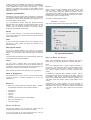
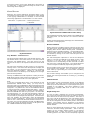
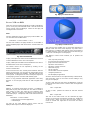
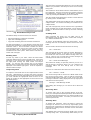
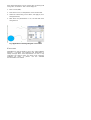
[anita@localhost anita]$ startx
Fig. Starting the Graphical Desktop
Note:
The graphical desktop that we will be using throughout
most of this guide is called the GNOME Desktop. There is
another desktop environment in popular use on Linux
systems – the KDE Desktop. There is some coverage of
KDE later, comparing the similarities and differences
between GNOME and KDE although we will not be covering
the KDE desktop in detail.
For the rest of this user guide, when we refer to the
graphical desktop or Desktop we shall be talking about the
GNOME Desktop unless stated otherwise.
Note:
There is a special user called the root or superuser (this
user is usually created during the system installation)
which has unlimited access and rights to all the system
files and resources. You only need to login as root if certain
system level administrative tasks are to be carried out.
Otherwise there is usually no need for a normal user to
login as root. This is to prevent accidentally damaging the
system by deleting or modifying important system files.
USING THE MOUSE ON THE DESKTOP
LOGGING IN
To click on a mouse the left button is depressed. (A mouse
configured for a left-handed user will will need to have its
right button depressed.) The right (or left button for a lefthanded mouse) and middle buttons are usually used to
invoke special or specific features of the GUI and
instructions to do so will be explicitly given.
Depending on how you have set up your system, you will
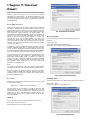
either have a graphical login screen or a text-based login
prompt for you to perform the login process.
Proper usage of the mouse is essential in order to have a
rewarding and productive experience on the graphical
desktop. Most Linux graphical desktops are designed for
use with a 3-button mouse. If you are using a 2-button
mouse, during installation, it should have been configured
to emulate the middle-button of a 3-button mouse by
pressing both buttons simultaneously.
The term “clicking on the mouse” means that you click on
the mouse once.
The term “double clicking” means that you click twice in
succession on the mouse.
To “select” an item means clicking it once with the mouse.
The term “drag and drop” means that you will have to click
on an item and while continuing to hold the mouse button
down, drag the item to another place and on reaching its
destination drop it by releasing the mouse button.
EXERCISES
1. Open the home folder from the Desktop.
2. Close the home folder window by clicking on the close
window button at the top right-hand corner.
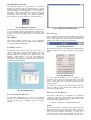
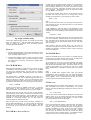
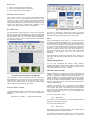
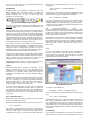
Fig. Graphical Login Screen
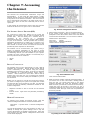
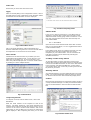
Fedora Core release 1
Kernel 2.4.22-1 on an i686
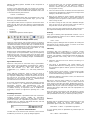
localhost login:
Fig. Text-based Login Prompt
To login, enter the username followed by the ENTER key
and when the password prompt appears, enter the
password followed by the ENTER key.
STARTING THE GRAPHICAL DESKTOP
If you have logged in from the graphical login screen, the
graphical desktop will be started automatically for you.
The graphical desktop presents a Graphical User Interface
(GUI) for the user to interact with the system and run
3. Right-click on the trash icon, view its properties and
close it back.
4. Move the trash icon to another location on the desktop
by using the mouse to drag it to the new location and
releasing the mouse.
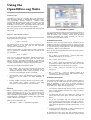
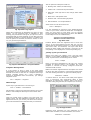
MAIN COMPONENTS OF THE DESKTOP
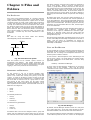
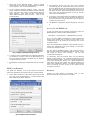
The figure below shows a typical view of the graphical
Linux desktop.