1
Chapter 13: Creating Your Graphic Presentation
Linking a Graph from a Saved Origin Graph Window File (*.OGG) to
Another Application
To create a link to a graph in a saved Origin graph window file, perform the following:
1) In the destination application (such as Word), select Insert:Object. In Word, this menu command
opens the Object dialog box.
2) Select the Create from File tab.
3) Click Browse. This action opens the Browse dialog box.
4) Select the desired *.OGG file.
5) Click OK.
6) In the Object dialog box, select the Link to File check box.
7) Click OK.
Your graph displays as an object in the destination application.
Editing a Linked Graph in the Destination Application
After you have created a link to your graph in the destination application, you can edit your graph using
Origin’s tools. Begin the editing process by opening the Origin project or graph window file that contains
the source for the linked object. Edit the graph using Origin’s tools. Alternatively, you can double-click
on the linked object in the destination application. This action opens an instance of Origin displaying the
linked graph in a graph window. Make changes to the graph in this instance of Origin.
After making changes to the graph in Origin, select Edit:Update Client from the Origin menu bar.
Alternatively, redirect window activity to the destination application. Update the link within the
destination application. For instructions on updating the link, consult the destination application’s
documentation.
Exporting Your Graph or Layout Page
Graphs and layout pages can be exported to other applications by creating a graphics file or by using the
Clipboard. When you import your Origin graph or layout page into another application, the application
displays a picture of your graph or layout page. The picture displayed in the application cannot be edited
using Origin tools. Rather, use the importing application’s tools to edit the picture.
Exporting Your Graph or Layout Page Using the Clipboard
To paste the page of the active graph or layout page window as a picture in another application, perform
the following:
1) In Origin, select Edit:Copy Page.
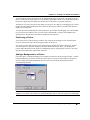
2) In the importing application (such as Word), select Edit:Paste Special. In Word, this menu command
opens the Paste Special dialog box.
Exporting Your Graph or Layout Page • 412