1
Chapter 13: Creating Your Graphic Presentation
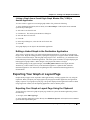
2) When you create a link to your graph in another application, the data is stored in the Origin file, not the
destination application. The destination application saves a link to the Origin file, and displays a
representation of the linked graph.
Note: The destination application is the OLE container application.
Inserting vs. Linking Your Graph
To: Reduce the destination document file size. Do this: Link your graph to the destination application
file.
To: Display your graph in more than one destination document; changes made to the source graph will be
reflected in all documents. Do this: Link your graph to the destination application file.
To: Create a single, self-contained destination document that contains information on your graph. Do
this: Insert your graph into the destination application file.
Controlling the Size of your Linked or Inserted Graph
Control the size of an inserted or linked image using the settings on the Page tab of the Options dialog box
(Tools:Options). For more information, see the "Setting Your Preferences, the Page Tab".
Inserting Your Graph into Another Application
Origin provides three methods to insert your graph into another application.
1) Insert your graph using the Clipboard. The graph need not be saved to a graph window file or a project
file.
2) Insert your graph window file (*.OGG). The graph must already be saved to a graph window file.
3) Create and insert a new graph.
Pasting Your Graph from the Clipboard into Another Application
To insert the page of the active graph window as an object into another application, perform the following:
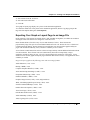
1) In Origin, select Edit:Copy Page.
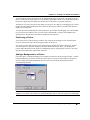
2) In the destination application (such as Microsoft® Word), select Edit:Paste Special. In Word, this
menu command opens the Paste Special dialog box.
3) Select Origin Graph Object from the As list box.
4) Select the Paste radio button.
5) Click OK.
Sharing Your Origin Graph with Another Application • 409