1
Chapter 13: Creating Your Graphic Presentation
Aligning Pictures
Origin provides three methods of aligning pictures in the layout page window:
1) Using the object grid to align pictures.
2) Using the Object Edit toolbar to align pictures.
3) Using the Object Properties dialog to align pictures.
Aligning Pictures with the Object Grid
Enable the display of the object grid by selecting View:Show Grid when the layout page window is active.
This menu command is checked when the object grid is displayed. Use the grid lines to facilitate
positioning of pictures in the window. To ensure that the pictures position on a grid line, select
Format:Snap to Grid when the layout page window is active.
Aligning Pictures with the Object Edit Toolbar
Use the Object Edit toolbar (View:Toolbars) to align pictures (or any other objects) in the layout page
window. The buttons on the Object Edit toolbar control the display of the active object(s) in the window.
Click on the desired picture to make it active. To make more than one picture active, SHIFT+click on the
desired pictures. Alternatively, drag a box around the desired pictures to select the group.
Aligning Pictures using the Object Properties Dialog Box
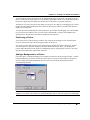
Double-click on the picture to open the Object Properties dialog box. Select the Dimensions tab and edit
the Left or Top values in the Position Group. Manually editing these boxes for multiple objects will allow
you to precisely align them vertically or horizontally.
Enhancing the Redraw Speed in a Layout Page Window
Origin provides two methods of increasing the redraw speed of the layout page window:
1) Show picture placeholders.
2) Display the pictures in Page View mode independent of the view mode of the associated child window.
Displaying Picture Placeholders
The pictures in the layout page window can be displayed with placeholders to increase the redraw speed of
the window. To display a picture placeholder, click to select the desired picture and then select
Layout:Set Picture Holder. This menu command is checked when a placeholder is displayed for the
selected picture. To disable the placeholder display, click to select the desired placeholder and then select
Layout:Clear Picture Holder. Alternatively, enable/disable the Use Picture Holder check box on the
Image tab of the picture's Object Properties dialog box or right-click on the object and Set/Clear Picture
Holder.
The picture placeholders can be moved and sized following the same procedure for the pictures. In
addition, you can double-click on the placeholder to open the associated Object Properties dialog box.
Using the Layout Page Window • 407