1
Chapter 13: Creating Your Graphic Presentation
graphic objects in that they provide a visual representation of the contents of selected windows in your
project.
Making Changes to the Contents of a Picture
To alter the display of the picture in the layout page window, edit the source graph or worksheet in the
associated child window. To make the graph or worksheet window active, right-click on the picture in the
layout page and select Go to Window from the shortcut menu. After changing the display of the graph or
worksheet, make the layout page window active to view the changes. If the layout page window does not
immediately display the changes, select Window:Refresh to update the window.
Selecting Pictures
Selecting One Picture
To select a picture in the layout page window, click on the picture. Alternatively, drag a box around the
picture with the Pointer tool (default mouse display). Release the mouse button and a highlighted
boundary with control handles displays around the picture. To de-select the picture, click anywhere in the
layout page window (off of the picture).
Selecting More than One Picture
To select more than one picture in the layout page window, SHIFT+click on the desired pictures.
Alternatively, drag a box around the desired pictures using the Pointer tool (default mouse display).
Sizing a Picture
To change the size of the picture in the layout page window, click on the picture to display its bounding
box with control handles. Drag on the control handles to resize the picture. The horizontal and vertical
control handles allow sizing in the associated direction while the diagonal control handles allow sizing
both horizontally and vertically. When dragging the control handles, an outline of the picture changes size.
The picture remains at its current size, shape, and position until you release the mouse button. Click off the
picture (but in the layout page window) to de-select the picture. (Your ability to resize and position the
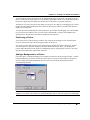
object with the control handles can be limited by settings in the Object Properties dialog box. To open this
dialog box, double-click on the object.)
Note: Reducing or expanding the size of a worksheet picture in the layout page window controls the
display of the number of rows or columns in the picture. The actual size of the worksheet picture grid -that is the size of the cells and the text -- remains unchanged.
Proportionally Sizing a Picture
If you changed the proportions of the picture when resizing, return the picture to its original proportions
by pressing ALT while clicking and dragging on a control handle. (You can release the ALT key after you
click on the control handle.) The picture returns to its original proportions and then sizes proportionally as
you drag the control handle. Release the mouse button to display the resized picture with the original
proportions.
Using the Layout Page Window • 405