1
Managing projects
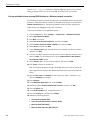
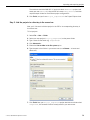
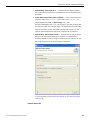
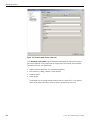
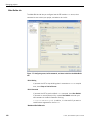
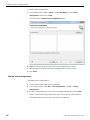
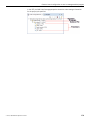
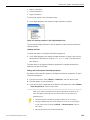
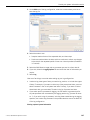
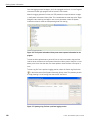
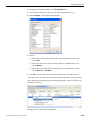
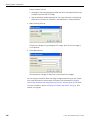
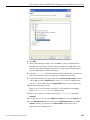
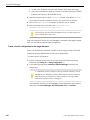
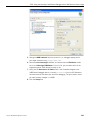
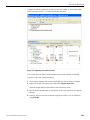
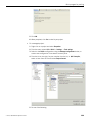
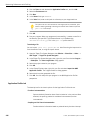
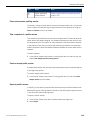
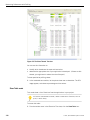
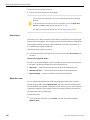
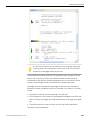
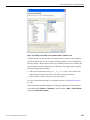
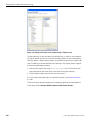
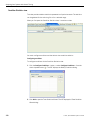
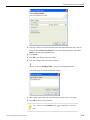
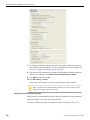
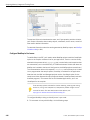
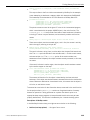
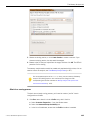
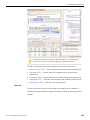
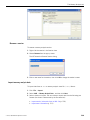
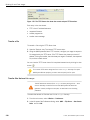
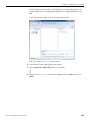
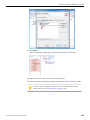
• For a managed project, select C Project (or for C++, select "C++ Project"). Select
one the projects types or templates on the left, except Makefile. Select a
QNX Toolchain on the right. Click Finish.
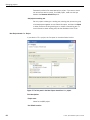
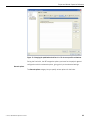
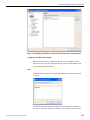
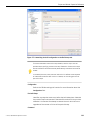
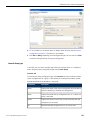
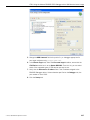
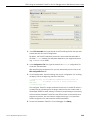
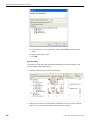
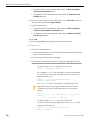
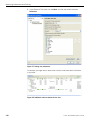
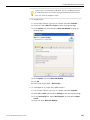
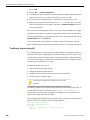
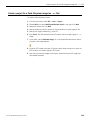
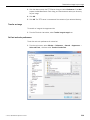
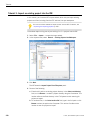
• Option #2: To attach to an existing folder, select one of the project types described
above for your project, open the corresponding wizard as described in the steps for
Option #1, but don't proceed further. The first page of the wizard presents you
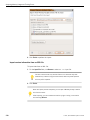
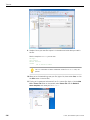
with the option to use a default location or to select one yourself. Deselect Use
default location. Select the location of your existing project using the Browse button.
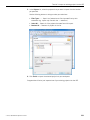
Follow the wizard as in #1. Alternatively, you can create a project in the default
location, but later attach the other directory using linked folders.
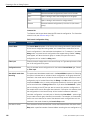
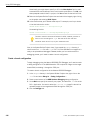
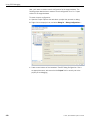
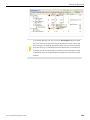
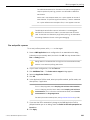
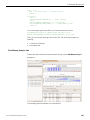
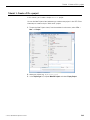
• Option #3: If you want to check out source from version control, select one of the
project types described above for your project. If the entire project is in one directory
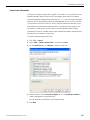
in your version control system, you can use the Check Out As… option from SVN
or CVS plugins to perform the check out. Use Check out as a project configured
using New Project Wizard option, and then select the wizard for the project type
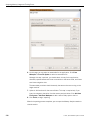
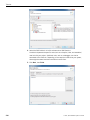
you require. For a QNX project, make sure that you deselect the Generate default
file option.
For information about performing a partial checkout of the source, see the
Subversive User Guide.
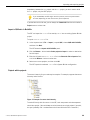
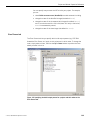
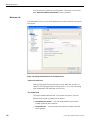
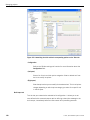
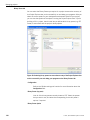
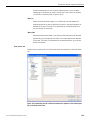
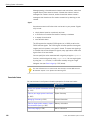
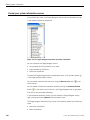
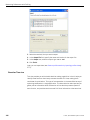
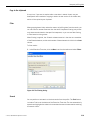
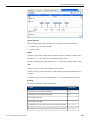
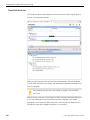
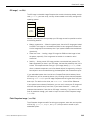
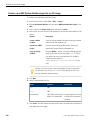
Creating a C/C++ project
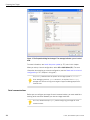
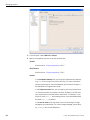
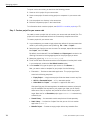
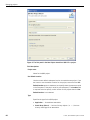
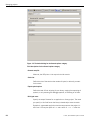
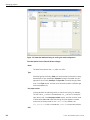
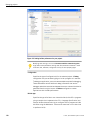
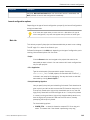
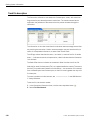
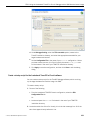
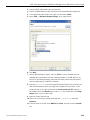
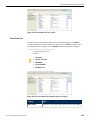
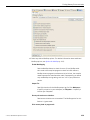
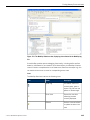
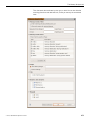
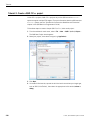
You use the New Project wizard to create a C or C++ project, which can be one of
these varieties:
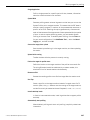
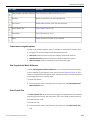
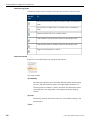
QNX C Project/QNX C++ Project
A C or C++ project for multiple target platforms. It supports the QNX-specific
project structure using common.mk files to perform a QNX recursive make.
A QNX Project can automatically build either one executable or one library
object (in different formats). You can switch between application or library
nature by using the project properties.
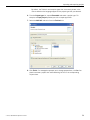
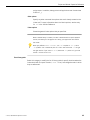
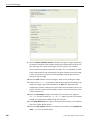
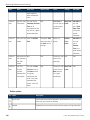
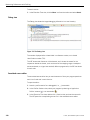
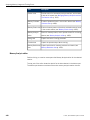
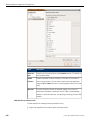
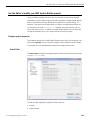
C Project/C++ Project
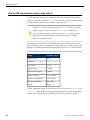
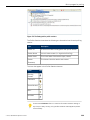
Depending on the wizard you chose, the project types will include the
following:
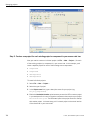
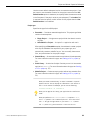
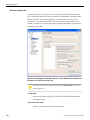
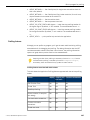
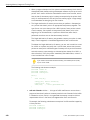
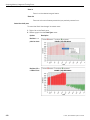
• Executable — Provides an executable application. This project type folder
contains three templates.
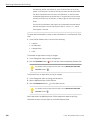
• Empty Project — A single source project folder that doesn't contain
any files. After specifying an Executable template, the workbench
creates a project with only the metadata files required for your project
type. Now, you can modify these source files, as required, and provide
52
©
2014, QNX Software Systems Limited