1
Controlling a Plane’s Display and Multiple Sectioning
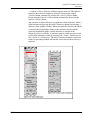
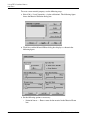
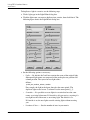
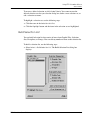
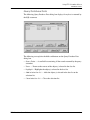
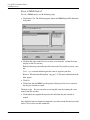
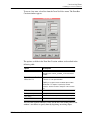
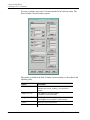
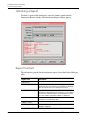
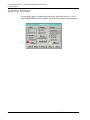
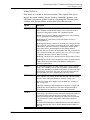
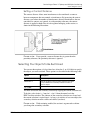
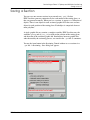
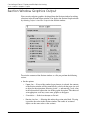
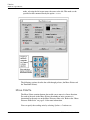
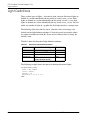
Saving a Section
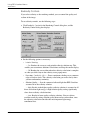
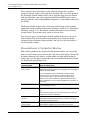
Option
Description
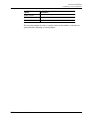
Automatic saving of any section
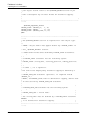
With this option enabled, EPD.Visualizer automatically saves any newly
created section. However, this option interacts with the Automatic
name incrementation option in the following ways:
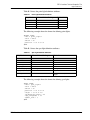
With Automatic name incrementation is enabled, each new
section is saved in a new file, with only one section per file.
With Automatic name incrementation is disabled, while the file is
open, each new section is added to the current file. The file is automatically
closed when you perform any of the following actions:
start a new session
select Sectioning > Clear
select a new file name
disable Automatic saving of any section
enable Automatic name incrementation
You can close the file or leave it open when you perform the following
actions:
disable sectioning
rotate the plane (See“Rotating the Plane” on page 8-8.)
define a new plane (See “Defining a Plane” on page 6-5.)
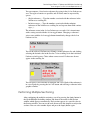
EPD.Visualizer indicates that the sectioning parameters have changed and
asks whether or not you want to close the file.
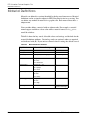
Break Polyline at new Object Id
With this option enabled, several objects belonging to the same graphic file
will produce several polylines in the .gaf file. Each polyline will belong to
a single object of the sectioned graphic file. By default, saving a section
may generate a single polyline for several contiguous objects belonging to
the same graphic file.
Chaining maximum gap
EPD.Visualizer uses the gap value to merge the segments of the section
into continuous polylines. If there is a hole greater than the gap, a new
polyline is opened.
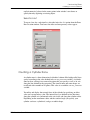
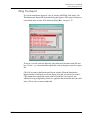
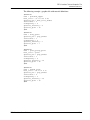
Click the Save button to manually generate the .gaf file. The section, if one
exists, is written to the file according to the options you select.
EPD.Visualizer User Guide
7-31