1
RICOH Smart Device Print&Scan
User Manual for iOS
Read this manual carefully before you use this machine.
TABLE OF CONTENTS
How to Read the Manuals ................................................................................................................................ 3
Symbols Used in the Manuals.......................................................................................................................3
Disclaimer........................................................................................................................................................3
Notes............................................................................................................................................................... 3
1. What is Smart Device Print&Scan?
What You Can Do with Smart Device Print&Scan........................................................................................... 5
Before Using This Application............................................................................................................................6
Connecting Your iOS Device to a Wi-Fi Network.......................................................................................6
Connecting a Device to a Network.............................................................................................................. 6
2. Starting the Application
Main Menu......................................................................................................................................................... 7
3. Getting Started
Registering the Device......................................................................................................................................11
Searching for a Device on Bonjour............................................................................................................ 11
Specifying a Device by its IP Address........................................................................................................ 11
Specifying a Location Free Server by its IP Address................................................................................. 12
Displaying the Information of the Registered Device................................................................................ 13
Configuring Default Print Settings................................................................................................................... 14
Configuring Default Scan Settings.................................................................................................................. 16
Configuring Authentication Settings................................................................................................................17
4. Printing Documents
Printing Photographs........................................................................................................................................ 19
Printing Documents in Your Smart Device...................................................................................................... 20
Importing Documents into Your iOS Device.............................................................................................. 20
Printing Imported Documents Saved in Your iOS Device.........................................................................20
Printing Clipboard Contents............................................................................................................................ 22
Printing Web Pages..........................................................................................................................................23
Printing Documents Saved in Cloud Storage................................................................................................. 24
Printing Photographs and Documents from Another Application.................................................................26
Print Settings That Can be Changed...............................................................................................................27
5. Printing Using Security Functions
Using the Locked Print Function.......................................................................................................................29
Using User Code Authentication.....................................................................................................................30
1
6. Scanning Documents
Importing with a Scanner.................................................................................................................................31
Checking Data Imported with a Scanner....................................................................................................... 33
7. Troubleshooting
If a Message is Displayed............................................................................................................................... 35
Device Search Errors................................................................................................................................... 35
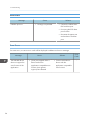
Print Errors.....................................................................................................................................................36
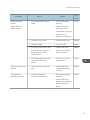
Scan Errors................................................................................................................................................... 36
Cloud Storage Errors...................................................................................................................................40
Main Menu Error......................................................................................................................................... 40
8. Appendix
Specifications....................................................................................................................................................41
Tested Smart Devices...................................................................................................................................41
Supported OS Versions...............................................................................................................................41
Supported Devices.......................................................................................................................................41
Supported Location Free Print Servers....................................................................................................... 41
Supported On-demand Print Options........................................................................................................ 41
Copyright Information about Installed Applications..................................................................................... 42
libjpeg-6b.....................................................................................................................................................42
Net-SNMP....................................................................................................................................................43
Reachability/SimplePing............................................................................................................................ 49
ObjectiveMixin............................................................................................................................................ 49
DropboxSDK................................................................................................................................................50
Apache License............................................................................................................................................ 50
AQGridView................................................................................................................................................ 54
libHaru.......................................................................................................................................................... 54
CocoaLumberjack........................................................................................................................................55
Trademarks....................................................................................................................................................... 56
2
How to Read the Manuals
Symbols Used in the Manuals
The symbols used in this manual have the following meanings.
Indicates an explanation containing points to pay attention to when operating the software, restrictions,
or other information. Be sure to read the explanation.
Indicates an explanation containing information that is useful to know, a supplementary operating
procedure, or other information.
Indicates where you can find further relevant information.
[]
Indicates a screen item or button name.
Disclaimer
To the maximum extent permitted by applicable laws, in no event will the manufacturer be liable for any
damages whatsoever arising out of failures of this product, losses of documents or data, or the use or
non-use of this product and operation manuals provided with it.
Make sure that you always copy or have backups of important documents or data. Documents or data
might be erased due to your operational errors or malfunctions of the machine. Also, you are
responsible for taking protective measures against computer viruses, worms, and other harmful software.
Notes
The content of this manual is subject to change without notice.
There may be some differences between the illustrations and explanations in this manual and your
product due to, for example, improvements or changes to the product.
This manual is created based on iPad 2 (the 2nd generation) with iOS version 6.1.3.
Note that some of the illustrations or descriptions in this manual may vary due to changes for
improvement in this application, iOS, iOS device or iTunes.
3
This manual shall not be copied, duplicated, changed, quoted or reproduced in part or in full without
permission.
4
1. What is Smart Device Print&Scan?
What You Can Do with Smart Device
Print&Scan
Smart Device Print&Scan has the following features:
• Print photos stored in an iOS device.
• Print documents (PDF, iWork, MS Office) shared between the application and your computer
through iTunes’ [File Sharing].
• Print images or texts saved to the clipboard.
• Print web pages displayed in Smart Device Print&Scan.
• Print images or documents saved in cloud storage.
• Import the PDF documents and images with Scanner.
• Print photos or documents opened from another application using [Open in…].
• Print securely using the user code authentication or Locked Print function.
• Print using the on-demand print option.
• Print using the Location Free print server.
5
1. What is Smart Device Print&Scan?
Before Using This Application
Connecting Your iOS Device to a Wi-Fi Network
1. On your iOS device, tap [Settings] and [Wi-Fi], and then turn on [Wi-Fi].
2. Select and configure your Wi-Fi network according to your environment.
3. Connect to the Wi-Fi network.
• For details about the network settings, contact your network administrator.
Connecting a Device to a Network
See the user manual of the device to be used. For details about the network settings, contact your
network administrator.
6
2. Starting the Application
Main Menu
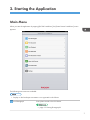
When you start the application by tapping [RICOH Print&Scan], the [Smart Device Print&Scan] screen
appears.
The following menu items are available:
• Display on the landscape orientation is not supported on the iPhone.
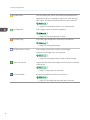
Print Photograph
Prints photos stored in the iOS device.
• page 19 "Printing Photographs"
7
2. Starting the Application
Print Document
Print documents (PDF, iWork, MS Office) shared between the
application and your computer through iTunes’ [File Sharing].
PDF, iWork, and Microsoft Office documents are supported.
• page 20 "Printing Documents in Your Smart Device"
Print Clipboard
Prints images or texts saved to the clipboard.
• page 22 "Printing Clipboard Contents"
Print Web Page
Prints web pages displayed in Smart Device Print&Scan.
• page 23 "Printing Web Pages"
Print Document on Cloud
Prints images or documents saved in cloud storage.
Dropbox and Google Drive are supported.
• page 24 "Printing Documents Saved in Cloud Storage"
Import with Scanner
Imports PDF documents and images with the scanner connected
to the device.
• page 31 "Importing with a Scanner"
Scan Data Folder
Browses scanned files saved in the iOS device.
• page 33 "Checking Data Imported with a Scanner"
8
Main Menu
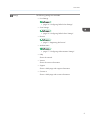
Settings
The following settings are available.
• Print Settings
• page 14 "Configuring Default Print Settings"
• Scan Settings
• page 16 "Configuring Default Scan Settings"
• Devices
• page 11 "Registering the Device"
• Authentication
• page 17 "Configuring Authentication Settings"
• Help
Shows this manual.
• Version
Shows the version information.
• Support
Shows a Web page with support information.
• Contact us
Shows a Web page with contact information.
9
2. Starting the Application
10
3. Getting Started
Registering the Device
Searching for a Device on Bonjour
1. Tap [Settings] in the main menu.
2. Tap [Devices].
3. Tap [Search Devcs.].
4. Tap [Search Devices] below [Search on Bonjour].
5. In the [Dev. Srch. Lt.] list, select the device you want to add.
6. Tap [Add Devices].
The device is added to the [Device] list.
• The devices on which this application has not been tested are also shown in the search results. For
details about tested devices, see page 41 "Supported Devices".
• The device to be searched for must be in the same subnet as your iOS device.
• The device is required to support PS3 or AirPrint.
Specifying a Device by its IP Address
1. Tap [Settings] in the main menu.
2. Tap [Devices].
3. Tap [Search Devcs.].
4. Tap the [Host Nm./IP Addrs.] input field.
5. Input the IP address or host name with the keyboard displayed.
6. Tap [Host Nm./IP Addrs. Search].
7. In the [Dev. Srch. Lt.] list, select the device you want to add.
8. Tap [Add Devices].
The device is added to the [Device] list.
• Enter an IP address that consists of four numbers ranging from 0 to 255 separated by periods (for
example, 168.190.0.1).
11
3. Getting Started
• The device must support SNMP.
• The devices on which this application has not been tested may also be specified. Confirm whether
the model is one on which this application has been tested. For details about tested devices, see
page 41 "Supported Devices".
• Enter the host name registered in the DNS server.
Specifying a Location Free Server by its IP Address
• When a Location Free server is specified, [PDF direct print] is always displayed. Select the [PDF
direct print] check box only when the Location Free server you are using supports the PDF direct
print function.
• For devices that support the PDF direct print function, the [PDF direct print] check box will be
displayed and checked automatically.
• If you cannot print correctly with the PDF direct print function, clear the [PDF Direct Print] check box
and print again.
• If the information (such as the IP address) of a device registered in the printer list is changed, delete
the device from the printer list, and then add it again. Otherwise, unexpected problems may occur
as the device tries to print the information before the change.
1. Tap [Settings] in the main menu.
2. Tap [Devices].
3. Tap [Search Devcs.].
4. Turn on the [Search for Server].
5. Tap the [Host Nm./IP Addrs.] input field.
6. Input the IP address or host name with the keyboard displayed.
7. Tap the [Share Name] input field.
8. Input the share name with the keyboard displayed.
9. Tap [Host Nm./IP Addrs. Search].
10. In the [Dev. Srch. Lt.] list, select the device you want to add.
11. Tap [Add Devices].
The device is added to the [Device] list.
• Enter an IP address that consists of four numbers ranging from 0 to 255 separated by periods (for
example, 168.190.0.1).
12
Registering the Device
• Enter the share name specified for Share Name in the Location Free server. For details, contact
your network administrator.
• A share name in double-byte characters cannot be specified in this application.
• Enter the host name registered in the DNS server.
• For details about supported Location Free servers, see page 41 "Supported Location Free Print
Servers".
Displaying the Information of the Registered Device
1. Tap [Settings] in the main menu.
2. Tap [Devices].
3. Tap
of the device displayed in the [Device] list.
On the [Device Details] screen, the following information is displayed.
Model
Shows the model name of the device.
Shows the supported functions by displaying its icons.
Function
•
: Printer function
•
: Scan function
Place
Shows the place where the device is located.
Host Nm./IP Addrs.
Shows the host name or IP address input when the search is
made.
Shows whether if the PDF direct print function is enabled or not.
PDF direct print
• PDF direct print only appears when the device supports the
PDF page description language.
13
3. Getting Started
Configuring Default Print Settings
Configure the default print settings displayed in the [Preview] Screen.
Changes to the settings will be reflected when the application restarts.
If this application remains in the multitasking list, the changes will not be reflected neither when you go
back to the home screen nor when you switch to another application.
To reflect the changes, delete the application from the multitasking list, and then restart the application.
The following print settings can be specified.
Color/BW
Specify whether to print in color or black-and-white.
The default is [Color].
• When a black-and-white document is printed with the Color setting, it
may be printed with cyan, magenta, yellow and black toner. Therefore,
it may be counted in the color counter in the printer. If you only want to
use black toner to print, select BW. If color documents are mixed with
BW documents and they are printed with the Color setting, BW
documents may also be counted in the color counter.
Copies
Set from 1 to 99 for the number of print copies.
The default is [1].
Paper Size
Select the paper size.
The default is [A4].
Orientation
Select the paper orientation.
The default is [Portrait].
2 Sided
Specify whether to perform two-sided printing.
The default is [None].
Input Tray
Select the input tray.
The default is [Auto Tray Select].
Stapler
Specify whether or not to staple the printed copies.
The default is [Off].
Paper Type
Select the paper type.
The default is [Plain & Recycld.].
14
Configuring Default Print Settings
Print Quality
Select the print quality.
The default is [Speed Priority].
• [Print Quality] cannot be selected for PDF direct print.
• If the file does not print correctly, lower the print quality, and then close
other applications.
Job Type
Select [Normal Print] or [Locked Print] for the job type.
The default is [Normal Print].
User ID
Enter your eight-character user ID when using the Locked Print function or
printing with an on-demand print application.
Password
Enter the password when using the Locked Print function.
15
3. Getting Started
Configuring Default Scan Settings
Configure the default scan settings displayed in the [Preview] Screen.
The following scan settings can be specified.
Color/B & W
Select color or black-and-white to be scanned.
The default is [Color].
Resolution
Specify the resolution.
The default is [200 dpi].
File Type
Select the file type for the scanned image file.
The default is [PDF].
Original Settings
Specify whether to perform one-sided or two-sided scanning.
The default is [1 Sided].
Origin. Scn. Mth.
Specify whether to scan from [ADF] or [Exposure Glass].
The default is [ADF].
Orientation
Select the orientation of text in the document.
The default is [Readable Dir.].
Scan Size
Select the size of the document to be scanned.
The default is [A4].
Originl. Orienttn.
Specify the orientation to load the document.
The default is [Long Edge].
16
Configuring Authentication Settings
Configuring Authentication Settings
Configure the default user code authentication and the Locked Print settings displayed in the [Preview]
Screen.
• If the driver encryption key specified on the device is changed from its default setting, user
authentication from this application will fail.
• For details about the settings of the driver encryption key, contact your administrator.
User Authentication
Specify whether to print using user authentication or not.
The default is [OFF].
If [User Authentication] is [ON], [Login User Name] and [Login
Password] can be entered.
If [User Authentication] is [OFF], [User Code] can be entered.
User Code
Enter up to eight numbers for the user authentication user code.
Login User Name
If [User Authentication] is [ON], [Login User Name] can be specified.
Enter the login user name for user authentication.
Login Password
If [User Authentication] is [ON], [Login Password] can be specified.
Enter the login password for user authentication in alphanumeric
characters and/or symbols.
17
3. Getting Started
18
4. Printing Documents
Printing Photographs
Print the photographs saved in your iOS devices.
1. Tap [Print Photograph] in the main menu.
2. Tap the album.
3. Tap the photograph you want to print.
When printing multiple photographs, tap multiple photographs.
4. Tap the white area of the screen to close the [Selct. Photo] screen.
5. Tap
.
[Preview] appears.
6. Change the print settings as necessary.
7. Tap [Print].
• When deselecting the photograph once it is selected for printing, tap the photograph again to
clear the check box. If you want to select it again to be printed, tap the photograph one more time
to select the check box.
• For details about the print settings that can be changed in Preview, see page 27 "Print Settings
That Can be Changed".
19
4. Printing Documents
Printing Documents in Your Smart Device
Print the documents (PDF, iWork, MS Office) shared between Smart Device Print&Scan and your
computer through iTunes’ [File Sharing].
Importing Documents into Your iOS Device
• Since Microsoft Office (xls, xlsx, doc, docx, ppt, pptx) and iWork (pages, numbers, key) files are
printed based on print preview by iOS’s WebView, they may not be printed in the correct layout.
We recommend that you convert them into the PDF before importing them to your iOS device.
1. Connect your iOS device to your Mac or PC, and then start iTunes.
2. Select the [Apps] tab of your iOS device displayed under [Device] in iTunes.
3. Select [Smart Device Print&Scan] in the [App] list of [File sharing] under [Apps].
4. When the [Smart Device Print&Scan document] list is displayed, drag document(s) to the
list or press the [Add...] button to add document(s) to the list.
5. Click [Sync] to import the selected documents into your iOS device.
• The following document types can be selected for printing:
• PDF (pdf)
• Microsoft Office documents (xls, xlsx, doc, docx, ppt, pptx)
• iWork documents (pages, numbers, key)
Printing Imported Documents Saved in Your iOS Device
1. Tap [Print Document] in the main menu.
2. Select the document you want to print from the displayed list.
[Preview] appears.
When you select an Excel file or Numbers file, [Sheet Selectn.] appears.
Select the sheet you want to print, and tap
3. Change the print settings as necessary.
4. Tap [Print].
20
.
Printing Documents in Your Smart Device
• When deselecting the photograph once it is selected for printing, tap the photograph again to
clear the check box. If you want to select it again to be printed, tap the photograph one more time
to select the check box.
• When you specify a device to print the PDF file, if the [PDF Direct Print] check box is selected, the
PDF file will be printed using the PDF direct print function.
• If a device supports the PDF direct print function, [PDF direct print] will be displayed on the [Device
Details] screen.
• Due to additional PDF functions, documents may not be correctly printed.
• For details about the PDF versions supported by the PDF direct print function, contact your network
administrator.
• PDF files can be printed without using the PDF direct print function; however the image quality may
deteriorate compared to when they are printed using the PDF direct print function.
• For details about the print settings that can be changed in Preview, see page 27 "Print Settings
That Can be Changed".
21
4. Printing Documents
Printing Clipboard Contents
Print images or texts saved to the clipboard.
• If you copy a PDF on the scan preview, contents will not be displayed in [Preview].
1. Tap [Print Clipboard] in the main menu.
[Preview] appears.
2. Change the print settings as necessary.
3. Tap [Print].
• To copy an image or text to the clipboard, press and hold the image or text you want to copy in the
other applications to copy it. For details, see the user manual of the iOS or the application you
want to copy from.
• For details about the print settings that can be changed in Preview, see page 27 "Print Settings
That Can be Changed".
22
Printing Web Pages
Printing Web Pages
Print web pages displayed in Smart Device Print&Scan.
1. Tap [Print Web Page].
2. Tap the URL input field.
3. Enter the URL of the Web page to be printed using the keyboard displayed.
4. Tap
.
[Preview] appears.
5. Change the print settings as necessary.
6. Tap [Print].
• A bookmark can be added for the displayed Web page.
• Bookmarks are exclusively for Smart Device Print&Scan.
• Depending on the Web page to be displayed, it may not be previewed or printed correctly.
• For details about the print settings that can be changed in Preview, see page 27 "Print Settings
That Can be Changed".
23
4. Printing Documents
Printing Documents Saved in Cloud Storage
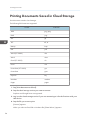
Print documents saved in cloud storage.
The following file formats are supported:
Format
Extension
JPEG
jpg, jpeg
PNG
png
GIF
gif
TIFF
tiff, tif
Bitmap
bmp
PDF
pdf
Word (97-2003)
doc
Word
docx
Excel (97-2003)
xls
Excel
xlsx
PowerPoint (97-2003)
ppt
PowerPoint
pptx
Keynote
key
Numbers
numbers
Pages
pages
1. Tap [Print Document on Cloud].
2. Tap the cloud storage service you want to connect.
Dropbox and Google Drive are supported.
3. Log in to the cloud storage service if you are connecting to it for the first time with your
iOS device.
4. Tap the file you want to print.
[Preview] appears.
When you select an Excel file or Numbers file, [Sheet Selectn.] appears.
24
Printing Documents Saved in Cloud Storage
Select the sheet you want to print, and tap
.
5. Change the print settings as necessary.
6. Tap [Print].
• For details about the print settings that can be changed in Preview, see page 27 "Print Settings
That Can be Changed".
25
4. Printing Documents
Printing Photographs and Documents from
Another Application
Print the photos or documents opened in Smart Device Print&Scan by using [Open in…] in other
applications.
1. In the other applications, select a photograph or document you want to print using Smart
Device Print&Scan.
2. Tap [Open in…].
3. The application is switched to Smart Device Print&Scan, and the photo, document or Web
page contents to be print will be displayed in [Preview].
4. Change the print settings as necessary.
5. Tap [Print].
• When you specify a device to print the PDF file, if the [PDF Direct Print] check box is selected, the
PDF file will be printed using the PDF direct print function.
• If a device supports the PDF direct print function, [PDF direct print] will be displayed on the [Device
Details] screen.
• Due to additional PDF functions, documents may not be correctly printed.
• For details about the PDF versions supported by the PDF direct print function, contact your network
administrator.
• PDF files can be printed without using the PDF direct print function; however, the image quality may
deteriorate compared to when they are printed using the PDF direct print function.
• For an iOS with a version earlier than 6.0, a maximum of 9 applications can be selected with the
[Open in...] function. If Smart Device Print&Scan is not shown in the list, delete the other
application(s) from the list.
• For details about the print settings that can be changed in Preview, see page 27 "Print Settings
That Can be Changed".
26
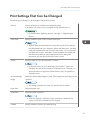
Print Settings That Can be Changed
Print Settings That Can be Changed
The following print settings can be changed in the [Preview] Screen:
Devices
Select a printer to be used from the registered printers.
If the device you want to use is not registered, tap [Search Devcs.].
• For details about registering devices, see page 11 "Registering the
Device".
Color/BW
Specify whether to print in color or black-and-white.
• When a black-and-white document is printed with the Color setting, it
may be printed with cyan, magenta, yellow and black toner. Therefore,
it may be counted in the color counter in the printer. If you only want to
use black toner to print, select BW. If color documents are mixed with
BW documents and they are printed with the Color setting, BW
documents may also be counted in the color counter.
Copies
Set the number of print copies between 1 and 99.
• In [Print Document] or [Print Web Page], if more than 2 copies are
specified, they are always printed in a collated manner. However, on
devices that do not support the Collate function, they are printed in a
stacked manner.
Set Printed Page
Range
When [Set Printed Page Range] is [ON], [Start Page] and [End Page] can be
specified.
• This setting is possible only when you print the PDF document.
Paper Size
Select the paper size.
Orientation
Select the paper orientation.
• When the original is a PDF document, Orientation is disabled. The
output is in the same orientation as the original.
2 Sided
Specify whether to perform two-sided printing.
27
4. Printing Documents
Page Layout
This setting is possible only when [PDF direct print] is [ON].
• This setting is possible only when you print from [Print Document].
Input Tray
Select the input tray.
Stapler
Specify whether or not to staple the printed copies.
Paper Type
Select the paper type.
• This setting is possible only when you select a GELJET printer.
Font Size
Set the font size to print the text copied in the clipboard.
The default is [Medium (12 point)].
• [Font Size] is displayed only when you preview from [Print Clipboard].
Print Quality
Select the print quality.
• [Print Quality] cannot be selected for PDF direct print.
• If the file does not print correctly, lower the print quality and close other
applications.
Job Type
28
Select [Normal Print] or [Locked Print] for the job type.
5. Printing Using Security Functions
Using the Locked Print Function
Using the registered device's Locked Print function, store files in the machine as Locked Print files and
then print them from the control panel and retrieve them immediately, preventing others from viewing
them.
1. Preview the document in [Print Photograph], [Print Document], [Print Clipboard], [Print
Web Page], or [Print Document on Cloud].
2. Tap [Job Type] and select [Locked Print].
3. Enter [User ID] and [Password].
4. Tap [Print].
The Locked Print file is stored in the registered device.
• For details about printing a Locked Print file from a registered device, see "Operating Instructions"
of the registered device.
• For details about specifying the Locked Print function as the default, see page 17 "Configuring
Authentication Settings".
29
5. Printing Using Security Functions
Using User Code Authentication
Print securely using the user code authentication specified in a registered device.
• It is necessary to register the user code in the device's address book in advance. For details about
registering the user code, contact the device's administrator.
1. Preview the document in [Print Photograph], [Print Document], [Print Clipboard], [Print
Web Page], or [Print Document on Cloud].
2. Tap [Job Type] and select [Normal Print].
3. Enter the eight-digit user code in [User ID].
4. Tap [Print].
• For details about user code authentication, see "Operating Instructions" of the registered device.
• For details about specifying the user code authentication as the default, see page 17 "Configuring
Authentication Settings".
30
6. Scanning Documents
Importing with a Scanner
Use a scanner in the registered devices to scan, and then import the scanned JPEG or PDF to the iOS
device.
1. Load the document in [Orign. Scn. Mth.] set in [Scan Settings].
2. Tap [Import with Scanner] in the main menu.
3. Change the scanner settings as necessary.
The following scanner settings can be changed.
Devices
Select a device to scan with from the registered devices.
If the device is not registered, tap [Search Devcs.] and register the device.
• For details about how to register a device, see page 11 "Registering
the Device".
Color/B & W
Select color or black-and-white to be scanned.
Resolution
Specify the resolution.
File Type
Select the file type for the scanned image file.
Original Settings
Specify whether to scan one side or two sides
Origin. Scn. Mth.
Specify whether to scan from [ADF] or [Exposure Glass].
Orientation
Select the orientation of text in the document.
Scan Size
Select the size of the document to be scanned.
Originl. Orienttn.
Specify the orientation to load the document.
4. Tap [Scan].
The scanned image appears in [Preview] and its file is stored in [Scan Data Folder].
5. Tap any of the following icons as necessary.
(Delete)
Deletes the data that is automatically saved to [Scan Data
Folder].
(Preview)
Displays a preview of the scan data in [Preview].
31
6. Scanning Documents
(Another app.)
Tap the icon to display the following menu items.
• Save to Photograph Folder
Saves the scanned image to [Photos] if the [File Type] is
[JPEG].
• Save to Cloud
Saves the scanned image file to Dropbox or Google
Drive.
• Another app.
Sends the scanned image file to another application.
• When the version of iOS is earlier than 6.0, a maximum of
9 applications can be displayed in [Open in...]. If [Smart
Device Print&Scan] is not displayed in the list, please
delete other application(s) from the list.
32
Checking Data Imported with a Scanner
Checking Data Imported with a Scanner
Check the images imported with a scanner.
1. Tap [Scan Data Folder] in the main menu.
[File Name], [File Size], and [Date Created] are displayed in [Scan Data] list.
2. Tap the scan data file.
[Preview] appears.
3. Tap any of the following icons as necessary.
(Delete)
Deletes the data that is automatically saved to [Scan Data
Folder].
(Preview)
Displays a preview of the scan data in [Preview].
(Another app.)
Tap the icon to display the following menu items.
• Save to Photograph Folder
Saves the scanned image to [Photos] if the [File Type] is
[JPEG].
• Save to Cloud
Saves the scanned image file to Dropbox or Google
Drive.
• Another app.
Sends the scanned image file to another application.
• For an iOS with a version earlier than 6.0, a maximum of
9 applications can be selected with the [Open in...]
function. If [Smart Device Print&Scan] is not shown in the
list, delete the other application(s) from the list.
• You can tap [Edit] in [Scan Data] list and then delete the scan data.
33
6. Scanning Documents
34
7. Troubleshooting
If a Message is Displayed
This section describes messages displayed for troubles that may occur while you use Smart Device
Print&Scan. Also, it describes the causes of and solutions to those troubles.
Device Search Errors
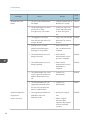
Message
The host name or IP address is
invalid. Enter the correct host
name or IP address.
Cause
Solution
• The format of the host
name or IP address is
incorrect.
• Enter a host name or IP
address in the correct
format.
• DNS lookup is not
possible.
• Check that the DNS
settings of the OS are
correct.
• Specify whether a host
name that exists has been
set or not.
The shared name is invalid.
• A search was performed
with the share name field
left blank.
• Check the share name of
the server and then enter it
correctly.
The selected host is not a server
which supports this application.
• The share name or IP
address specified for the
device search is not a
location free server.
• Check the share name and
IP address of the location
free server and then enter
them correctly.
35
7. Troubleshooting
Print Errors
Message
Failed to print out.
Cause
• Printing is not possible.
Solution
• Convert the Office file to
PDF and then print.
• Print using the PDF direct
print function.
• Decrease the paper size
and resolution and then
print.
Scan Errors
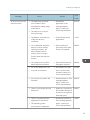
For some errors, a scanner error code will be displayed in addition to the error message.
Message
The selected device
does not support the
scan function of this
application.
36
Cause
Solution
• [Scan] was tapped while a
device without this
application compatible scan
function (scan generic
support) was selected.
• Connect and select a
device with this
application compatible
scan function.
Error
Code
-
If a Message is Displayed
Message
Unable to use the
scanner.
Cause
• Connecting with the device
failed.
Please check the
scanner's status.
Solution
• Connect the device
properly.
Error
Code
8528
• Check the network
cable connections.
• Check that the power of
the device is on.
• Restart the iOS device.
• The ADF cover is open.
• Close the ADF cover.
34960
• The ADF is lifted.
• Lower the ADF.
34961
• A function of the device other
than the Scanner function is
being used such as the
Copier function.
• Check whether the
other user is using the
Scanner function.
36855
• The TWAIN scanner function
cannot be used on the
device.
• Contact your service
representative.
9220
There is no original on
the ADF.
• The originals are not set into
ADF.
• Check whether the
originals are placed
correctly.
33696
An original has
jammed in the ADF.
• A paper misfeed has
occurred inside the ADF.
• Remove the jammed
originals.
34962
• Check whether the
originals are suitable to
be scanned by the
device.
37
7. Troubleshooting
Message
Authentication has
failed.
Unable to detect the
original size.
Set the scan size.
38
Cause
Solution
Error
Code
• The user code authentication
has failed.
• Contact administrator of
the device or system.
8824
• The entered login user name,
password, or driver
encryption key was invalid.
• Check your login user
name, login password,
or driver encryption
key.
35025
• The logged in user name
does not have permission for
scanner function.
• Log in as a user with the
permission for scanner
function.
35026
• Another user is currently
performing authentication
and login is not possible.
• Wait until the other
user’s authentication is
complete.
35027
• The authentication service is
being processed.
• Wait until the
authentication service
process is complete.
35028
• The authentication service is
being prepared.
• Wait until the
authentication service
preparation is
complete.
35029
• The authenticated user could
not be copied to the device's
address book because it is
full.
• Contact your
administrator.
35030
• The authenticated user was
registered repeatedly when
the user was copied to the
device’s address book.
• Contact your
administrator.
35031
• The original size failed to be
detected in auto size
detection mode.
• Specify the original
size.
35008
• When using the
exposure glass,
reposition the original
so that it is placed
correctly.
If a Message is Displayed
Error
Code
Message
Cause
Solution
An error has occurred
with the scanner.
• The application-specified
scan conditions have
exceeded the setting range
of the device.
• Reinstall the
application. If the
message appears
again, contact your
service representative.
33376
• The RAM or virtual memory
of the iOS device is
insufficient.
• Close all other active
applications.
4128
• On a model that shares the
device's scanner memory
with other functions, the
device failed to secure
memory when running a
function other than the scan
function.
• Wait a while until
processing of the other
function is complete.
34993
• The system resources of the
device became insufficient.
• Wait until the resource
shortage is resolved.
34994
• An unrecoverable error has
occurred on the device.
• Record the error code
shown on the screen,
and then contact your
service representative.
33280
• An error has occurred in the
hard disk.
• Restart the device. If the
message appears
again, contact your
service representative.
34870
• There is not enough free hard
disk space.
• Delete any unnecessary
files saved in the device
and secure enough free
hard disk space.
34997
• There is a problem with the
application or the device.
• Restart the iOS device.
If the message appears
again, contact your
service representative.
5000
• The other error occurred
during scanning.
• The operating system
environment is inadequate.
39
7. Troubleshooting
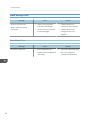
Cloud Storage Errors
Message
An error has occurred.
Please check the internet
connection.
Cause
Solution
• There was no response
from the cloud storage.
• Check that there is a
connection to the internet.
• An error has occurred with
the cloud storage.
• Check that the cloud
storage service is not
stopped.
Main Menu Error
Message
No data in clipboard.
40
Cause
• [Print Clipboard] was
tapped while the clipboard
was empty.
Solution
• Tap [Print Clipboard] while
text or an image was
copied to the clipboard.
8. Appendix
Specifications
Tested Smart Devices
Supported iOS devices
iPad 2, New iPad (the 3rd generation), iPad with Retina Display (the 4th generation), iPad mini,
iPhone 4, iPhone 4S, iPhone 5, iPhone 5C, iPhone 5S
Supported OS Versions
Supported iOS Versions
iOS 5.0 or later
Supported Devices
The Ricoh printers and multifunction products (MFPs)
For details about supported devices and tested devices, see RICOH home page of the Website.
Supported Location Free Print Servers
Enhanced Locked Print NX FlexRelease Server V2
Supported On-demand Print Options
Enhanced Locked Print NX V2
41
8. Appendix
Copyright Information about Installed
Applications
libjpeg-6b
http://www.ijg.org/
There are some items seeking the notification to customer from the author of the OSS, besides the
common descriptions.
Therefore, the full text reads as follows. In addition, ansi2knr.c, configure, config.guess, config.sub,
ltconfig, ltmain.sh, install-sh in the following referred program are not included in this product.
LEGAL ISSUES
In plain English:
1. We don't promise that this software works. (But if you find any bugs, please let us know!)
2. You can use this software for whatever you want. You don't have to pay us.
3. You may not pretend that you wrote this software. If you use it in a program, you must
acknowledge somewhere in your documentation that you've used the IJG code.
In legalese:
The authors make NO WARRANTY or representation, either express or implied, with respect to this
software, its quality, accuracy, merchantability, or fitness for a particular purpose. This software is
provided "AS IS", and you, its user, assume the entire risk as to its quality and accuracy.
This software is copyright © 1991-1998, Thomas G. Lane.
All Rights Reserved except as specified below.
Permission is hereby granted to use, copy, modify, and distribute this software (or portions thereof) for
any purpose, without fee, subject to these conditions:
(1) If any part of the source code for this software is distributed, then this README file must be included,
with this copyright and no-warranty notice unaltered; and any additions, deletions, or changes to the
original files must be clearly indicated in accompanying documentation.
(2) If only executable code is distributed, then the accompanying documentation must state that "this
software is based in part on the work of the Independent JPEG Group".
(3) Permission for use of this software is granted only if the user accepts full responsibility for any
undesirable consequences; the authors accept NO LIABILITY for damages of any kind.
These conditions apply to any software derived from or based on the IJG code, not just to the
unmodified library. If you use our work, you ought to acknowledge us.
Permission is NOT granted for the use of any IJG author's name or company name in advertising or
publicity relating to this software or products derived from it. This software may be referred to only as
"the Independent JPEG Group's software".
42
Copyright Information about Installed Applications
We specifically permit and encourage the use of this software as the basis of commercial products,
provided that all warranty or liability claims are assumed by the product vendor.
ansi2knr.c is included in this distribution by permission of L. Peter Deutsch, sole proprietor of its copyright
holder, Aladdin Enterprises of Menlo Park, CA. ansi2knr.c is NOT covered by the above copyright and
conditions, but instead by the usual distribution terms of the Free Software Foundation; principally, that
you must include source code if you redistribute it. (See the file ansi2knr.c for full details.) However,
since ansi2knr.c is not needed as part of any program generated from the IJG code, this does not limit
you more than the foregoing paragraphs do.
The Unix configuration script "configure" was produced with GNU Autoconf.
It is copyright by the Free Software Foundation but is freely distributable.
The same holds for its supporting scripts (config.guess, config.sub, ltconfig, ltmain.sh). Another support
script, install-sh, is copyright by M.I.T. but is also freely distributable.
It appears that the arithmetic coding option of the JPEG spec is covered by patents owned by IBM,
AT&T, and Mitsubishi. Hence arithmetic coding cannot legally be used without obtaining one or more
licenses. For this reason, support for arithmetic coding has been removed from the free JPEG software.
(Since arithmetic coding provides only a marginal gain over the unpatented Huffman mode, it is unlikely
that very many implementations will support it.)
So far as we are aware, there are no patent restrictions on the remaining code.
The IJG distribution formerly included code to read and write GIF files.
To avoid entanglement with the Unisys LZW patent, GIF reading support has been removed altogether,
and the GIF writer has been simplified to produce "uncompressed GIFs". This technique does not use the
LZW algorithm; the resulting GIF files are larger than usual, but are readable by all standard GIF
decoders.
We are required to state that
"The Graphics Interchange Format© is the Copyright property of CompuServe Incorporated. GIF(sm) is
a Service Mark property of CompuServe Incorporated."
Net-SNMP
Various copyrights apply to this package, listed in various separate parts below. Please make sure that
you read all the parts.
---- Part 1: CMU/UCD copyright notice: (BSD like) ----Copyright 1989, 1991, 1992 by Carnegie Mellon University
Derivative Work - 1996, 1998-2000
Copyright 1996, 1998-2000 The Regents of the University of California
All Rights Reserved
43
8. Appendix
Permission to use, copy, modify and distribute this software and its documentation for any purpose and
without fee is hereby granted, provided that the above copyright notice appears in all copies and that
both that copyright notice and this permission notice appear in supporting documentation, and that the
name of CMU and The Regents of the University of California not be used in advertising or publicity
pertaining to distribution of the software without specific written permission.
CMU AND THE REGENTS OF THE UNIVERSITY OF CALIFORNIA DISCLAIM ALL WARRANTIES WITH
REGARD TO THIS SOFTWARE, INCLUDING ALL IMPLIED WARRANTIES OF MERCHANTABILITY
AND FITNESS. IN NO EVENT SHALL CMU OR THE REGENTS OF THE UNIVERSITY OF CALIFORNIA
BE LIABLE FOR ANY SPECIAL, INDIRECT OR CONSEQUENTIAL DAMAGES OR ANY DAMAGES
WHATSOEVER RESULTING FROM THE LOSS OF USE, DATA OR PROFITS, WHETHER IN AN
ACTION OF CONTRACT, NEGLIGENCE OR OTHER TORTIOUS ACTION, ARISING OUT OF OR IN
CONNECTION WITH THE USE OR PERFORMANCE OF THIS SOFTWARE.
---- Part 2: Networks Associates Technology, Inc copyright notice (BSD) ----Copyright © 2001-2003, Networks Associates Technology, Inc
All rights reserved.
Redistribution and use in source and binary forms, with or without modification, are permitted provided
that the following conditions are met:
• Redistributions of source code must retain the above copyright notice, this list of conditions and the
following disclaimer.
• Redistributions in binary form must reproduce the above copyright notice, this list of conditions and
the following disclaimer in the documentation and/or other materials provided with the distribution.
• Neither the name of the Networks Associates Technology, Inc nor the names of its contributors may
be used to endorse or promote products derived from this software without specific prior written
permission.
THIS SOFTWARE IS PROVIDED BY THE COPYRIGHT HOLDERS AND CONTRIBUTORS ``AS IS'' AND
ANY EXPRESS OR IMPLIED WARRANTIES, INCLUDING, BUT NOT LIMITED TO, THE IMPLIED
WARRANTIES OF MERCHANTABILITY AND FITNESS FOR A PARTICULAR PURPOSE ARE
DISCLAIMED. IN NO EVENT SHALL THE COPYRIGHT HOLDERS OR CONTRIBUTORS BE LIABLE FOR
ANY DIRECT, INDIRECT, INCIDENTAL, SPECIAL, EXEMPLARY, OR CONSEQUENTIAL DAMAGES
(INCLUDING, BUT NOT LIMITED TO, PROCUREMENT OF SUBSTITUTE GOODS OR SERVICES;
LOSS OF USE, DATA, OR PROFITS; OR BUSINESS INTERRUPTION) HOWEVER CAUSED AND ON
ANY THEORY OF LIABILITY, WHETHER IN CONTRACT, STRICT LIABILITY, OR TORT (INCLUDING
NEGLIGENCE OR OTHERWISE) ARISING IN ANY WAY OUT OF THE USE OF THIS SOFTWARE,
EVEN IF ADVISED OF THE POSSIBILITY OF SUCH DAMAGE.
---- Part 3: Cambridge Broadband Ltd. copyright notice (BSD) ----Portions of this code are copyright © 2001-2003, Cambridge Broadband Ltd.
All rights reserved.
Redistribution and use in source and binary forms, with or without modification, are permitted provided
that the following conditions are met:
44
Copyright Information about Installed Applications
• Redistributions of source code must retain the above copyright notice, this list of conditions and the
following disclaimer.
• Redistributions in binary form must reproduce the above copyright notice, this list of conditions and
the following disclaimer in the documentation and/or other materials provided with the distribution.
• The name of Cambridge Broadband Ltd. may not be used to endorse or promote products derived
from this software without specific prior written permission.
THIS SOFTWARE IS PROVIDED BY THE COPYRIGHT HOLDER ``AS IS'' AND ANY EXPRESS OR
IMPLIED WARRANTIES, INCLUDING, BUT NOT LIMITED TO, THE IMPLIED WARRANTIES OF
MERCHANTABILITY AND FITNESS FOR A PARTICULAR PURPOSE ARE DISCLAIMED. IN NO EVENT
SHALL THE COPYRIGHT HOLDER BE LIABLE FOR ANY DIRECT, INDIRECT, INCIDENTAL, SPECIAL,
EXEMPLARY, OR CONSEQUENTIAL DAMAGES (INCLUDING, BUT NOT LIMITED TO,
PROCUREMENT OF SUBSTITUTE GOODS OR SERVICES; LOSS OF USE, DATA, OR PROFITS; OR
BUSINESS INTERRUPTION) HOWEVER CAUSED AND ON ANY THEORY OF LIABILITY, WHETHER
IN CONTRACT, STRICT LIABILITY, OR TORT (INCLUDING NEGLIGENCE OR OTHERWISE) ARISING
IN ANY WAY OUT OF THE USE OF THIS SOFTWARE, EVEN IF ADVISED OF THE POSSIBILITY OF
SUCH DAMAGE.
---- Part 4: Sun Microsystems, Inc. copyright notice (BSD) ----Copyright © 2003 Sun Microsystems, Inc., 4150 Network Circle, Santa Clara,
California 95054, U.S.A. All rights reserved.
Use is subject to license terms below.
This distribution may include materials developed by third parties.
Sun, Sun Microsystems, the Sun logo and Solaris are trademarks or registered trademarks of Sun
Microsystems, Inc. in the U.S. and other countries.
Redistribution and use in source and binary forms, with or without modification, are permitted provided
that the following conditions are met:
• Redistributions of source code must retain the above copyright notice, this list of conditions and the
following disclaimer.
• Redistributions in binary form must reproduce the above copyright notice, this list of conditions and
the following disclaimer in the documentation and/or other materials provided with the distribution.
• Neither the name of the Sun Microsystems, Inc. nor the names of its contributors may be used to
endorse or promote products derived from this software without specific prior written permission.
THIS SOFTWARE IS PROVIDED BY THE COPYRIGHT HOLDERS AND CONTRIBUTORS ``AS IS'' AND
ANY EXPRESS OR IMPLIED WARRANTIES, INCLUDING, BUT NOT LIMITED TO, THE IMPLIED
WARRANTIES OF MERCHANTABILITY AND FITNESS FOR A PARTICULAR PURPOSE ARE
DISCLAIMED. IN NO EVENT SHALL THE COPYRIGHT HOLDERS OR CONTRIBUTORS BE LIABLE FOR
ANY DIRECT, INDIRECT, INCIDENTAL, SPECIAL, EXEMPLARY, OR CONSEQUENTIAL DAMAGES
(INCLUDING, BUT NOT LIMITED TO, PROCUREMENT OF SUBSTITUTE GOODS OR SERVICES;
LOSS OF USE, DATA, OR PROFITS; OR BUSINESS INTERRUPTION) HOWEVER CAUSED AND ON
45
8. Appendix
ANY THEORY OF LIABILITY, WHETHER IN CONTRACT, STRICT LIABILITY, OR TORT (INCLUDING
NEGLIGENCE OR OTHERWISE) ARISING IN ANY WAY OUT OF THE USE OF THIS SOFTWARE,
EVEN IF ADVISED OF THE POSSIBILITY OF SUCH DAMAGE.
---- Part 5: Sparta, Inc copyright notice (BSD) ----Copyright © 2003-2009, Sparta, Inc
All rights reserved.
Redistribution and use in source and binary forms, with or without modification, are permitted provided
that the following conditions are met:
• Redistributions of source code must retain the above copyright notice, this list of conditions and the
following disclaimer.
• Redistributions in binary form must reproduce the above copyright notice, this list of conditions and
the following disclaimer in the documentation and/or other materials provided with the distribution.
• Neither the name of Sparta, Inc nor the names of its contributors may be used to endorse or
promote products derived from this software without specific prior written permission.
THIS SOFTWARE IS PROVIDED BY THE COPYRIGHT HOLDERS AND CONTRIBUTORS ``AS IS'' AND
ANY EXPRESS OR IMPLIED WARRANTIES, INCLUDING, BUT NOT LIMITED TO, THE IMPLIED
WARRANTIES OF MERCHANTABILITY AND FITNESS FOR A PARTICULAR PURPOSE ARE
DISCLAIMED. IN NO EVENT SHALL THE COPYRIGHT HOLDERS OR CONTRIBUTORS BE LIABLE FOR
ANY DIRECT, INDIRECT, INCIDENTAL, SPECIAL, EXEMPLARY, OR CONSEQUENTIAL DAMAGES
(INCLUDING, BUT NOT LIMITED TO, PROCUREMENT OF SUBSTITUTE GOODS OR SERVICES;
LOSS OF USE, DATA, OR PROFITS; OR BUSINESS INTERRUPTION) HOWEVER CAUSED AND ON
ANY THEORY OF LIABILITY, WHETHER IN CONTRACT, STRICT LIABILITY, OR TORT (INCLUDING
NEGLIGENCE OR OTHERWISE) ARISING IN ANY WAY OUT OF THE USE OF THIS SOFTWARE,
EVEN IF ADVISED OF THE POSSIBILITY OF SUCH DAMAGE.
---- Part 6: Cisco/BUPTNIC copyright notice (BSD) ----Copyright © 2004, Cisco, Inc and Information Network
Center of Beijing University of Posts and Telecommunications.
All rights reserved.
Redistribution and use in source and binary forms, with or without modification, are permitted provided
that the following conditions are met:
• Redistributions of source code must retain the above copyright notice, this list of conditions and the
following disclaimer.
• Redistributions in binary form must reproduce the above copyright notice, this list of conditions and
the following disclaimer in the documentation and/or other materials provided with the distribution.
• Neither the name of Cisco, Inc, Beijing University of Posts and Telecommunications, nor the names
of their contributors may be used to endorse or promote products derived from this software without
specific prior written permission.
46
Copyright Information about Installed Applications
THIS SOFTWARE IS PROVIDED BY THE COPYRIGHT HOLDERS AND CONTRIBUTORS ``AS IS'' AND
ANY EXPRESS OR IMPLIED WARRANTIES, INCLUDING, BUT NOT LIMITED TO, THE IMPLIED
WARRANTIES OF MERCHANTABILITY AND FITNESS FOR A PARTICULAR PURPOSE ARE
DISCLAIMED. IN NO EVENT SHALL THE COPYRIGHT HOLDERS OR CONTRIBUTORS BE LIABLE FOR
ANY DIRECT, INDIRECT, INCIDENTAL, SPECIAL, EXEMPLARY, OR CONSEQUENTIAL DAMAGES
(INCLUDING, BUT NOT LIMITED TO, PROCUREMENT OF SUBSTITUTE GOODS OR SERVICES;
LOSS OF USE, DATA, OR PROFITS; OR BUSINESS INTERRUPTION) HOWEVER CAUSED AND ON
ANY THEORY OF LIABILITY, WHETHER IN CONTRACT, STRICT LIABILITY, OR TORT (INCLUDING
NEGLIGENCE OR OTHERWISE) ARISING IN ANY WAY OUT OF THE USE OF THIS SOFTWARE,
EVEN IF ADVISED OF THE POSSIBILITY OF SUCH DAMAGE.
---- Part 7: Fabasoft R&D Software GmbH & Co KG copyright notice (BSD) ----Copyright © Fabasoft R&D Software GmbH & Co KG, 2003
[email protected]
Author: Bernhard Penz
Redistribution and use in source and binary forms, with or without modification, are permitted provided
that the following conditions are met:
• Redistributions of source code must retain the above copyright notice, this list of conditions and the
following disclaimer.
• Redistributions in binary form must reproduce the above copyright notice, this list of conditions and
the following disclaimer in the documentation and/or other materials provided with the distribution.
• The name of Fabasoft R&D Software GmbH & Co KG or any of its subsidiaries, brand or product
names may not be used to endorse or promote products derived from this software without specific
prior written permission.
THIS SOFTWARE IS PROVIDED BY THE COPYRIGHT HOLDER ``AS IS'' AND ANY EXPRESS OR
IMPLIED WARRANTIES, INCLUDING, BUT NOT LIMITED TO, THE IMPLIED WARRANTIES OF
MERCHANTABILITY AND FITNESS FOR A PARTICULAR PURPOSE ARE DISCLAIMED. IN NO EVENT
SHALL THE COPYRIGHT HOLDER BE LIABLE FOR ANY DIRECT, INDIRECT, INCIDENTAL, SPECIAL,
EXEMPLARY, OR CONSEQUENTIAL DAMAGES (INCLUDING, BUT NOT LIMITED TO,
PROCUREMENT OF SUBSTITUTE GOODS OR SERVICES; LOSS OF USE, DATA, OR PROFITS; OR
BUSINESS INTERRUPTION) HOWEVER CAUSED AND ON ANY THEORY OF LIABILITY, WHETHER
IN CONTRACT, STRICT LIABILITY, OR TORT (INCLUDING NEGLIGENCE OR OTHERWISE) ARISING
IN ANY WAY OUT OF THE USE OF THIS SOFTWARE, EVEN IF ADVISED OF THE POSSIBILITY OF
SUCH DAMAGE.
---- Part 8: Apple Inc. copyright notice (BSD) ----Copyright © 2007 Apple Inc. All rights reserved.
Redistribution and use in source and binary forms, with or without modification, are permitted provided
that the following conditions are met:
1. Redistributions of source code must retain the above copyright notice, this list of conditions and the
following disclaimer.
47
8. Appendix
2. Redistributions in binary form must reproduce the above copyright notice, this list of conditions and
the following disclaimer in the documentation and/or other materials provided with the distribution.
3. Neither the name of Apple Inc. ("Apple") nor the names of its contributors may be used to endorse
or promote products derived from this software without specific prior written permission.
THIS SOFTWARE IS PROVIDED BY APPLE AND ITS CONTRIBUTORS "AS IS" AND ANY EXPRESS OR
IMPLIED WARRANTIES, INCLUDING, BUT NOT LIMITED TO, THE IMPLIED WARRANTIES OF
MERCHANTABILITY AND FITNESS FOR A PARTICULAR PURPOSE ARE DISCLAIMED. IN NO EVENT
SHALL APPLE OR ITS CONTRIBUTORS BE LIABLE FOR ANY DIRECT, INDIRECT, INCIDENTAL,
SPECIAL, EXEMPLARY, OR CONSEQUENTIAL DAMAGES (INCLUDING, BUT NOT LIMITED TO,
PROCUREMENT OF SUBSTITUTE GOODS OR SERVICES; LOSS OF USE, DATA, OR PROFITS; OR
BUSINESS INTERRUPTION) HOWEVER CAUSED AND ON ANY THEORY OF LIABILITY, WHETHER
IN CONTRACT, STRICT LIABILITY, OR TORT (INCLUDING NEGLIGENCE OR OTHERWISE) ARISING
IN ANY WAY OUT OF THE USE OF THIS SOFTWARE, EVEN IF ADVISED OF THE POSSIBILITY OF
SUCH DAMAGE.
---- Part 9: ScienceLogic, LLC copyright notice (BSD) ----Copyright © 2009, ScienceLogic, LLC
All rights reserved.
Redistribution and use in source and binary forms, with or without modification, are permitted provided
that the following conditions are met:
• Redistributions of source code must retain the above copyright notice, this list of conditions and the
following disclaimer.
• Redistributions in binary form must reproduce the above copyright notice, this list of conditions and
the following disclaimer in the documentation and/or other materials provided with the distribution.
• Neither the name of ScienceLogic, LLC nor the names of its contributors may be used to endorse or
promote products derived from this software without specific prior written permission.
THIS SOFTWARE IS PROVIDED BY THE COPYRIGHT HOLDERS AND CONTRIBUTORS ``AS IS'' AND
ANY EXPRESS OR IMPLIED WARRANTIES, INCLUDING, BUT NOT LIMITED TO, THE IMPLIED
WARRANTIES OF MERCHANTABILITY AND FITNESS FOR A PARTICULAR PURPOSE ARE
DISCLAIMED. IN NO EVENT SHALL THE COPYRIGHT HOLDERS OR CONTRIBUTORS BE LIABLE FOR
ANY DIRECT, INDIRECT, INCIDENTAL, SPECIAL, EXEMPLARY, OR CONSEQUENTIAL DAMAGES
(INCLUDING, BUT NOT LIMITED TO, PROCUREMENT OF SUBSTITUTE GOODS OR SERVICES;
LOSS OF USE, DATA, OR PROFITS; OR BUSINESS INTERRUPTION) HOWEVER CAUSED AND ON
ANY THEORY OF LIABILITY, WHETHER IN CONTRACT, STRICT LIABILITY, OR TORT (INCLUDING
NEGLIGENCE OR OTHERWISE) ARISING IN ANY WAY OUT OF THE USE OF THIS SOFTWARE,
EVEN IF ADVISED OF THE POSSIBILITY OF SUCH DAMAGE.
48
Copyright Information about Installed Applications
Reachability/SimplePing
Disclaimer: IMPORTANT: This Apple software is supplied to you by Apple Inc. ("Apple") in
consideration of your agreement to the following terms, and your use, installation, modification or
redistribution of this Apple software constitutes acceptance of these terms. If you do not agree with these
terms, please do not use, install, modify or redistribute this Apple software.
In consideration of your agreement to abide by the following terms, and subject to these terms, Apple
grants you a personal, non-exclusive license, under Apple's copyrights in this original Apple software
(the "Apple Software"), to use, reproduce, modify and redistribute the Apple Software, with or without
modifications, in source and/or binary forms; provided that if you redistribute the Apple Software in its
entirety and without modifications, you must retain this notice and the following text and disclaimers in all
such redistributions of the Apple Software.
Neither the name, trademarks, service marks or logos of Apple Inc. may be used to endorse or promote
products derived from the Apple Software without specific prior written permission from Apple. Except
as expressly stated in this notice, no other rights or licenses, express or implied, are granted by Apple
herein, including but not limited to any patent rights that may be infringed by your derivative works or by
other works in which the Apple Software may be incorporated.
The Apple Software is provided by Apple on an "AS IS" basis. APPLE MAKES NO WARRANTIES,
EXPRESS OR IMPLIED, INCLUDING WITHOUT LIMITATION THE IMPLIED WARRANTIES OF NONINFRINGEMENT, MERCHANTABILITY AND FITNESS FOR A PARTICULAR PURPOSE, REGARDING
THE APPLE SOFTWARE OR ITS USE AND OPERATION ALONE OR IN COMBINATION WITH YOUR
PRODUCTS.
IN NO EVENT SHALL APPLE BE LIABLE FOR ANY SPECIAL, INDIRECT, INCIDENTAL OR
CONSEQUENTIAL DAMAGES (INCLUDING, BUT NOT LIMITED TO, PROCUREMENT OF
SUBSTITUTE GOODS OR SERVICES; LOSS OF USE, DATA, OR PROFITS; OR BUSINESS
INTERRUPTION) ARISING IN ANY WAY OUT OF THE USE, REPRODUCTION, MODIFICATION
AND/OR DISTRIBUTION OF THE APPLE SOFTWARE, HOWEVER CAUSED AND WHETHER UNDER
THEORY OF CONTRACT, TORT (INCLUDING NEGLIGENCE), STRICT LIABILITY OR OTHERWISE,
EVEN IF APPLE HAS BEEN ADVISED OF THE POSSIBILITY OF SUCH DAMAGE.
Copyright © 2013 Apple Inc. All Rights Reserved.
ObjectiveMixin
Copyright © 2012, Vladimir Mitrovic
All rights reserved.
Redistribution and use in source and binary forms, with or without modification, are permitted provided
that the following conditions are met:
1. Redistributions of source code must retain the above copyright notice, this list of conditions and the
following disclaimer.
49
8. Appendix
2. Redistributions in binary form must reproduce the above copyright notice, this list of conditions and
the following disclaimer in the documentation and/or other materials provided with the distribution.
THIS SOFTWARE IS PROVIDED BY THE COPYRIGHT HOLDERS AND CONTRIBUTORS "AS IS" AND
ANY EXPRESS OR IMPLIED WARRANTIES, INCLUDING, BUT NOT LIMITED TO, THE IMPLIED
WARRANTIES OF MERCHANTABILITY AND FITNESS FOR A PARTICULAR PURPOSE ARE
DISCLAIMED. IN NO EVENT SHALL THE COPYRIGHT OWNER OR CONTRIBUTORS BE LIABLE FOR
ANY DIRECT, INDIRECT, INCIDENTAL, SPECIAL, EXEMPLARY, OR CONSEQUENTIAL DAMAGES
(INCLUDING, BUT NOT LIMITED TO, PROCUREMENT OF SUBSTITUTE GOODS OR SERVICES;
LOSS OF USE, DATA, OR PROFITS; OR BUSINESS INTERRUPTION) HOWEVER CAUSED AND ON
ANY THEORY OF LIABILITY, WHETHER IN CONTRACT, STRICT LIABILITY, OR TORT (INCLUDING
NEGLIGENCE OR OTHERWISE) ARISING IN ANY WAY OUT OF THE USE OF THIS SOFTWARE,
EVEN IF ADVISED OF THE POSSIBILITY OF SUCH DAMAGE.
DropboxSDK
Copyright © 2010-2013 Dropbox, Inc., http://www.dropbox.com/
Permission is hereby granted, free of charge, to any person obtaining a copy of this software and
associated documentation files (the "Software"), to deal in the Software without restriction, including
without limitation the rights to use, copy, modify, merge, publish, distribute, sublicense, and/or sell
copies of the Software, and to permit persons to whom the Software is furnished to do so, subject to the
following conditions:
The above copyright notice and this permission notice shall be included in all copies or substantial
portions of the Software.
THE SOFTWARE IS PROVIDED "AS IS", WITHOUT WARRANTY OF ANY KIND, EXPRESS OR
IMPLIED, INCLUDING BUT NOT LIMITED TO THE WARRANTIES OF MERCHANTABILITY, FITNESS
FOR A PARTICULAR PURPOSE AND NONINFRINGEMENT. IN NO EVENT SHALL THE AUTHORS OR
COPYRIGHT HOLDERS BE LIABLE FOR ANY CLAIM, DAMAGES OR OTHER LIABILITY, WHETHER IN
AN ACTION OF CONTRACT, TORT OR OTHERWISE, ARISING FROM, OUT OF OR IN
CONNECTION WITH THE SOFTWARE OR THE USE OR OTHER DEALINGS IN THE SOFTWARE.
Apache License
Version 2.0, January 2004
http://www.apache.org/licenses/
TERMS AND CONDITIONS FOR USE, REPRODUCTION, AND DISTRIBUTION
1. Definitions.
"License" shall mean the terms and conditions for use, reproduction, and distribution as defined by
Sections 1 through 9 of this document.
50
Copyright Information about Installed Applications
"Licensor" shall mean the copyright owner or entity authorized by the copyright owner that is
granting the License.
"Legal Entity" shall mean the union of the acting entity and all other entities that control, are
controlled by, or are under common control with that entity. For the purposes of this definition,
"control" means (i) the power, direct or indirect, to cause the direction or management of such
entity, whether by contract or otherwise, or (ii) ownership of fifty percent (50%) or more of the
outstanding shares, or (iii) beneficial ownership of such entity.
"You" (or "Your") shall mean an individual or Legal Entity exercising permissions granted by this
License.
"Source" form shall mean the preferred form for making modifications, including but not limited to
software source code, documentation source, and configuration files.
"Object" form shall mean any form resulting from mechanical transformation or translation of a
Source form, including but not limited to compiled object code, generated documentation, and
conversions to other media types.
"Work" shall mean the work of authorship, whether in Source or Object form, made available
under the License, as indicated by a copyright notice that is included in or attached to the work (an
example is provided in the Appendix below).
"Derivative Works" shall mean any work, whether in Source or Object form, that is based on (or
derived from) the Work and for which the editorial revisions, annotations, elaborations, or other
modifications represent, as a whole, an original work of authorship. For the purposes of this
License, Derivative Works shall not include works that remain separable from, or merely link (or
bind by name) to the interfaces of, the Work and Derivative Works thereof.
"Contribution" shall mean any work of authorship, including the original version of the Work and
any modifications or additions to that Work or Derivative Works thereof, that is intentionally
submitted to Licensor for inclusion in the Work by the copyright owner or by an individual or Legal
Entity authorized to submit on behalf of the copyright owner. For the purposes of this definition,
"submitted" means any form of electronic, verbal, or written communication sent to the Licensor or
its representatives, including but not limited to communication on electronic mailing lists, source
code control systems, and issue tracking systems that are managed by, or on behalf of, the Licensor
for the purpose of discussing and improving the Work, but excluding communication that is
conspicuously marked or otherwise designated in writing by the copyright owner as "Not a
Contribution."
"Contributor" shall mean Licensor and any individual or Legal Entity on behalf of whom a
Contribution has been received by Licensor and subsequently incorporated within the Work.
2. Grant of Copyright License.
Subject to the terms and conditions of this License, each Contributor hereby grants to You a
perpetual, worldwide, non-exclusive, no-charge, royalty-free, irrevocable copyright license to
reproduce, prepare Derivative Works of, publicly display, publicly perform, sublicense, and
distribute the Work and such Derivative Works in Source or Object form.
3. Grant of Patent License.
51
8. Appendix
Subject to the terms and conditions of this License, each Contributor hereby grants to You a
perpetual, worldwide, non-exclusive, no-charge, royalty-free, irrevocable (except as stated in this
section) patent license to make, have made, use, offer to sell, sell, import, and otherwise transfer
the Work, where such license applies only to those patent claims licensable by such Contributor
that are necessarily infringed by their Contribution(s) alone or by combination of their
Contribution(s) with the Work to which such Contribution(s) was submitted. If You institute patent
litigation against any entity (including a cross-claim or counterclaim in a lawsuit) alleging that the
Work or a Contribution incorporated within the Work constitutes direct or contributory patent
infringement, then any patent licenses granted to You under this License for that Work shall
terminate as of the date such litigation is filed.
4. Redistribution.
You may reproduce and distribute copies of the Work or Derivative Works thereof in any medium,
with or without modifications, and in Source or Object form, provided that You meet the following
conditions:
You must give any other recipients of the Work or Derivative Works a copy of this License; and You
must cause any modified files to carry prominent notices stating that You changed the files; and You
must retain, in the Source form of any Derivative Works that You distribute, all copyright, patent,
trademark, and attribution notices from the Source form of the Work, excluding those notices that
do not pertain to any part of the Derivative Works; and If the Work includes a "NOTICE" text file as
part of its distribution, then any Derivative Works that You distribute must include a readable copy
of the attribution notices contained within such NOTICE file, excluding those notices that do not
pertain to any part of the Derivative Works, in at least one of the following places: within a
NOTICE text file distributed as part of the Derivative Works; within the Source form or
documentation, if provided along with the Derivative Works; or, within a display generated by the
Derivative Works, if and wherever such third-party notices normally appear. The contents of the
NOTICE file are for informational purposes only and do not modify the License. You may add Your
own attribution notices within Derivative Works that You distribute, alongside or as an addendum
to the NOTICE text from the Work, provided that such additional attribution notices cannot be
construed as modifying the License.
You may add Your own copyright statement to Your modifications and may provide additional or
different license terms and conditions for use, reproduction, or distribution of Your modifications, or
for any such Derivative Works as a whole, provided Your use, reproduction, and distribution of the
Work otherwise complies with the conditions stated in this License.
5. Submission of Contributions.
Unless You explicitly state otherwise, any Contribution intentionally submitted for inclusion in the
Work by You to the Licensor shall be under the terms and conditions of this License, without any
additional terms or conditions. Notwithstanding the above, nothing herein shall supersede or
modify the terms of any separate license agreement you may have executed with Licensor
regarding such Contributions.
6. Trademarks
52
Copyright Information about Installed Applications
This License does not grant permission to use the trade names, trademarks, service marks, or
product names of the Licensor, except as required for reasonable and customary use in describing
the origin of the Work and reproducing the content of the NOTICE file.
7. Disclaimer of Warranty.
Unless required by applicable law or agreed to in writing, Licensor provides the Work (and each
Contributor provides its Contributions) on an "AS IS" BASIS, WITHOUT WARRANTIES OR
CONDITIONS OF ANY KIND, either express or implied, including, without limitation, any
warranties or conditions of TITLE, NON-INFRINGEMENT, MERCHANTABILITY, or FITNESS FOR
A PARTICULAR PURPOSE. You are solely responsible for determining the appropriateness of using
or redistributing the Work and assume any risks associated with Your exercise of permissions under
this License.
8. Limitation of Liability.
In no event and under no legal theory, whether in tort (including negligence), contract, or
otherwise, unless required by applicable law (such as deliberate and grossly negligent acts) or
agreed to in writing, shall any Contributor be liable to You for damages, including any direct,
indirect, special, incidental, or consequential damages of any character arising as a result of this
License or out of the use or inability to use the Work (including but not limited to damages for loss
of goodwill, work stoppage, computer failure or malfunction, or any and all other commercial
damages or losses), even if such Contributor has been advised of the possibility of such damages.
9. Accepting Warranty or Additional Liability.
While redistributing the Work or Derivative Works thereof, You may choose to offer, and charge a
fee for, acceptance of support, warranty, indemnity, or other liability obligations and/or rights
consistent with this License. However, in accepting such obligations, You may act only on Your own
behalf and on Your sole responsibility, not on behalf of any other Contributor, and only if You
agree to indemnify, defend, and hold each Contributor harmless for any liability incurred by, or
claims asserted against, such Contributor by reason of your accepting any such warranty or
additional liability.
END OF TERMS AND CONDITIONS
APPENDIX: How to apply the Apache License to your work
To apply the Apache License to your work, attach the following boilerplate notice, with the fields
enclosed by brackets "[]" replaced with your own identifying information. (Don't include the brackets!)
The text should be enclosed in the appropriate comment syntax for the file format. We also recommend
that a file or class name and description of purpose be included on the same "printed page" as the
copyright notice for easier identification within third-party archives.
Copyright [yyyy] [name of copyright owner]
Licensed under the Apache License, Version 2.0 (the "License"); you may not use this file except in
compliance with the License.
You may obtain a copy of the License at
http://www.apache.org/licenses/LICENSE-2.0
53
8. Appendix
Unless required by applicable law or agreed to in writing, software distributed under the License is
distributed on an "AS IS" BASIS, WITHOUT WARRANTIES OR CONDITIONS OF ANY KIND, either
express or implied.
See the License for the specific language governing permissions and limitations under the License.
AQGridView
Copyright © 2010-2011, Kobo Inc.
All rights reserved.
Redistribution and use in source and binary forms, with or without modification, are permitted provided
that the following conditions are met:
Redistributions of source code must retain the above copyright notice, this list of conditions and the
following disclaimer.
Redistributions in binary form must reproduce the above copyright notice, this list of conditions and the
following disclaimer in the documentation and/or other materials provided with the distribution.
Neither the name of Kobo Inc. nor the names of its contributors may be used to endorse or promote
products derived from this software without specific prior written permission.
THIS SOFTWARE IS PROVIDED BY THE COPYRIGHT HOLDERS AND CONTRIBUTORS "AS IS" AND
ANY EXPRESS OR IMPLIED WARRANTIES, INCLUDING, BUT NOT LIMITED TO, THE IMPLIED
WARRANTIES OF MERCHANTABILITY AND FITNESS FOR A PARTICULAR PURPOSE ARE
DISCLAIMED. IN NO EVENT SHALL THE COPYRIGHT HOLDER OR CONTRIBUTORS BE LIABLE FOR
ANY DIRECT, INDIRECT, INCIDENTAL, SPECIAL, EXEMPLARY, OR CONSEQUENTIAL DAMAGES
(INCLUDING, BUT NOT LIMITED TO, PROCUREMENT OF SUBSTITUTE GOODS OR SERVICES;
LOSS OF USE, DATA, OR PROFITS; OR BUSINESS INTERRUPTION) HOWEVER CAUSED AND ON
ANY THEORY OF LIABILITY, WHETHER IN CONTRACT, STRICT LIABILITY, OR TORT (INCLUDING
NEGLIGENCE OR OTHERWISE) ARISING IN ANY WAY OUT OF THE USE OF THIS SOFTWARE,
EVEN IF ADVISED OF THE POSSIBILITY OF SUCH DAMAGE.
libHaru
Copyright © 1999-2006 Takeshi Kanno
This software is provided 'as-is', without any express or implied warranty.
In no event will the authors be held liable for any damages arising from the use of this software.
Permission is granted to anyone to use this software for any purpose, including commercial applications,
and to alter it and redistribute it freely, subject to the following restrictions:
1. The origin of this software must not be misrepresented; you must not claim that you wrote the
original software. If you use this software in a product, an acknowledgment in the product
documentation would be appreciated but is not required.
54
Copyright Information about Installed Applications
2. Altered source versions must be plainly marked as such, and must not be misrepresented as being
the original software.
3. This notice may not be removed or altered from any source distribution.
CocoaLumberjack
Software License Agreement (BSD License)
Copyright © 2010, Deusty, LLC
All rights reserved.
Redistribution and use of this software in source and binary forms, with or without modification, are
permitted provided that the following conditions are met:
* Redistributions of source code must retain the above
copyright notice, this list of conditions and the
following disclaimer.
* Neither the name of Deusty nor the names of its
contributors may be used to endorse or promote products
derived from this software without specific prior
written permission of Deusty, LLC.
THIS SOFTWARE IS PROVIDED BY THE COPYRIGHT HOLDERS AND CONTRIBUTORS "AS IS" AND
ANY EXPRESS OR IMPLIED WARRANTIES, INCLUDING, BUT NOT LIMITED TO, THE IMPLIED
WARRANTIES OF MERCHANTABILITY AND FITNESS FOR A PARTICULAR PURPOSE ARE
DISCLAIMED. IN NO EVENT SHALL THE COPYRIGHT OWNER OR CONTRIBUTORS BE LIABLE FOR
ANY DIRECT, INDIRECT, INCIDENTAL, SPECIAL, EXEMPLARY, OR CONSEQUENTIAL DAMAGES
(INCLUDING, BUT NOT LIMITED TO, PROCUREMENT OF SUBSTITUTE GOODS OR SERVICES;
LOSS OF USE, DATA, OR PROFITS; OR BUSINESS INTERRUPTION) HOWEVER CAUSED AND ON
ANY THEORY OF LIABILITY, WHETHER IN CONTRACT, STRICT LIABILITY, OR TORT (INCLUDING
NEGLIGENCE OR OTHERWISE) ARISING IN ANY WAY OUT OF THE USE OF THIS SOFTWARE,
EVEN IF ADVISED OF THE POSSIBILITY OF SUCH DAMAGE.
55
8. Appendix
Trademarks
IOS is a trademark or registered trademark of Cisco in the U.S. and other countries and is used under
license.
AirPrint, Bonjour, iTunes, iWork, iPhone, iPad, Keynotes, Numbers, and Pages are trademarks of Apple
Inc., registered in the U.S. and other countries.
Microsoft, Windows, Office, Excel, PowerPoint, and Word are either registered trademarks or
trademarks of Microsoft Corporation in the United States and/or other countries.
Other product names used herein are for identification purposes only and might be trademarks of their
respective companies. We disclaim any and all rights to those marks.
56
EN GB
EN US
220M-EN02
EN
GB
EN
US
220M-EN02
© 2013 Ricoh Co., Ltd.