1
Start and
Close Excel
Y
ou can start the Excel program by using the
Windows Start menu. When you open the
Start menu, the Windows search field appears
at the bottom and the All Programs choice appears
immediately above the search field. Once you select
All Programs, Windows displays folders that contain the
programs installed on your computer. The shortcut to
start Excel appears in the Microsoft Office folder. After
you select Excel from the Microsoft Office folder
several times, it will appear on the Start menu in the
list of recently opened programs. You can select
Microsoft Office Excel 2010 from that list to open the
program. If you use Excel regularly, you may want to
pin Excel to the Start menu or Windows taskbar or
create a shortcut for it so you can open it more quickly.
You can close Excel by using a command in Backstage
view or you can use the Close button in the
upper-right corner of the Excel window. Excel’s
behavior when you close the program depends on the
method you choose to close the program, the number
of workbooks you have open, and whether you have
made changes to any of the open workbooks.
Start and Close Excel
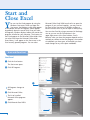
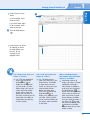
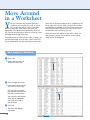
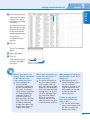
Start Excel
1
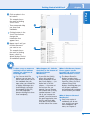
Click the Start button.
The Start menu opens.
2
Click All Programs.
2
1
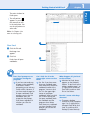
Programs changes to
• All
Back.
3
Click Microsoft Office.
3
4
list of installed
• The
Microsoft Office programs
appears.
4
•
Click Microsoft Excel 2010.
•
6