1
Getting Started with Excel
chapter
1
P
PART I
Learn Excel
Terminology
resented next is a series of terms you need to
know as you work with Excel.
Workbook
A workbook is a file in which you store your data.
Think of a workbook as a three-ring binder.
Each workbook contains at least one worksheet,
and a new workbook contains three worksheets,
named Sheet1, Sheet2, and Sheet3. People use
worksheets to organize, manage, and consolidate
data. You can have as many worksheets in a
workbook as your computer’s memory permits.
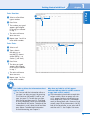
Worksheet
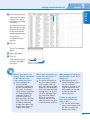
A worksheet is a grid of columns and rows. Each
Excel workbook contains 1,048,576 rows and
16,384 columns. Each column is labeled with a
letter of the alphabet; the column following
column Z is column AA, followed by AB, and so
on. The last column in any worksheet is column
XFD. Each row is labeled with a number, starting
with row 1 and ending with row 1,048,576.
Cell
A cell is the intersection of a row and a column.
Each cell has a unique name called a cell
address. A cell address is the designation
formed by combining the column and row
names in column/row order. For example, the
cell at the intersection of column A and row 8
is cell A8, and A8 is its cell address.
Range
The term range refers to a group of cells. A range
can be any rectangular set of cells. To identify
a range, you use a combination of two cell
addresses: the address of the cell in the
upper-left corner of the range and the address
of the cell in the lower-right corner of the
range. A colon (:) separates the two cell
addresses. For example, the range A2:C4
includes the cells A2, A3, A4, B2, B3, B4, C2,
C3, and C4.
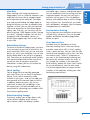
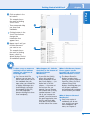
Formula Bar
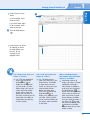
The Formula Bar is composed of three parts.
At the left edge of the Formula Bar, the Name
box displays the location of the currently
selected cell.
The Cell Contents area appears on the right
side of the Formula Bar and displays the
information stored in the currently selected cell.
If a cell contains a formula, the formula appears
in the Cell Contents area, and the formula’s
result appears in the active cell. If the active cell
contains a very long entry, you can use
at
the right edge of the Cell Contents area to
expand the size of the area vertically.
Between the Name box and the Cell Contents
area, buttons appear that help you enter
information. Before you start typing in a cell,
only the Function Wizard button ( ) appears,
as described in Part III; you can use this button
to help you enter Excel functions. Once you
start typing, two more buttons appear; click
to accept the entry as it appears in the Cell
Contents area or click
to reject any typing
and return the cell to the way it appeared
before you began typing.
9