1
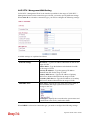
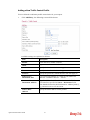
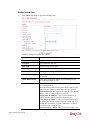
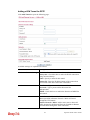
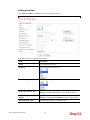
Adding a VPN Tunnel for PPTP
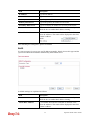
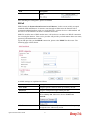
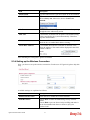
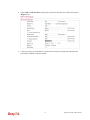
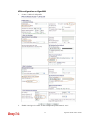
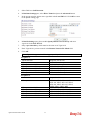
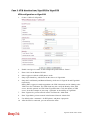
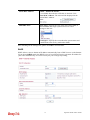
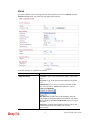
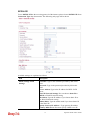
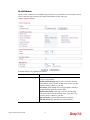
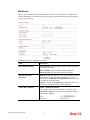
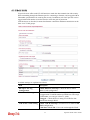
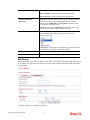
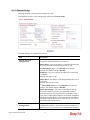
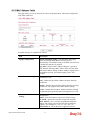
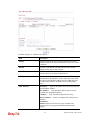
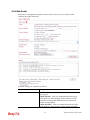
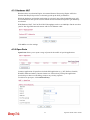
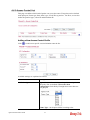
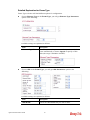
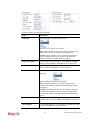
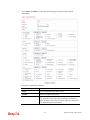
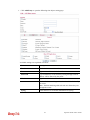
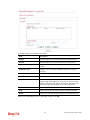
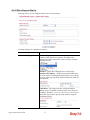
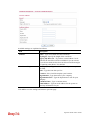
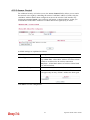
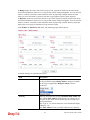
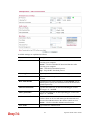
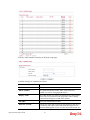
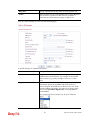
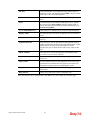
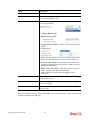
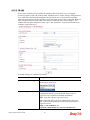
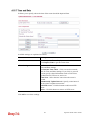
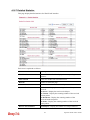
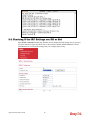
Click Add Tunnel to open the following page.
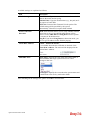
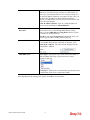
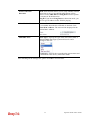
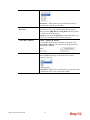
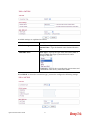
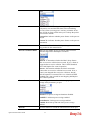
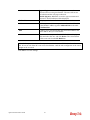
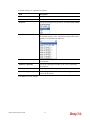
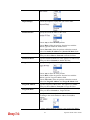
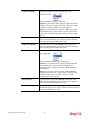
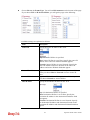
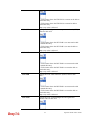
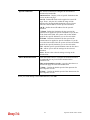
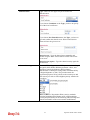
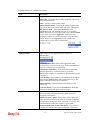
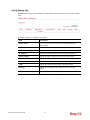
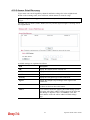
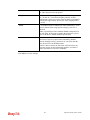
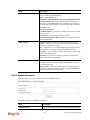
Available settings are explained as follows:
Item
Description
Dial-Out General Setting
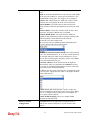
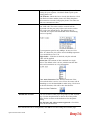
Enabled - Check here to activate this tunnel.
Always On - Check this box to make the WAN connection
being activated always.
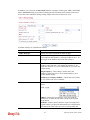
Name - Specify a name for this tunnel.
Remote IP - Enter the IP address/name of the remote host
that located at the other-end of the VPN tunnel.
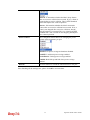
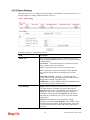
Authentication
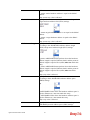
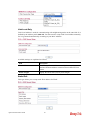
User Name - Type a name for this tunnel for authentication.
Password - Type a password for this tunnel for
authentication.
MPPE - Check this box to enable the function of MPPE for
such tunnel.
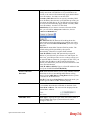
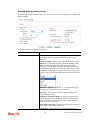
Networks
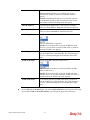
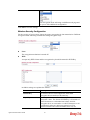
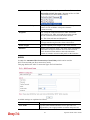
Local Network / Mask - Traffic between this subnet and the
subnet specified in Remote Network / Mask will travel
through the VPN tunnel.
Remote Network / Mask - Add a static route to direct all
traffic destined to this Remote Network IP Address/Remote
Network Mask through the VPN connection.
180
Vigor2130 Series User’s Guide