1
Installing and Configuring the Streaming Server Software
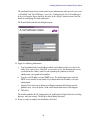
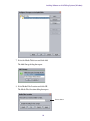
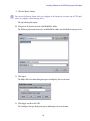
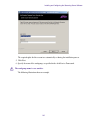
7. Click Next, then click Install to begin the installation.
When the installation is finished, the Avid Interplay Streaming Server is running as a
Windows service named Avid Interplay Streaming Server Service. This service
automatically starts when the computer starts.
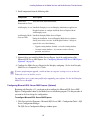
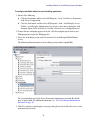
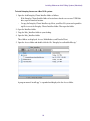
To check the status of the Interplay Streaming Server:
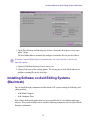
1. Right-click My Computer and select Manage.
2. Do one of the following:
t
On a Windows Server 2003 system, double-click Services and Applications, then
double-click Services.
t
On a Windows Server 2008 system, double-click Configuration, then double-click
Services.
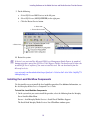
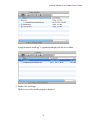
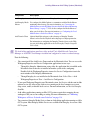
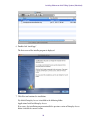
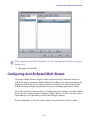
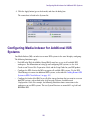
Avid Interplay Streaming Server Service should be listed as Started, with a startup type as
Automatic., and with the user specified during installation in the Log On As column.
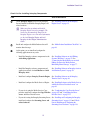
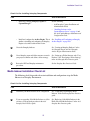
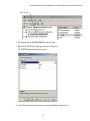
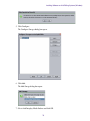
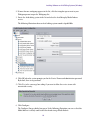
To add the Interplay Streaming Server to your Interplay workgroup:
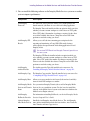
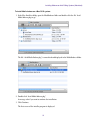
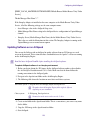
1. Open the Interplay Administrator and log in to the Interplay Engine server for the
workgroup that includes the Interplay Streaming Server.
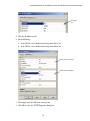
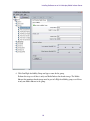
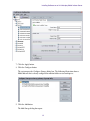
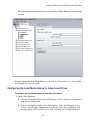
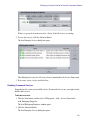
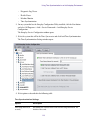
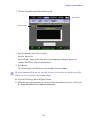
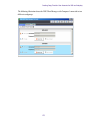
2. In the Site Settings section, click the Server Hostname Settings icon.
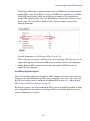
The Server Hostname Settings view opens.
143