1
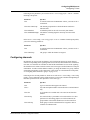
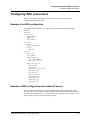
Configuring IPX Routing
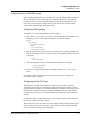
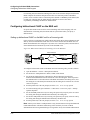
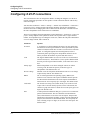
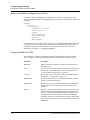
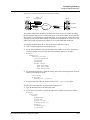
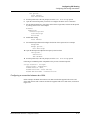
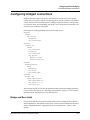
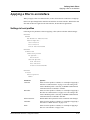
Configuring IPX routing connections
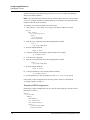
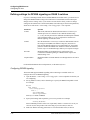
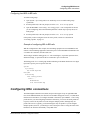
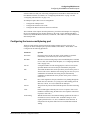
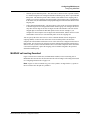
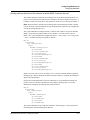
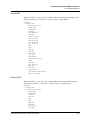
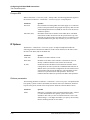
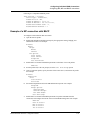
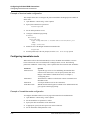
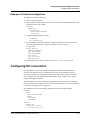
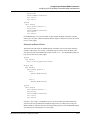
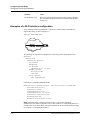
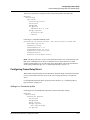
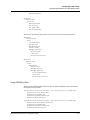
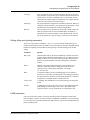
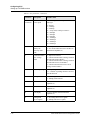
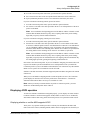
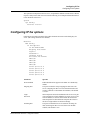
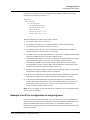
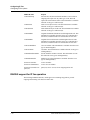
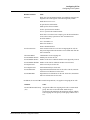
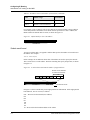
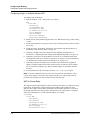
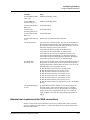
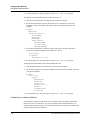
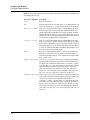
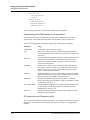
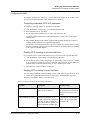
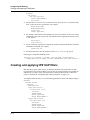
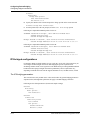
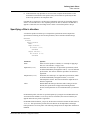
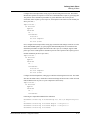
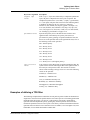
PPP options...
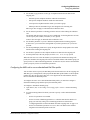
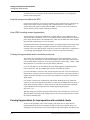
Route IPX=Yes
Recv Auth=Either
5
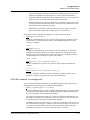
Exit the profile and, at the exit prompt, select the exit and accept option.
6
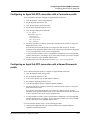
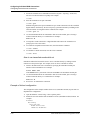
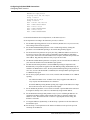
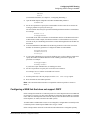
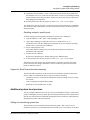
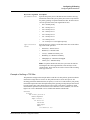
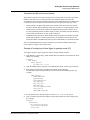
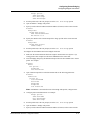
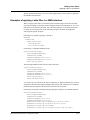
Open the Connection profile you will use to configure the dial-in user’s connection.
7
Set the Station parameter to specify the dial-in client’s login name, and activate the profile
by setting Active to Yes. For example:
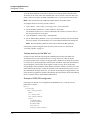
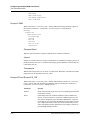
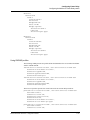
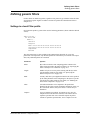
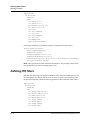
Ethernet
Connections
Connection profile
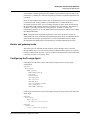
Station=scottpc
Active=Yes
8
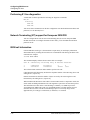
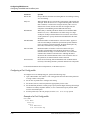
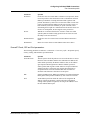
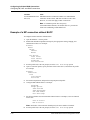
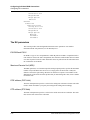
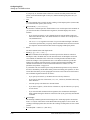
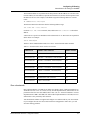
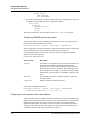
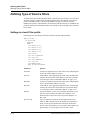
Enable IPX routing:
Route IPX=Yes
9
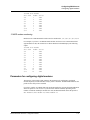
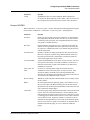
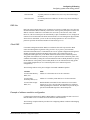
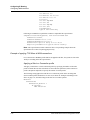
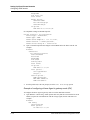
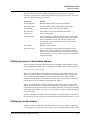
Select PPP encapsulation and configure the dial-in client’s password. For example:
Encaps=PPP
Encaps options...
Recv PW=scottpw
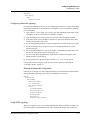
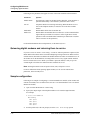
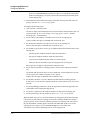
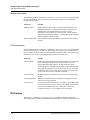
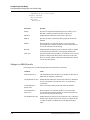
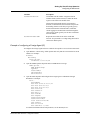
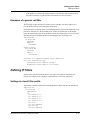
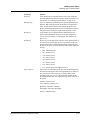
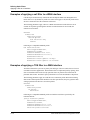
10 Open the IPX Options subprofile and specify a dial-in client:
IPX options...
Peer=Dialin
IPX RIP=None
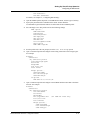
11 Exit the profile and, at the exit prompt, select the exit and accept option.
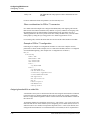
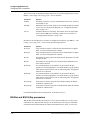
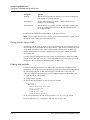
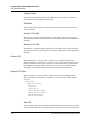
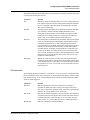
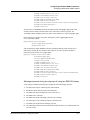
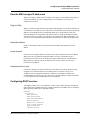
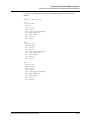
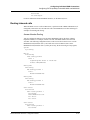
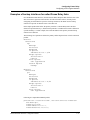
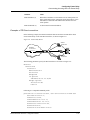
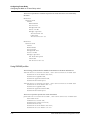
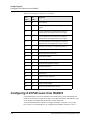
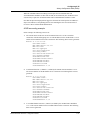
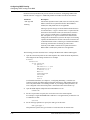
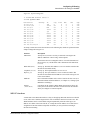
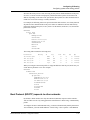
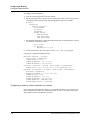
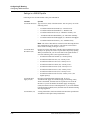
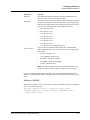
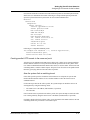
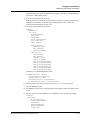
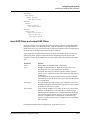
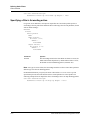
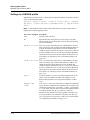
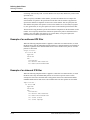
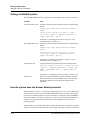
Following is a RADIUS profile comparable to the previous Connection profile:
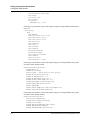
scottpc Password = "scottpw"
Service-Type = Framed-User,
Framed-Protocol = MPP,
Ascend-Route-IPX = Route-IPX-Yes,
Ascend-IPX-Peer-Mode = IPX-Peer-Dialin
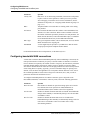
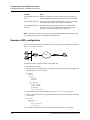
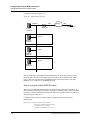
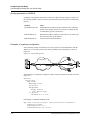
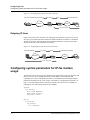
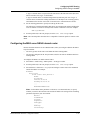
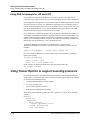
Configuring a connection between two LANs
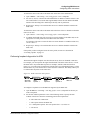
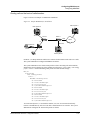
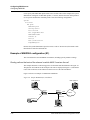
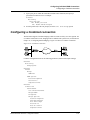
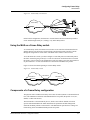
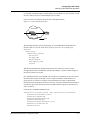
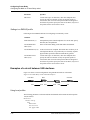
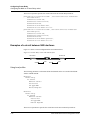
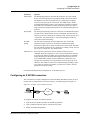
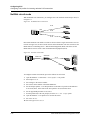
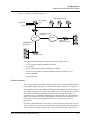
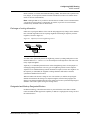
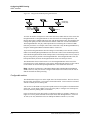
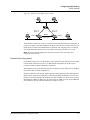
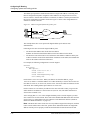
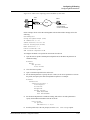
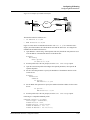
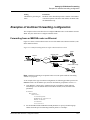
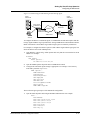
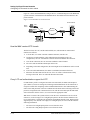
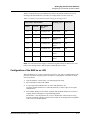
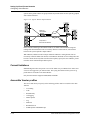
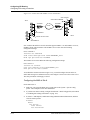
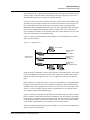
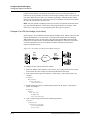
In this example, the MAX unit connects to an IPX network that supports both servers and
clients and connects with a remote site that also supports both servers and clients, as shown in
Figure 12-2.
MAX 6000/3000 Network Configuration Guide
12-13