1
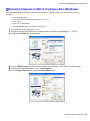
Borderless Printing
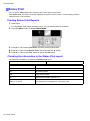
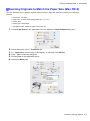
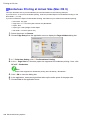
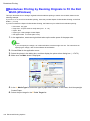
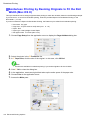
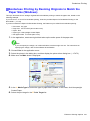
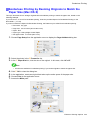
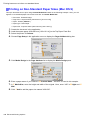
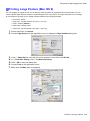
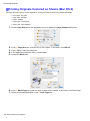
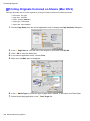
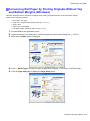
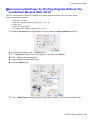
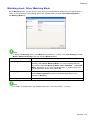
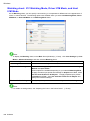
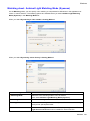
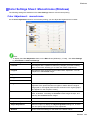
Borderless Printing at Actual Size (Mac OS X)
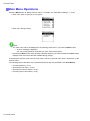
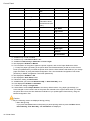
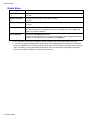
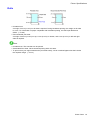
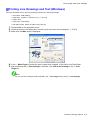
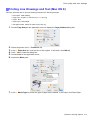
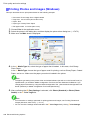
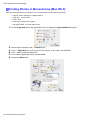
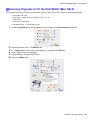
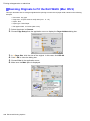
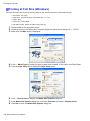
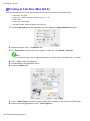
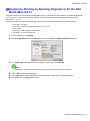
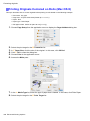
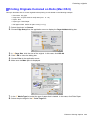
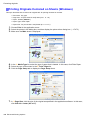
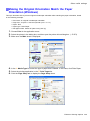
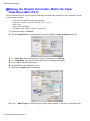
This topic describes how to print borderlessly at actual size based on the following example.
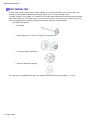
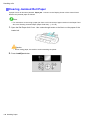
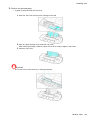
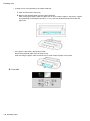
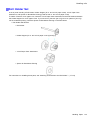
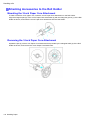
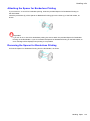
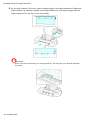
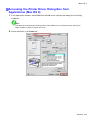
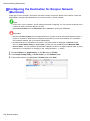
If you use an A1 or A2 roll for borderless printing, insert the provided Spacer for Borderless Printing on the
Roll Holder. (→P.144)
The platen may be soiled from borderless printing if you do not attach it.
•
•
•
•
•
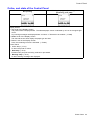
Document: Any type
Page size: 10 × 12 inches (254.0×304.8 mm)-Borderless
Paper: Roll
Paper type: Heavyweight Coated Paper
Roll paper width: 10 inches (254.0 mm)
1.
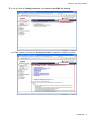
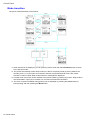
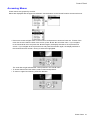
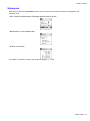
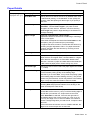
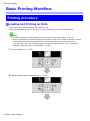
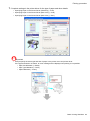
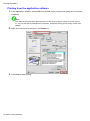
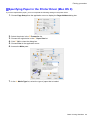
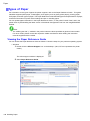
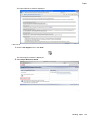
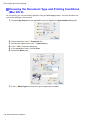
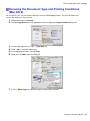
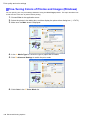
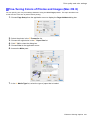
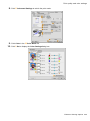
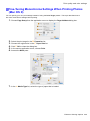
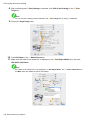
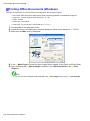
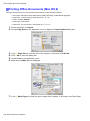
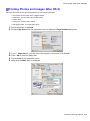
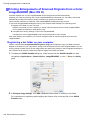
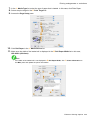
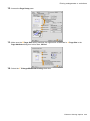
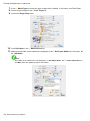
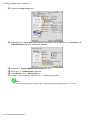
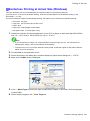
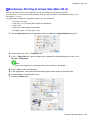
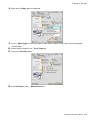
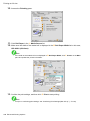
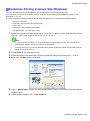
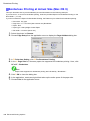
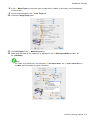
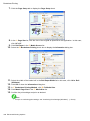
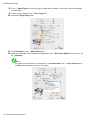
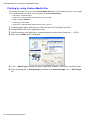
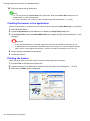
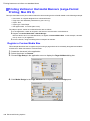
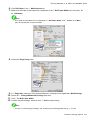
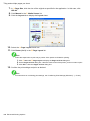
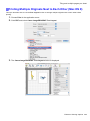
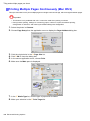
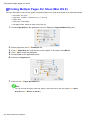
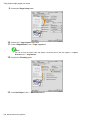
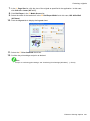
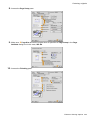
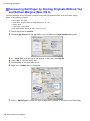
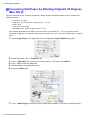
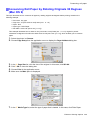
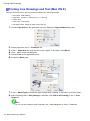
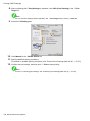
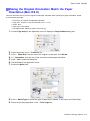
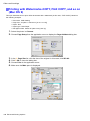
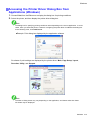
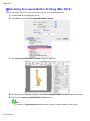
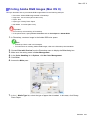
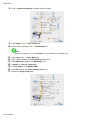
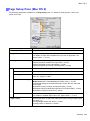
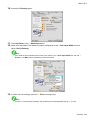
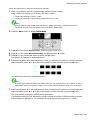
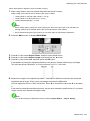
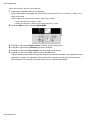
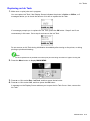
Choose Page Setup from the application menu to display the Page Attribute dialog box.
2.
3.
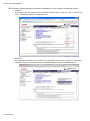
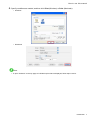
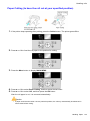
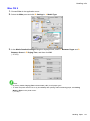
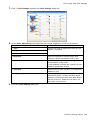
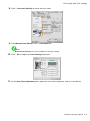
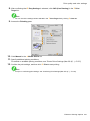
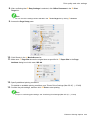
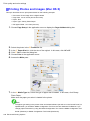
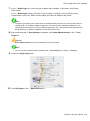
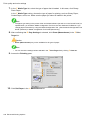
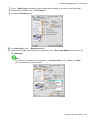
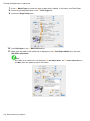
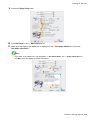
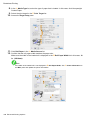
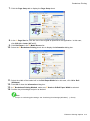
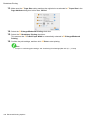
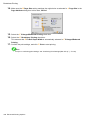
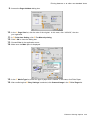
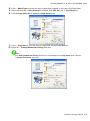
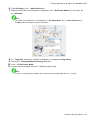
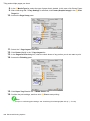
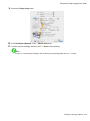
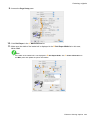
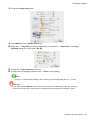
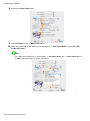
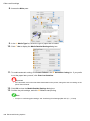
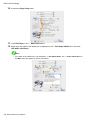
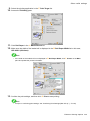
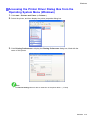
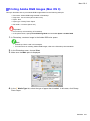
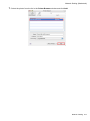
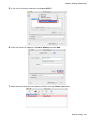
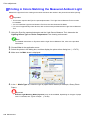
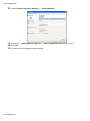
Select the printer in the B Format for list.
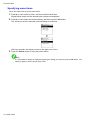
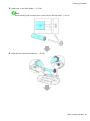
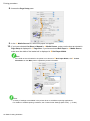
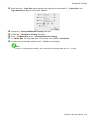
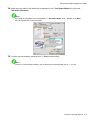
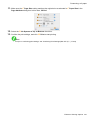
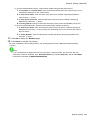
In the C Paper Size list, choose a paper size supported for borderless printing. Here, click
10"x12" - Borderless.
Note
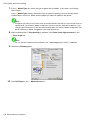
• Paper sizes supported for borderless printing are indicated by “-Borderless.”
4.
5.
6.
7.
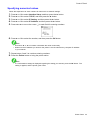
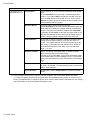
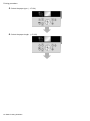
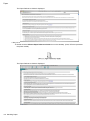
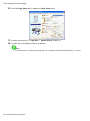
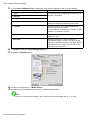
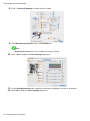
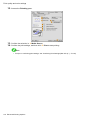
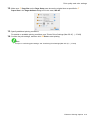
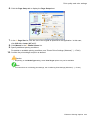
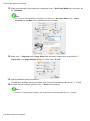
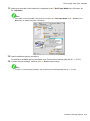
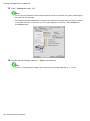
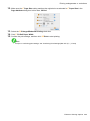
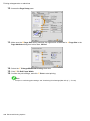
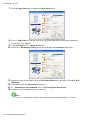
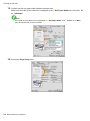
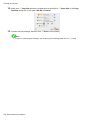
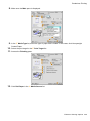
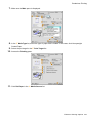
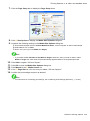
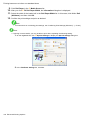
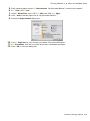
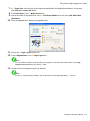
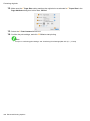
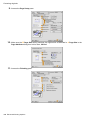
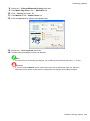
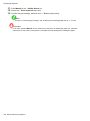
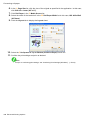
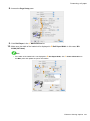
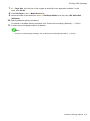
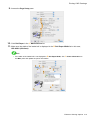
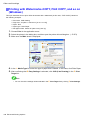
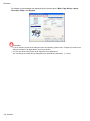
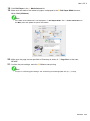
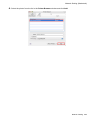
Click F OK to close the dialog box.
In the application, create an original that takes up the entire space of the paper size.
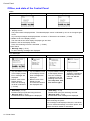
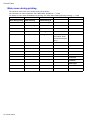
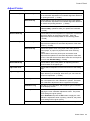
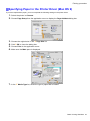
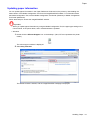
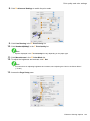
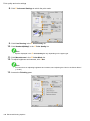
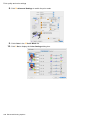
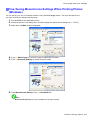
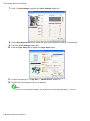
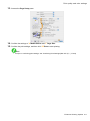
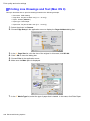
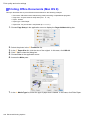
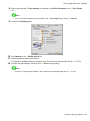
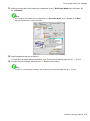
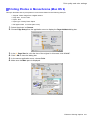
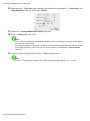
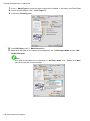
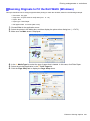
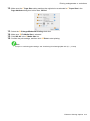
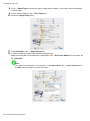
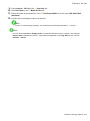
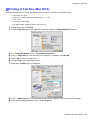
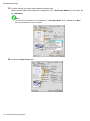
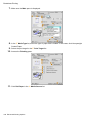
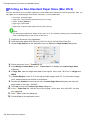
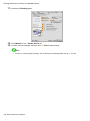
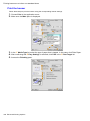
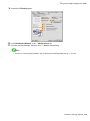
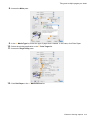
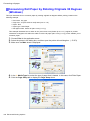
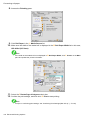
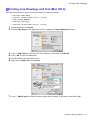
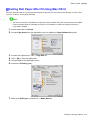
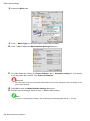
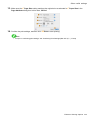
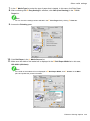
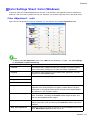
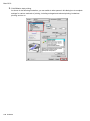
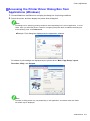
Choose Print in the application menu.
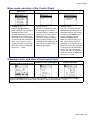
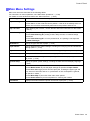
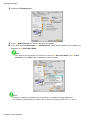
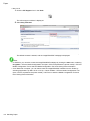
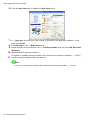
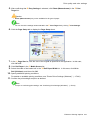
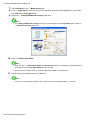
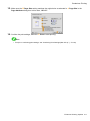
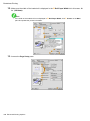
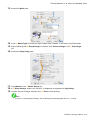
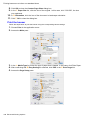
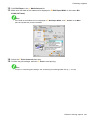
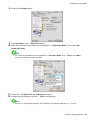
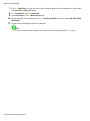
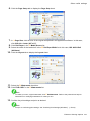
Access the Main pane.
Enhanced Printing Options 305