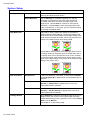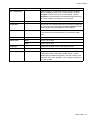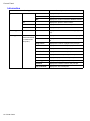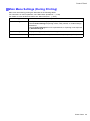
1
Handling rolls
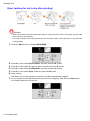
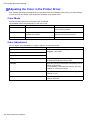
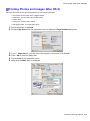
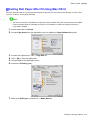
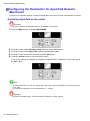
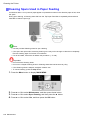
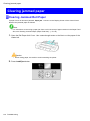
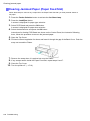
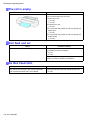
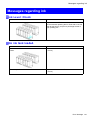
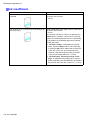
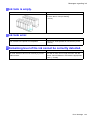
Clearing Jammed Paper (Paper Feed Slot)
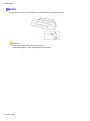
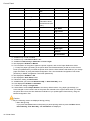
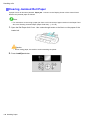
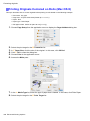
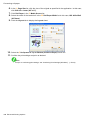
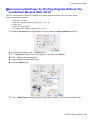
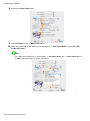
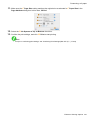
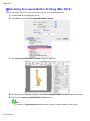
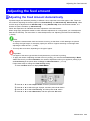
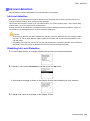
Follow these steps to remove any scraps left in the Paper Feed Slot after you clear jammed sheets or
roll paper.
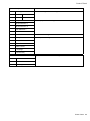
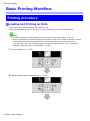
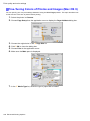
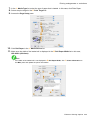
1.
2.
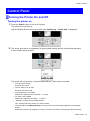
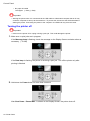
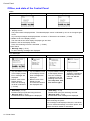
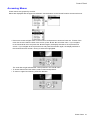
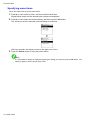
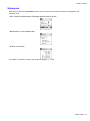
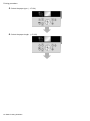
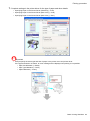
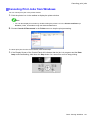
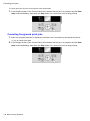
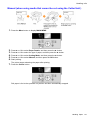
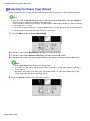
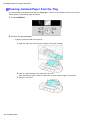
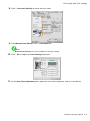
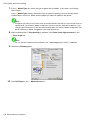
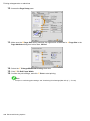
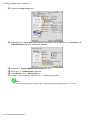
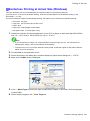
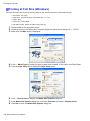
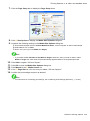
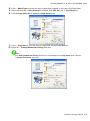
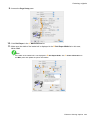
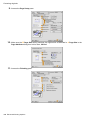
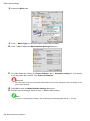
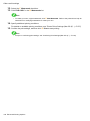
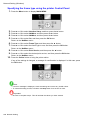
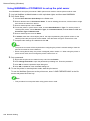
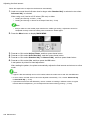
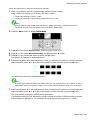
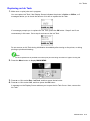
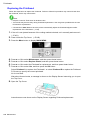
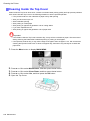
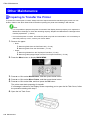
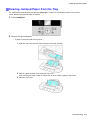
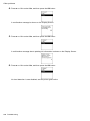
Press the Feeder Selection button to activate the Cut Sheet lamp.
Press the Load/Eject button.
A screen is displayed for paper type selection.
3.
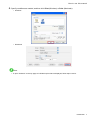
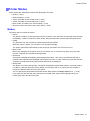
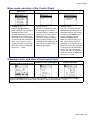
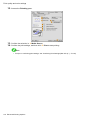
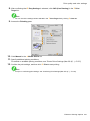
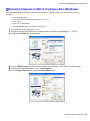
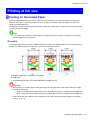
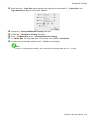
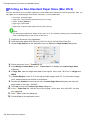
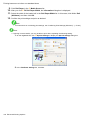
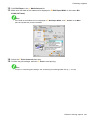
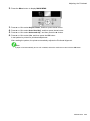
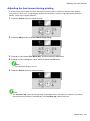
Select POP Board and press the OK button.
A screen is displayed for paper size selection.
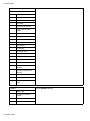
4.
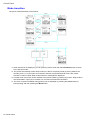
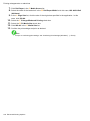
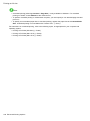
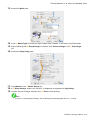
Select the desired size and press the OK button.
Instructions for feeding POP Board are shown on the Control Panel, but instead of following
them, follow this procedure to remove the jammed paper.
5.
6.
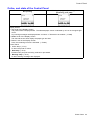
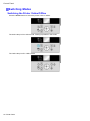
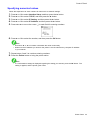
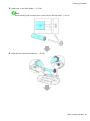
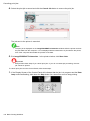
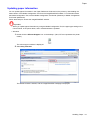
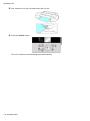
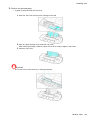
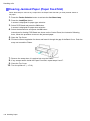
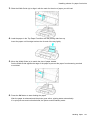
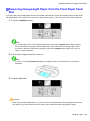
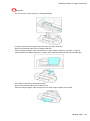
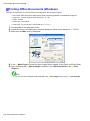
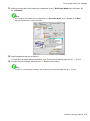
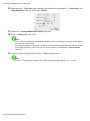
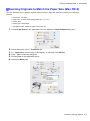
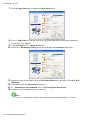
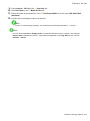
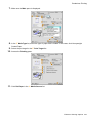
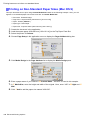
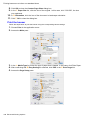
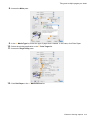
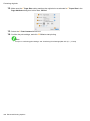
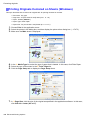
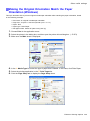
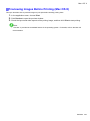
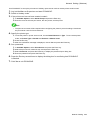
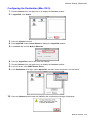
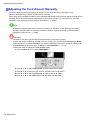
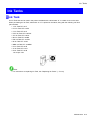
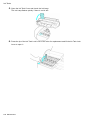
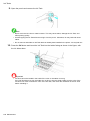
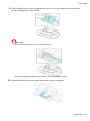
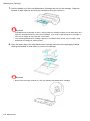
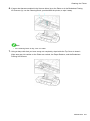
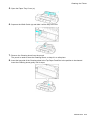
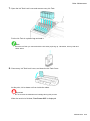
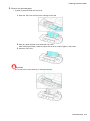
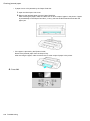
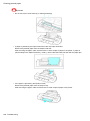
Open the Top Cover.
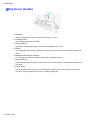
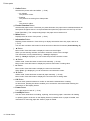
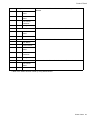
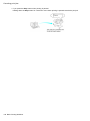
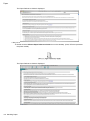
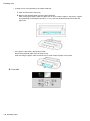
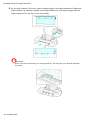
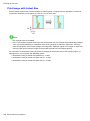
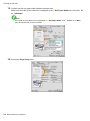
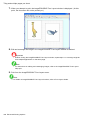
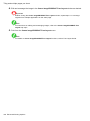
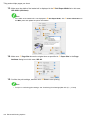
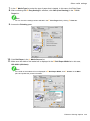
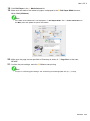
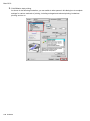
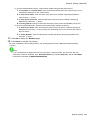
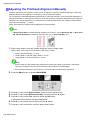
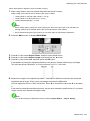
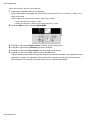
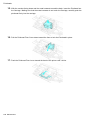
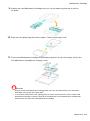
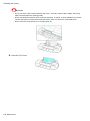
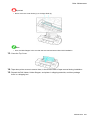
Fold an A4 sheet lengthwise four times and insert it through the gap of the Back Cover. Push the
scrap out toward the Platen.
7.
8.
9.
10.
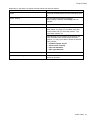
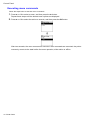
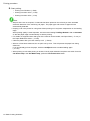
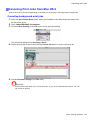
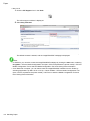
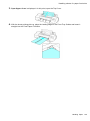
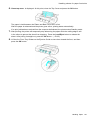
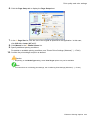
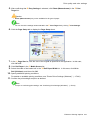
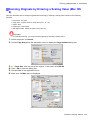
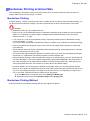
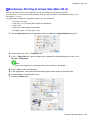
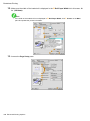
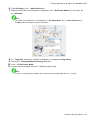
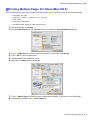
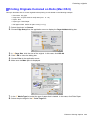
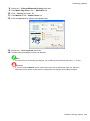
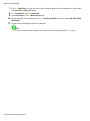
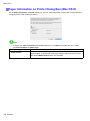
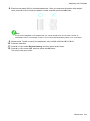
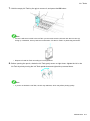
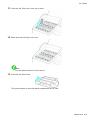
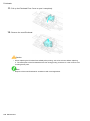
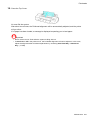
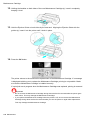
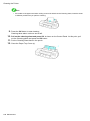
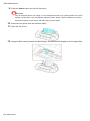
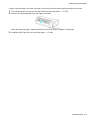
Remove the scrap when it is pushed out onto the Platen.
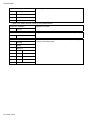
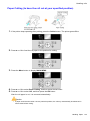
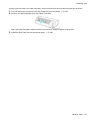
If any scraps remain inside the Paper Feed Slot, repeat steps 6 and 7.
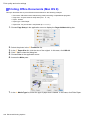
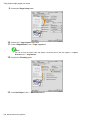
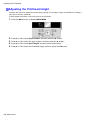
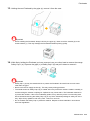
Close the Top Cover.
Turn the printer off. (→P.19)
142 Handling Paper