1
Setup-F3_FM.book Page 6 Friday, October 5, 2001 8:27 PM
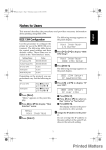
Getting Started
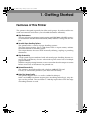
Guide to This Printer
Mainframe
1
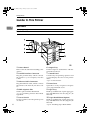
Exterior: Front View
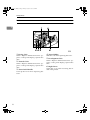
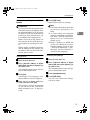
1. Printer Board
6. Output Tray
Remove this board when installing some
options.
Printed output is stacked here with the
print side face down.
2. Parallel Interface Connector
7. Control Panel
Plug the parallel cable, which connects
the printer to your computer, into this
socket.
Contains keys for printing operation and
a panel display that shows the printer
status.
⇒ p.9 “Control Panel”
3. Ethernet Cable Connector
6
Plug the Ethernet cable, which connects
the printer to the network, into this socket.
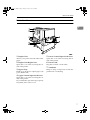
8. Front Cover
4. HDD (Option) Slot
9. Paper Tray
Set the optional Printer Hard Disk.
⇒ p.18 “Installing Printer Hard Disk
Type4510”
Holds up to 500 sheets of plain paper per
tray and 1000 sheets in total. (80 g/m2, 20
lb. bond)
5. Power Switch
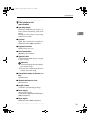
10. Paper Bank PS430 (Option)
Use this switch to turn the printer power
on and off.
Holds up to 500 sheets of plain paper per
tray and 1000 sheets in total. (80 g/m2, 20
lb. bond)
⇒ p.15 “Installing Paper Bank PS430”
Open this cover if you replace some parts
or if a paper misfeed occurs.