1
C H A P T E R
3
Vision Program Manager
Introduction
This chapter describes how to set up an inspection task, including an overview of Vision Program Manager
tools and how to configure them.
This chapter introduces VPM and describes how to configure the tools in the Toolbox.
If you are using a camera, the camera should be calibrated before you set up an inspection task so that
inspection measurements are accurate. See “Camera Setup Tab” on page 2-17 for camera calibration details.
Also be sure that the camera and lighting are connected and adjusted appropriately. The client computer
must be connected to the Impact device hardware with the device powered on. See “PC to Device - Direct
Connection” on page 6-30 for more details. If you are using the file camera, be sure the desired images are
active in RAM (see “File Camera Setup Tab” on page 2-34).
When you have completed the inspection task, you can view the results in the VPM Display tab, or create a
custom user interface with CPM.
Help
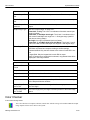
If you need help while using the Impact software, you can refer to this manual or the online help.
To access online Help, click the Help icon in the toolbar, then click the desired topic in the Table of Contents
in the left pane of the Help window.
Start VPM
NOTE: Access to VPM is limited to users with an Administrator or Programmer access level. See “Impact
Device Security Overview” on page 2-13 for details.
To start VPM:
1. Double-click the VPM shortcut on the desktop.
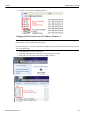
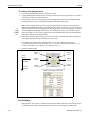
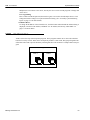
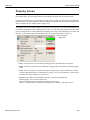
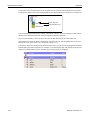
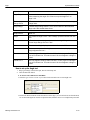
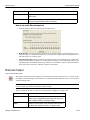
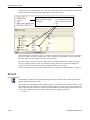
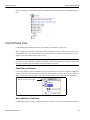
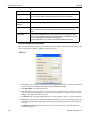
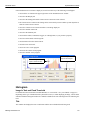
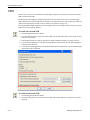
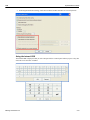
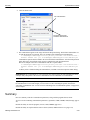
2. When VPM starts, it automatically scans for Impact devices on the client’s network and displays the
Device Selection list. If the desired device doesn’t appear in the list, click Refresh. If it still doesn’t
appear, check the device’s power and Ethernet connections.
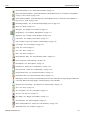
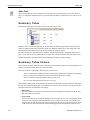
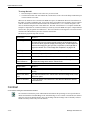
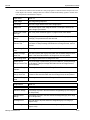
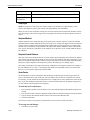
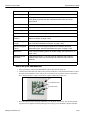
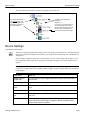
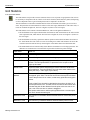
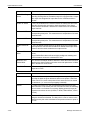
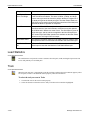
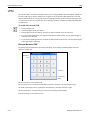
• Devices found
This list displays the names, IP addresses, and other information about the devices connected to the
client network. Click the Refresh button to update the list of devices.
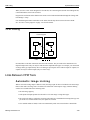
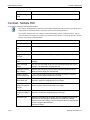
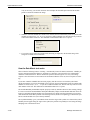
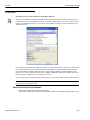
• Connect to Device
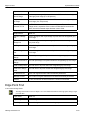
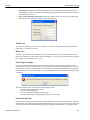
Select the desired Impact device or running Emulator, then click Connect. If security is enabled on the
device, the User Logon dialog is displayed. When a valid User ID and password have been entered,
VPM tries to connect to the device. If it is unsuccessful, a "connection failed" dialog is displayed.
3-1
Datalogic Automation Inc.