1
151
$
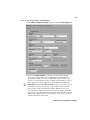
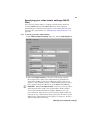
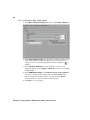
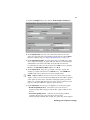
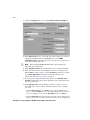
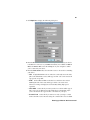
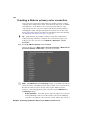
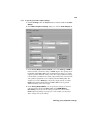
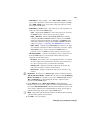
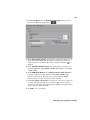
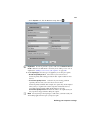
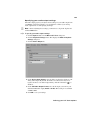
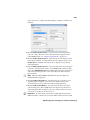
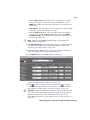
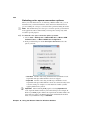
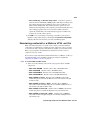
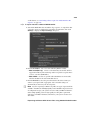
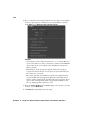
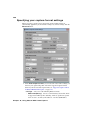
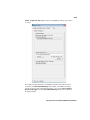
YUV/RGB (for analog output) Select YUV or RGB - native to set the
type of video signal that is sent from the component output. For example,
select RGB - native if you connected the component output to a device
that accepts an RGB signal.
$
YUV/RGB (for HDMI output) Select the type of video signal that you
want to be sent from the HDMI output:
$
•
YUV Outputs YUV HDMI video. Select this only if you connected
the HDMI output to a device that accepts a YUV signal.
•
RGB - calibrated
•
RGB - native
Outputs adjusted RGB HDMI video using the
currently loaded Matrox HDMI calibration settings for your HDMI
monitor or television. For details on calibrating your HDMI monitor
and loading calibration settings using the Matrox HDMI Calibration
Utility, see Chapter 7, “Calibrating Your HDMI Monitor for Video.”
Outputs native RGB HDMI video that does not apply
any calibration compensation. This is useful when you want to output
RGB HDMI video to a device other than an HDMI monitor or
television, such as an HDMI recorder to perform an export to tape.
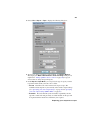
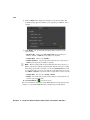
3D Viewing Mode Select the 3D signal type that you want to be sent
from the HDMI output to your 3D monitor (this feature may not be
supported on some 3D monitors):
Select this if you’re not outputting 3D video, or to disable
3D video output. You can still monitor 3D video, but you must select
the correct viewing mode on your 3D monitor manually.
•
Disabled
•
Side-by-side
•
Over/Under
Outputs horizontally compressed side-by-side 3D
video (also referred to as side-by-side horizontal).
Outputs over/under 3D video (also referred to as top
bottom).
¡ Important If your project’s Stereoscopic setting is anything other than
Side by side , Over/Under, or Full, make sure that you set the 3D Viewing
Mode to Disabled. For example, if your project’s Stereoscopic setting is
Off or Leading Eye, you must disable the 3D video output in order to
properly view the HDMI output.
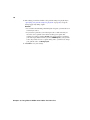
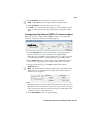
5 Under Advanced, select Allow Super White to allow the highest
luminance level of your video output to exceed the standard maximum white
level. Select Allow Super Black to allow the lowest luminance level of your
video output to fall below the standard black level. These options apply to
both the main analog output and secondary HDMI output.
¦
Note Super white and super black should not be allowed when producing
your final video production for broadcast.
6 Click OK to save your settings.
Defining your playback settings