1
241
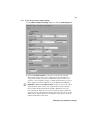
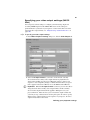
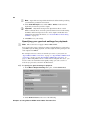
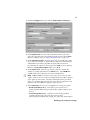
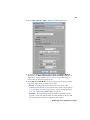
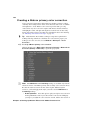
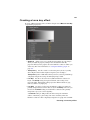
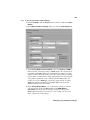
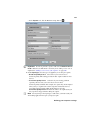
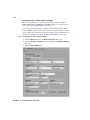
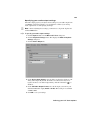
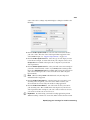
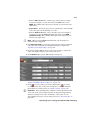
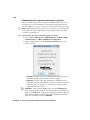
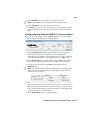
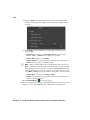
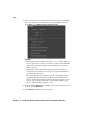
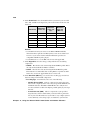
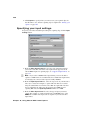
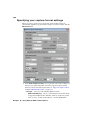
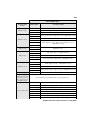
frame size, or select Custom (Square Pixels) if you want to enter a
custom size. If you enter an unsupported frame size, the closest supported
frame size will be used.
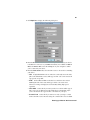
Sets the frame rate for your exported video.
$
Frame Rate
$
Field Type Indicates the order in which the video fields are displayed,
such as Upper First for interlaced HD video, or Progressive for all
progressive video formats.
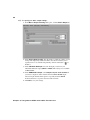
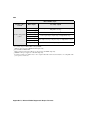
This is set to 16:9 when exporting to HD. When
exporting to SD, you can select 4:3 to export to the standard TV screen
format, or 16:9 to export to the widescreen 16:9 format.
$
Aspect Ratio
$
Maintain aspect ratio when scaling
$
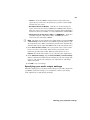
Use Matrox MAX hardware scaler Select this option if you’re
scaling your source video for export, and you want to use the Matrox
MAX hardware scaler to perform the scaling. This gives good
performance when scaling to an HD resolution. If you’re downscaling to
an SD or lower resolution, you can get a faster export by clearing this
option, which allows Adobe to perform the scaling.
$
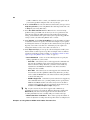
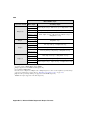
De-interlace video If you’re exporting interlaced video to a
progressive format (such as 1080i to 720p), select this option to
de-interlace the video for display on a monitor that displays lines
progressively, such as an LCD or computer monitor. (This option won’t be
present if you’re exporting to an interlaced format or your source video is
progressive.)
Select this option if you’re
scaling your source video for export, and you want to maintain your
source video’s aspect ratio. Your source video will be exported as
pillarbox video when exporting to a larger aspect ratio, or letterbox video
when exporting to a smaller aspect ratio. If this option is not selected,
scaled video that doesn’t match the specified aspect ratio for export will
be exported as anamorphic video.
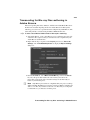
Exporting to Matrox MAX H.264 files using Adobe Media Encoder