1
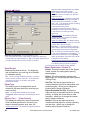
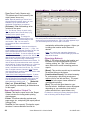
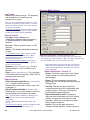
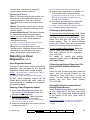
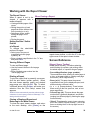
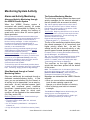
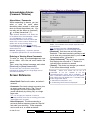
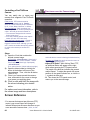
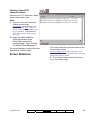
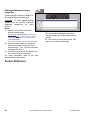
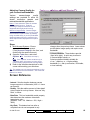
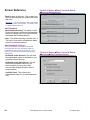
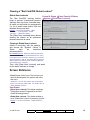
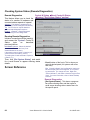
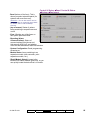
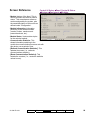
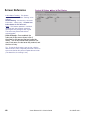
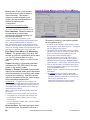
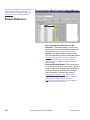
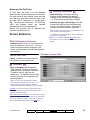
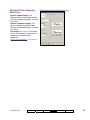
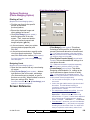
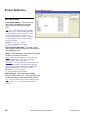
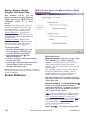
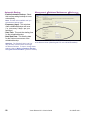
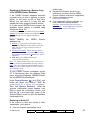
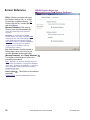
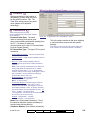
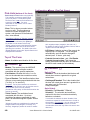
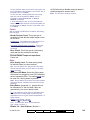
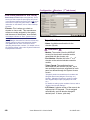
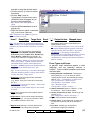
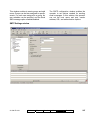
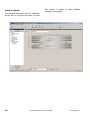
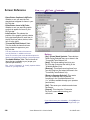
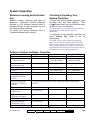
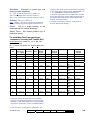
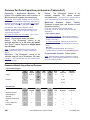
Floors (Pertaining to Access-Controlled Elevators / Lifts) If you change the name or other setting for a floor, this will cause that floor to be reset to its default / scheduled state (this allows configuration updates to be managed properly). To check or re-set the floor state (secure vs. desecure), refer to the "Floor" status/control topic. Access-Controlled Floors Systems with elevator controllers can include up to 124 access-controlled floors. These can be in a single building, or the total number of floors between multiple buildings. Each system supports up to 32 elevator cabs (max. 32 doors plus elevators in total). To set up an elevator and its associated reader, refer to "Elevators (Lifts) and Associated Readers". Panel/Firmware Revision: Support for elevators and controlled floor-access requires V3.0 panel firmware. Recommended: V3.2 panel firmware, and V1.5 elevator controller firmware. Feature-Set and Licensing: Support for elevators and floors requires a 'feature-set' selection of 5 or higher (via Enterprise software licensing). For details, refer to "Account-Wide Panel Settings", and "Software Activation and Licensing". Wiring: Elevator controller floor selection relays must be wired to the floor call buttons in the same relative order for all elevator (lift) cabs (such as from lowest to highest accessed). The floors must then be entered here in the same order overall (such as from lowest to highest). For an elevator setting that also affects floor relay wiring, look for the "Relay Off When Desecure" setting under "Elevators (Lifts) and Associated Readers". 262 How to Get Here Multi-Account Systems: First select [Account Folders] in the 'tree', and locate and double-click the desired account. MyTools Bar: Floors In the Tree: YourAccount, Floors. Note: This screen uses a custom grid view. (Forms view does not apply here.) Things You Can Do Add a Floor: Click within the name field for a blank/grey floor-row in the table, and enter your desired name. Attention: Floors must be entered in the same relative order as per the floor-selection relay wiring for all elevators (such as from lowest to highest). View/Change an Existing One: Scan the list to view or change settings as desired. Delete a Floor: Right-click the item in the list, and select "Delete". When prompted to confirm, select Yes. Before Deleting: Only unused floors can be deleted. (Issue reports, OR go to the screens for Elevators, user authorities, and suite-security keypads, select grid view, and check for the specific floor.) Related Topic(s): Reporting on Users, System/Device Settings, etc.; Working with the Report Viewer Verex Director V4.9.1 User's Guide 21-0381E v4.9.1