1
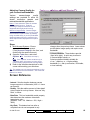
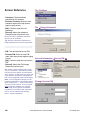
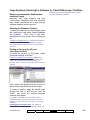
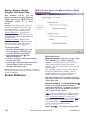
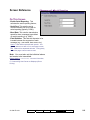
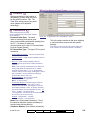
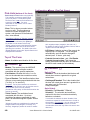
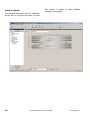
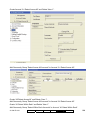
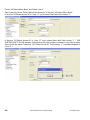
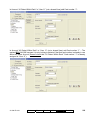
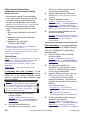
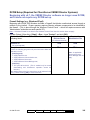
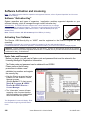
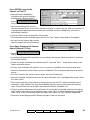
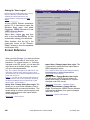
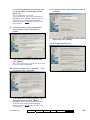
database access for each of these workstations. This is required for the VEREX Director software, as well as the Communications software, as applicable. (To start the software, open the Start menu, select VEREX Director V4, followed by Programs, and VEREX Director.) Tip: If you prefer, you can cut-and-paste the ID codes into "Notepad" or "MS Word", and use a floppy-disk to transport the file to the server PC (for registration). Similarly, you'll need to record the "Cyclic-ID" code from the Communications software on each PC to be associated with an alarm panel connection (in addition to the VEREX Director ID/code, as applicable). Detail: If the LCD/Telephone icon on the Windows taskbar is black-and-white (color = running), start the communications service by right-clicking the icon, and selecting "Start Communications". Related Topic: Serial Port / Modem Setup (Communications Manager) If prompted for the Server Name: Enter or select the name (or IP address) associated with the server PC, and click OK (press F1 if you'd like more information). If a Device Configuration Screen Appears: If the "Direct-Cable-Connection" or modem that you'll be using has already been set up on the PC, you can select it now (press F1 if you'd like more information). When finished with this screen, click OK. Otherwise, click Cancel to close the device-configuration screen. Then, right-click the LCD/Telephone symbol near the right-hand end of the Windows taskbar, and select About from the pop-up menu. Note: A different "Cyclic-ID" code will appear each time you open the "Help, About" screen. Any of these numbers can be used for the specific software application/PC combination. 5) When finished, be sure to place the CD in a safe place. Note: Your software (single PC, or database server) will need to be activated as described under "Software Activation and Licensing" (default licensing is valid for 90 days only). Client-server Note: Once the "Cyclic-ID" has been obtained from all client PCs, this information will need to be entered at the server (to activate the client PCs). For details, refer to "Client/Server Access and Permissions". For details on software activation and licensing, setting up a panel connection, and/or setting up a new system, skim forward through the topics that follow, carefully following the steps in any topics that apply to your type of installation. 21-0381E v4.9.1 Welcome Report Control Upgrading from an Earlier Version of Software Attention: You can upgrade from V4.4 or newer to the latest. Older software must be upgraded to V4.6 as an initial step. Director databases V4.4x or 4.5x will be upgraded in two stages to V4.6, then to the latest version--automatically. This process can take quite a while. Note: To upgrade after v4.7 or run the Director DB Generator utility manually, you must first shut down the Director software, and "Stop" the Director-Server service. Notes: To upgrade after v4.7 or run the Director DB Generator utility manually, you must first shut down the Director software, and also "Stop" its 'services' (rather than only shutting down any service managers). Detail: Right-click the Director server (or communications) Manager near the right-hand end of the Windows task-bar, and select "Stop…". When finished, be sure to restart Windows, or both of the Director services manually (as applicable). Related Topics. Serial Port / Modem Setup (Communications Manager); Client/Server Issues and the Director Server Manager If You Need to Transfer the Database to a Different PC: Before starting the software upgrade, skip to the related section (to follow/below). Capacity Upgrade: If you wish to upgrade your system capacities, while retaining the same revision of software, refer to "Software Activation and Licensing". Client/Server Tip: When installing a multi-PC system, the software is typically installed first at the Director-server PC, and then at the client PCs. Director Server: The (networked) PC that includes "...Director-Server.exe"; Note: Client PCs cannot be used until the server is up and running, and the client PCs have been identified to the server--as per references below. Client-server operation is supported through your 'activation key' and 'licensemanager' software. "Cannot Open Database for Photo-badging": If you see this when starting the Director software, (re)install the Microsoft DAO software from the VEREX Director CD (d:\VEREX Director Setup\DAO\setup.exe). If you are Warned About a Certificate Problem During a Software Upgrade Beginning with v4.72, the Director software supports validation certificates for additional security when remote operators (and/or remote communications clients) are accessing the Director server. Admin Sys Config Tech-Ref 301