1
Miscellaneous Status Tasks
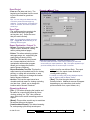
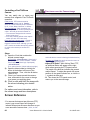
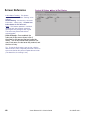
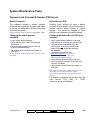
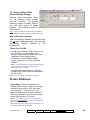
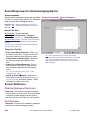
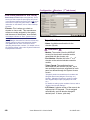
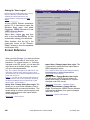
Panel Date and Time
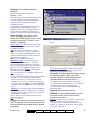
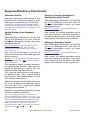
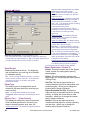
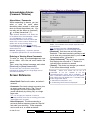
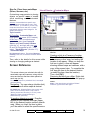
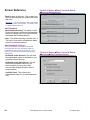
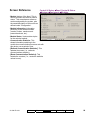
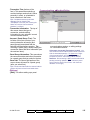
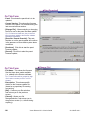
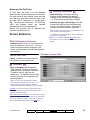
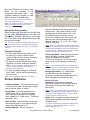
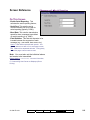
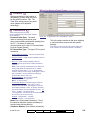
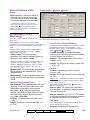
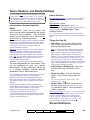
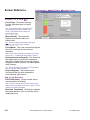
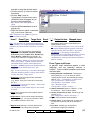
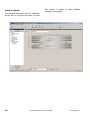
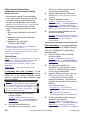
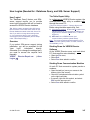
VEREX Director lets you check the date and
time stored at a system panel, compare it with
that at the host computer, and adjust the
panel's date / time to match the computer, if
necessary.
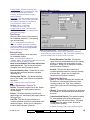
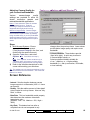
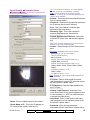
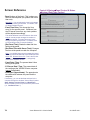
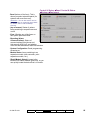
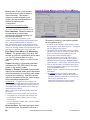
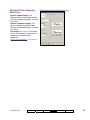
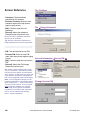
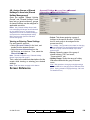
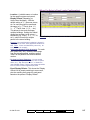
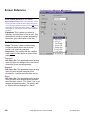
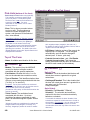
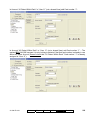
'difference' value to see if the panel date and
time need to be changed.
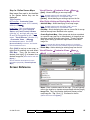
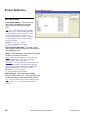
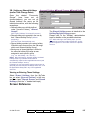
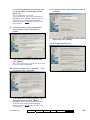
If you need to set the date and time at the
panel to match the VEREX Director computer,
click [Set Panel Time with Server Time].
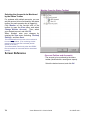
Initiate a Connection, and Access this
Topic
See if you're already connected with the
panel(s) by checking the status bar at the
bottom of the monitoring window.
Multi-Account Systems: First select [Account
Folders] in the 'tree', and double-click the desired
account.
If not presently connected, initiate a connection
with the desired panel(s).
For details, refer to "Connecting to the Associated
Panel(s), An Overview" (under "Checking Status &
Controlling Items", previous).
-------------------------
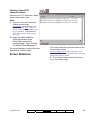
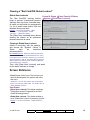
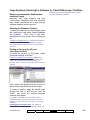
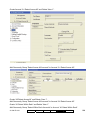
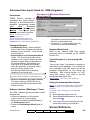
Then, select Control & Status - System from
the MyTools bar, or select System under
Control & Status in the 'tree'.
Using the Tree: Click your site/account button in the
tree, and open Control & Status, and Panel Control &
Status (click the "+" beside each topic).
Login with your user ID and PIN if prompted for
this.
Panel Groups and Panels: Open your specific panel
group and panel if these are listed in the 'tree'. Tip:
The 'tree' can be set to show Control & Status topics in
a single list (logical tree view), or on a panel-by-panel
basis. For details, refer to "Other Desktop Choices".
If the status screen is blank or inactive (or if you'd like
more information), refer to "Accessing the Control and
Status Topics for a Panel" (under "Checking Status &
Controlling Items", previous).
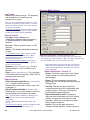
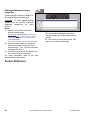
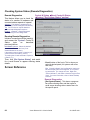
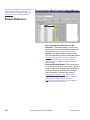
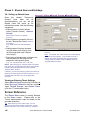
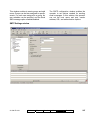
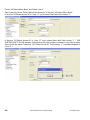
When the screen appears, use the Grid /
Form toolbar-button to select your preferred
view-mode (forms view is recommended here).
Multi-Panel Systems: Select the desired panel at the
bottom of the form (if not shown/selected in the 'tree').
Checking or Changing the Date / Time
To 'read' the date and time from the panel,
click [Get Panel Time]. Then, check the
21-0381E v4.9.1
Welcome
Report
Control
Admin
Sys Config
Tech-Ref
77