1
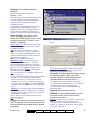
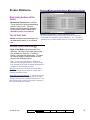
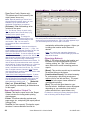
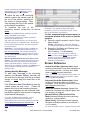
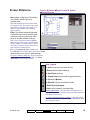
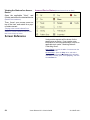
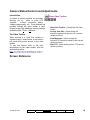
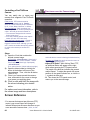
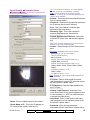
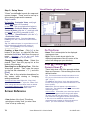
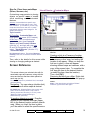
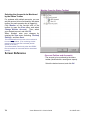
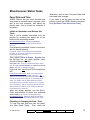
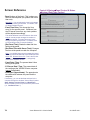
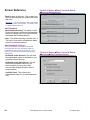
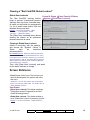
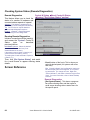
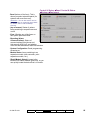
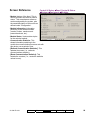
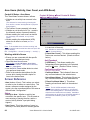
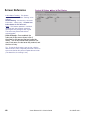
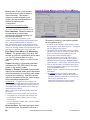
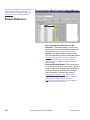
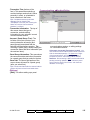
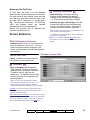
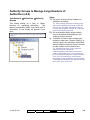
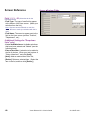
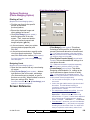
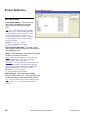
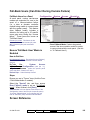
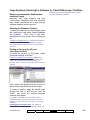
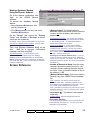
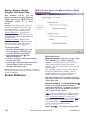
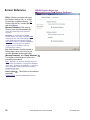
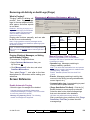
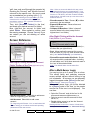
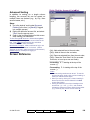
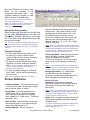
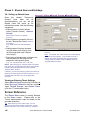
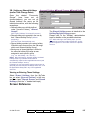
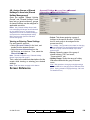
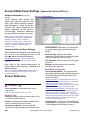
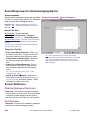
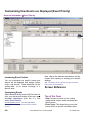
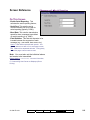
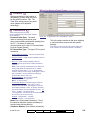
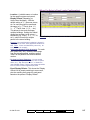
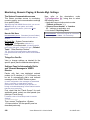
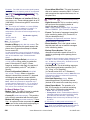
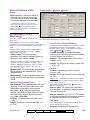
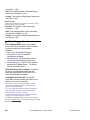
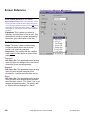
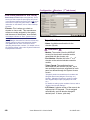
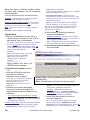
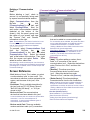
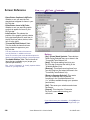
window 'undocked' and hidden behind the main desktop, open the View menu, select Desktop Settings, and then Default. To adjust the size of the monitoring window, position the mouse cursor at the top of the window, watching for the cursor to change shape. Then, click-and-drag the top of the window to the desired new position. To maximize the size of the monitoring window, double-click its title-bar twice. To restore the VEREX Director desktop at any time, simply click Reset on the toolbar. (If the monitoring window is presently maximized, double-click its title-bar first.) Tip: With multi-monitor support, you can place the monitoring window in a separate screen: Double-click the monitoring window title-bar, and then drag it onto the second screen. Reminders: The monitoring window is updated only when you are connected with the specific panel(s). Muti-Account Systems: The monitoring window is active only while you have a specific account 'open' in the tree (select [Account Folders], and then doubleclick the account). Monitoring Window Blank During or After a Panel Update: The monitoring window may take a minute or two to refresh at the end of a panel communications session (please be patient). As well, to ensure the desired type of messages are shown, click [Filter], and verify the filtering / sorting selections (details in a following topic). Viewing Activity Messages To view older messages in the monitoring window, click [Browse Offline], and then use the scroll-bar on the right (click the up or down arrows, or slowly drag the control bar in the middle). Click [Return to Real-Time Mode] to view the newest events as they occur. (These will appear at the top of the monitoring window.) For longer messages, use the horizontal scrollbar (bottom-right) to view the end or beginning of the desired message(s). If you wish to print activity messages, refer to "Reporting on System & Personnel Activity. When alarms occur, ensure they are not ignored. Be sure to dispatch someone to deal with any conditions that require attention. Note: Sounds may be associated with alarm 36 messages. (The default for alarms that require resolution is your PC's "exclamation" sound--as set through the Windows control-panel.) To have unacknowledged alarms appear in a separate window at the top for a specific operator: 1) Ensure the specific operator is set for "Show Alarm Window". Related: [Management], Operator, Operator Operators (People who can use this Software) 2) Ensure the 'Sort Order' and 'Filtering' is set as desired under [Filter]. (See "Limiting...", to follow/below); Note: To return to a single 'pane' monitoring window, ensure "Show Alarm Window" is NOT selected on the form for the specific operator. Also see "Split Screen Mode (Show Alarm Window)", previous/above. Screen Reference - Vertical Scroll-Bar (right-hand side): Allows scrolling up and down to view older messages in the monitoring window. (Click the up or down arrow, or slowly drag the control bar.) Note: This puts you into "Offline Browsing" mode, and stops new events from entering the window. (Same as clicking [Browse Offline].) - Horizontal Scroll-Bar (bottom-right): Allows scrolling to the left and right to view longer messages. (Click the left or right arrow, or drag and release the control bar.) - Status Bar (bottom of screen): Shows if the software is connected with a specific panel, and if an update is in progress. - [Browse Offline] / [Return to Real-Time Mode]: Allows activating the event monitoring window vs. scrolling inside it. - [Show Photo]: This allows manually opening the photo-verification window to view the last 1, 4, or 9 entrants. For more information, refer to "Visually Verifying Users Verex Director V4.9.1 User's Guide 21-0381E v4.9.1