1
MaxAttach NAS 6000 Administration Guide
Chapter #6 - O/S 2.0 - Disk and Volume Properties
Disk Quota Management
7.
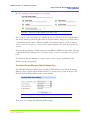
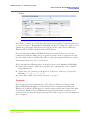
Specify which quota events should be logged.
8.
Choose OK.
Quota Entries
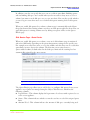
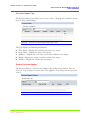
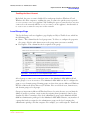
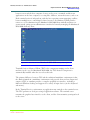
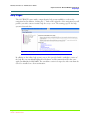
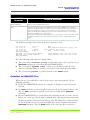
The Quota Entries page allows you to add, delete, or configure disk quotas for any server
appliance user. Quotas are managed using the Object/Task Selector, which has the
following columns:
n
Logon Name: This column displays the logon name of each user with registered
access to the server appliance.
n
Status: This column indicates whether or not the user has exceeded the assigned
quota limit.
n
Amount Used: This column indicates the amount of disk space currently being used
by a given user.
n
Quota Limit: This column indicates the maximum amount of disk space that a user
can occupy on a volume.
n
How the server appliance behaves when the quota limit is exceeded depends on
the settings on the Quota property page, accessible through the Disk Quota tab.
n
If the Deny disk space to users exceeding quota limit check box is selected, the
user will not be able to exceed this limit.
n
If the Log event when a user exceeds their quota limit check box is selected, an
event log message will be logged. If neither option is selected, no action is
taken.
n
Warning Level: nThis column indicates the maximum amount of disk space that a
particular user can use before a warning appears indicating that the quota has nearly
been reached.
NOTE
A warning will only be generated if the user exceeds the warning limit specified on the Quota
Entries page, and if a Log event is selected on the Default Quota page. If the Log event check box
is not selected, no warning will be generated and this column will remain empty. Typically the
Warning Limit value is set slightly fewer than the Quota Limit value.
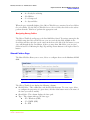
To set or change quota entries on the server appliance
1.
On the primary navigation bar, choose Disks.
2.
Choose Disk Quota.
3.
Select the volume you want to manage.
Chapter #6 - O/S 2.0 - Disk and Volume Properties
11/07/01 -- Revision 2.0.03A
170
000001628