1
Kaleidescape Installation Guide
Quick Start
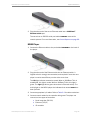
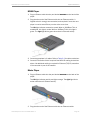
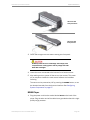
10. To import content on a Kaleidescape M500 Player, press the EJECT
button on the front panel and place a DVD, Blu-ray Disc or CD in the tray.
Press the IMPORT button to close the tray. Front panel lights begin
pulsing, indicating that the import has begun.
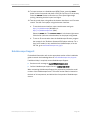
11. Test the movie player using either the browser interface or an IR remote
control. Test the music player using the browser interface.
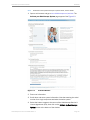
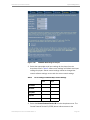
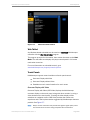
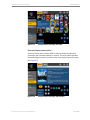
a. To use the browser interface, open a web browser and go to
http://my-kaleidescape (Windows) or
http://my-kaleidescape.local (Mac).
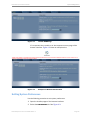
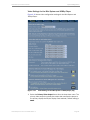
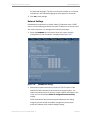
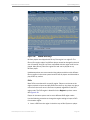
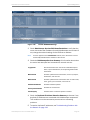
Select the HOME tab. The CONTROL PANEL is in the lower right corner.
Click the link (links are colored amber) for the player being tested.
b. To use an IR remote other than the Kaleidescape Remote, program
the remote for the Toshiba or Kenwood DVD player code set. For a
list of all IR codes (in hex) available from Kaleidescape, or for the
CCF file, go to www.kaleidescape.com/go/ir.
Kaleidescape Support
For detailed information refer to the appropriate section of the installation
guide or search the knowledge base at www.kaleidescape.com/support.
If additional help is required, contact Kaleidescape Support.
0
0
Send an email message to [email protected].
Call the Kaleidescape support line at +1 (650) 625-6160.
When contacting Kaleidescape Support, be prepared to provide the serial
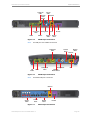
number of the Kaleidescape server. The serial number label is located on
the back of all components, and behind the front panels of Kaleidescape
servers.
Kaleidescape Part No. 101-0105-00 Rev 3
Page 19