1
174
5.6
XStudio 3
Operating Modes
XStudio features four (4) distinct modes of operation:
Emergency
Live
Automation
Satellite
The "mode" that XStudio is operating under at a given moment affects its behavior relating to things
like whether or not it will play through log directives, what will happen when the end of a log is reached
and there is no subsequent log available, whether or not certain log directives will be executed,
whether or not a Task will be executed and whether or not a Scheduled Event will execute, among
other things.
The current XStudio Mode can be changed on-the-fly at any time. The end-user can manually change
modes and the operating mode can be changed using a Set Mode automation Task which is executed
as a part of an Action. You can also set the default mode of operation in Preferences, which is the
mode XStudio will operate in when the program is started.
This topic provides an overview of each of the available modes of operation and highlights session
properties and features that are either enabled or disabled for a mode.
Emergency Mode
The emergency mode of operation is intended for situations where XStudio is being used as an
emergency fall back system. Often, an emergency log, containing generic undated program content,
has been created and will be the only log used for this scenario. An emergency log might contain only a
few hours of content, unlike standard daily logs, which will generally contain a full 24 hours worth of
content.
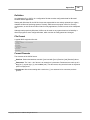
When operating in Emergency Mode, XStudio works only with the currently loaded log, if any, and does
not attempt to load the next day's log when the end of the current log is reached.
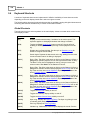
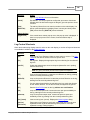
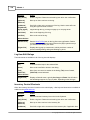
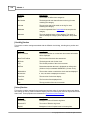
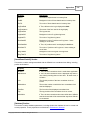
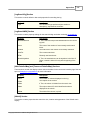
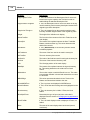
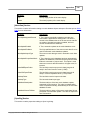
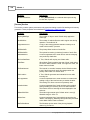
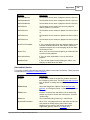
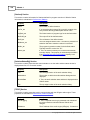
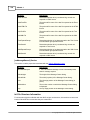
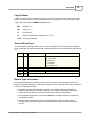
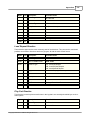
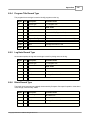
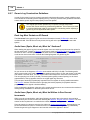
Affected Session Properties
When XStudio transitions to Emergency mode, log handling and audio playback options are affected
as shown:
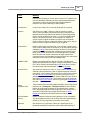
Option/Functionality
Change Description
Auto-Segue
The Auto-Segue state (enabled/disabled) is not changed. If
you wish to ensure Auto-Segue of audio is enabled and setting
Emergency mode is a part of an Action, you may wish to include
a Set Auto-Segue Task in the Action.
Play Through Directives
Enabled. Regardless of the previous state of the Play Through
Directives property, it is enabled.
Wrap Log Option
The Wrap Log Option state is not changed. However, the
menu item to change the option is made available for user
changes.
Log Directives
The Load Window directive is processed; all others are
ignored, including any directive keys. XStudio does continue
to track active and next directives.
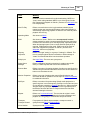
Actions/Tasks
Actions can be initiated with input relays, hot buttons or
scheduled events only, as Log Directives are ignored. When an
© Copyright 2003-2015 C-R Media All Rights Reserved.