1
Operation - Using XStudio
4.3
57
Hot Buttons
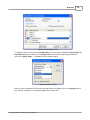
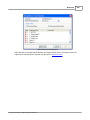
XStudio "hot buttons" are instant-execution buttons that can be programmed to play a cart on demand
or to execute an XStudio Action. This topic describes how to set up and use hot buttons.
There are two hot button areas in XStudio. One set is located on the main display and is a minimal set
intended for items that might be used frequently by all users. A larger second set is available via the
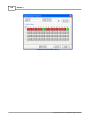
XStudio Cart Wall dialog, which contains user-defined "sets" of 300 buttons. The Cart Wall dialog
might be used for individual user sets of buttons.
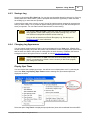
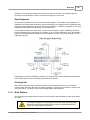
Main Display Hot Buttons
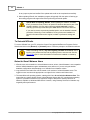
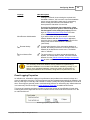
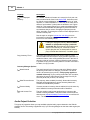
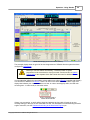
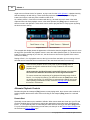
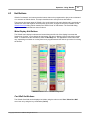
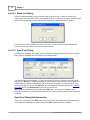
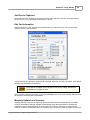
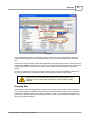
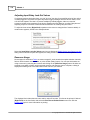
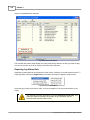
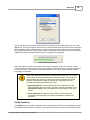
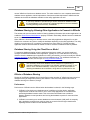
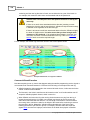
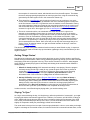
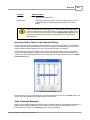
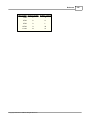
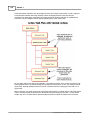
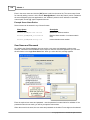
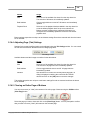
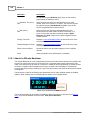
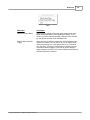
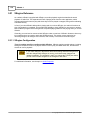
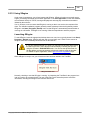
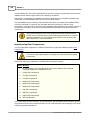
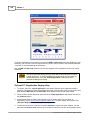
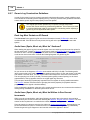
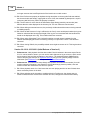
The XStudio main display hot buttons are located along the left side of the display in an area that
features two (2) tabs - one to display the hot buttons, the other to display a list of hourly audio content
totals. To view and use the hot buttons, select the Hot Keys tab. The appearance of the buttons will
vary, depending on whether or not they have been programmed and the choices you make for coloring
the buttons.
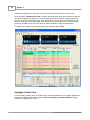
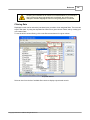
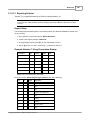
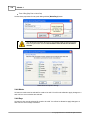
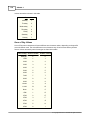
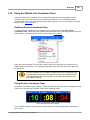
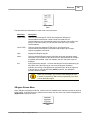
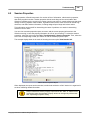
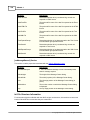
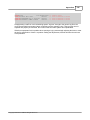
XStudio Hot Buttons - Before and After Configuration
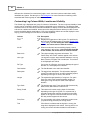
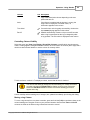
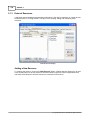
Cart Wall Hot Buttons
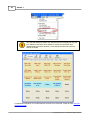
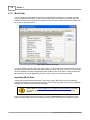
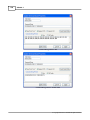
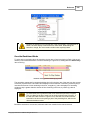
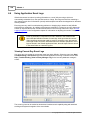
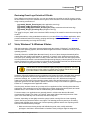
The XStudio Cart Wall can be displayed or hidden using the main menu's View / Show Cart Wall
menu item or by using the key combination [Ctrl-H].
© Copyright 2003-2015 C-R Media All Rights Reserved.