1
CSV Files structure
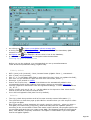
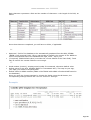
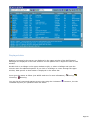
TRX-Manager can export/import CSV files to/from the SW database. The CSV format is a text
file format which is compatible with Excel. Data are separated by semicolons (;).
Format
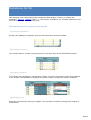
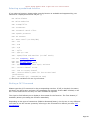
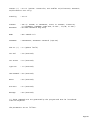
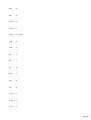
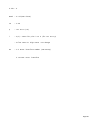
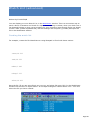
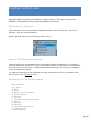
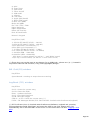
The first line of the file repeats - in any order - the name of the fields separated by
semicolons. At a minimum, lD and Frequency fields are required. Each line forms a record: each
value is separated by semicolons (;). The values follow the same order than the first line.
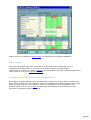
It is recommended that you create a CSV file using TRX-Manager in order to examine its
structure.
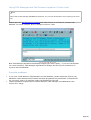
Saving a database to the CSV format
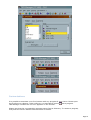
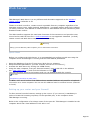
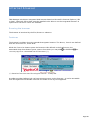
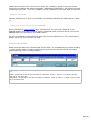
Press the Savebutton
of the tools bar and select CSV as the format of the file to create.
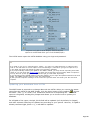
Opening a CSV file under Excel
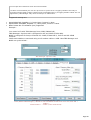
CSV files may be opened from Excel by selecting .csv as type of file. Warning: a double click
of a CSV files launches Excel but with an incorrect configuration : you must use the Excel's
File/Open submenu for opening of a csv file.
Creating CSV files
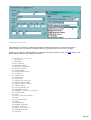
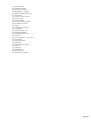
You may create a database from Excel and then import it into TRX-Manager using the CSV
format: please take care of the following conditions : The first line of the file comprises - in
any order - the name of the fields but with the same naming as for the TRX-Manager's SW
database. At least ID and Frequency fields are required.
Please take care to remove all semicolons and commas from the strings : theses characters
may be considered as separators,
Importing a CSV file into TRX-Manager
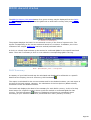
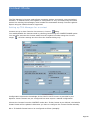
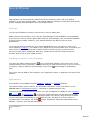
Importing CSV files is done from the Open
button and selecting CSV as type of file.
All imported records will be added to the current database.
Page 352