1
timeQplus Administrator Functions – System Utilities
profiles and punch data unless the Administrator performing this operation chooses to
keep existing employees in the database.
•
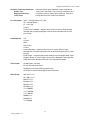
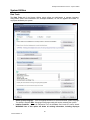
Initialize Users – Deletes all users (both Administrators and Supervisors) defined on the
Supervisors tab except the default admin login ID. The password for the admin login ID is reset to
“admin”.
•
Import QuickBooks – Import employees from QuickBooks.
•
Import timeQplus or Attendance RX – When upgrading from Attendance RX or timeQplus
Version 2 the Previous and Current pay period data from the old system will be imported into the
new timeQplus Version 4.xx database. The archive databases will remain on, and be accessible
to your computer where the current time and attendance applications are installed.
•
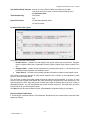
Backup – Backs up the current timeQplus database to a SQL Server database
•
Restore – Restores the most recent database stored in SQL Server to timeQplus.
•
Upgrade – Allows you to install an increased number of employees or additional features that
you can configure in your timeQplus software. Requires a purchased upgrade from Acroprint.
•
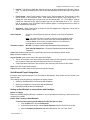
View Event Log – Lists the date and time of critical events such as pay period rollover and setup
rules changes.
•
Upload Data – Automatically uploads a copy of your database to Acroprint Customer Support
group to assist you and the Acroprint technician in resolving issues.
•
Realign Transactions – If a punch is recorded at the Time Clock, but the Time Clock is not
polled until the system has rolled to the next pay period, some punches could be associated with
the incorrect pay period. Use this feature to move the misaligned punch(es) to the appropriate
pay period.
•
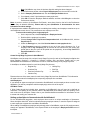
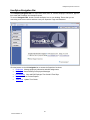
timeQplus Debug Tool – Use this tool to troubleshoot communications issues with your
timeQplus Time Clock devices and validate data that is stored on the Time Clocks.
•
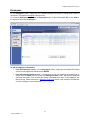
timeQplus Import USB drive – When a Time Clock is installed as USB flash drive which has no
wired data connection to the server, an Administrator takes a USB drive to the Time Clock and
retrieves the Punch data. The punch data is then uploaded to the timeQplus database by
connecting the USB drive to the computer which contains the timeQplus server/database.
•
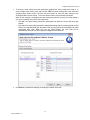
timeQplus Import Tool – Use this tool to import Time Clock transactions from log files stored in
the timeQplus database.
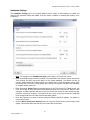
Use extreme caution when changing settings on the Data Tools tab.
Changes made on this screen can have a significant impact on the
database and operations of timeQplus.
66
06-0414-000 Rev. C