1
timeQplus Administrator Functions - Shifts
Example 1:
Pay Interval Round time set to 10 minutes.
•
Punch at 10:14 will be treated as though it occurred at 10:10.
•
Punch at 10:15 will be treated as though it occurred at 10:20.
Example 2:
Pay Interval Round time set to 15 minutes.
•
Punch at 10:07 will be treated as though it occurred at 10:00.
•
Punch at 10:08 will be treaded as though it occurred at 10:15.
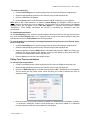
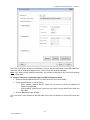
To edit Pay Interval Round:
•
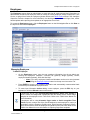
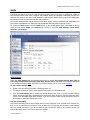
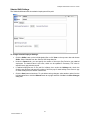
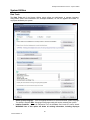
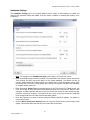
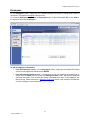
Click the Shifts button on the left Navigation Bar or click View on the top menu bar and
choose Shifts. Select the shift you want to modify, and then select the ‘Shift Settings’ tab.
•
Choose the desired Pay Interval Round value from its drop-down list. Choices include 1, 5, 6,
10 or 15 minute(s). The default value for Pay Interval Rounding is 1 minute.
•
Click the Save button when done. To quit without saving changes, select another option from
the left Navigation Bar or click the Refresh button at top right and then click No in the Save
Changes dialog box.
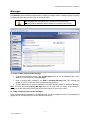
Max Time on Clock
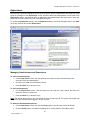
The Max Time on Clock setting prevents the system from calculating erroneously large worked time totals
(and possible overtime) due to missed punches. The system assumes that an employee has missed a
punch after the maximum time on the clock has been exceeded. The system will change the employee's
status to Out with zero accumulated time after the maximum time has passed since the last In/Transfer
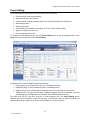
punch. A flag will also be set that there is a missing punch on the Punch Editing screen and on the Time
Card and Hours Summary reports.
You can then enter the missing punch via Punch Editing so the employee’s time can be correctly
calculated.
The default value for Max Time on Clock is twelve hours (12:00).
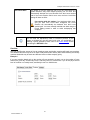
Note: To disable this feature, set Max Time on Clock to zero hours (00:00).
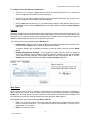
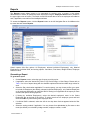
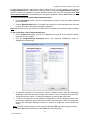
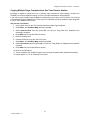
To edit the Max Time on Clock setting:
•
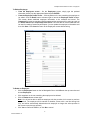
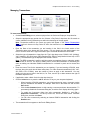
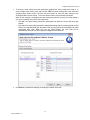
Click the Shifts button on the left Navigation Bar or click View on the top menu bar and
choose Shifts. Select the shift you want to modify, and then select the ‘Shift Settings’ tab.
•
Enter the desired value in the Max Time on Clock field.
•
Click the Save button when done. To quit without saving changes, select another option from
the left Navigation Bar or click the Refresh button at top right and then click No in the Save
Changes dialog box. Changing Max Time on Clock will apply to the Previous, Current and
all future Pay Periods.
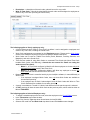
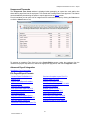
Day Change Offset
A normal day by default begins at exactly 12:00 AM. Some companies, however, may have employees
who work shifts that end at 12AM or even into the next day. Also, there may be shifts that begin at 12AM
or earlier.
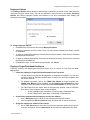
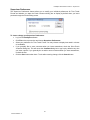
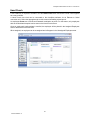
Day Change Offset can be used to 'move' such employees’ workday change time backward or forward
from 12AM so their hours are credited to the proper workday. The Day Change Offset field displays
HH:MM.
•
If you do not have employees that begin or end work through 12AM, leave this setting at the
default value [00:00].
17
06-0414-000 Rev. C