1
Using the
Optional
LocalTalk
Interface
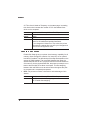
Note: Version 3 PPDs are not installed automatically through
the PS Exec Easy Install procedure. You must use the
Custom Install procedure. Refer to the PS Exec installation
instructions at the very beginning of this section.
»
n
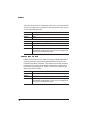
If you use QuarkXPress, install the QMS 1060 and 1060E
PDFs in the same folder as QuarkXPress. While QuarkXPress 3.3 allows you to access either PDFs or PPDs, to
have access to all of your printer’s features, you should use
the PDF. To select the PDFs, go to the Page Setup dialog box
in QuarkXPress, and hold down the Shift key while clicking
the Printer Type list box. (The italicized selections are PPDs,
and the non-italicized selections are PDFs.) See your
QuarkXPress documentation for more information.
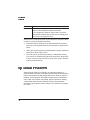
Note: The 1060E PDF allows you to choose between Basic
and Enhanced (Advanced) Halftoning in QuarkXPress. If this
PDF is not present, you won’t be able to used Enhanced
Halftoning even though the printer supports it. See chapter 5,
“Additional Technical Information,” in the Reference for more
information on halftones.
»
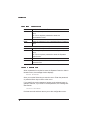
Testing Macintosh Communication
You can check communication between the printer selected in the
Chooser and the Macintosh by sending a file to the printer from an
application (see your application documentation for more information)
or by printing a directory, as described here:
1
Display a disk or folder window.
2
Set up page information.
Choose Page Setup from the File menu. Select paper size, printing orientation, and any other necessary options. Then select OK.
3
Print a directory or a window.
a
6-52
Choose Print Directory or Print Window from the File menu. A
dialog box appears.
QMS 1060E Print System Reference