1
IB_DVD_KH6507_GB.qxd
19.10.2004
9:53 Uhr
Seite 21
10. Using the DVD Player
6 The contents of the inserted disc are now loaded;
this may take a few seconds. "Loading" is displayed
on the television screen during this process.
After you have …
Ú
Ú
set up the DVD player at a suitable location
connected the DVD player to a television (or a
video projector) using one of the described
connection options
10.2. Inserting Memory Cards with
MP3/WMA/JPEG Files
To insert memory cards of types CF I/CF II, SD,
MS/MSPro, MMC and SM into the DVD player:
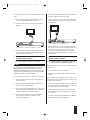
1 Switch on the television connected to the DVD
player.
Ú
Ú
Ú
connected the DVD player to a HiFi or surround
sound system (analog/digital) or a Dolby Digital or
DTS receiver, if desired
2 Make certain that the DVD player is ready for operation and switched on.
inserted the batteries into the remote control
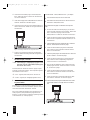
If the television, the DVD player and any additionally connected equipment (e.g. an audio component) are ready for
operation and switched on and the DVD player is correctly connected to the television, you will see the OPENING
logo on the television screen.
and know how to access and use the setup menu
with the remote control …
… the DVD player is ready for operation.
If no disc is present in the disc tray of the DVD
player: "No Disc" is displayed on the television
screen.
10.1. Inserting Discs
To play a disc with the DVD player:
3 Open the flap in front of the memory card slot on the
1 Switch on the television connected to the DVD
front side of the DVD player. To do this, press once
with your finger on the dotted triangle on the flap. The
flap opens.
player.
2 Make certain that the DVD player is ready for
operation and switched on.
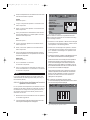
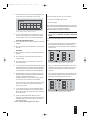
4 Now slide the memory card into one of the two
memory card slots. Follow the steps below – depending on which type of memory card you would like
to play.
If the television, the DVD player and any additionally connected equipment (e.g. an audio component) are ready for operation and switched on and
the DVD player is correctly connected to the television, you will see the OPENING logo on the television screen.
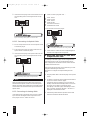
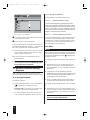
Upper slot
Lower slot
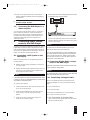
If no disc is present in the disc tray of the DVD
player: "No Disc" is displayed on the television
screen.
3 Open the disc tray by pressing the Open/Close button once. "OPEN" is displayed on the television
screen.
4 Place a disc on the disc tray with the printed/label
side facing up. For double-sided discs: The side you
would like to play must face down.
5 After you have placed the disc in the disc tray:
Press the Open/Close button again to close the disc
tray.
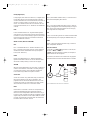
Fig. 14 Memory card slots
| Warning!
Always be sure to insert the memory cards into the
memory card slots as described below! Never bend the
memory cards while inserting them into the memory
cards slots! Only push the memory cards up to the stop in
the memory card slot with a light pressure. If memory
cards cannot be inserted without applying force:
Ú
Check whether it is a type of memory card that the DVD
player can play. Only memory cards of types CF I/CF II,
SD, MS/MSPro, MMC and SM can be played. Do not
try to insert memory cards of other types into one of
the memory card slots!
21