1
Instant Broadband® Series
Help
EtherFast® Cable/DSL Router with QoS and 8-Port Switch
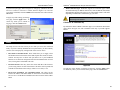
To upgrade the Router’s firmware:
Note: By upgrading the Router’s firmware, you may lose the Router’s
configuration settings.
1. Download the firmware upgrade file from www.linksys.com, and extract the
file using WinZip.
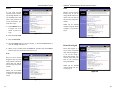
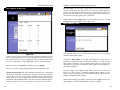
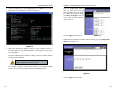
2. Select the Help tab (see Figure
6-16).
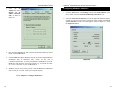
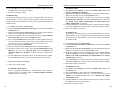
3. Click Upgrade Firmware to
display a new window (see
Figure 6-17).
4. Click the Browse button to
find the firmware upgrade file
you extracted.
Figure 6-17
5. Double-click the firmware file you extracted. Click the Upgrade button,
and follow the on-screen instructions.
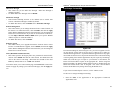
Figure 6-16
On the Help tab, shown in Figure 6-16, you’ll find links to all of the utility’s
internal support documentation, including the application that upgrades the
Router’s firmware.
Linksys Website Clicking this link will take you to Linksys’s website,
www.linksys.com, provided you are connected to the Internet.
Online manual in PDF format and Adobe Website Clicking the Online manual in PDF format link will take you to the latest version of the user guide for
this Router. The guide will be in Adobe Acrobat Portable Document File (.pdf)
format. You will need the Adobe Acrobat Reader to view this pdf. If you do not
have the Acrobat Reader, click the Adobe Website link to download it. These
links work only if you are connected to the Internet.
Upgrade Firmware New firmware versions are posted at www.linksys.com
and can be downloaded for free. If the Router can access the Internet already,
there’s no need to download a newer firmware version, unless that version has
a new feature that you want to use. (To learn about any new firmware with new
features, visit www.linksys.com.) Loading new firmware onto the Router does
not always enhance the speed or the quality of your connection.
39
The Advanced Tabs
The following instructions are for advanced users or users whose setup needs
require special configuration. When you click the Advanced tab, you will be
able to set up these features. There are six additional, Advanced tabs available.
Filters - Filters block specific internal users from Internet access and enable
Virtual Private Network (VPN) sessions.
Forwarding - Sets up public services on your network.
Dynamic Routing - Sets up the Router so it will automatically adjust to physical changes in the network’s layout.
Static Routing - Sets up static routes needed when network information must
travel to a specific host or network.
DMZ Host - Allows one local user to be exposed to the Internet for use of special-purpose services such as online gaming or videoconferencing.
Quality of Service - Allows you to assign high or low priority to network traffic for various applications and ports.
MAC Address Cloning - Allows you to “clone” your Ethernet adapter’s MAC
address onto the Router.
40