1
Instant Broadband® Series
EtherFast® Cable/DSL Router with QoS and 8-Port Switch
Chapter 4: Configure the PCs
Configuring Windows 95, 98, and Millennium PCs
Overview
1. Go to the Network screen by clicking the Start button. Click Settings and
open the Control Panel. From there, double-click the Network icon.
The instructions in this chapter will help you configure each of your computers to be able to communicate with the Router.
To do this, you need to configure your PC’s network settings to obtain an IP (or
TCP/IP) address automatically (called DHCP). Computers use IP addresses to
communicate with each other across a network, such as the Internet.
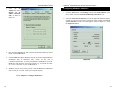
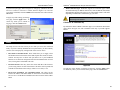
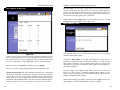
2. On the Configuration tab, shown in Figure 4-1, select the TCP/IP line for
the applicable Ethernet adapter. Do not choose a TCP/IP entry whose name
mentions DUN, PPPoE, VPN, or AOL. If the word TCP/IP appears by
itself, select that line. (If there is no TCP/IP line listed, refer to “Appendix
D: Installing the TCP/IP Protocol” or your Ethernet adapter’s documentation to install TCP/IP now.) Then, click the Properties button.
Find out which Windows operating system your computer is running. You can
find out by clicking the Start button and then selecting the Settings option.
Open the Control Panel, and double-click the System icon. If your Start menu
doesn’t have a Settings option, you’re running Windows XP. Click the Cancel
button when done.
You may need to do this for each computer you are connecting to the Router.
Important: These instructions apply only to Windows 95, 98,
Millennium, 2000, or XP machines. For TCP/IP setup under
Windows NT, see your Windows manual. By default, Windows 98,
2000, Me, and XP have TCP/IP installed and set to obtain an IP
address automatically.
The next few pages tell you, step by step, how to configure your network settings based on the type of Windows operating system you are using. Make sure
that an Ethernet card or adapter (also known as a network adapter) has been
successfully installed in each PC you will configure. Once you’ve configured
your computers, continue to “Chapter 5: Configure the Router.”
Figure 4-1
11
12