1
Instant Broadband® Series
Appendix F: Finding the MAC
Address and IP Address for Your
Ethernet Adapter
This appendix describes how to find the MAC address for your Ethernet
adapter to do either MAC Filtering or MAC Address Cloning. You can also
find the IP address of your computer’s Ethernet adapter. The IP address is used
for filtering, forwarding, and DMZ hosting. Find your Windows operating system and follow the steps in this appendix to find the MAC address or IP address
for your adapter.
EtherFast® Cable/DSL Router with QoS and 8-Port Switch
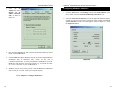
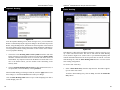
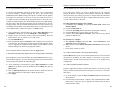
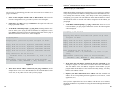
3. Write down the
Adapter Address as
shown on your computer screen (see
Figure F-3). This is
the MAC address for
your Ethernet adapter
and will be shown as
a series of numbers
and letters.
Figure F-3
Note: The MAC address is also called the Adapter
Address in Windows 95, 98, and Me.
For Windows 95, 98, and Me:
The MAC address/Adapter Address is what you will use for the Router’s
MAC Address Cloning or MAC Filtering.
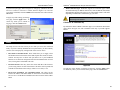
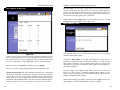
1. Click on Start and
choose Run. In the Open
field, type winipcfg, as
shown in Figure F-1.
Then, press the Enter
key or click the OK button.
The example in Figure F-3 shows the IP address of your Ethernet adapter
as 192.168.1.100. Your computer may show something different.
For Windows NT, 2000, and XP:
Figure F-1
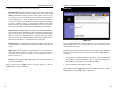
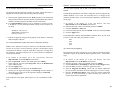
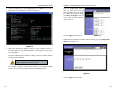
1. Click on Start and
choose Run. In the
Open field, enter
cmd, as shown in
Figure F-4. Press the
Enter key or click
the OK button.
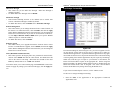
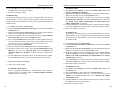
2. When the IP
Conf iguration
w i n d o w
appears, select
the
Ethernet
adapter that you
are using, as
shown in Figure
F-2.
Figure F-4
Figure F-2
91
92