1
Instant Broadband® Series
Chapter 2: Getting to Know the
EtherFast® Cable/DSL Router
with QoS and 8-Port Switch
The Router’s Back Panel
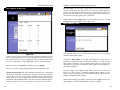
The Router’s ports (shown in Figure 2-1), where network cables are connected,
are located on the Router’s back panel.
EtherFast® Cable/DSL Router with QoS and 8-Port Switch
The Reset Button
The Reset button can be used in one of two ways:
1. If the Router is having problems connecting to the Internet, press the Reset
button for just a moment with a paper clip or a pencil tip. This clears up any
jammed connections, and is similar to pressing the Reset button on your PC
to reboot it.
This will reboot the Router while keeping all of the Router’s settings.
2. If you are experiencing extreme problems with the Router and have tried all
other troubleshooting measures, press the Reset Button and hold it down
until the red Diag LED on the front panel turns on and off completely.
This will restore factory defaults and clear all of the Router’s settings,
including settings such as IP addresses or a new password.
Figure 2-1
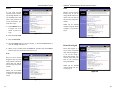
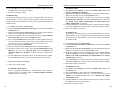
The Router’s LEDs (shown in Figure 2-2), display network activity through the
Router.
WAN
The WAN (Wide Area Network) port is where you connect
your cable or DSL modem through an Ethernet cable. Your
modem connection will not work from any other port.
Ports 1-8
These eight LAN (Local Area Network) ports connect to network devices, such as PCs, print servers, and network
attached storage (NAS). Each of the ports will auto-detect
whether a straight-through or crossover cable is plugged into
it, so there is no need for an uplink port. Any one of the eight
ports can serve as an uplink port to other network devices.
The LAN Indicators
The Power port is where you will connect the power adapter.
Power
Green. The Power LED lights up when the Router is powered
on.
QoS
Green. The QoS LED lights up when the QoS feature is active.
Link/Act
Green. The Link/Act LED serves two purposes. If the LED is
continuously lit, the Router is successfully connected to a device
through the corresponding port. If the LED is flickering, the
Router is actively sending or receiving data over that port.
Power
5
The Router’s Front Panel LEDs
Figure 2-2
6