1
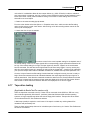
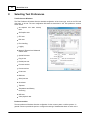
Selecting Test Preferences
8.5
85
Errors
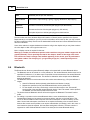
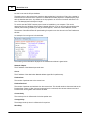
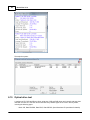
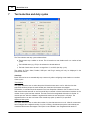
Action on Error
A number of actions can be taken when BurnInTest detects an error
Continue
The error counter is incremented and testing continues.
Play sound and continue
The error counter is incremented, the computer plays a sound via the sound card and testing continues.
System beep and continue
The error counter is incremented, the system speaker beeps and testing continues.
Auto-Stop tests
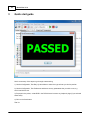
All the tests are stopped and the "failed" window is displayed.
Windows errors (Abort / Retry / Cancel)
You can specify whether BurnInTest should block or allow critical Windows errors.
8.6
Logging
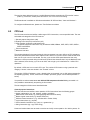
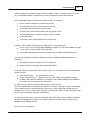
Automatic test results logging (reporting)
Test events (such as errors) are always automatically logged to the Event log history. This can be
viewed by selecting the "Event Log" tab on the main window. This type of logging is not affected by the
“Logging on” option, which refers to automatic logging to disk.
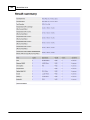
Text and HTML reports can be manually created using “File”, "Save report”. This will save System
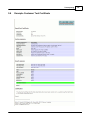
information, a result summary and the recent Detailed Event log history. A customer style HTML test
certificate is also available.
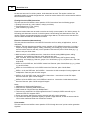
Turn automatic logging on
Logging to disk is switched on and off with the “Turn automatic logging on” option. When disk logging
is on, BurnInTest will log System information, results, result summaries, and detailed error descriptions
to files based on the following user settings.
The log files will be created when a test run starts. The log files are closed and available for use by
another application when "Turn automatic logging on" is switched off, any of the logging options (Log
Directory, Detail Level, ASCII/HTML Format) are changed, or when BurnInTest is exited or automatically
stopped with a REBOOT or REBOOTEND scripting command.
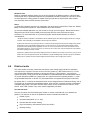
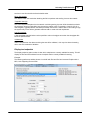
Log file name
Log file name
The Log file name allows the directory and filename prefix to be specified. For the default of “Time
stamped files”, the file will automatically be appended with _YYMMDD_HHMMSS.log, .htm or .trace,
© 1999-2012 PassMark Software