1
80
BurnInTest V7.0
formatted but has no Windows installation and no paging file. This raw disk test will create virtual test
files on the raw disk. Administrator privileges are required, under Vista (and later), elevated
Administrator privileges are required.CAUTION: As the Raw disk test will write directly to the disk (not
via the file system), all data on the disk including any disk format information (e.g. NTFS information) will
be destroyed. As such, use this option with caution.
Test mode
The test patterns that can be selected are explained in the section, “Disk test suite".
File size
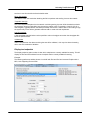
The use can select the test file size and test pattern that is used with the disk test for each disk. The
size of the file is equal to a certain percentage of the disks capacity. The default file size is 1.0% of the
disk size. So if a disk had a total capacity of 200GB then the default size of each file would be 2GB.
Setting a smaller percentage results in more files being created on the disk and the read / verify cycle
occurring more quickly. Note that one disk test cycle is defined to be writing a test file of the size
specified by this setting, and reading/verifying the data.
Note that the file system type (NTFS, FAT32 or FAT) and the version of the Windows operating system
(e.g. Windows XP) may limit the size of the file that can be created on a disk.
Seek count
For test modes that perform seeking to different positions on the disk drive (e.g. Random data with
random seek ing), the seek count specifies the number of seeks for a particular iteration (e.g. After
Random data with random seek ing has created 100 test files, the Seek count specifies the number of
times a seek should occur between blocks within these 100 files).
Block size
Test files are written and read to the files system/ disk in multiple blocks. This is the read/ write block
size. Generally, the larger the block size the faster the test will be.
Slow drive threshold
BurnInTest can be configured so that a warning message is generated when the transfer speed from a
disk device drops below a certain level. The transfer speed is measured in Megabytes / second and a
different threshold can be assigned for each drive.
Selecting a level of 0 will disable the feature.
When the measured I/O transfer speed is below the threshold, a warning message will appear in the
detailed error log. The entry will be similar to the following,
2002-08-30 15:01:26, Disk, Threshold level: 20.00 MB/Sec, Measured speed: 18.29 MB/Sec
The disk test periodically samples the transfer speed every second (600ms when the duty cycle > 90).
Every sample below the threshold generates a warning.
The duty cycle for the disk test should be set to 100% when using this feature. Using a lower value
doesn’t make a lot of sense. Setting a threshold can be useful in helping to determine if the drive is
functioning correctly and the correct device drivers have been loaded.
Duty cycle override
To use the general disk drive Duty cycle for each disk just set the Duty Cycle override value to blank (no
value), otherwise set the required value per disk.
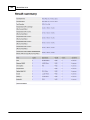
SMART options
Run self test and log SMART errors
© 1999-2012 PassMark Software