1
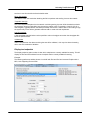
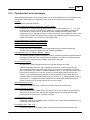
Selecting Test Preferences
89
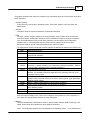
Note: On Windows Vista and later, the internal loopback (e.g. 127.0.0.1) may not be specified for the All
available physical ... ports test modes.
1..12 (Network addresses)
When the Test mode is set to any option except "Internal Loopback", destination network addresses for
the tests can be entered. Up to 12 network addresses can be entered for the simultaneous testing of the
network ports to 12 different destinations. Enter one destination address for each network port to be
tested. Each address must be a URL or an IP address.
A URL is the name of a network host, e.g. www.hostname.com
An IP address is a sequence of 4 numbers that correspond to a network host. IPv4 and IPv6 on Vista
and later can be tested. e.g. 169.192.0.1 or fe80::5d79:7fe4:c09c:4d59
The host selected must be accessible from the computer and capable of responding to the ‘ping’
command. See the Network Test for more details. PassMark recommends the selection of a local host
to minimize data link problems, which are fairly common on the Internet.
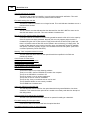
Bad packet generates error / Bad packet ratio generates error / Ratio (Error handling)
There are two options for handling errors that occur during the execution of the network test. BurnInTest
can either log an error for every bad (or missing) packet or can be set to only log an error when the
number of errors exceed a threshold ratio set by the user. This threshold ratio is expressed as the
percentage of bad packets compared to the overall number of packets attempted to be sent.
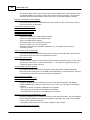
Timeout
This value determines how long BurnInTest will wait for a data packet to be sent or received before an
error is reported. The value is measured in Milliseconds. 4000ms (4 seconds) is the default value.
For more information see the description of the Network Test.
Advanced test options
This option is only available in the BurnInTest Pro version.
When the Advanced Network Test option is selected at the top of the Window, the “Edit Options” button
will be available. Clicking this button will open the Advanced Network Test Options Window and allow the
options for the advanced test to be set.
For more information see the description of the Advanced Network Test.
Bluetooth test
The Bluetooth test has been grouped with the Network test in terms of Test selection and duty cycle. So
the “Test configuration and duty cycle” window Network settings also apply to the Bluetooth test. So
"Network" must be selected on “Test configuration and duty cycle” Window. The test system must
support Bluetooth and have Bluetooth enabled.
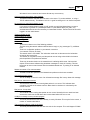
Active
The Bluetooth test options are on the right hand side of the Preferences->Network window. To activate
the Bluetooth test, select the “Active” checkbox.
Remote device name
© 1999-2012 PassMark Software