1
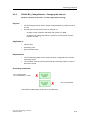
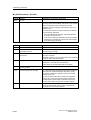
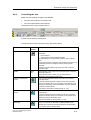
Configuration
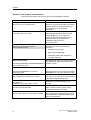
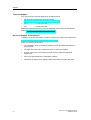
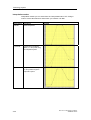
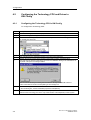
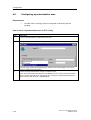
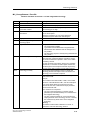
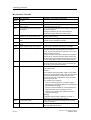
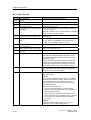
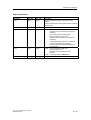
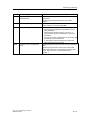
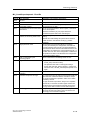
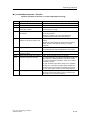
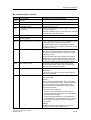
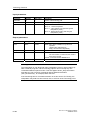
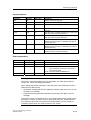
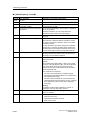
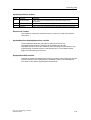
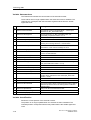
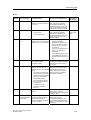
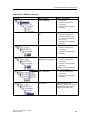
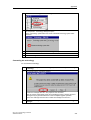
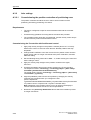
Step
Description
2.
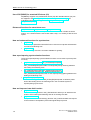
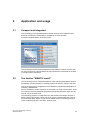
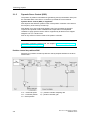
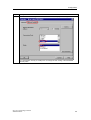
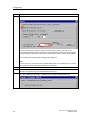
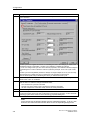
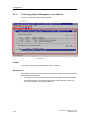
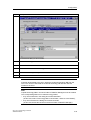
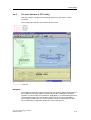
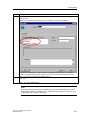
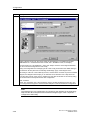
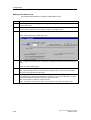
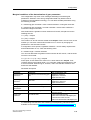
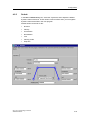
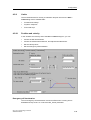
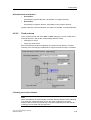
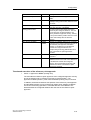
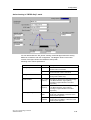
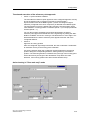
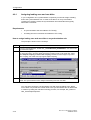
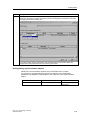
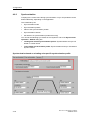
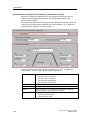
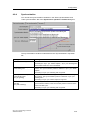
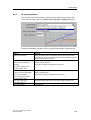
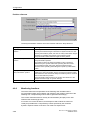
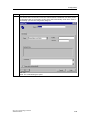
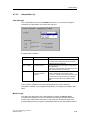
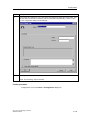
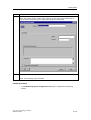
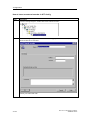
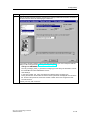
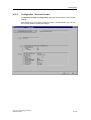
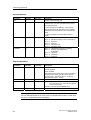
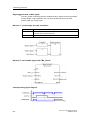
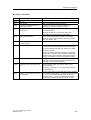
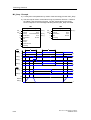
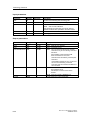
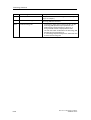
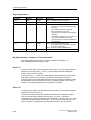
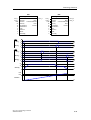
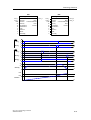
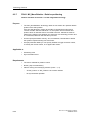
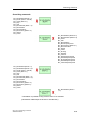
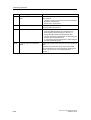
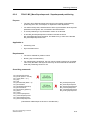
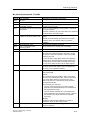
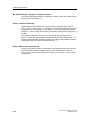
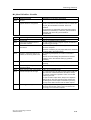
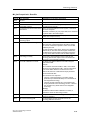
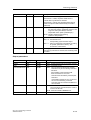
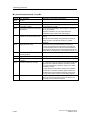
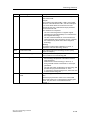
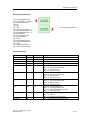
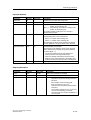
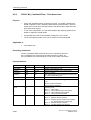
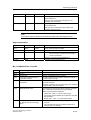
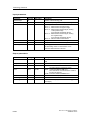
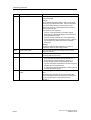
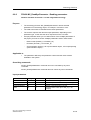
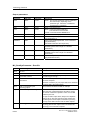
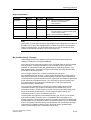
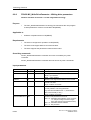
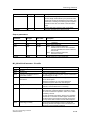
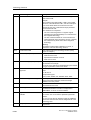
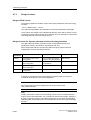
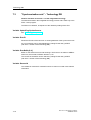
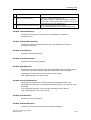
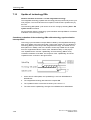
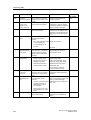
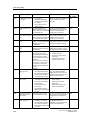
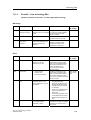
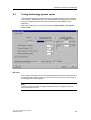
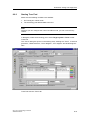
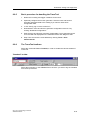
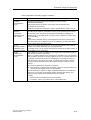
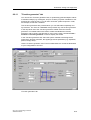
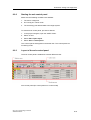
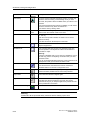
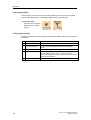
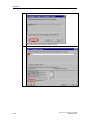
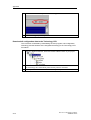
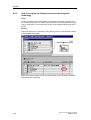
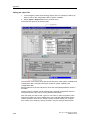
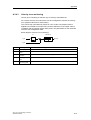
For this example of a positioning axis configuration, select the "Positioning" technology from the
"General" tab.
Disable the "Positioning" technology when you configure a velocity-controlled axis.
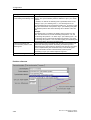
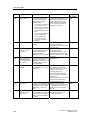
You may also edit the name, name an author, and add the version number or a comment.
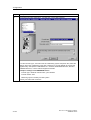
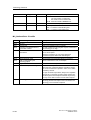
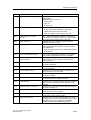
"Technology Objects Management" applies the name of the technology object as symbolic
name for the technology DB of the object in STEP 7.
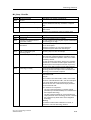
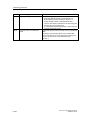
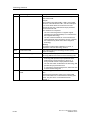
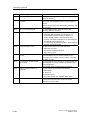
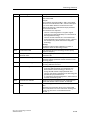
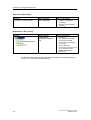
3.
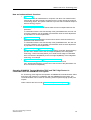
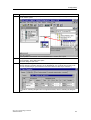
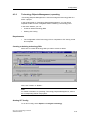
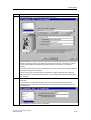
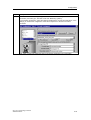
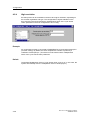
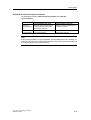
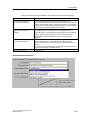
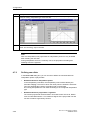
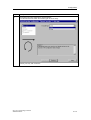
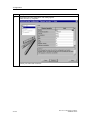
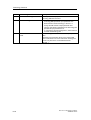
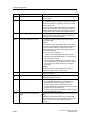
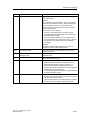
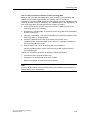
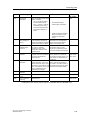
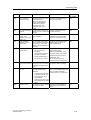
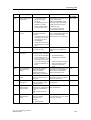
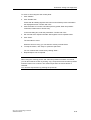
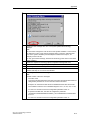
Click "OK"
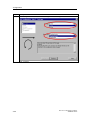
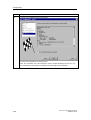
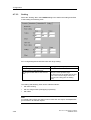
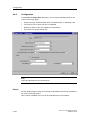
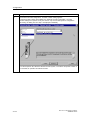
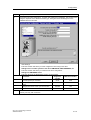
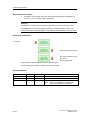
Result: The Axis Wizard appears.
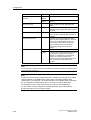
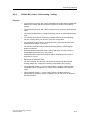
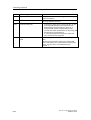
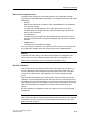
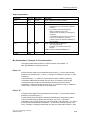
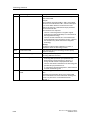
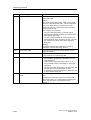
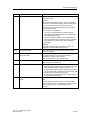
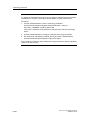
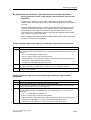
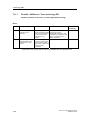
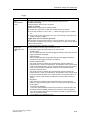
Note
The technology (velocity control, positioning, synchronous operation) of a new is
defined once when you configure it. To change the technology at a later time, you
must delete and create the axis again.
CPU 317T: Technology Functions
A5E00251798-03
4-21