1
Appendix A RadEditor
SharpSchool User Manual
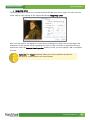
Reminder: You may wish to highlight a specific word or phrase on your page
before opening the Document Manager. This word or phrase will become a
hyperlink that will open the document. If you do not highlight anything then
the document link will be inserted with the original file name.
Note: It a good idea to create a folder with your name before uploading
documents. This will make it easier to find resources when you return. To
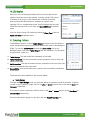
create a folder simply click on the New Folder
icon and enter the new
folder name. Double click on the folder to open it and upload documents in
it. Open this folder for all future uses.
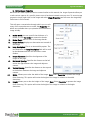
a. Browse Files
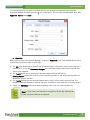
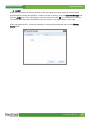
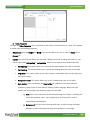
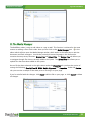
As mentioned above, you may browse through files that have already been uploaded into the
system. Click on a folder name to open it and view its contents. Once the correct folder’s contents
are displayed, select the file in the middle column of the document manager. The file location will be
inserted in the file address field beneath the tool bar, and the word or phrase you have chosen and
highlighted to serve as the hyperlink will be inserted into the “Link Text” field in the right column.
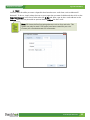
At this point you may click Insert to insert the link to your page, or click on Cancel to delete all
changes. You also have the ability to define the Tooltip, Target and CSS Class of the link before
inserting it.
Reminder: Target dropdown menu sets which window the document will
open in. Tooltip determines what text is displayed when a visitor moves the
mouse over the link.
www.sharpschool.com
19