1
SharpSchool User Manual
Appendix A RadEditor
SHARPSCHOOL
USER MANUAL
USER MANUAL
APPENDIX A
RADEDITOR
For more information, please visit:
customernet.sharpschool.com
www.sharpschool.com
0
SharpSchool User Manual
Appendix A RadEditor
TABLE OF
CONTENTS
ABOUT THIS CHAPTER .................................................................................................. 1
WHAT IS RADEDITOR? ................................................................................................. 1
SECTION 1: RADEDITOR AT A GLANCE.......................................................................... 3
PUBLISHING OPTIONS ................................................................................................. 6
SAVING YOUR PAGES VS. PUBLISHING ............................................................................. 6
KEYBOARD SHORTCUTS QUICK REFERENCE ................................................................. 7
SECTION 2: FORMATTING TOOLS ................................................................................. 7
I.
II.
III.
IV.
V.
THE HYPERLINK MANAGER ............................................................................ 7
THE SPELL CHECKER ................................................................................. 11
FIND AND REPLACE ................................................................................... 12
CSS STYLES .......................................................................................... 13
CREATING TABLES .................................................................................... 13
SECTION 3: MULTIMEDIA ........................................................................................... 18
I.
II.
III.
IV.
V.
THE DOCUMENT MANAGER .......................................................................... 18
THE FLASH MANAGER ................................................................................ 20
THE MEDIA MANAGER ................................................................................ 21
THE IMAGE MANAGER ................................................................................ 22
CLIPART MANAGER ................................................................................... 26
SECTION 4: ADVANCED SOURCE EDITOR .................................................................... 27
www.sharpschool.com
SharpSchool User Manual
Appendix A RadEditor
About this Chapter
This chapter will be provided to users in the form of an appendix with
Chapter 1 of the SharpSchool set of user guides. The document details
aspects of the RadEditor that are available to users via the WYSIWYG
(What You See Is What You Get) editor. The content in this guide is
intended for all levels of users of the system.
The chapter is divided into two broad sections: Definitions and
Functions. At first we will discover the basic definitions of all the features of the RadEditor through
the section “RadEditor at a Glance”, and then go into detail explaining multi-step modules from
Section 2 onwards.
What is RadEditor?
The RadEditor is a rich-text editor that allows for easy creation of web content. This tool functions in
a similar way to Microsoft Word® and therefore many of the icons and features available will seem
familiar to most users. In addition to having the ability to alter the look of text on a page, users can
also insert links, images, flash videos and more. Furthermore, for the technically savvy the editor
features tools that allow for webpages to be formatted in HTML as well.
www.sharpschool.com
1
SharpSchool User Manual
Appendix A RadEditor
www.sharpschool.com
2
Appendix A RadEditor
SharpSchool User Manual
Section 1: RadEditor at a Glance
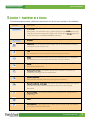
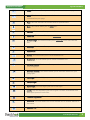
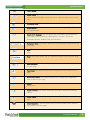
The following table provides a definition and function for all the icons available in the RadEditor.
Feature
Description
< > HTML: The Editor allows technical and non-technical users to create
their pages. For technical users, simply clicking on the HTML option will
instantly convert the page into HTML code. Clicking on Design again will
revert back to the simplified WYSIWYG interface.
Preview: This button allows you to preview a page before you publish it.
Template: The Templates button allows you to use preexisting content
templates in your content box.
Cut: This function will allow you to quickly cut and move text. Highlight
the chosen text in the content box before using this button.
Copy: This function will allow you to copy and duplicate text. Highlight
the desired text in the content box before using this button.
Paste: This function allows you to paste cut or copied text to a different
area of the content box.
Paste as Plain Text: This button pastes text; however it removes all
formatting (coding) from the copied text.
Paste from Word: This button allows you to paste text copied from
Microsoft Word while preserving the original formatting.
Paste from Word, strip font: This button will allow you paste text copied
from Microsoft Word while stripping the fonts from the original
document.
Paste as HTML: This function allows you to paste cut or copied text as
HTML code.
Print: This button prints the contents of your page.
Spell Checker: This button runs a spell check on your page and notifies
you of any errors that are found.
www.sharpschool.com
3
Appendix A RadEditor
SharpSchool User Manual
Undo: This button allows you to undo your last action(s) on a page.
Redo: This button allows you to redo the action or actions that were last
committed on your page.
Find: This tool searches the content area for specified text.
Bold: This button allows you to BOLD text.
Italicize: This button allows you to Italicize text.
Underline: This button allows you to underline text.
Strikethrough: This button allows you to cross out (cross out) selected
text.
Subscript: This button allows you to convert text into a
subscript.
Superscript: This button allows you to convert text into a
superscript.
Bullets: This tool allows you to create bulleted lists.
Numbered: This tool allows you to create numbered lists.
Increase Indents: This button allows you to increase indents (tabs) for
your paragraphs.
Decrease Indents: This button allows you to decrease indents for your
paragraphs.
Left Align: This tool aligns your text to the left.
Center Align: This tool center aligns your text.
Right Align: This tool aligns your text to the right.
Justify: This tool equalizes your text to give it a clean, streamlined look
with equal space on both sides.
Remove Alignment: This tool removes any alignments in your text.
Hyperlink: This tool allows you to link selected text to another website or
document.
Remove Link: This tool allows you to remove a hyperlink from a text.
www.sharpschool.com
4
Appendix A RadEditor
SharpSchool User Manual
Insert Image: This tool allows you to insert an image in the content box.
Insert Table: This tool allows you to insert tables in your content box. A
popup menu will appear prompting you to select the dimensions of your
table.
Horizontal Line: This button inserts a horizontal line on the page.
Insert Symbol: Allows you to insert symbols (from a pre-defined list) into
the content area.
Insert Form Element: This tool allows you to include form elements on
your page such as Checkbox, Radio Button, Text Box, Text Area,
Dropdown, Button, Hidden Field, and Password.
Paragraph Style: This button allows you to customize the Style of text on
your page.
Size: This button allows you to customize the Format of text on your
page.
Font: This button allows you to customize the Font of text on your page.
Real Font Size: This button allows you to customize the Size of the text
on your page.
Text Color: This button allows you to change the color of text on your
page.
Background Color: This button allows you to change the background
color of text of your page.
About: This function can be used to ask for context sensitive help and
information.
Insert Formula: This button allows you to insert a formula to calculate
values.
Insert Video: This tool allows you to insert embedded videos on your
page.
Insert Recorder: This tool allows you to record a video from a webcam
and publish it on your page.
www.sharpschool.com
5
Appendix A RadEditor
SharpSchool User Manual
Insert Flash: This tool allows you to insert Flash videos on your page.
Style Builder: Allows to add style to your text.
Media Manager: You can use this tool to insert media onto your page,
such as MP3 audio files, AVI video files.
Document Manager: This tool allows you to insert links to documents on
to your page such as PDF files, Microsoft Word files, Microsoft Excel files
to name a few.
Clipart Manager: This tool allows you to search for an insert clipart
images on the page.
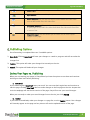
Publishing Options
Once formatting is completed there are 3 available options:
1) Save Draft: Clicking Save Draft will save your changes as a work in progress and will not make the
changes live.
2) Publish: This option will make your changes live instantly on the site.
3) Cancel: This option will delete all your changes.
Saving Your Pages vs. Publishing
When you are creating your pages in SharpSchool you have the option to save them and continue
working on them later before publishing.
a. Save Draft
As the name implies, Save Draft saves your work. You can come back again later and continue to
edit the page. Clicking Save Draft does not make changes to the live page on the site. Anyone who
visits the webpage will see the live version of the page, they will not see your saved changes.
When you are ready to make your saved changes live on the site, just click Publish.
b. Publish
If you want to immediately make your changes to a page live, use the Publish button. Your changes
will instantly appear on the page and any visitors will see the updated version of the page.
www.sharpschool.com
6
Appendix A RadEditor
SharpSchool User Manual
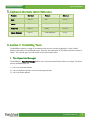
Keyboard Shortcuts Quick Reference
Feature
Shortcut
Feature
Shortcut
Bold
Ctrl+B
Cut
Ctrl+X
Italics
Ctrl+I
Copy
Ctrl+C
Underline
Ctrl+U
Paste
Ctrl+V
Image Manager
Ctrl+G
Find & Replace
Ctrl+F
Section 2: Formatting Tools
The RadEditor features a range of formatting tools such as inserting hyperlinks, a built in Spell
Checker, the ability to Find & Replace text, and even the application of CSS Styles and the creation of
Tables. This section goes into the details of how these topics work.
I. The Hyperlink Manager
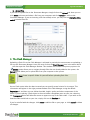
The RadEditor’s Hyperlink Manager allows users to insert several kinds of links on a page. The three
primary available links are:
1) Link to an external website
2) Link to a different portion of the current page (Anchor)
3) Link to an Email address
www.sharpschool.com
7
Appendix A RadEditor
SharpSchool User Manual
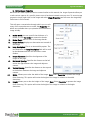
To insert a hyperlink you must first select the text you wish you be clickable, then open the
Hyperlink Manager by clicking on the
icon in the editor. This will open a window with three tabs:
Hyperlink, Anchor and E-mail.
a. Hyperlink
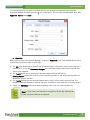
When you first open the Hyperlink Manager, it opens in Hyperlink mode. This window allows you to
include links to external sites on your page.
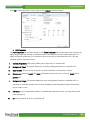
a) The URL field allows you to create a link to another page or document. Simply type in the site’s
address here, or use the Document Manager icon to browse existing files from or upload new
files to your computer.
b) The Target allows you to select which browser window the link will open in.
c) Existing Anchor allows you to create a link to another position on the same page (Anchors are
detailed in the next section).
d) The Tooltip defines the text that will appear when a user’s cursor hovers over the link. The
tooltip is important element in making your site accessible to users who rely on screen readers.
e) Finally, the CSS Class determines what formatting (color, size, etc.) the link will have.
Note: In most cases, you will only be required to fill the URL field and the
tooltip. All other elements are optional.
www.sharpschool.com
8
SharpSchool User Manual
Appendix A RadEditor
b. Anchor
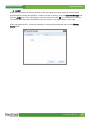
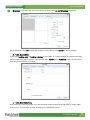
If you wish to link text to another position on the same page, you must create an Anchor on that
position before creating the hyperlink. In order to create an anchor, open the Hyperlink Manager and
click the Anchor tab. In the new window, name the anchor and click OK. It is important to note that
the name used in the anchor should be the word you wish to see hyperlinked on your page.
After creating the anchor, create the hyperlink by selecting the designated name in the Existing
Anchor field.
www.sharpschool.com
9
Appendix A RadEditor
SharpSchool User Manual
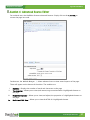
c. Email
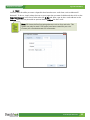
You also have the ability to create a hyperlink that launches an e-mail client, such as Microsoft®
Outlook®. To do so, simply select the text on your page that you want clickable and then click on the
Hyperlink Manager. In the row of tabs select the E-Mail tab. Here, type in the e-mail address in the
Address field. You may also add an optional default Subject for the e-mail.
Note: CSS classes define formatting elements such as font and color. This
option may only be used if CSS styles have been created for your site.
Contact your site administrator for information.
www.sharpschool.com
10
Appendix A RadEditor
SharpSchool User Manual
II. The Spell Checker
No matter how careful we try to be, spelling errors are a common occurrence in all written text.
Despite this general understanding, you never want to be found guilty of housing a spelling error on
your website. Therefore, the RadEditor features a built-in spell checker. This spell checker uses
standard American spelling to verify the spelling of words and highlights misspelled words with a
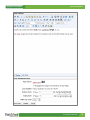
yellow background. To use the Spell Checker, click the
icon on your toolbar.
When a misspelled word is discovered a menu will open above it that displays suggested corrections
for the word. To insert a word from this list simply click on the word and it will replace the incorrect
word. Furthermore, you also have the ability to Ignore the spelling error, or override the suggestions
of the spell checker and alter the text manually by clicking on Change Manually or you may click Add
to dictionary to add the word to the site’s dictionary.
Once completed click the Finish spellchecking button to save any corrections. If you would like to
undo changes you have made in the spell checker, click the Cancel button. Once all words have been
corrected, the RadEditor will automatically exit spell checking mode.
www.sharpschool.com
11
Appendix A RadEditor
SharpSchool User Manual
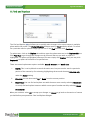
III. Find and Replace
The Find and Replace
tool allows you to quickly make changes to the same content in multiple
places within the portlet. The Find and Replace dialogue opens in Find mode by default. To search
for a particular word or phrase simply type the text in the Find field and click Find Next.
To replace text, click on the Replace tab and then type the replacement text in the Replace with box.
Click Find Next to go through the changes one by one until the text you wish to replace is
highlighted. To replace a highlighted instance of the text simply click Replace. Also, you may click
Replace All to replace all instances of a specified text.
There are several replacement options available: Search, Direction and Match Case.
i.
Search: This is set by default to search the entire text, but you can also search a particular
portion of the content by first selecting/highlighting the text and choosing Selection only
under the Search setting.
ii.
Direction: You can also search Up or Down from the current position.
iii.
Match Case: You can find and replace text with the exact same case by selecting Match case,
or to only find and replace instances which are not part of another word by selecting Match
whole words.
When you are done, select OK to accept your changes, or Cancel to go back to the version of content
you had before you opened the Find and Replace dialogue.
www.sharpschool.com
12
Appendix A RadEditor
SharpSchool User Manual
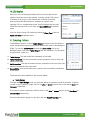
IV.CSS Styles
Users can use Cascading Style Sheets (CSS) to ensure that content
appears consistent across the website. Creating specific CSS classes
is outside of the scope of this manual and is almost exclusively
done by advanced administrators. However for regular users,
applying CSS is a straightforward task. Simply highlight the text and
select the style you wish to use from the Apply CSS Class dropdown
menu.
You may clear existing CSS classes by selecting Clear Class from the
Apply CSS Class dropdown menu.
V. Creating Tables
The RadEditor features a robust Table Wizard that gives users the ability to
create advanced and sophisticated tables without the need for knowledge of
HTML. To start the Table Wizard click on the Insert Table icon in the
WYSIWYG editor, and select Table Wizard from the dropdown. This will open
a window with 4 tabs in it:
a) Table Design: This tab creates the framework of the table.
b) Table Properties: This tab customizes various properties such as color and
border of the table.
c) Cell Properties: This tab customizes various properties such as the color and
border of individual cells in the table.
d) Accessibility: This tab will allow you to monitor the accessibility compliance
of the table.
These tabs have been detailed in the sections below.
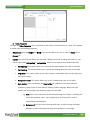
a. Table Design
Through the Table Design mode, you have the ability to preview the look of the table. To add or
remove a row or column, simply click on the plus or minus buttons next to the words Rows and
Columns respectively.
If you wish to widen a particular cell then click on the plus or minus buttons in the Row Span or
Column Span respectively.
Once the table layout appears as you like, click the Table Properties tab.
www.sharpschool.com
13
Appendix A RadEditor
SharpSchool User Manual
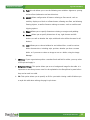
b. Table Properties
Through the Table Properties tab it is possible to alter various characteristics of a table. This window
is broken into the following segments:
i.
Dimensions: Here the Height and Width of the entire table can be set, in units of Pixels (px) or
Percent (%).
ii.
Layout: Here you have the ability give the table a background color and align text within it. You
can set table-wide cell spacing or cell padding, which inserts blank spaces between the cells.
a. Cell Spacing: This option allows you to specify the space between the cells of the table.
b. Cell Padding: This option allows you to specify the padding within the cells of the table.
c. Alignment: This option allows you to choose how to horizontally and vertically align your
table on the page.
d. Background color: This option allows you to set a background color for the table.
e. Style Builder: Users can employ the Style Builder as a platform from which they can
customize a wide variety of style features relating to their webpage. Within the style
builder you can configure the following options for the table:
i. Font: Various font elements can be utilized through this feature, including font
name, font attribute, color, size, capitalization, and font effects such as
strikethrough and underline.
ii. Background: You can select a background color, as well as using the Image
Manager to select a background image and configure it accordingly.
www.sharpschool.com
14
Appendix A RadEditor
SharpSchool User Manual
iii. Text: this tab allows you to set the following text variables: alignment, spacing
and text flow (indentation and text direction).
iv. Layout: Allows configuration of features relating to flow control, such as
visibility, display as a block or inflow element, allowing text flow, and allowing
floating objects, as well as features relating to content, such as overflow and
clipping options.
v. Edges: Allows you to specify dimensions relating to margins and padding.
vi. Border: Allows you to specify dimensions of top, right, bottom and left
borders, as well as whether the style, width and color will be the same for all
borders.
vii. Lists: Allows you to choose bulleted or not bulleted lists, as well as various
bullet characteristics, including style, position, whether you have a custom
bullet, or if you want to select an image to use as a bullet, using the Image
Manager.
f.
CSS Class: If your organization prefers a standard look and feel for tables, you may select
a CSS style and apply it.
g. Background Image: This option allows you to set a background image for the table. It is
important to note that pictures must first be uploaded to the SharpSchool system before
they can be used in a table.
h. ID: This option allows you to specify an ID for your table. Having a table ID allows you
to style this table when editing the page’s style sheet.
www.sharpschool.com
15
Appendix A RadEditor
SharpSchool User Manual
Click OK to insert the table on your page or click Cancel to delete changes.
c. Cell Properties
The Cell Properties tab functions similar to the Table Properties tab, except that in this case you can
apply unique style and settings to individual cells on the table and not the overall table itself. To
apply cell specific properties, it is essential to click on the cell in the preview box first. This tab
contains specific functions such as:
i.
Content Alignment: This option allows you to align text in a selected cell.
ii.
Background Color: This option allows you to assign a background color to a specific cell.
iii.
Style Builder: Offers a variety of options as discussed above in the previous section.
iv.
Dimensions: here the height and width of individual cells can be set, in units of pixels (px) or
percent (%).
v.
Background Image: This option allows you to set a background image to a selected cell. It is
important to note that pictures must first be uploaded to the SharpSchool system before they
can be used in a cell.
vi.
CSS Class: If your organization prefers a standard look and feel for cells, you may select a CSS
style and apply it.
vii.
ID: You can specify an Id for a particular cell.
www.sharpschool.com
16
SharpSchool User Manual
viii.
Appendix A RadEditor
Wrapping: If you want the text in the cell not to wrap, leave no text wrapping unchecked.
Once completed, click OK to apply the changes to the table or click Cancel to delete changes.
d. Table Accessibility
If you have heading rows or heading columns in your table, it is recommended to indicate how many
there are for accessibility reasons. You can also add a caption and a summary, which can be used to
improve the accessibility of a table.
e. Table Wizard Shortcuts
After inserting a table to a page, you have the ability to edit properties of the table by simply rightclicking in it. This will open a range of options in a dropdown such as:
www.sharpschool.com
17
Appendix A RadEditor
SharpSchool User Manual
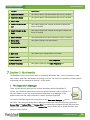
Feature
Description
1) Insert Row Above
This option adds a row above where the cursor is located.
2) Insert Row Below
This option adds a row below where the cursor is located.
3) Delete Row
This option deletes the row where the cursor is located.
4) Insert Column to the
This option deletes the column to the left of where the
Left
5) Insert Column to the
Right
cursor is located.
This option deletes the column to the right of where the
cursor is located.
6) Delete Column
This option deletes the column where the cursor is located.
7) Merge Cells
This option merges cells horizontally.
Horizontally
8) Merge Cells Vertically
This option merges cells vertically.
9) Split Cells
This option splits merged cells in the table.
10) Delete Cells
This option deletes the selected cell.
11) Cell Properties
This option opens up the Cell Properties tab.
12) Table Properties
This option opens up the Table Properties tab.
Section 3: Multimedia
The RadEditor offers users several ways of uploading multimedia files, such as documents, video,
Flash videos, audio files and webcam recordings to a site. The icons corresponding to these specific
multimedia files are tabulated in Section 1 of this guide.
I. The Document Manager
There are two ways by which you can include documents within SharpSchool’s
system, you can either upload them into a Document Container (refer to Chapter 10
for more details) or you may insert document hyperlinks on a webpage. In this
guide we will cover the steps required to create a document hyperlink.
To create a document hyperlinks simply click on the Document Manager
icon in
the editor. This will open the Document Manager window that contains two primary functions:
Browse Files and Upload Files. To Browse Files is to allow you to navigate through files that have
already been added to the system. The Upload Files option allows you to upload files from your
computer to the system.
www.sharpschool.com
18
Appendix A RadEditor
SharpSchool User Manual
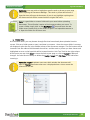
Reminder: You may wish to highlight a specific word or phrase on your page
before opening the Document Manager. This word or phrase will become a
hyperlink that will open the document. If you do not highlight anything then
the document link will be inserted with the original file name.
Note: It a good idea to create a folder with your name before uploading
documents. This will make it easier to find resources when you return. To
create a folder simply click on the New Folder
icon and enter the new
folder name. Double click on the folder to open it and upload documents in
it. Open this folder for all future uses.
a. Browse Files
As mentioned above, you may browse through files that have already been uploaded into the
system. Click on a folder name to open it and view its contents. Once the correct folder’s contents
are displayed, select the file in the middle column of the document manager. The file location will be
inserted in the file address field beneath the tool bar, and the word or phrase you have chosen and
highlighted to serve as the hyperlink will be inserted into the “Link Text” field in the right column.
At this point you may click Insert to insert the link to your page, or click on Cancel to delete all
changes. You also have the ability to define the Tooltip, Target and CSS Class of the link before
inserting it.
Reminder: Target dropdown menu sets which window the document will
open in. Tooltip determines what text is displayed when a visitor moves the
mouse over the link.
www.sharpschool.com
19
Appendix A RadEditor
SharpSchool User Manual
b. Upload Files
If you wish to upload files to the Document Manager, simply click on the Upload tab. Here you can
click Select to browse and select a file from your computer and click Upload to add it to the
Document Manager. If you are inserting a file that already exists, you may click on Overwrite if file
exists? to delete that file.
II. The Flash Manager
Uploading a Flash file to the Flash Manager is achieved in precisely the same manner as uploading a
file into the Document Manager. Here you must click on the Flash Manager icon in the editor which
will then open the Flash Manager window. This window also contains two primary options: the
Browse option allows you to navigate through files that are already added to the system; the
Upload option allows you to upload files from your computer to the system.
Note: Create a specific folder for yourself before uploading flash files.
Once a Flash movie/video has been inserted you can specify several criteria for its output. This
information will appear in the right preview window of the Flash Manager, using the default
Properties tab, and here you can define the width, height, quality and other components of the
video. If you are placing a flash object in the area below a dropdown menu on your site, selecting
the Transparent option will allow the menus to appear on top of the Flash video. If you wish to see
how the video would look on your site, simply click on the Preview tab.
If you’re satisfied with the changes, click Insert to add the file on your page, or click Cancel to delete
all changes.
www.sharpschool.com
20
SharpSchool User Manual
Appendix A RadEditor
III. The Media Manager
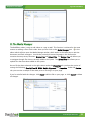
The RadEditor makes it easy to add videos to a page as well. This function is achieved in the same
manner as adding a file or flash video. Here you must click on the Media Manager icon
in the
editor which will then open the Media Manager window, which works in the same way as with the
document and flash managers. As with the previously discussed managers, this feature also
contains the two primary functions: Browse Files and Upload Files. The Browse Files tab allows you
to navigate through files that are already added to the system. The Upload Files tab allows you to
upload files that have been added to the system.
Once a file has been selected, in the right column under the Properties tab, you have the option of
setting the following: Specify Class ID, Width, Height, Alignment and Properties. Under the Preview
tab, you can view a sample of the video prior to inserting it on your page.
If you’re satisfied with the changes, click Insert to add the file on your page, or click Cancel to delete
all changes.
www.sharpschool.com
21
Appendix A RadEditor
SharpSchool User Manual
IV.The Image Manager
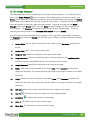
The Image Manager is used to upload and insert images onto your web site. To access this feature,
click on the Image Manager
icon in the editor. This window contains two primary options: the
Browse option allows you to navigate through files that are already added to the system; the Upload
option allows you to upload files from your computer to the system. To browse existing images, use
the centre column to select the image you wish to utilize. To upload an image into the Image
Manager, click on the Browse button, and click Select to browse images you wish to upload from
your computer. The Directory will display the path for the currently selected folder. If you are
replacing an existing file then check Overwrite if file exists? and press Upload.
Once an image has been uploaded you may preview it in the right side of the window. Clicking on
the Properties tab, beside the Preview tab, will allow you to configure a number of elements relating
to the image:
i.
Border Width: You can specific the thickness of a border, or click No Border to remove the
border.
ii.
Border Color: select a color of the image border.
iii.
Image Alt Text: displays an alternative text instead of the image.
iv.
Long description: This is an Accessibility option. The text entered in the "ong Description
field will be read by the Windows Narrator tool and other screen readers.
v.
Image Alignment: Specifies the alignment of the image on the page
vi.
Width: Allows you to alter the width of the image. Note: select Constrain to prevent the
image from distorting. This option will resize the height of the image in relation to the width
alterations.
vii.
Height: Allows you to alter the height of the image. Note: select Constrain to prevent the
image from distorting. This option will resize the width of the image in relation to the height
alterations.
viii.
CSS Class: Allows you to select a particular CSS class to apply to your image.
ix.
Best Fit
x.
Actual Size
xi.
Zoom In
xii.
Zoom Out
- This option resizes the image to fit in the preview window
- displays the actual size of the image
- allows users to zoom into the image
- allows users to zoom out of the image
www.sharpschool.com
22
Appendix A RadEditor
SharpSchool User Manual
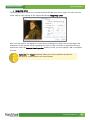
In addition to these elements, the Image Editor at the top of the right column offers a number of
other options. These options will be detailed in the following section.
a. Editing an Image
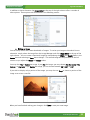
You can easily resize and create thumbnails of images. To resize your image to thumbnail size or
otherwise, simply select the image from the Image Manager and click Image Editor at the top of the
right column. You can create a thumbnail image by manipulating the Width and Height fields in the
Resize box and selecting to Save those changes. The resized image will be previewed in the left
column as you adjust the Width and Height values.
You may also Flip or Rotate the image. If you Flip the image, you may choose Flip Horizontal, Flip
Vertical, or Flip Both. If you Rotate the image, you can choose between 90°, 180°, or 270°.
If you wish to display only a portion of the image, you may also use Crop to choose a portion of the
image to turn into a new file.
When you have finished making your changes, click Save to save your new image.
www.sharpschool.com
23
SharpSchool User Manual
Appendix A RadEditor
b. Editing Image Properties
Much like the Table Properties section covered earlier in this manual, the Image Properties allow you
to edit various aspects of a specific picture once it has been inserted onto your site. To access image
properties simply right click on the image and select Image Properties (we will cover the Image Map
Editor later in this manual).
This will open a new window through which you can edit
many of the same elements as under the Properties tab,
which was available when you uploaded and inserted the
image initially:
i.
Border Width: You can specific the thickness of a
border, or click No Border to remove the border.
ii.
Border Color: select a color of the image border.
iii.
Image Alt Text: displays an alternative text instead of
the image.
iv.
Long description: This is an Accessibility option. The
text entered in the Long Description field will be read
by the Windows Narrator tool and other screen
readers.
v.
Image Alignment: Specifies the alignment of the
image on the page.
vi.
Horizontal Spacing: Specifies the distance to the left
and to the right between the image and adjacent
content.
vii.
Vertical Spacing: Specifies the distance to the top and
to the bottom between the image and adjacent
content.
viii.
Width: Allows you to alter the width of the image. Note: Select Constrain to prevent the image
from distorting. This option will resize the height of the image in relation to the width
alterations.
ix.
Height: Allows you to alter the height of the image. Note: Select Constrain to prevent the image
from distorting. This option will resize the height of the image in relation to the height
alterations.
www.sharpschool.com
24
SharpSchool User Manual
Appendix A RadEditor
c. Image Map Editor
The Image Map Editor allows you to create multiple clickable areas on an image. You may create an
image map by right clicking on the image and selecting Image Map Editor.
Here, you may select a rectangular or circular area to highlight the image. You can then adjust the
dimensions of the selected area by dragging the corners of the area itself, or specifically defining
dimensions under the Selected Area Properties heading. Finally, you must specify a URL to complete
this step.
Reminder: The Target dropdown allows you to select whether the new site
will open in a new window or the same window.
www.sharpschool.com
25
Appendix A RadEditor
SharpSchool User Manual
V. ClipArt Manager
The ClipArt Manager allows you to quickly and easily insert images from our ClipArt library on to
your page. To insert a ClipArt image, click the area in the editor where you want to insert your image
and then click the
icon.
A new window will open. From this window, you can click on a category you are interested in. You
can also choose to view All Categories or just view Clip Art images you have Recently Selected.
If you wish, you can use the Search bar to search for a specific image. Just type in a keyword and
click Find.
If you find an image you like, you can see a larger version of the image by hovering over the image
and selecting Preview. If you wish to use the image, you can then click Select to choose the image.
If you do not wish to the image, click on the X in the top right corner of the image.
Tip: If you know you want to use a particular image, you can bypass the preview
and insert the image directly. To do so, hover over the image and click on the
image outside of the Preview button.
Once you insert an image, you can right-click on the image and choose Properties if you wish to
change the image size or alter other image properties. For more on editing image properties, see
Editing Image Properties earlier in this guide.
www.sharpschool.com
26
Appendix A RadEditor
SharpSchool User Manual
Section 4: Advanced Source Editor
For technical users the RadEditor features advanced features. Simply click on the < > HTML to
convert the page into code.
Furthermore, the Module Manager
allows advanced users to view several aspects of the page.
These will appear on the bottom of the editor. The modules are:
i.
ii.
Statistics – Displays the number of words and characters on the page
Tag Inspector – Allows you to view (and remove) tags associated with a highlighted element on
the page.
iii.
Properties Inspector – Allows you to view (and adjust) the properties of a highlighted element on
the page.
iv.
Real-time HTML View – Allows you to view the HTML of a highlighted element.
www.sharpschool.com
27