1
DynaSCAPE Design (version 4.3)
Tips and Tricks...
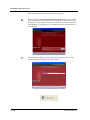
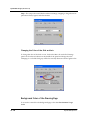
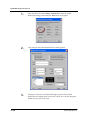
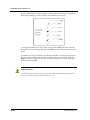
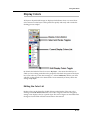
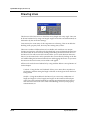
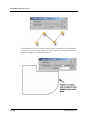
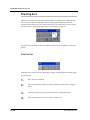
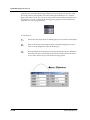
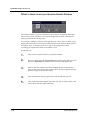
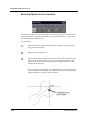
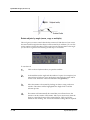
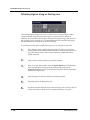
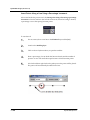
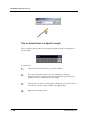
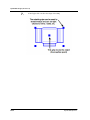
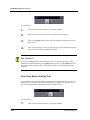
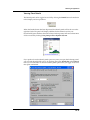
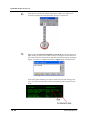
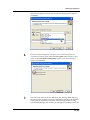
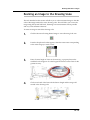
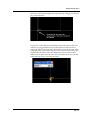
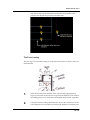
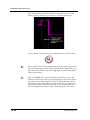
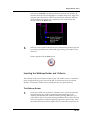
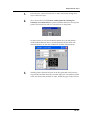
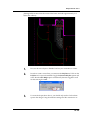
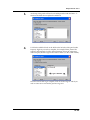
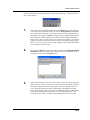
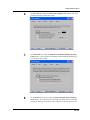
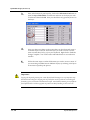
With this method, multiple lines can be selected for revision at one time but only one setting
can be changed at a time.
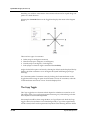
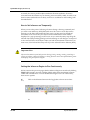
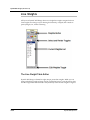
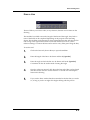
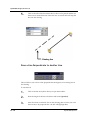
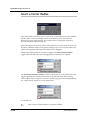
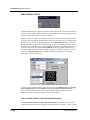
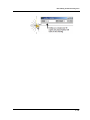
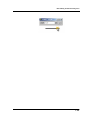
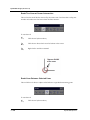
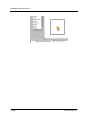
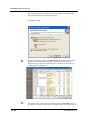
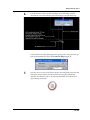
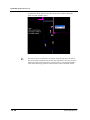
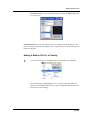
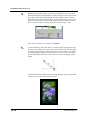
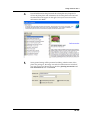
Alternatively, individual attributes of the layer can be revised in this way, for
example, the Weight of the line can be increased or decreased.
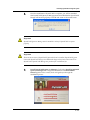
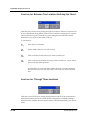
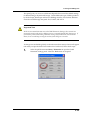
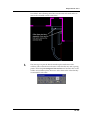
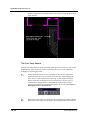
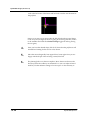
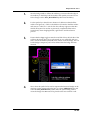
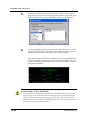
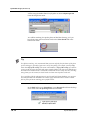
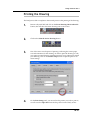
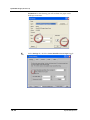
The Color can also be changed, which is especially useful when using the “Print using
entity display colors” output option (File | Print | On the Print Drawing panel select
the Color tab).
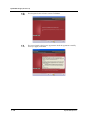
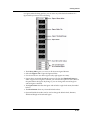
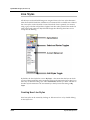
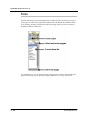
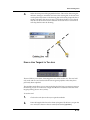
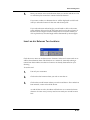
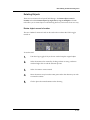
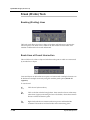
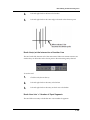
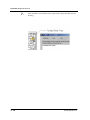
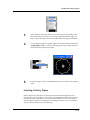
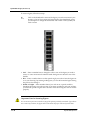
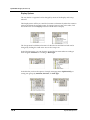
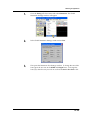
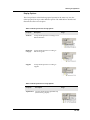
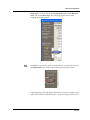
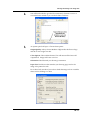
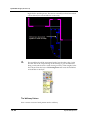
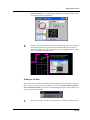
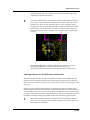
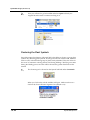
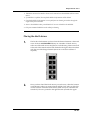
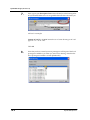
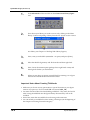
The Style of the line can also be changed from Continuous to Stitched to Gray-scale,
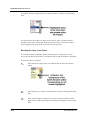
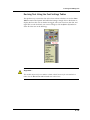
etc. As mentioned above, each of these options has its own table, accessible by
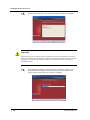
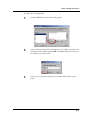
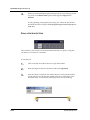
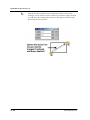
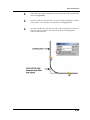
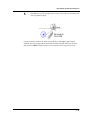
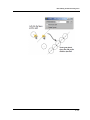
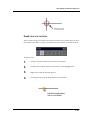
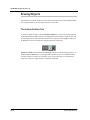
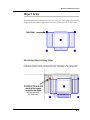
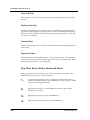
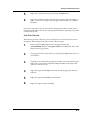
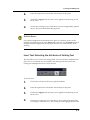
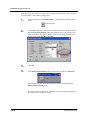
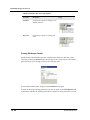
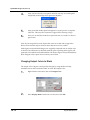
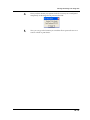
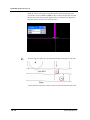
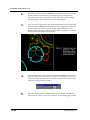
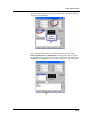
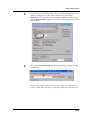
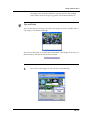
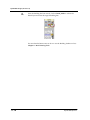
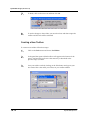
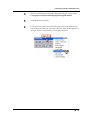
selecting the icon for the attribute, then clicking the Revise toggle. Select the new
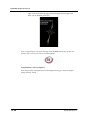
setting (for example, a new color, line style, etc.), Click to select the entity (or entities)
to revise, then right-click to end selection and finish the revise command.
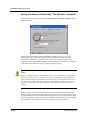
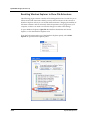
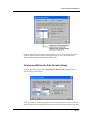
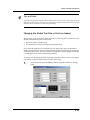
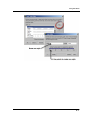
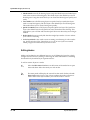
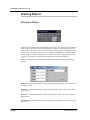
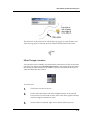
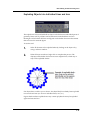
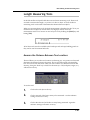
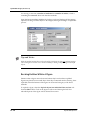
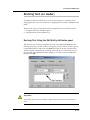
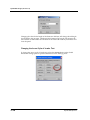
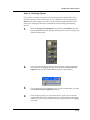
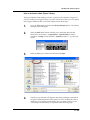
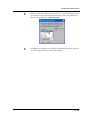
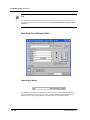
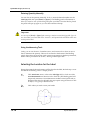
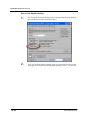
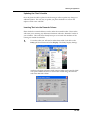
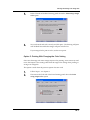
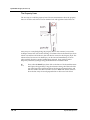
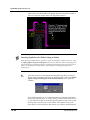
Revising Objects Using the Edit Entity Attributes Panel
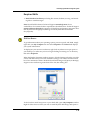
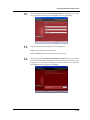
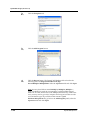
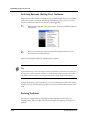
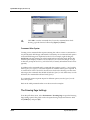
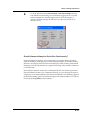
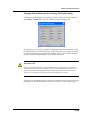
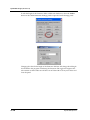
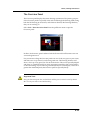
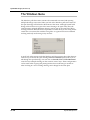
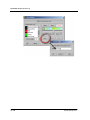
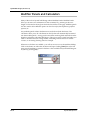
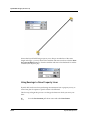
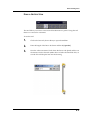
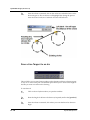
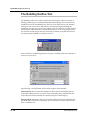
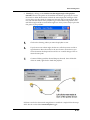
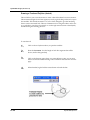
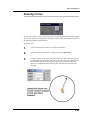
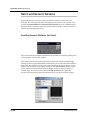
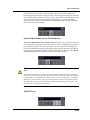
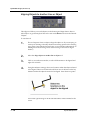
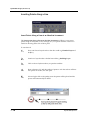
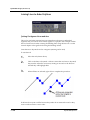
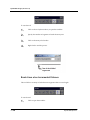
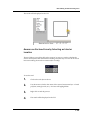
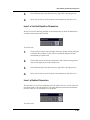
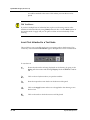
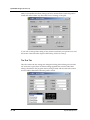
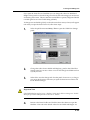
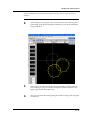
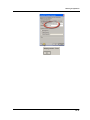
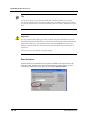
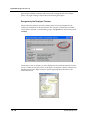
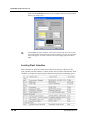
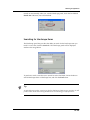
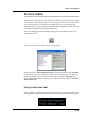
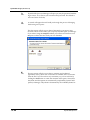
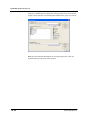
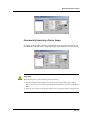
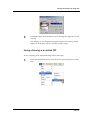
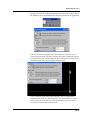
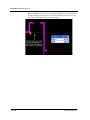
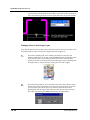
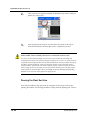
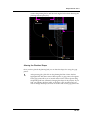
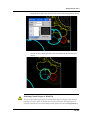
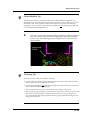
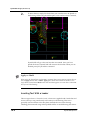
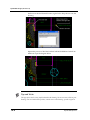
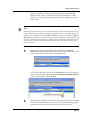
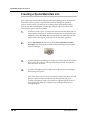
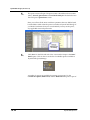
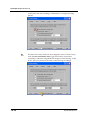
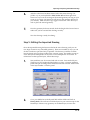
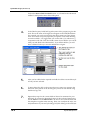
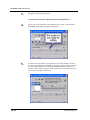
The second method for revising an object’s appearance is by opening the Edit Entity
Attributes panel, which is done by holding [Ctrl] and clicking on the entity to be
revised. This panel allows you to make the same changes as those in the example
above and more.
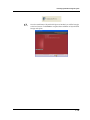
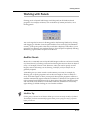
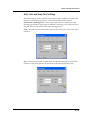
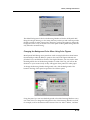
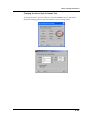
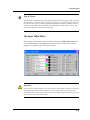
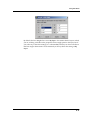
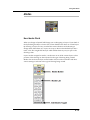
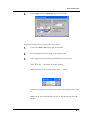
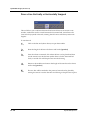
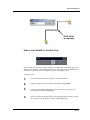
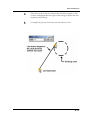
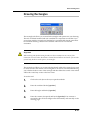
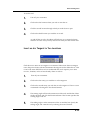
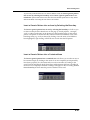
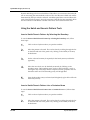
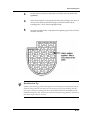
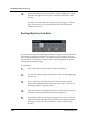
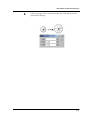
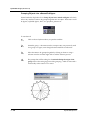
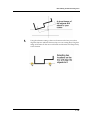
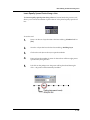
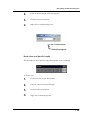
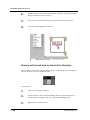
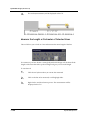
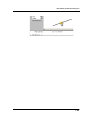
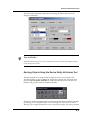
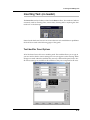
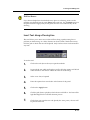
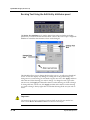
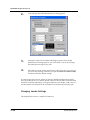
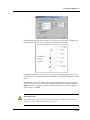
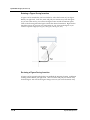
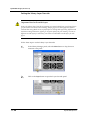
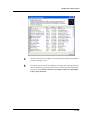
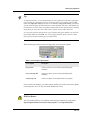
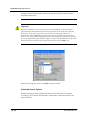
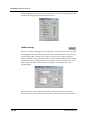
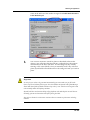
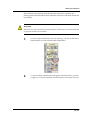
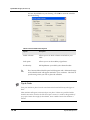
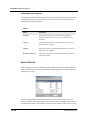
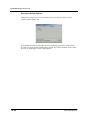
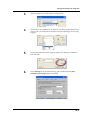
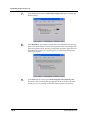
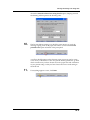
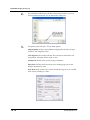
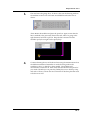
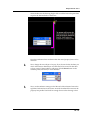
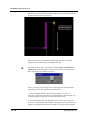
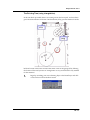
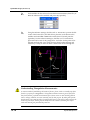
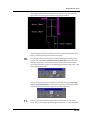
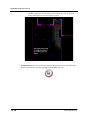
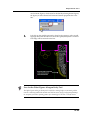
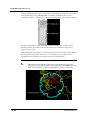
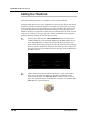
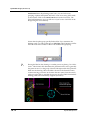
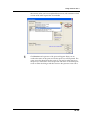
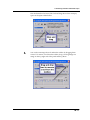
The panel’s Display tab allows changes to layer, style, weight and color properties,
but will also allow custom line weights to be set, the Fill setting (whether a line is
filled or un-filled) to be toggled, and multiple attributes to be changed at one time.
8.8
DynaSCAPE Software