1
HEIDELBERG INSTRUMENTS SOFTWARE GUIDE
Conversion Job Manager V. 1.8.3, µPG 501
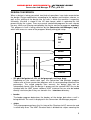
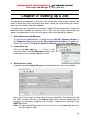
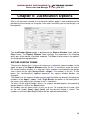
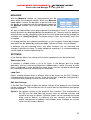
Insert a source file into the drop down list of source files by pressing the Add
button of the Source File frame. A list of available design types appears: GDSII,
DXF, Gerber-RS274, and CIF.
Note: In systems with gray scale option, more formats are available in the list.
Please refer to the section on gray scale exposures for descriptions on
these formats.
Choose the design type of the design to be used in the job. A file selection
window with the contents of the related directory will pop up, within which the
required source file has to be selected. Confirm by clicking on Open. The new file
is now inserted in the source file list, and the Design Options window opens. If
later a design should be removed from the list, use the Rem button of the Source
File frame.
4
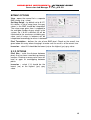
Set Design Options
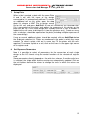
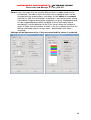
For each design format, different options for design adaptation (e.g.,
magnification, layer selection, merging, stepping, rotation, mirroring) are
available. For explanations on the available options refer to the related Design
Format Options section.
5
Create HIMT File
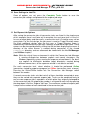
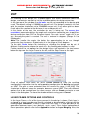
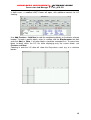
After all options are set, choose Create
Default. The design is translated into the
structure format with the options chosen, and
stored under the same name as the design,
but without extension. If a different name
should be used, choose Create and enter a
new name in the dialog box.
If the design is the first of the job, both a plate and a cell are automatically
created, and this design is added to the cell.
6
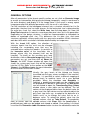
Load / Modify HIMT File
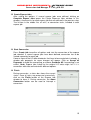
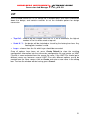
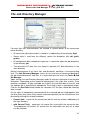
Any HIMT File that was translated within a job is automatically added to the HIMT
File selection list in that job. In addition, structure files created during other job
sessions can be loaded for use in the current job. Click on Add to open a window
showing the contents of the structure directory. Select a structure, and click on
Open. The selected HIMT Structure File appears in the selection list and is
available as source design. Any design can be removed from the list using the
Rem button.
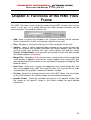
If several HIMT Files should be merged to a new file, text should be added to a
HIMT File, or a source design should be retranslated using the original options as
basis, the functions of the HIMT File frame can be used. Refer to the chapter on
Functions of the HIMT File Frame for more detailed information.
Now everything is set up in the main layer. The next step is to proceed to the plate
level.
11