1
Getting Started with EZ-CARE2
EZ-CARE2
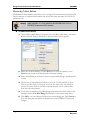
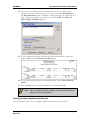
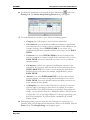
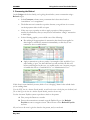
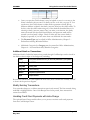
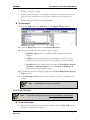
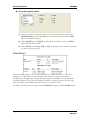
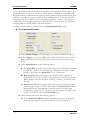
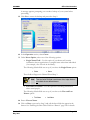
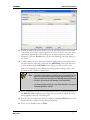
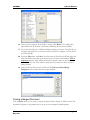
orange, yellow, green, blue, etc. Saturation is the amount of color in a
given area, where pastels have low saturation, and vivid colors have
high saturation. The hues vary left to right, the amount of saturation
varies from fully saturated at the top of the square to zero saturation
along the bottom.
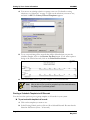
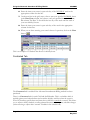
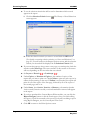
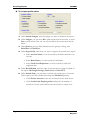
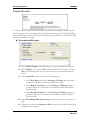
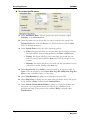
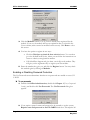
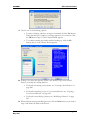
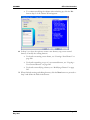
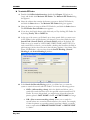
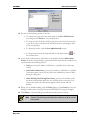
o Click on a point on the right-hand slider to select the luminance (the
lightness or darkness of the color). For instance, to get browns or
golds, choose a red, orange or yellow tone and select a point lower
down on the slider.
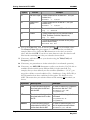
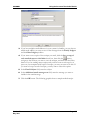
5.
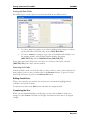
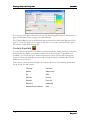
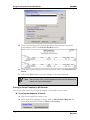
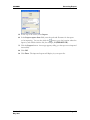
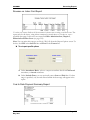
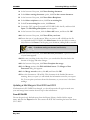
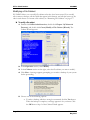
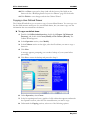
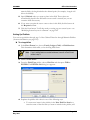
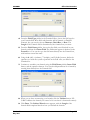
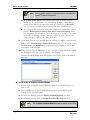
Once you have selected the custom color you want, click the Add to Custom
Colors button to save the color to the swatch you selected.
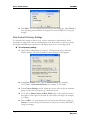
6. When you’ve selected your color, click the OK button. The tab and/or screen
changes to the color you selected.
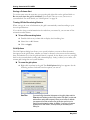
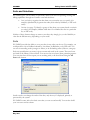
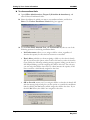
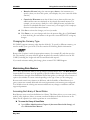
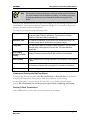
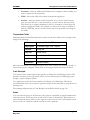
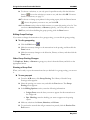
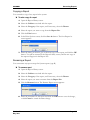
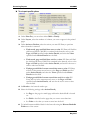
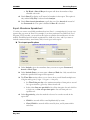
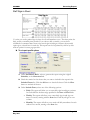
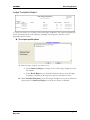
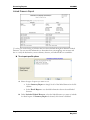
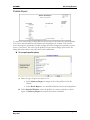
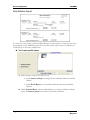
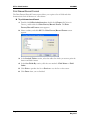
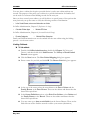
X To remove a custom color from tabs or screens
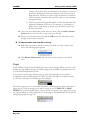
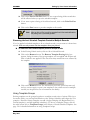
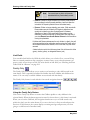
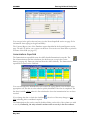
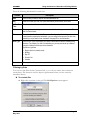
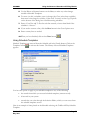
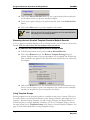
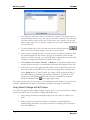
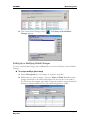
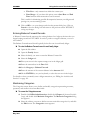
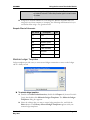
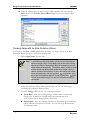
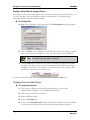
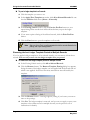
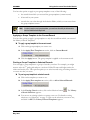
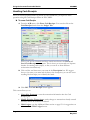
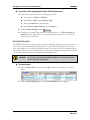
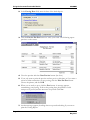
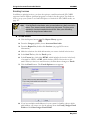
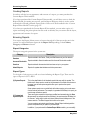
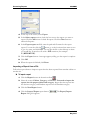
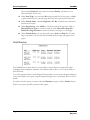
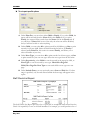
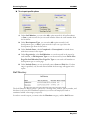
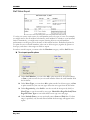
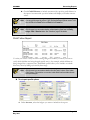
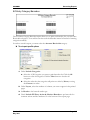
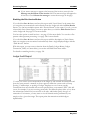
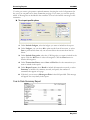
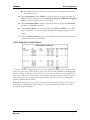
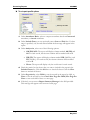
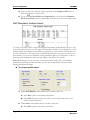
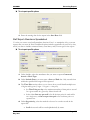
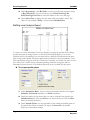
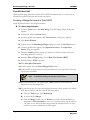
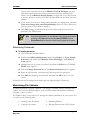
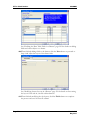
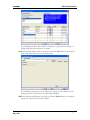
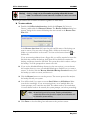
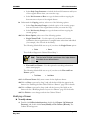
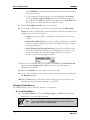
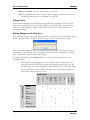
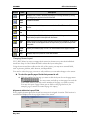
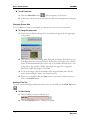
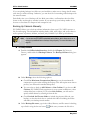
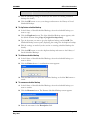
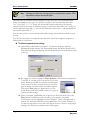
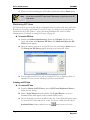
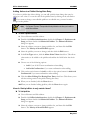
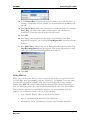
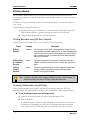
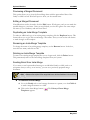
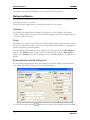
1. Right-click anywhere on the tab or screen for which you want to remove the
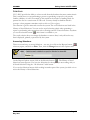
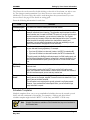
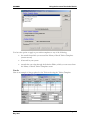
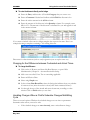
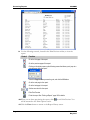
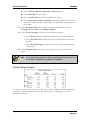
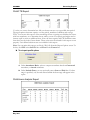
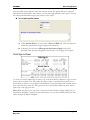
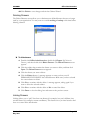
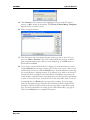
color. The following menu appears:
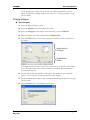
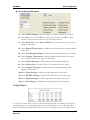
2. Click Restore Default Color. The tab and/or screen returns to the default
color.
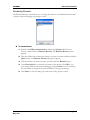
Pages
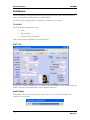
In EZ-CARE2, Family, Child and Staff tabs can have up to 9 pages. When you access a tab
initially, the page displayed is page 1. Additional pages can be added to personalize the look
of your screen and placement of data.
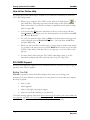
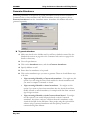
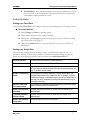
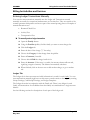
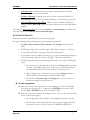
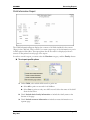
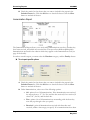
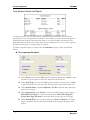
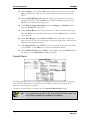
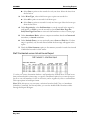
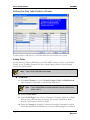
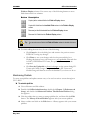
You may have several pages already set up on some tabs, depending on your initial
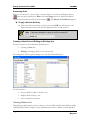
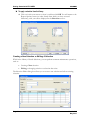
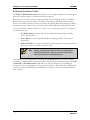
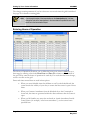
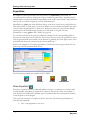
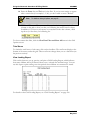
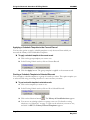
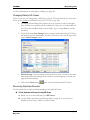
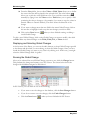
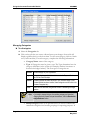
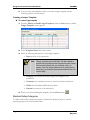
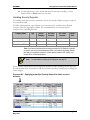
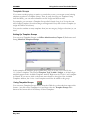
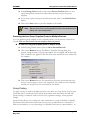
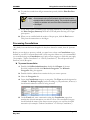
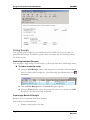
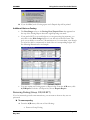
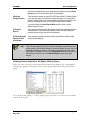
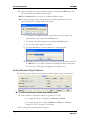
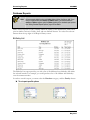
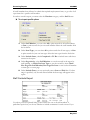
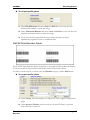
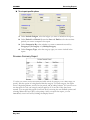
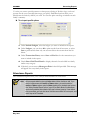
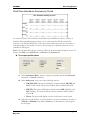
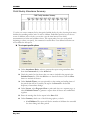
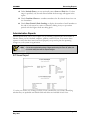
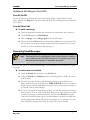
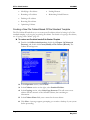
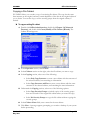
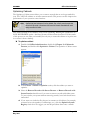
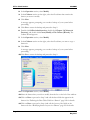
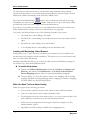
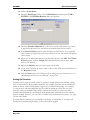
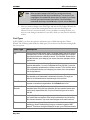
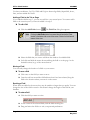
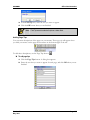
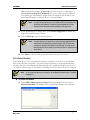
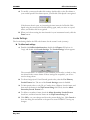
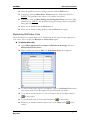
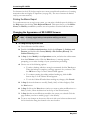
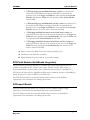
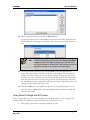
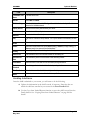
configuration when you purchased EZ-CARE2. On the lower right of the drawer screen,
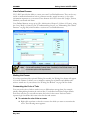
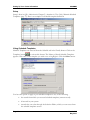
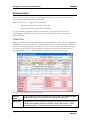
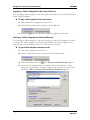
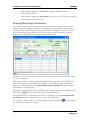
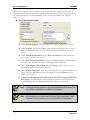
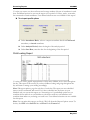
you will see a summary of available pages. For example:
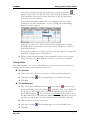
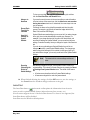
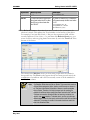
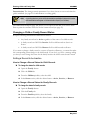
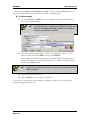
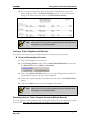
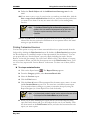
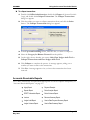
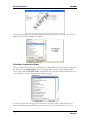
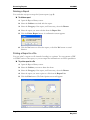
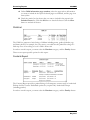
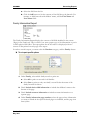
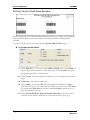
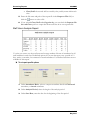
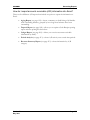
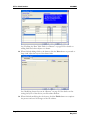
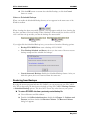
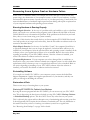
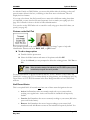
The current page you are on is inverted and yellow. Available pages are white, and unused
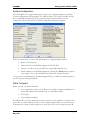
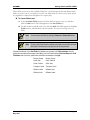
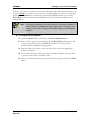
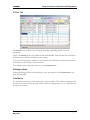
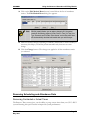
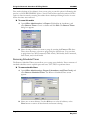
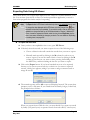
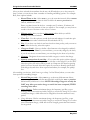
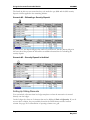
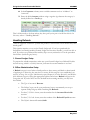
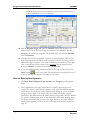
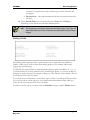
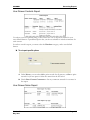
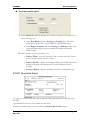
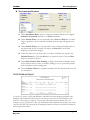
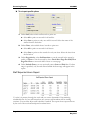
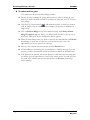
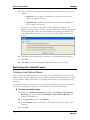
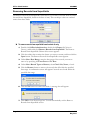
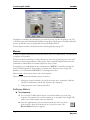
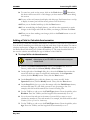
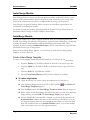
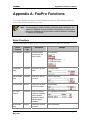
pages are gray. Click on the pages you want to access or use the PAGE UP or PAGE
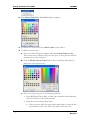
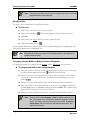
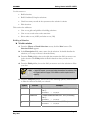
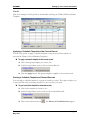
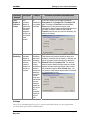
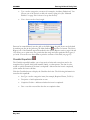
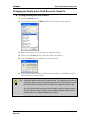
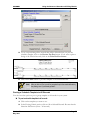
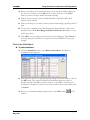
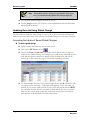
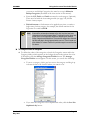
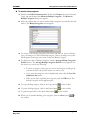
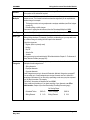
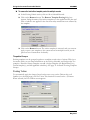
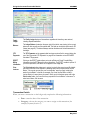
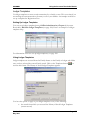
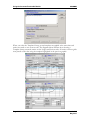
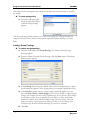
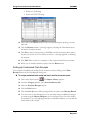
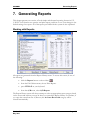
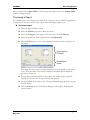
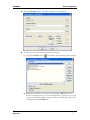
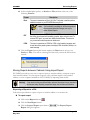
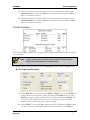
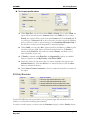
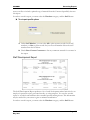
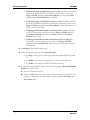
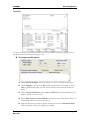
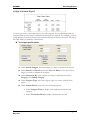
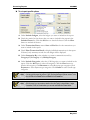
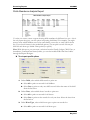
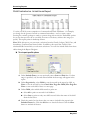
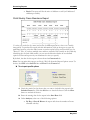
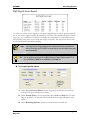
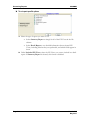
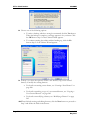
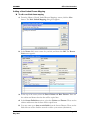
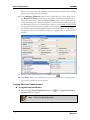
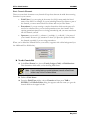
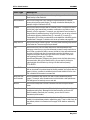
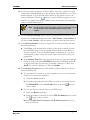
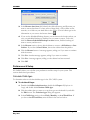
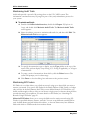
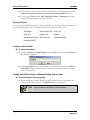
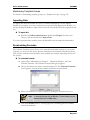
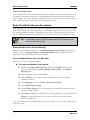
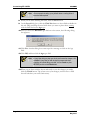
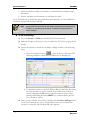
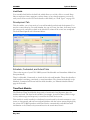
DOWN keys on the keyboard. Often, you can “hover” the pointer over a page, and a “page
tip” appears, telling you what information is on the page, as illustrated below. For details on
setting up page tips, see page 307.
Version 7.0
May 2010
Page 19