1
Office Administration
EZ-CARE2
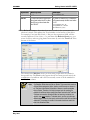
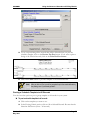
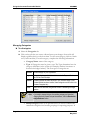
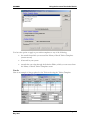
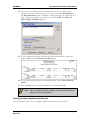
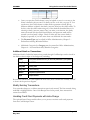
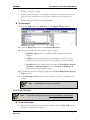
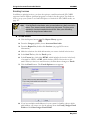
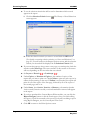
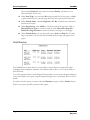
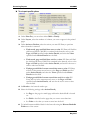
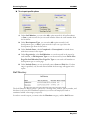
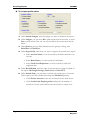
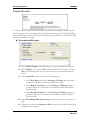
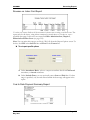
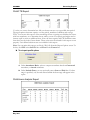
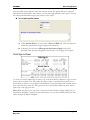
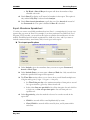
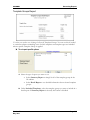
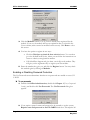
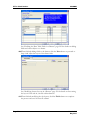
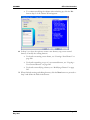
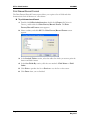
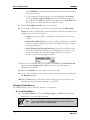
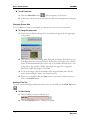
5. Click OK, and then click the Done button.
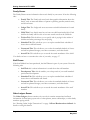
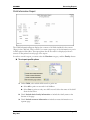
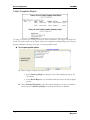
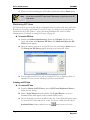
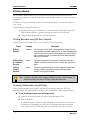
Primary Key Cleanup
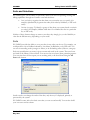
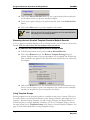
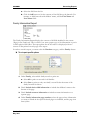
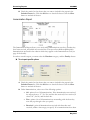
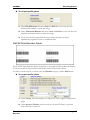
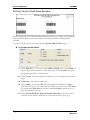
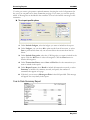
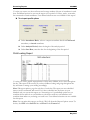
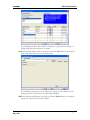
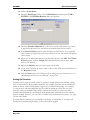
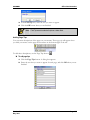
The Primary Key Cleanup screen is used to correct duplicate primary keys.
This option is used for support purposes, and only with the direction and guidance of a
SofterWare support representative.
System Updates
Installing an Update
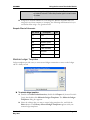
Important! You must back up your EZ-CARE2 system before installing updates, in case
something goes wrong during the installation process. See “Backing Up Your
System” on page 309 for details.
In this section, the server refers to the location where you have installed the EZ-CARE2
System. On a Local Area network (LAN), this is the server. On a peer-to-peer network, it is
a computer that holds the system and data but also acts as a workstation for someone in
your center.
Getting Ready To Install
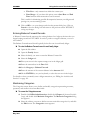
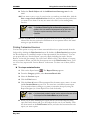
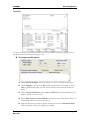
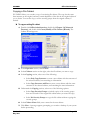
X To get ready to install
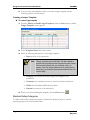
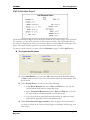
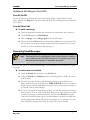
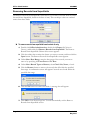
1. Disable any virus scanning software that might interfere with the installation.
2. Log on from a workstation as Administrator, having full rights to the server.
3. Make sure everyone is logged out of the EZ-CARE2 system, if there are multiple
users.
4. Make sure EZ-CARE2 is not running on the server, or at any workstations.
Run the Installation
From CD
X To install from a CD
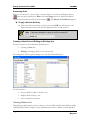
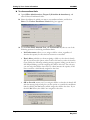
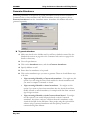
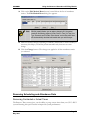
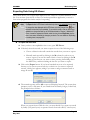
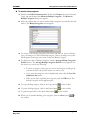
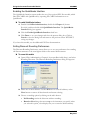
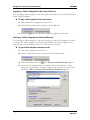
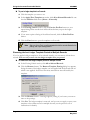
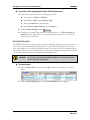
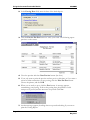
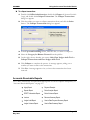
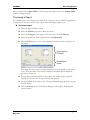
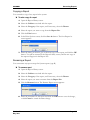
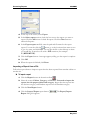
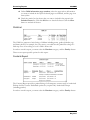
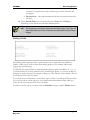
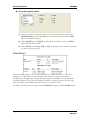
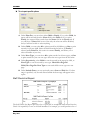
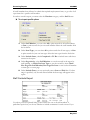
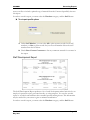
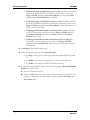
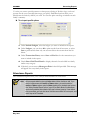
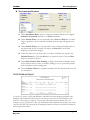
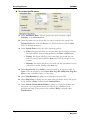
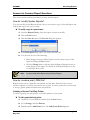
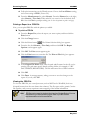
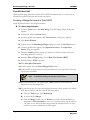
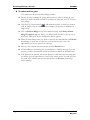
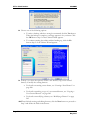
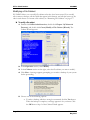
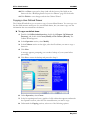
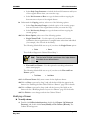
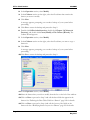
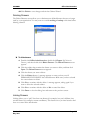
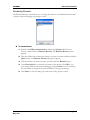
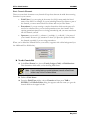
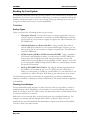
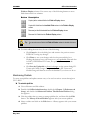
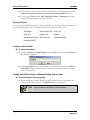
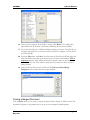
1. Insert the CD, click Update Programs, and then click Update EZ-CARE2
System, which updates EZ-CARE2 on the server.
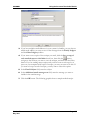
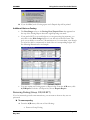
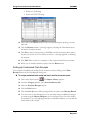
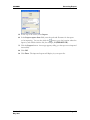
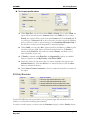
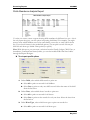
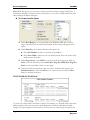
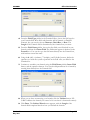
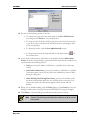
2. Follow the instructions on the screen. This includes a prompt to indicate the
folder where your EZ-CARE2 program is located on the server.
Version 7.0
May 2010
Page 331